How To Make Sd Card Default Storage On Android

How to Make SD Card Default Storage on Android
When you insert an SD card into your Android device, you might want to set it as the default storage location for apps, photos, videos, and other files. Doing this can free up your phone’s internal storage and give you more space for new content. However, setting your SD card as the default storage isn’t always straightforward because Android’s options vary depending on the device model, operating system version, and manufacturer modifications. In this article, we will explain step-by-step how to make your SD card the primary storage on Android, explore different methods, and provide useful tips to ensure your data is stored where you want it.Understanding the Role of Internal Storage and SD Cards
Before diving into the setup process, it’s essential to understand how internal storage and SD cards work on Android devices.What is Internal Storage?
Internal storage is built into your Android device. It’s where your apps, system files, and personal data like contacts and photos are stored by default. Internal storage is usually faster and more reliable but has limited capacity depending on your device.What is an SD Card?
An SD card is an external storage option that you can insert into your phone to expand its capacity. It’s useful for storing media files such as photos, videos, music, and sometimes apps. Not all apps can be moved to SD cards, especially system apps, but installing media and documents on SD is straightforward.Why Set SD Card as Default Storage?
People choose to set SD cards as default storage for several reasons:- Increase available space on internal storage.
- Organize media files more easily on a separate card.
- Make it simple to transfer large files between devices.
- Prevent internal storage from filling up quickly, which can slow down your device.
Methods to Make SD Card Default Storage on Android
Depending on your device’s Android version and manufacturer, you might have different options for making your SD card the default storage. Here are the most common methods:Method 1: Change Storage Settings in the Camera App
Many Android devices allow you to choose the storage location directly within the camera app for photos and videos. This is the quickest way to ensure your media is saved to the SD card.Steps:
- Open the Camera app on your Android device.
- Look for the settings icon, usually resembling a gear wheel, and tap on it.
- Find the option labeled ‘Save to’ or ‘Storage location’.
- Select ‘SD card’ as the default storage option.
Method 2: Use the Storage Settings in Android
In newer Android versions, you can set your SD card as the default storage through the device settings.Steps:
- Go to the Settings app on your Android device.
- Scroll down and tap on ‘Storage’ or ‘Storage & USB’.
- Look for an option called ‘Preferred storage location’ or ‘Default storage’. Not all devices display this option.
- If available, select ‘SD card’ as the default storage.
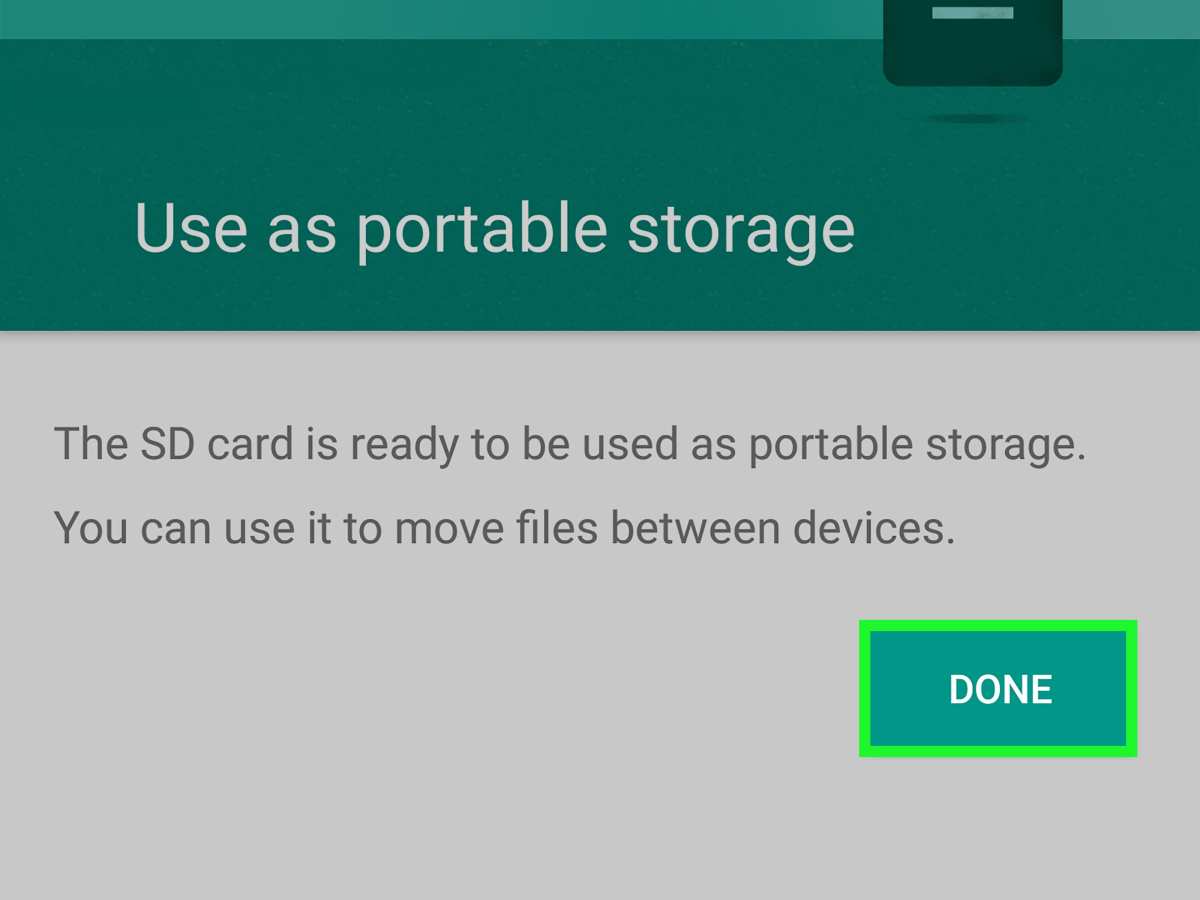
Method 3: Format the SD Card as Portable Storage
Formatting your SD card as portable storage allows you to use it for media and file storage but does not make it the default for app data. Still, it helps in organizing files better.Steps:
- Open the Settings app.
- Navigate to ‘Storage’ or ‘SD & Phone Storage’.
- Select your SD card from the list of storage devices.
- Tap on ‘Format as portable storage’.
- Follow the prompts to complete formatting.
Method 4: Move Apps and Data to SD Card
While not a direct method to make SD as the default storage, moving apps and data to SD helps free space on internal storage.Steps:
- Open the Settings app.
- Tap on ‘Apps’ or ‘Applications’.
- Select the app you want to move to SD card.
- Tap ‘Storage’.
- Choose ‘Change’ or ‘Move to SD card’ if available.
Overcoming Limitations and Special Cases
Sometimes, your device or Android version may not offer an easy way to set the SD card as default storage. Here are some alternative approaches and tips:Using Third-Party Apps
Various apps can change how your device handles storage, such as ‘Link2SD’ or ‘Apps2SD’. These apps can help move and manage apps more effectively, but they often require root access.Rooting Your Device
Rooting gives you full control over your Android phone, allowing you to set SD card as the primary storage more comprehensively. However, rooting can void warranties and may cause issues if not done correctly. Proceed with caution and research your device specifically.Modifying System Files
On rooted devices, some users modify system files to set SD as the default storage. This advanced process involves editing configuration files and should only be attempted if you are experienced with Android system modifications.Precautions and Best Practices
Before making any changes, keep these tips in mind:- Back up your data regularly to avoid loss.
- Use high-quality SD cards from reputable brands to prevent corruption.
- Ensure your SD card is formatted correctly for your device.
- Check your device’s manual or manufacturer’s website for specific instructions.
- Be cautious when rooting or modifying system files, as it can brick your device if done improperly.
Summary of Tips and Tricks
– Always back up data before formatting or changing storage options. – Use the device’s built-in settings as the first approach. – Move media files to SD card manually to free internal storage. – Consider third-party apps only if your device supports them and understand the risks. – Regularly check for system updates that might improve storage management. Setting your SD card as the default storage on an Android device can significantly improve your experience by providing more space for essential apps and files. While the process varies depending on your device, understanding the available methods helps you choose the best approach. Whether through built-in settings, app management, or more advanced techniques like rooting, always prioritize data safety and device health. Remember to keep your SD card well-maintained and regularly back up important information to prevent data loss. With patience and careful steps, you can effectively manage where your Android device stores your data, making your device run smoother and more efficiently.Frequently Asked Questions
Can I set my SD card as default storage for all apps on Android?
Most Android devices do not allow setting the SD card as the default storage location for all apps directly. However, you can move individual apps to the SD card through the app settings if your device supports this feature. To do this, go to Settings > Apps, select the app you want to move, and tap “Change” under Storage, then select the SD card if available. Keep in mind that some apps cannot be moved due to their design or developer restrictions.
What steps should I follow to transfer existing data to the SD card as the primary storage?
Start by inserting the SD card into your device and formatting it if necessary via Settings > Storage > SD card > Format. Once formatted, go to Settings > Storage and look for options to set the SD card as default storage, if available. For data like photos, videos, or downloads, manually relocate files to the SD card using a file manager app. Some devices may have an option to change default locations for media storage in camera and download apps.
Are there any limitations when setting the SD card as default storage on Android?
Yes, some limitations include apps that are restricted from being moved to the SD card due to their functionality, which may result in reduced performance. Also, some Android versions or devices do not support changing the default storage location system-wide. Additionally, if the SD card is removed or becomes corrupted, it can cause issues with app data or media stored on the card.
Will changing the default storage to the SD card affect app performance?
Moving apps to the SD card can sometimes slow down their performance, especially if the SD card has a slower read/write speed compared to internal storage. To minimize lag, opt for a high-speed SD card and only move apps that are compatible and do not require high-speed access. Always ensure the SD card is properly formatted and functioning well before transferring data or apps.
How can I ensure media files are saved directly to the SD card instead of internal storage?
Set your camera and download apps to save files directly to the SD card by going into their settings and changing the default storage location. For media apps like WhatsApp or Messenger, check their individual settings to select the SD card as the save location. Using a file manager app, you can also set default directories for downloads and media storage for better organization.
Final Thoughts
To make sd card default storage on android, start by inserting your SD card and formatting it if needed. Then, go to your device’s Settings and select Storage. Tap on the SD card option and set it as the default save location. This simple step ensures your data saves directly to the SD card, freeing up internal storage efficiently. Remember, each device may have slight variations, so explore your specific settings if necessary. Making sd card default storage on android helps manage space better and keeps your device running smoothly.
Similar Posts































