How To Make Sd Card Writable In Android Quickly

How to Make SD Card Writable in Android
Having trouble saving files or installing apps directly to your SD card on your Android device? If so, you’re not alone. Many Android users face difficulties when their SD card appears as read-only or cannot be written to at all. This can happen because of various reasons—software settings, formatting issues, or hardware limitations. The good news is that, with a little guidance, you can change the settings and permissions to make your SD card writable again. In this guide, we will walk you through different methods and solutions to ensure your SD card functions smoothly as a writable storage option.Understanding Why Your SD Card Is Read-Only
Before jumping into solutions, it’s important to understand why your SD card might be set as read-only. Knowing the root cause helps prevent future issues.- File System Compatibility: Some SD cards are formatted with file systems that Android can’t write to, such as NTFS or exFAT, especially on older devices.
- Corrupt or Damaged SD Card: If the SD card has bad sectors or corruption, Android may restrict writing to prevent further damage.
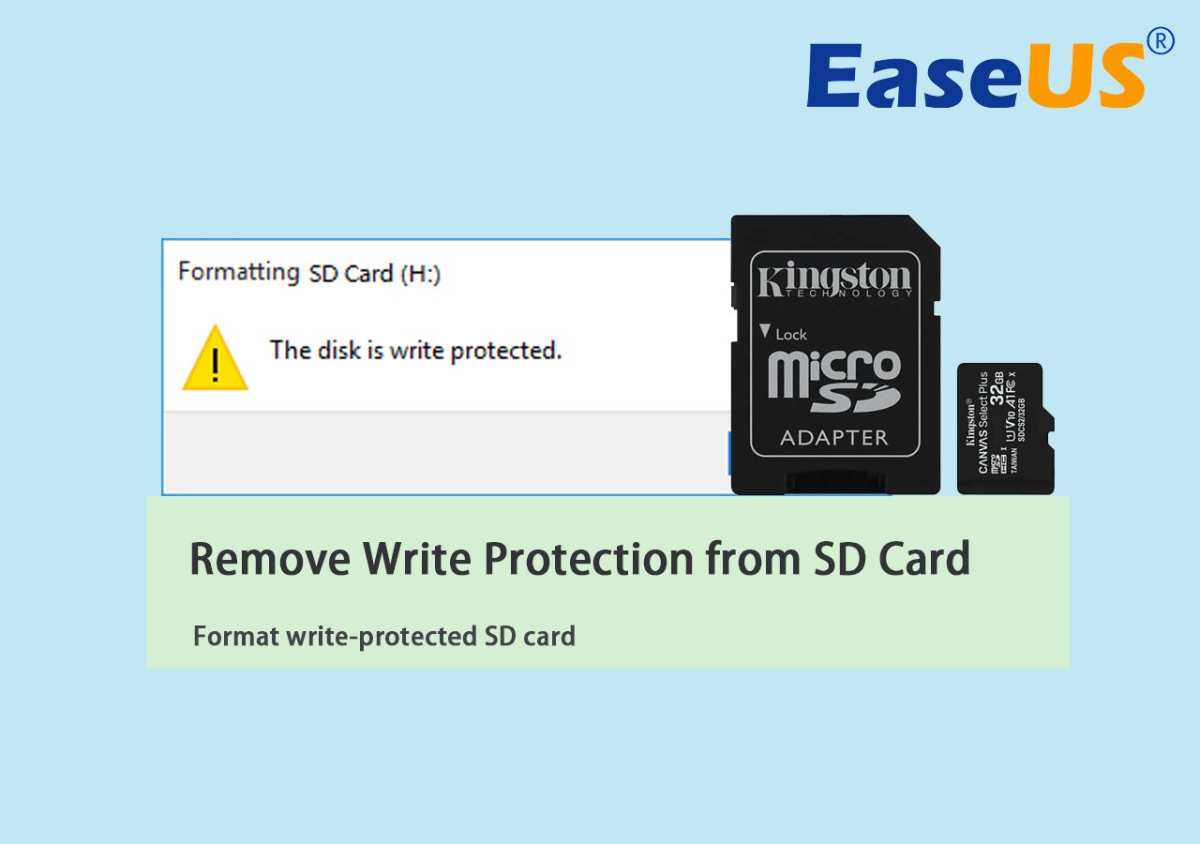
- Write Protection Switch: Many SD cards feature a physical lock switch. If this switch is set to ‘Lock’, you cannot write to the card.
- Android Settings or Restrictions: Sometimes, software settings or security policies disable write access for security reasons.
- Adapter or Card Reader Issues: Using an SD card adapter or a card reader can sometimes cause compatibility or connection issues.
Check the Physical Lock Switch on the SD Card
The first and easiest step involves inspecting the SD card’s physical lock switch.How to identify and toggle the lock switch
Most SD cards have a tiny switch on the side. If the switch is slid to the ‘Lock’ position, the card becomes read-only.
- Remove the SD card from your device or card reader.
- Look for the tiny switch on the side of the card.
- Slide the switch away from the lock icon (usually toward the side with no lock symbol).
- Reinsert the SD card into your device.
After switching the lock to the unlocked position, check if your device now recognizes the card as writable.
Format the SD Card for Compatibility and Writable Access
Formatting is a powerful way to fix read-only issues, but it also erases all data on the card. Be sure to back up your files before proceeding.Choosing the right file system
Android generally works best with **exFAT** or **FAT32** for SD cards, depending on the size of the card.
- FAT32 supports drives up to 32GB efficiently, but larger cards might need exFAT.
- exFAT is compatible with most modern Android devices and supports larger files.
Formatting your SD card from Android
- Open the Settings app on your Android device.
- Navigate to Storage & USB or Storage.
- Select your SD card from the list.
- Tap on Format as portable storage or Format SD card.
- Follow the prompts to complete the formatting process.
Formatting the SD card from a PC
For more control, you might prefer formatting the SD card through a PC or Mac.- Insert the SD card into your computer using an SD card reader.
- Open the Disk Management tool on Windows or Disk Utility on Mac.
- Select your SD card from the list of drives.
- Choose the correct file system (FAT32 or exFAT).
- Click on Format and wait for the process to complete.
Checking and Repairing the SD Card
Sometimes, a corrupt or damaged SD card can cause write restrictions. Fixing such issues involves scanning and repairing the card.Using Android’s Built-in Error Checking
- Go to Settings ➔ Storage & USB.
- Select your SD card.
- Tap on Storage Settings or Advanced options.
- Choose Check for Errors (if available).
Using a PC to repair the SD card
- Insert the SD card into your computer.
- On Windows, right-click the drive in File Explorer and select Properties.
- Go to the Tools tab and click Check.
- Follow the prompts to scan and fix errors.
Adjusting Android Settings and Permissions
Sometimes, your device’s settings can prevent writing to the SD card.Enable SD Card Write Permissions
- Open Settings ➔ Apps & Notifications.
- Tap on See all apps or App Info.
- Select the app you want to use to write files (like Files, File Manager, or Gallery).
- Tap on Permissions.
- Ensure that Storage permission is granted.
Set SD Card as Portable Storage
Some Android devices let you set the SD card as portable storage, which often fixes write issues.
- Go to Settings ➔ Storage.
- Select your SD card.
- Tap on Format as portable storage or similar options.
- Follow prompts to complete the setup.
Using Third-Party Apps to Fix SD Card Read-Only Issues
Certain apps are designed to repair SD cards or modify protection settings.- SD Card Formatter: Official tool from SD Association for low-level formatting.
- DiskDigger: Recovers files and repairs partition issues.
- Paragon Partition Manager: Advanced disk management and formatting options.
Steps to use SD Card Formatter
- Download and install the official SD Card Formatter from the SD Association website.
- Insert your SD card into your PC or adapter.
- Run the formatter and select the SD card.
- Choose the formatting options recommended (usually default settings work fine).
- Click Format and wait for the process to finish.
Replacing the SD Card if Necessary
If none of the above solutions work, your SD card might be physically damaged or incompatible with your device. In this case:- Try using a different SD card that is compatible with your device.
- Ensure the new SD card is reputable and from a trusted brand.
- Check your device’s maximum supported SD card size and type.
Additional Tips for Maintaining Writable SD Cards
To avoid future problems, follow these simple tips:- Always eject your SD card properly before removing it from your device or computer.
- Regularly scan for errors and bad sectors.
- Keep your device’s software up to date.
- Use reputable SD cards and avoid cheap or counterfeit ones.
Frequently Asked Questions
Why does my Android device sometimes not recognize the SD card as writable?
Android devices may restrict write access to SD cards if the card is formatted in a way that limits permissions, or if there are system restrictions in place. Additionally, if the SD card is set to read-only mode, your device won’t allow writing. To resolve this, ensure the SD card is properly formatted, and check for any system or app restrictions that could be limiting access.
How can I reformat my SD card to make it writable on Android?
To reformat your SD card, go to your device’s Settings menu, select Storage, and then choose your SD card. Tap on the format option and follow the on-screen instructions. Keep in mind that formatting will erase all data stored on the card, so back up important files before proceeding. After formatting, the SD card should be writable, and your device will recognize it accordingly.
What steps should I take if my SD card is write-protected and not letting me add new files?
First, remove the SD card from your device and check for a physical lock switch on the side of the card. If the switch is in the locked position, slide it to unlock. If there’s no physical switch or the switch is already unlocked, try inserting the card into a computer and use disk management tools to disable write protection. Afterward, reinsert the SD card into your Android device, and it should be writable.
How do I change the storage settings to allow apps to write to my SD card?
Navigate to your device’s Settings, then select Storage or Apps & Notifications. Locate the SD card settings and look for options related to app access or permissions. Ensure that the apps you want to use have permission to access the SD card. You may also need to allocate specific storage space for apps and media to make the SD card writable for app data.
Is there a way to make my SD card writable without formatting it?
Yes, you can attempt to change the permissions of your SD card through your device’s file manager or storage settings. Check if the card is set to read-only mode and disable it. Sometimes, simply unmounting and remounting the SD card through settings can resolve the issue. If the card is still read-only, using a computer to adjust partition settings or remove write protection may help, but ensure you back up data beforehand.
Final Thoughts
Making your SD card writable in Android involves adjusting the settings or using specific apps to permit write access. Start by checking if the card is formatted as portable or internal storage and change it if needed. Use a file manager app to modify permissions or perform a formatting process through your device settings. Always back up data before formatting to avoid losing important files. In conclusion, to make SD card writable in Android, adjust the format type or permissions accordingly. Following these steps will ensure your SD card functions seamlessly for both read and write operations.
Similar Posts































