Android How To Make Stickers: Step-By-Step Guide
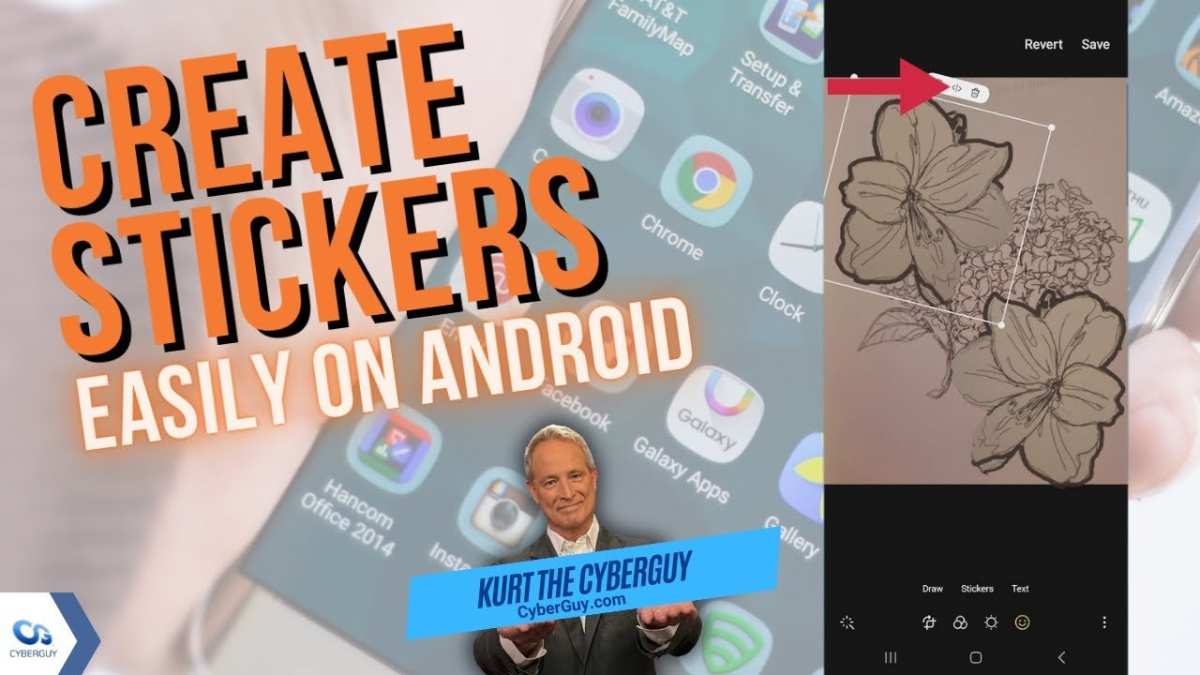
To make stickers on Android, you simply need a dedicated app and some creativity. **Android how to make stickers involves using popular apps like Sticker Maker or PicsArt to design and customize your stickers easily.** Just upload images, crop, add text or effects, and save your creations. It’s a straightforward process that turns your photos into fun, personalized stickers. Whether for messaging or social media, making stickers on Android is quick and enjoyable. Get ready to add a personal touch to your conversations with your own custom stickers.

Android How to Make Stickers
Creating your own stickers for messaging apps can be a fun way to personalize your chats and make conversations more lively. Whether you’re an artist or just someone who loves to add a touch of creativity, making stickers on an Android device is easier than you might think. In this guide, we’ll walk through the entire process step-by-step, sharing tips, tools, and tricks to help you craft perfect stickers that stand out.
Understanding the Basics of Making Stickers on Android
Before diving into the technical steps, it’s good to understand what makes a sticker, how it works, and what you need to get started.
**What Are Stickers?**
Stickers are graphics or images used to express feelings, reactions, or just for fun during messaging. They are usually small, transparent images that can be inserted into conversations.
**Why Create Your Own Stickers?**
Making your own stickers allows you to personalize your chats, showcase your artwork, or create themed stickers for special occasions. Plus, customizing stickers helps your messages stand out from the crowd.
**Key Features of Android Sticker-Making Apps**
Most Android apps that let you create stickers offer features like:
- Removing backgrounds from images
- Adding text or doodles
- Resizing and cropping images
- Exporting stickers in compatible formats like PNG with transparent backgrounds
Tools and Apps Needed to Make Stickers
The good news is, you don’t need fancy equipment or complex software. Here are some essential tools:
**Popular Apps for Creating Stickers on Android**
- Sticker Maker for WhatsApp
- Personal Stickers for WhatsApp
- Canva
- PicsArt
- Pixlr
**Additional Equipment (Optional)**
While most work can be done directly on your Android device, a stylus or a good-quality phone camera can help if you plan to draw or capture images directly.
Step-by-Step Guide to Creating Stickers on Android
Now, let’s get into the detailed process. We’ll cover how to create stickers using different apps, starting with the most popular options.
Creating Stickers Using Sticker Maker for WhatsApp
This app is user-friendly and specifically designed for creating custom stickers for WhatsApp.
**Step 1: Download and Install the App**
Find Sticker Maker for WhatsApp in the Google Play Store. Tap ‘Install’ and wait for it to download.
**Step 2: Create a New Sticker Pack**
Open the app. Tap on the “Create a new sticker pack” button. Enter a name for your pack and your creator’s name. This helps organize your stickers.
**Step 3: Add Stickers to the Pack**
Select the pack you’ve created. Tap “Add Sticker.”
You can choose to import images from your gallery or take a new photo.
**Step 4: Edit Your Image**
– Use the app’s tools to cut out the background. Many apps, including Sticker Maker, allow you to manually erase unwanted parts with your finger or stylus.
– Auto-background removal options are also available in some apps.
– Resize and position your sticker as needed.
**Step 5: Save and Export**
Once satisfied, save the sticker. Repeat the process to add more stickers. When ready, export the sticker pack to WhatsApp by tapping the “Add to WhatsApp” button.
**Step 6: Use Your Stickers**
Open WhatsApp. Look for your custom stickers in the sticker section of your chat, ready to send.
Creating Beautiful Stickers with Canva and PicsArt
If you want more creative control, these apps give you the options to design from scratch.
**Using Canva:**
– Open Canva.
– Select ‘Custom Dimensions’ and set the size (e.g., 512×512 pixels).
– Design your sticker using Canva’s tools—add images, text, and effects.
– Save as PNG with transparent background.
**Using PicsArt:**
– Import an image or start with a blank canvas.
– Use tools like cutout or eraser to remove backgrounds.
– Add doodles, text, or effects.
– Save the final design as PNG.
**Tip:** Always save your stickers with a transparent background. PNG format with transparency promotes better blending into chat bubbles.
Best Practices for Creating High-Quality Stickers
To ensure your stickers look professional and appealing:
**Keep It Simple**
Avoid clutter. Clear images or simple illustrations work best at small sizes.
**Use Transparent Backgrounds**
Most messaging apps look more seamless with stickers that have no background. Use apps that support transparent PNGs.
**Maintain Consistency**
Create a cohesive set by using similar styles, colors, or themes.
**Optimize for Small Sizes**
Rescale images to fit within the app’s recommended dimensions (usually 512×512 pixels).
**Test Your Stickers**
Send your stickers to friends or in different chats to see how they look on various backgrounds.
Sharing and Using Your Stickers
Once you create your stickers, here’s how to share and use them effectively.
**Adding Stickers to WhatsApp or Other Messaging Apps**
Many apps provide direct options to add stickers to WhatsApp or other platforms. For example:
- Using Sticker Maker, you can directly add packs to WhatsApp.
- Custom stickers created in Canva or PicsArt can be saved and added via third-party sticker apps or by importing them directly into messaging apps that support custom stickers.
**Organizing Your Sticker Collection**
Keep your stickers organized by creating different packs for various themes such as holidays, funny characters, or personal illustrations.
**Sharing Stickers with Friends**
Some apps allow you to export your sticker packs as files that you can send via email or messaging for friends to import into their apps.
Advanced Tips for Making Creative Stickers
If you want to take your sticker-making skills further, consider these tips:
- Use multiple images to create animated stickers with GIFs, if supported.
- Incorporate personal photos for more custom stickers.
- Experiment with different drawing styles to add variety to your pack.
- Use layering techniques in design apps for depth and dimension.
Troubleshooting Common Issues
While making stickers, you might encounter some challenges. Here’s how to fix common problems:
**Stickers Not Showing Up in Chat Apps**
– Ensure you’ve successfully exported the sticker pack to the messaging app.
– Restart the app or device if needed.
– Check the format and size of your images.
**Poor Image Quality**
– Use high-resolution images.
– Avoid resizing images multiple times, as this can reduce quality.
– Save in PNG format for clarity and transparency.
**Background Removal Difficulties**
– Use apps with auto-background removal features.
– Manually erase backgrounds with precision tools.
Making your own stickers on Android combines creativity with technology. With just a few free apps and some practice, you can craft stickers that perfectly match your personality or style. Remember to keep your designs simple, clear, and fun. Always check how your stickers look on different backgrounds and chat platforms. The more you experiment, the better your stickers will become. Keep creating, sharing, and most importantly, enjoying the process of adding your own personal touch to your chats. Your friends will love seeing your unique creations pop up during conversations!
Frequently Asked Questions
How can I create custom stickers for messaging apps on my Android device?
To create custom stickers on your Android device, you can use dedicated sticker maker apps such as Sticker Maker for WhatsApp or Sticker.ly. These apps typically allow you to select images from your gallery, cut out the desired parts, add text or decorations, and save them as stickers. Once created, you can import your stickers directly into messaging apps that support custom stickers.
What tools or apps are best for designing stickers on Android?
Popular apps for designing stickers on Android include Sticker Maker, PicsArt, and Canva. These apps provide user-friendly interfaces and features like cutout tools, drawing options, and text additions. They enable you to customize your stickers with various effects and export them in formats compatible with messaging platforms.
How do I prepare images to ensure they work well as stickers on Android?
When preparing images for stickers, choose high-contrast photos with clear subjects. Remove backgrounds using apps with cutout features or image editing tools to achieve transparent backgrounds. Save your images in PNG format to preserve transparency, ensuring they look good when used in chats or sticker packs.
Can I add animated stickers using Android apps, and how?
Yes, you can create animated stickers on Android by using apps like Sticker Maker Studio or Giphy. These apps allow you to import short video clips or GIFs and convert them into animated stickers. Follow the app’s instructions to trim, edit, and export your animations for use within compatible messaging platforms.
How do I organize and manage multiple stickers on my Android device?
Most sticker maker apps allow you to categorize and organize your sticker packs within the app. You can create different packs based on themes or occasions, add or delete stickers, and update packs as needed. To use them in messaging apps, simply select the desired pack, and the stickers will be available for quick access during chats.
Final Thoughts
To conclude, creating personalized stickers on Android devices is straightforward and fun. Focus on choosing the right app and prepare your images for best results. Follow simple editing steps to customize your stickers easily. Android how to make stickers remains accessible, allowing anyone to craft unique expressions for their chats.

Similar Posts