How To Make Stickers On Android For Whatsapp
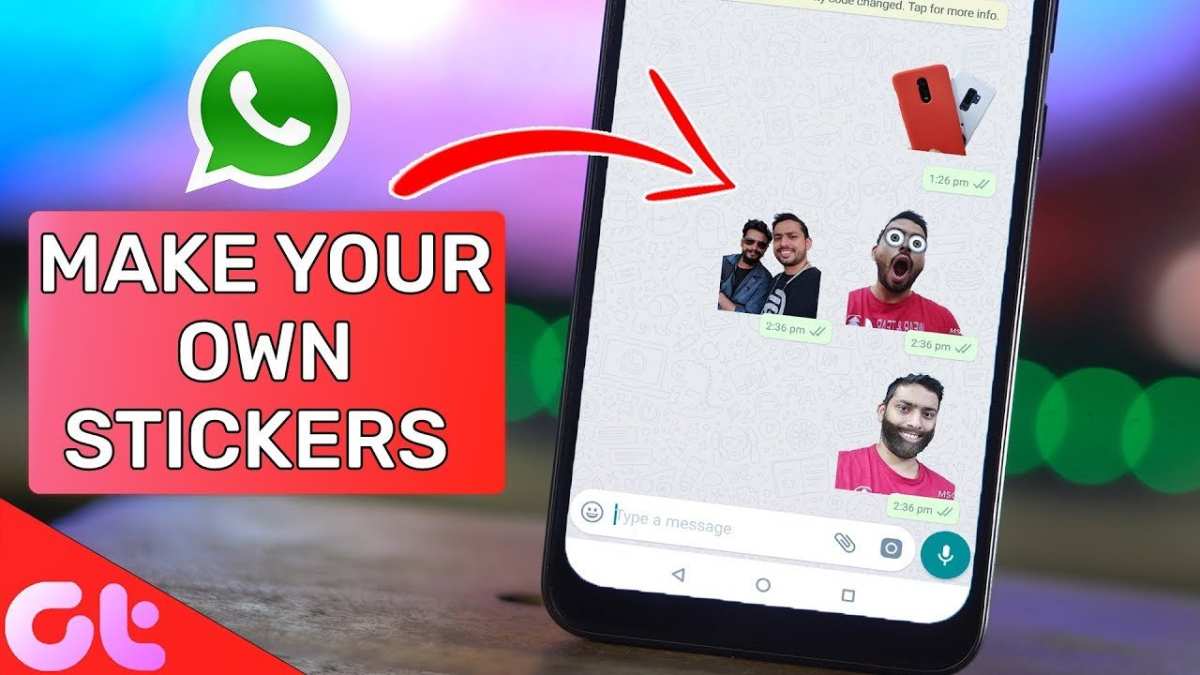

How to Make Stickers on Android for WhatsApp
Creating custom stickers for WhatsApp on your Android device can be a fun and rewarding experience. Stickers add a splash of personality to your chats, making conversations more lively and expressive. In this guide, you’ll learn everything you need to know about making your own stickers, from choosing the right images to customizing them for WhatsApp. Whether you’re doing this for fun, to send personalized greetings, or to create a unique collection for your friends, this article covers all the steps in detail.Understanding WhatsApp Stickers and Their Role
Before diving into how to create stickers, it’s important to understand what WhatsApp stickers are and why they are popular. WhatsApp stickers are animated or static images that you can send in chats to express feelings, humor, or reactions without typing long messages. They work similar to emojis but are often more detailed and personalized. WhatsApp introduced stickers to make messaging more expressive and entertaining. Some key benefits include:- Personalization: You can create stickers that reflect your personality or mood.
- Expressiveness: Stickers can convey emotions better than plain text or emojis.
- Fun and Creativity: Making your own stickers allows you to be creative and share unique images with friends.
Getting the Necessary Apps and Tools
To make stickers on Android for WhatsApp, you need the right apps. The process involves two main steps: – Creating or editing images – Converting images into stickers that WhatsApp can accept Here’s what you’ll need:- Image Editing App: Apps like ‘PicsArt’, ‘PhotoLayers’, or ‘Pixlr’ are great for editing images and removing backgrounds.
- Sticker Maker for WhatsApp: Apps such as ‘Sticker Maker’ or ‘Personal Stickers for WhatsApp’ help you create sticker packs compatible with WhatsApp.
Steps to Prepare Your Images
The first step in creating custom stickers is preparing your images. Follow these detailed steps:Selecting the Image
– Choose images that are clear, high-quality, and expressive. – You can use photos, drawings, or any digital artwork. – Ensure the background is simple or easy to remove to get a cleaner sticker.Editing the Image
– Open your preferred image editing app. – Crop or resize the image to a square shape because WhatsApp stickers are square. – Remove the background to give your sticker a neat look. Most apps have a background remover tool, often called ‘cutout’ or ‘background eraser’. – Keep the important parts of your image visible and clear. – Save the edited image in PNG format with transparent background if possible, as this quality is preferred for stickers.Optimizing Your Image
– Maintain a size of around 512×512 pixels. This ensures your sticker looks good on all devices. – Keep the file size under 100 KB for faster loading and sending. – Consider adding borders or outlines to your stickers for better visibility against different chat backgrounds.Converting Images into WhatsApp Stickers
Once your images are prepped, the next step is to convert them into WhatsApp-compatible stickers.Using Sticker Maker Apps
– Download a sticker maker app like ‘Sticker Maker’ from the Google Play Store. – Launch the app and create a new sticker pack by entering a name. – Select the images you prepared earlier. – The app will prompt you to crop or adjust the images further if needed. – Save each image as a sticker within your pack.Adding Stickers to WhatsApp
– After creating your stickers, the app will show an option to add the pack to WhatsApp. – Confirm the addition, and your new sticker pack will appear in your WhatsApp sticker tab. – You can now send these stickers in any chat.Tips for Making Better Stickers
Creating visually appealing and expressive stickers makes your chats more engaging. Here are some tips:- Use Clear and High-Quality Images: Avoid blurry or pixelated photos.
- Experiment with Expressions: Show different moods like happy, sad, surprised, or funny.
- Keep Backgrounds Simple: Transparent backgrounds work best for a clean look.
- Add Text or Effects: Use witty phrases or decorations for more fun.
- Organize Your Stickers: Group similar stickers into packs for easy access.
Sharing Your Custom Stickers with Friends
Once you have created and added your stickers to WhatsApp, sharing becomes effortless: – Open the chat window where you want to send a sticker. – Tap on the sticker icon in the chat input box. – Browse your sticker packs and select your custom pack. – Tap on the sticker you want to send, and it will appear instantly in the chat. You can also export your sticker packs to friends who might want to use your creations. Just advise them to install the same sticker maker app and import your packs if saved separately.Creating Multiple Sticker Packs for a Variety of Emotions
Having a variety of sticker packs makes your conversations more expressive. Consider creating packs for different occasions: – Emotion-based packs: Happy, angry, confused, etc. – Holiday or seasonal themes: Christmas, Halloween, summer, etc. – Personal themes: Your favorite characters, pets, or hobbies. This approach keeps your sticker collection lively and personalized.Legal and Copyright Considerations
While creating stickers, be mindful of copyright laws: – Use images you own or have permission to use. – Avoid copyrighted characters or logos to prevent legal issues. – Create original artwork or use royalty-free images. Being careful ensures your sticker creation process is safe and legal.Advanced Tips for Custom Stickers
Once you get comfortable with basic sticker creation, you can try more advanced techniques:- Animated Stickers: Use apps like ‘GIF Maker’ or ‘PicsArt’ to create animated stickers that add movement to your conversations.
- Adding Sound: While WhatsApp doesn’t support sound in stickers, combining stickers with voice notes or GIFs can enhance expression.
- Using Drawing Apps: Draw your own characters or doodles directly into editing apps for unique stickers.
Summary
Making stickers on Android for WhatsApp isn’t complicated once you understand the steps: – Select and prepare your images, ensuring they are clear, high quality, and appropriately sized. – Remove backgrounds and customize your images for better appeal. – Use sticker maker apps to convert images into WhatsApp-compatible stickers. – Organize your stickers into packs and add them to WhatsApp. – Share your custom stickers with friends and expand your collection. By following these detailed steps and tips, you can create fun, expressive, and personalized stickers that make your WhatsApp chats more colorful and engaging. Remember, the key is to be creative, patient, and have fun throughout the process. Happy sticker making!Frequently Asked Questions
What are the essential tools needed to create custom stickers for WhatsApp on Android?
To make personalized stickers for WhatsApp on your Android device, you need a photo editing app that allows you to cut out images, like PicsArt or Sticker Maker. Additionally, you might use a dedicated sticker creation app such as Sticker Maker for WhatsApp. These tools help you crop images, remove backgrounds, and compile your stickers into packs compatible with WhatsApp.
How can I prepare images effectively for creating WhatsApp stickers?
Start by selecting images with clear subjects and minimal background interference. Use editing apps to remove the background precisely, ensuring the sticker’s edges are clean. Save your images in PNG format with transparent backgrounds, as this format works best for sticker creation and maintains quality across different devices.
What steps should I follow to add my custom stickers to WhatsApp on Android?
First, open your chosen sticker creation app and import your prepared images. Assemble them into a sticker pack and save it within the app. Then, tap the export or add to WhatsApp option, which will automatically add your custom stickers to the WhatsApp sticker section. You can continue to add or organize stickers within your pack anytime.
Are there any restrictions on the images I can use for creating stickers?
Yes, images should adhere to WhatsApp’s content guidelines, avoiding offensive or copyrighted material. Stickers work best when the images are clear, high-quality, and have a transparent background. Also, keep your sticker packs within WhatsApp’s size limits to prevent issues during sharing or updating.
Final Thoughts
Creating custom stickers on Android for WhatsApp is simple and fun. Use a dedicated app like Sticker Maker or Personal Stickers for WhatsApp to start. Upload images, crop them, and add your own designs. After editing, add your stickers to WhatsApp with a few taps. Making stickers becomes quick when you follow these steps. You can personalize messages and add a unique touch to conversations. In summary, learning how to make stickers on android for whatsapp helps you express yourself more creatively and enjoyably.
Similar Posts































