

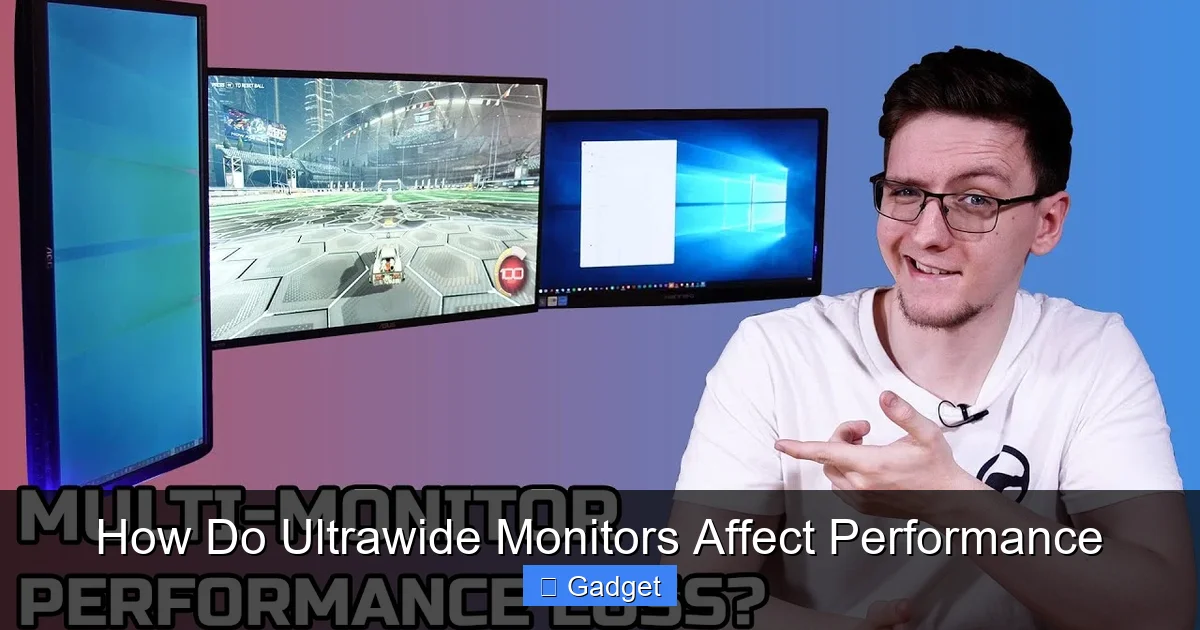
Discover how ultrawide monitors can influence your PC’s performance in gaming and daily tasks. This guide breaks down the technical aspects, from rendering more pixels to potential bottlenecks. You’ll learn what to expect in terms of frame rates and how to ensure your hardware can deliver a smooth and immersive ultrawide experience.
How Do Ultrawide Monitors Affect Performance
So, you’re eyeing one of those impressively wide monitors. They look fantastic for gaming, making movies more immersive, and giving you a huge canvas for productivity. But before you hit that ‘buy’ button, a crucial question looms: how do ultrawide monitors affect PC performance? Will your trusty rig buckle under the pressure of that expansive display?
This guide is here to answer just that. We’ll dive deep into the technical aspects of ultrawide monitors and what they mean for your computer’s performance, particularly your graphics card (GPU) and central processing unit (CPU). We’ll break down how rendering more pixels impacts frame rates, explore the differences between gaming and productivity, and offer practical advice on how to get the best experience from your ultrawide setup. By the end of this guide, you’ll understand exactly what to expect and how to prepare your PC for the ultrawide life.
Contents
- 1 Key Takeaways
- 2 Understanding the Basics: Pixels, Resolution, and Your GPU
- 3 Performance in Gaming: The Biggest Impact
- 4 CPU Performance: The Less Obvious Bottleneck
- 5 Productivity Performance: A Different Ballgame
- 6 Choosing the Right Hardware for Your Ultrawide
- 7 Troubleshooting Common Ultrawide Performance Issues
- 8 Conclusion
Key Takeaways
- Higher Resolution Demands More GPU Power: Ultrawide monitors require your graphics card to render significantly more pixels than standard 16:9 displays, directly impacting performance.
- Impact on Gaming Performance: Expect lower frame rates in games on an ultrawide monitor compared to the same game on a standard resolution, assuming all other settings are equal.
- CPU Can Become a Bottleneck: While the GPU bears the brunt, a CPU that’s too weak can struggle to feed enough data to the GPU for such a wide field of view, especially in certain game engines.
- Productivity Benefits Outweigh Performance Hits: For tasks like video editing, coding, or multitasking, the increased screen real estate often makes the slight performance dip worthwhile.
- Optimization is Key: Adjusting in-game graphics settings, utilizing ultrawide-specific patches or mods, and ensuring your hardware is up to par are crucial for a good experience.
- Refresh Rate Matters: A higher refresh rate on an ultrawide monitor will still require more power to achieve, but it contributes significantly to the perceived smoothness of motion. Learn more about how refresh rates impact gameplay in our guide on whether a 144Hz monitor is good for gaming.
Understanding the Basics: Pixels, Resolution, and Your GPU
The most significant way an ultrawide monitor affects performance is through its resolution. Unlike standard 16:9 monitors, which commonly use resolutions like 1920×1080 (Full HD) or 3840×2160 (4K UHD), ultrawide monitors stretch horizontally. The most common ultrawide resolution is 3440×1440 (often referred to as 1440p ultrawide). Some even go wider, like 3840×1600 or 5120×1440 (a dual-QHD equivalent).
Let’s look at the numbers. A 16:9 1080p monitor has 1920 * 1080 = 2,073,600 pixels. A 16:9 1440p monitor has 2560 * 1440 = 3,686,400 pixels. Now, consider an ultrawide 1440p monitor (3440×1440). This has 3440 * 1440 = 4,953,600 pixels. That’s about 34% more pixels than a standard 1440p monitor and a whopping 140% more pixels than a 1080p monitor!
How More Pixels Stress Your GPU
Your graphics card is the workhorse responsible for drawing every single pixel on your screen, multiple times per second. When you switch to an ultrawide monitor, you’re asking your GPU to do a lot more heavy lifting.
- Increased Rendering Load: Every frame needs to be rendered with this expanded resolution. This means more complex calculations, more textures to process, and more geometric data to handle.
- Higher Pixel Fill Rate: Your GPU needs to have a sufficient pixel fill rate – the rate at which it can draw pixels – to keep up with the increased number of pixels being pushed.
- Memory Bandwidth Demands: More pixels also mean more data needs to be transferred between your GPU’s VRAM (Video Random Access Memory) and its processing cores. This can strain memory bandwidth.
Think of it like painting a picture. A standard monitor is like painting a medium-sized canvas. An ultrawide monitor is like painting a much larger canvas. You’ll need more paint (processing power), more detailed brushstrokes (rendering complexity), and more time to cover the entire area effectively. This directly translates to lower frame rates (FPS – Frames Per Second) in demanding applications, especially video games.
Performance in Gaming: The Biggest Impact
Gaming is where the performance impact of an ultrawide monitor is most acutely felt. If you’re a competitive gamer or someone who strives for the highest possible frame rates, you’ll need to be prepared for some adjustments.
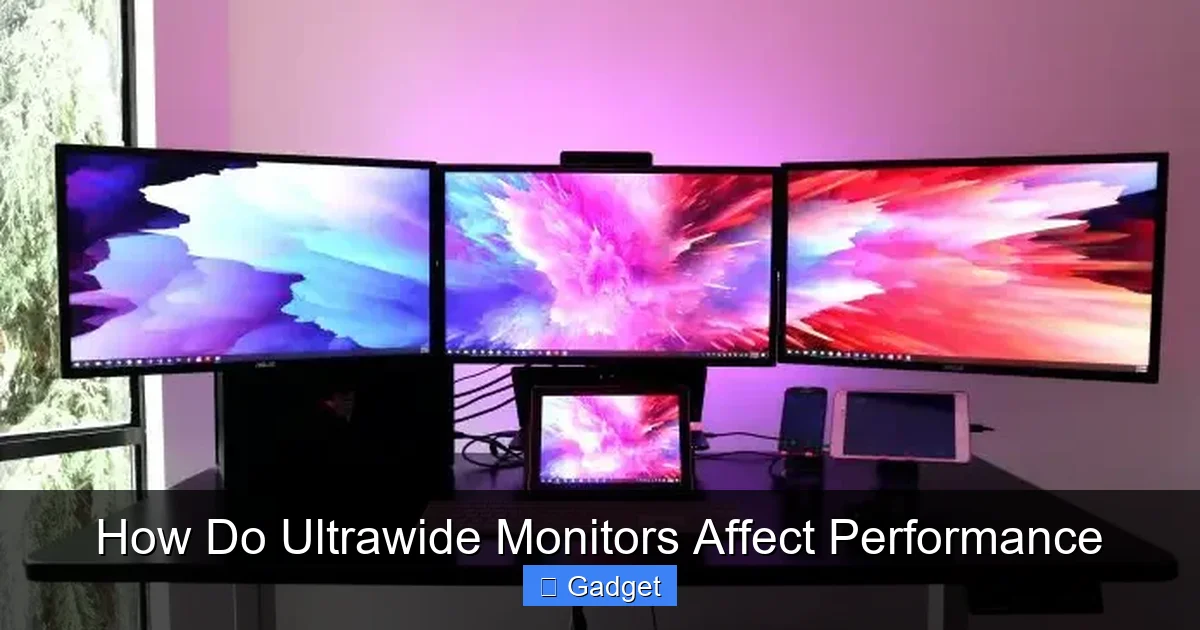
Visual guide about How Do Ultrawide Monitors Affect Performance
Image source: whalesdev.com
Expected Frame Rate Drops
As a general rule of thumb, expect a noticeable drop in FPS when moving from a standard resolution to an ultrawide resolution. How much of a drop depends heavily on your GPU’s power and the specific game you’re playing.
- Mid-range GPUs: You might see drops of 20-40% or even more. You may need to lower in-game graphics settings significantly to maintain playable frame rates.
- High-end GPUs: While more capable, even top-tier GPUs will see a performance hit. You might still be able to run games at high settings, but you won’t be pushing the same FPS as you would on a 16:9 resolution.
For example, a game running at a smooth 100 FPS on a 1440p 16:9 monitor might drop to 60-70 FPS on a 1440p ultrawide monitor with the same in-game settings. This is a substantial difference for many gamers.
Graphics Settings Adjustments
To compensate for the increased pixel count, you’ll likely need to tweak your in-game graphics settings.
- Lowering Visual Fidelity: This often involves reducing settings like anti-aliasing, shadows, texture quality, and post-processing effects. These are often the most demanding settings.
- Finding the Sweet Spot: The goal is to find a balance between visual quality and playable frame rates. Some settings have a bigger visual impact than others, so experiment to see what works best for you.
- Resolution Scaling: Some games offer resolution scaling options. Lowering the internal rendering resolution while keeping the ultrawide aspect ratio can be a good compromise.
Ultrawide Specific Considerations
- Field of View (FOV): Ultrawide monitors naturally increase your in-game Field of View, which can be a huge advantage in games where situational awareness is key (like simulators or some shooters). However, a wider FOV can also sometimes increase CPU load as the game needs to render more world details.
- Aspect Ratio Support: Most modern games support ultrawide resolutions (21:9 or 32:9 aspect ratios). However, older games or poorly optimized titles might stretch the image, show black bars on the sides, or not support these resolutions at all. Look for community patches or mods if a favorite older game doesn’t support ultrawide out of the box.
- UI Scaling: Some game UIs might not scale perfectly to ultrawide resolutions, leading to elements being too far apart or too small. Again, community mods can often fix this.
CPU Performance: The Less Obvious Bottleneck
While the GPU is the primary component affected by ultrawide monitors, the CPU isn’t entirely off the hook. In certain scenarios, the CPU can become a performance bottleneck, especially in games that are heavily CPU-bound.
Visual guide about How Do Ultrawide Monitors Affect Performance
Image source: uk.moyens.net
How CPU Usage Increases
- Increased Draw Calls: A wider field of view can mean the CPU has to issue more “draw calls” to the GPU – essentially, instructions to draw objects in the game world.
- Game Logic and AI: In games with complex AI or simulation elements, a wider FOV might require the CPU to process more information about the game world and its inhabitants.
- Streaming Asset Data: If your CPU struggles to load and stream game assets (textures, models) to the GPU quickly enough, it can create a bottleneck, even if your GPU is powerful.
This is more likely to happen in older games or games that are not well optimized for multi-core processors. In many modern, GPU-intensive games, the GPU will still be the primary limitation, but it’s worth noting that a powerful CPU is still essential for a smooth ultrawide experience.
Productivity Performance: A Different Ballgame
When it comes to productivity, the impact of an ultrawide monitor on performance is generally much less noticeable, and often, the benefits far outweigh any minor performance dips.
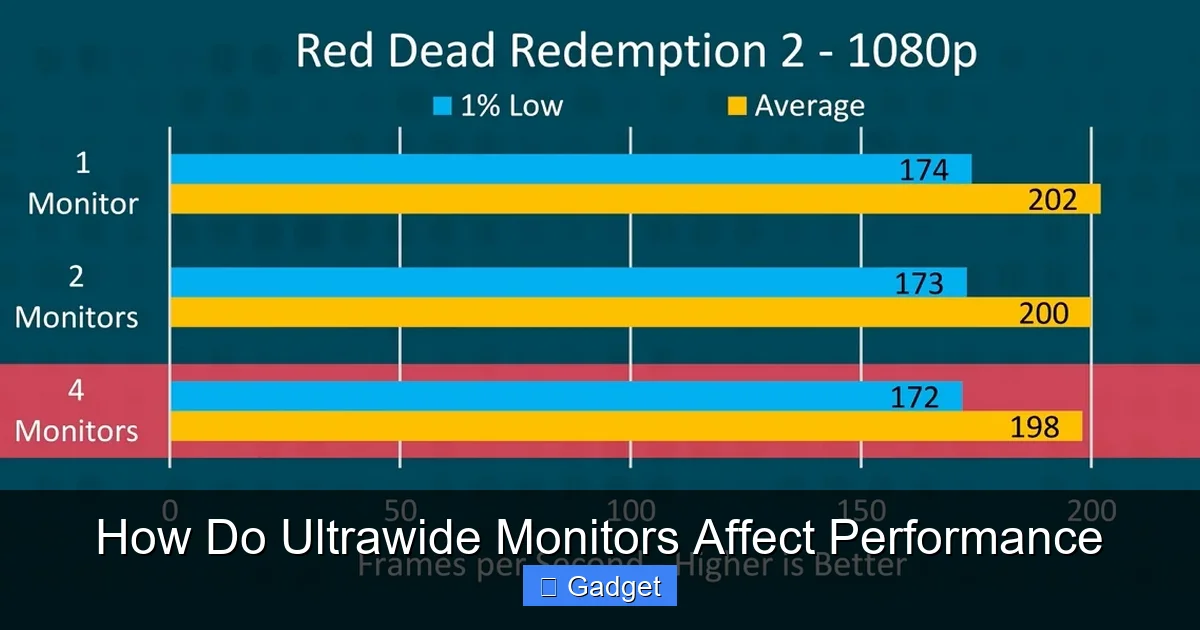
Visual guide about How Do Ultrawide Monitors Affect Performance
Image source: uk.moyens.net
Multitasking and Workflow Efficiency
The sheer amount of screen real estate on an ultrawide monitor is a game-changer for productivity.
- Side-by-Side Applications: You can comfortably have multiple windows open side-by-side without them feeling cramped. Think of having your code editor on one side and documentation or a web browser on the other. Discover more about how ultrawide monitors enhance coding workflows in our article on whether ultrawide monitors are good for coding.
- Video Editing: Timeline editing becomes far more manageable. You can see a much longer portion of your video timeline at once, reducing the need to constantly scroll.
- Graphic Design: Design software can display more tools and panels without feeling cluttered, allowing for a more intuitive workflow.
- Spreadsheets and Data Analysis: Viewing large spreadsheets or datasets becomes significantly easier.
In these scenarios, the “performance” is measured more in terms of efficiency and workflow speed rather than raw FPS. The ability to see more at once generally makes you *more* productive, even if a specific application might be rendering slightly more pixels in the background.
Minimal Performance Hit for Most Tasks
For typical productivity tasks like web browsing, word processing, or email, the performance impact is negligible. These applications are not graphically intensive enough to be noticeably affected by the increased resolution. Even for more demanding productivity applications like Adobe Premiere Pro or Photoshop, while they might utilize more VRAM and GPU processing, the gain in workflow efficiency is usually the primary consideration.
The main thing to ensure is that your system has enough RAM and a decent CPU to handle multiple applications running simultaneously. An ultrawide monitor doesn’t inherently make these tasks slower; it just provides a larger workspace.
Choosing the Right Hardware for Your Ultrawide
If you’re investing in an ultrawide monitor, it’s essential to ensure your hardware can keep up. This isn’t just about avoiding performance issues; it’s about unlocking the full potential of your new display.
GPU: The Most Critical Component
As we’ve established, the GPU is paramount.
- Entry-Level Ultrawide: For a 3440×1440 resolution, an NVIDIA GeForce RTX 3060/4060 or AMD Radeon RX 6700 XT/7700 XT is a good starting point if you’re willing to compromise on settings in demanding games.
- Mid-Range Ultrawide Gaming: To comfortably play most modern games at 1440p ultrawide with high settings, aim for something like an NVIDIA RTX 3070 Ti/4070 or AMD RX 6800 XT/7800 XT.
- High-End Ultrawide Experience: For ultra settings and high refresh rates at 3440×1440, or for tackling higher resolutions like 5120×1440, consider GPUs like the NVIDIA RTX 3080/4080/4090 or AMD RX 6900 XT/7900 XT/7900 XTX.
CPU: Don’t Forget the Brains
While the GPU is king, a capable CPU is still vital.
- Modern Mid-Range: An Intel Core i5 (12th gen or newer) or AMD Ryzen 5 (5000 series or newer) is generally sufficient for most ultrawide gaming and productivity.
- High-Performance Gaming: For pushing very high frame rates or dealing with CPU-intensive games, consider an Intel Core i7/i9 or AMD Ryzen 7/9.
RAM and Storage
Ensure you have enough RAM, especially if you multitask heavily. 16GB is generally the minimum for a good experience, with 32GB being ideal for heavier workloads and future-proofing. An SSD (Solid State Drive) is also essential for fast game loading times and overall system responsiveness.
Troubleshooting Common Ultrawide Performance Issues
Even with the right hardware, you might encounter some issues. Here’s how to tackle them.
Issue: Significant FPS Drops in Games
- Solution: Adjust Graphics Settings: Lower demanding settings like shadows, anti-aliasing, and ambient occlusion. Experiment with resolution scaling if available.
- Solution: Update Drivers: Ensure your graphics card drivers are up to date. Manufacturers often release optimizations for new games.
- Solution: Monitor CPU/GPU Usage: Use monitoring tools (like MSI Afterburner) to see if your CPU or GPU is maxing out. If the CPU is at 100% and the GPU is not, you might be CPU-bound, and a CPU upgrade might be necessary.
Issue: Stretched or Distorted Images in Games
- Solution: Check Game Settings: Ensure the game is set to its native ultrawide resolution and the correct aspect ratio (usually 21:9 or 32:9).
- Solution: Look for Patches/Mods: For older games, search online for community-created patches or mods that add ultrawide support.
Issue: UI Elements are Too Small or Too Far Apart
- Solution: In-Game UI Scaling: Some games have options to scale the UI.
- Solution: Community Mods: Many games have mods available specifically to fix UI scaling issues on ultrawide monitors.
Conclusion
Ultrawide monitors offer a truly stunning visual experience, whether you’re diving into virtual worlds or tackling demanding professional tasks. However, it’s undeniable that they place a greater demand on your PC’s hardware, particularly your graphics card. You should expect a reduction in frame rates in graphically intensive games compared to standard resolutions.
The key to enjoying an ultrawide monitor without performance headaches lies in understanding these demands and preparing accordingly. This means ensuring you have a capable GPU, adjusting in-game settings wisely, and being aware of potential CPU limitations. For productivity, the trade-offs are minimal, and the gains in efficiency are often immense. By following the advice in this guide, you can make an informed decision and set up your system for a seamless and immersive ultrawide journey. If you’re considering other monitor upgrades, check out our comparison of IPS vs TN panels for gaming to make the best choice for your setup.
