What Is the Best Ultrawide Monitor for Work
Upgrade your productivity with an ultrawide monitor! This guide helps you navigate the options to find the best ultrawide monitor for work. We’ll break down essential features like resolution, panel type, and refresh rate, and discuss their impact on your daily tasks. Get ready to transform your workspace and boost your efficiency. Are you tired of endless window-snapping and screen switching? Does your current monitor feel cramped, limiting your productivity? If so, it might be time to consider an ultrawide monitor. These expansive displays offer a dramatic increase in screen real estate, transforming how you work, multitask, and immerse yourself in your projects. But with so many options on the market, how do you find the **best ultrawide monitor for work**? This comprehensive guide will walk you through everything you need to know. We’ll delve into the key features that differentiate ultrawide monitors, explain what they mean for your workday, and help you identify the perfect display to suit your specific professional needs and budget. Get ready to unlock a new level of productivity and workspace efficiency. 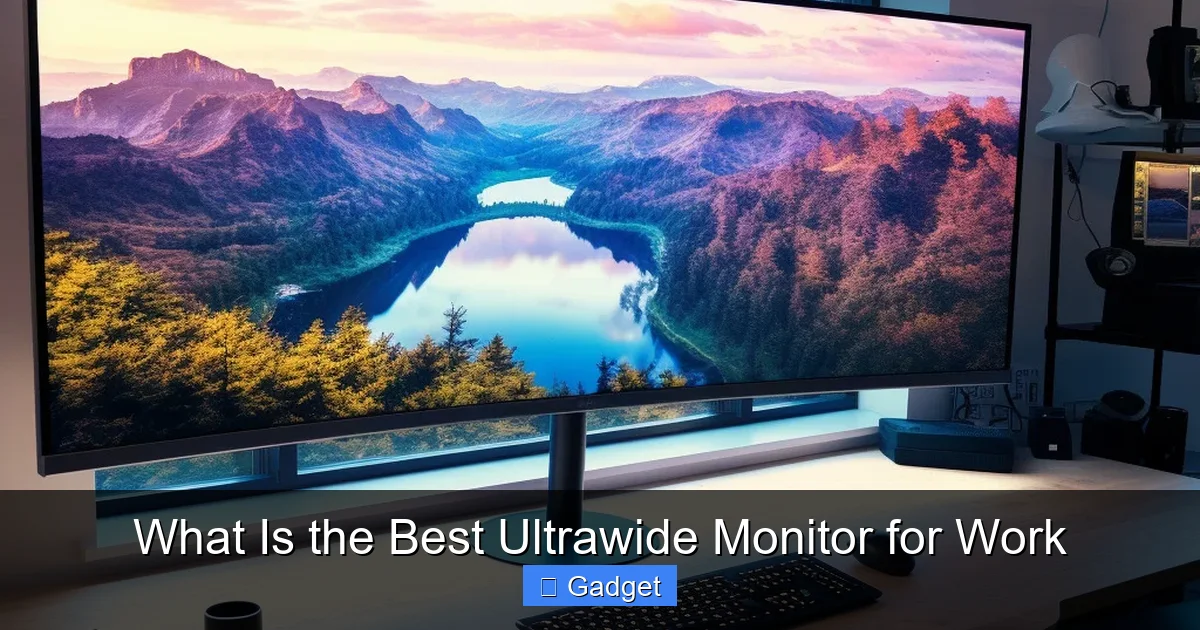 Choosing the right ultrawide monitor involves understanding several technical specifications and how they translate to your work environment.
 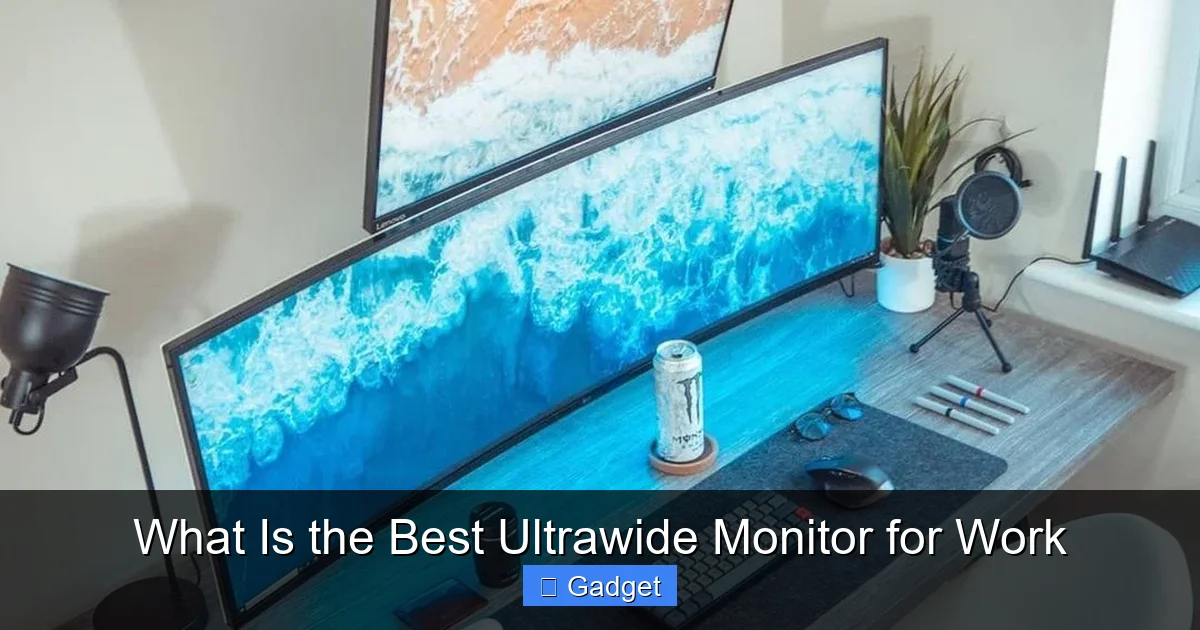 The “best” ultrawide monitor for work isn’t a one-size-fits-all answer. It depends on your profession and daily tasks.
 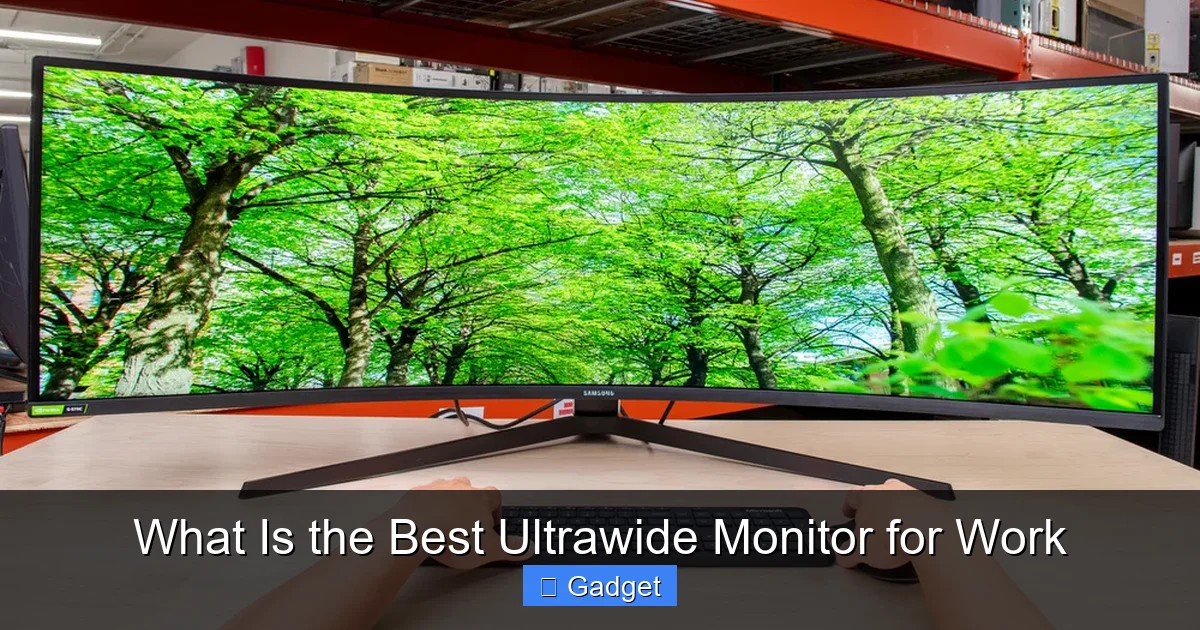 While specific models change, here are types of monitors often well-regarded for work:
Key Takeaways
- Understand Your Needs: The “best” ultrawide monitor is subjective and depends heavily on your specific work tasks, budget, and desk space.
- Resolution Matters: For work, aim for at least 3440×1440 (QHD ultrawide) for sharp text and ample screen real estate, with 5120×1440 (DQHD ultrawide) offering even more.
- Panel Type Impact: IPS panels offer excellent color accuracy and wide viewing angles, ideal for design and general office work. VA panels provide better contrast but can have slower response times.
- Refresh Rate & Response Time: While high refresh rates are less critical for typical office work than gaming, a smoother experience can still reduce eye strain. Focus on response times to minimize motion blur.
- Ergonomics & Connectivity: Consider stand adjustability (height, tilt, swivel) and the ports you need (USB-C, Thunderbolt, HDMI, DisplayPort) for seamless integration with your devices.
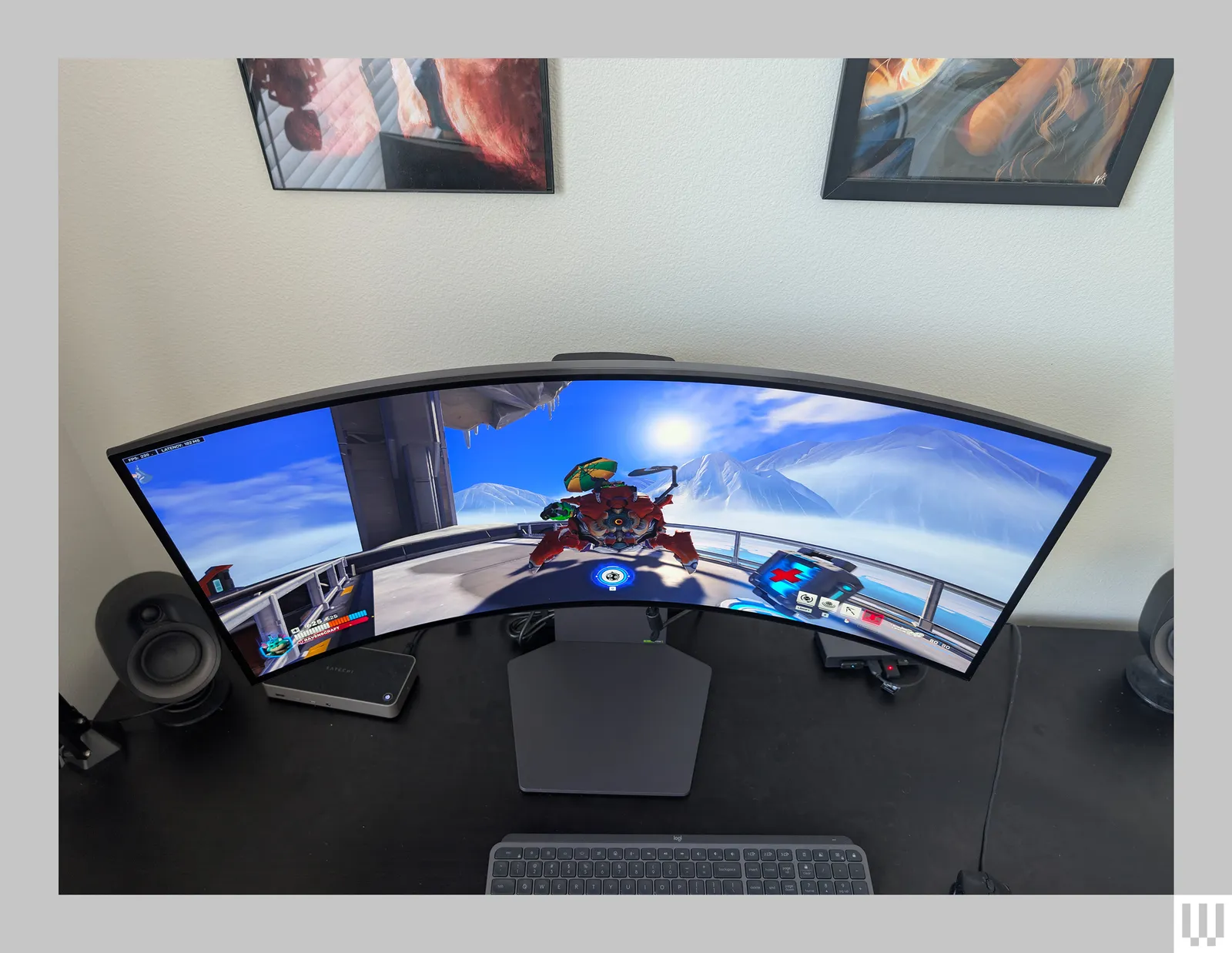
- Curved vs. Flat: Curved ultrawide monitors can enhance immersion and reduce eye strain by keeping the entire screen within your peripheral vision, but may not be ideal for tasks requiring precise straight lines.
- Budget Wisely: Ultrawide monitors range significantly in price. Determine your budget early to narrow down your choices and find the best value for your investment.
Understanding Ultrawide Monitor Basics
Before diving into specific recommendations, let’s clarify what makes an ultrawide monitor unique. Unlike standard widescreen monitors with a 16:9 aspect ratio, ultrawide monitors typically feature a 21:9 aspect ratio, and some even go wider with a 32:9 ratio. This wider aspect ratio provides significantly more horizontal space, allowing you to display multiple applications side-by-side without compromise.Aspect Ratios Explained
- 21:9 Aspect Ratio: This is the most common ultrawide aspect ratio. It offers about 33% more screen real estate than a standard 16:9 monitor of the same height. For example, a 34-inch 21:9 monitor is comparable in width to a much larger 40-inch 16:9 monitor.
- 32:9 Aspect Ratio: Sometimes called “super ultrawide” or “double ultrawide” monitors, these are essentially two 16:9 monitors placed side-by-side. They offer an incredibly vast workspace, ideal for users who need to manage numerous windows simultaneously.
Benefits of Ultrawide Monitors for Work
- Enhanced Multitasking: Displaying multiple windows side-by-side becomes effortless. You can have your email, calendar, code editor, and research tabs open simultaneously without overlap.
- Improved Workflow: For tasks like video editing, graphic design, or programming, the extra horizontal space allows you to see more of your timeline, layers, or code at once, reducing the need to scroll.
- Immersive Experience: While often associated with gaming, this immersion can also benefit creative professionals who need to focus on detail without distractions.
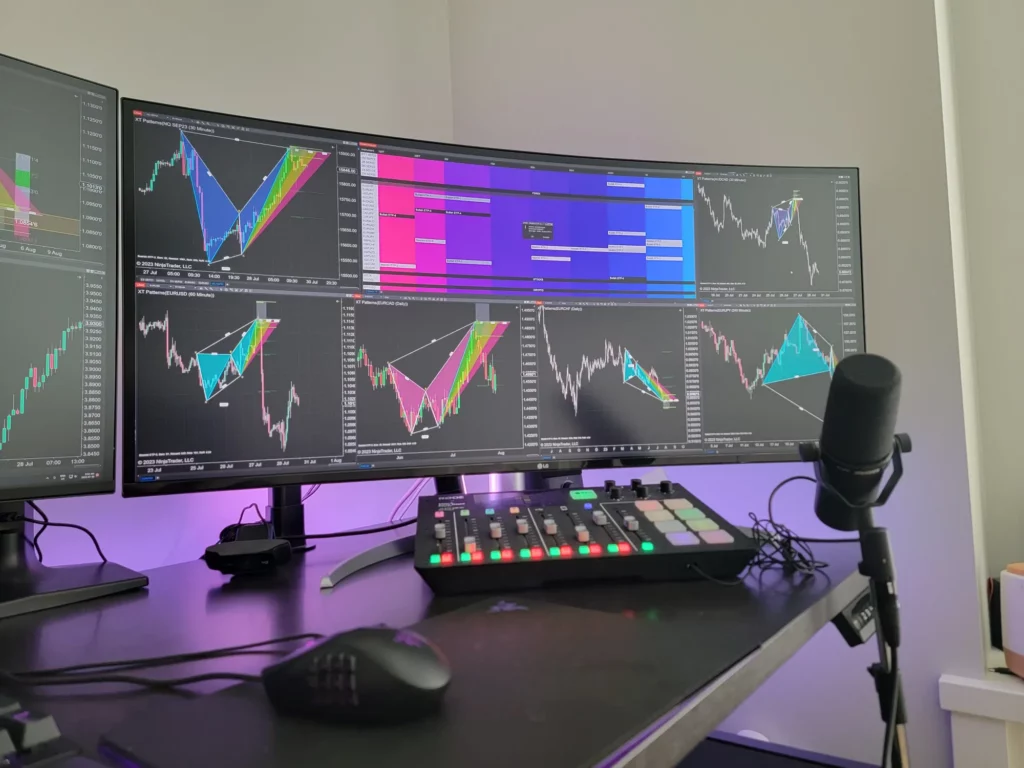
- Reduced Eye Strain: A well-positioned curved ultrawide monitor can keep more of the screen within your natural field of vision, potentially reducing the need to constantly move your eyes and head.
Key Features to Consider for the Best Ultrawide Monitor for Work
Visual guide about What Is the Best Ultrawide Monitor for Work
1. Resolution: The Foundation of Clarity
Resolution refers to the number of pixels on the screen. For ultrawide monitors, this is crucial for determining how much detail you can see and how many applications can comfortably fit without looking cramped.- WFHD (2560×1080): While technically ultrawide, this resolution is often considered too low for larger ultrawide monitors (30 inches and above). Text can appear pixelated, and you won’t get the full benefit of the extra screen space. It’s generally best avoided for professional use.
- QHD Ultrawide (3440×1440): This is the sweet spot for most users seeking the best ultrawide monitor for work. It provides a significant upgrade in sharpness and detail compared to WFHD, offering ample space for multitasking. A 34-inch QHD ultrawide is a popular choice.
- DQHD Ultrawide (5120×1440): Also known as dual QHD, these are essentially two 1440p monitors side-by-side. They offer an exceptional amount of screen real estate, rivaling two standard 27-inch QHD monitors. These are excellent for users who juggle a vast number of windows and demanding applications.
- 4K Ultrawide (5120×2160): These monitors combine the horizontal width of a 32:9 ultrawide with a 4K vertical resolution. They offer incredible detail and sharpness but can be demanding on your graphics card and may require scaling to make text readable. Learn more about ultrawide 4K support and compatibility.
2. Panel Type: Color Accuracy and Contrast
The type of LCD panel used in a monitor significantly impacts its color reproduction, viewing angles, and contrast ratios.- IPS (In-Plane Switching): IPS panels are renowned for their excellent color accuracy and wide viewing angles. This makes them ideal for creative professionals like graphic designers, photographers, and video editors who need precise color representation. They offer consistent colors even when viewed from an angle.
- VA (Vertical Alignment): VA panels excel in contrast ratios, providing deeper blacks and brighter whites than IPS panels. This can be beneficial for content consumption and some types of work where deep blacks are important. However, VA panels can sometimes suffer from slower response times and less consistent viewing angles compared to IPS.
- TN (Twisted Nematic): While TN panels offer the fastest response times, their color reproduction and viewing angles are generally inferior. They are primarily found in budget gaming monitors and are not recommended for professional work where color accuracy and viewing comfort are priorities.
3. Refresh Rate and Response Time: Smoothness and Responsiveness
Refresh Rate: Measured in Hertz (Hz), this indicates how many times per second the screen refreshes its image. Standard monitors are 60Hz. For gaming, higher refresh rates (120Hz, 144Hz, 240Hz) are crucial for smooth motion. For office work, a 60Hz or 75Hz refresh rate is usually sufficient. However, a slightly higher refresh rate (like 100Hz or 120Hz) can contribute to a smoother scrolling experience and reduced eye strain during long work sessions. Response Time: Measured in milliseconds (ms), this is the time it takes for a pixel to change from one color to another. Lower response times (e.g., 1ms, 4ms) mean less motion blur and ghosting. For office work, extreme low response times aren’t as critical as for gaming, but a response time of 5ms or less will contribute to a cleaner image when scrolling or switching between windows. For insights on how response time affects performance, see our article on monitor response time. Practical Tip: Don’t overspend on extremely high refresh rates if your work is primarily document-based. Focus on a good balance between refresh rate and response time for general comfort and clarity. For productivity, a 60Hz or 75Hz monitor with a response time of 5ms or lower is a good starting point.4. Curved vs. Flat: Immersion and Ergonomics
Ultrawide monitors often come with a curved display, which can offer distinct advantages for your workspace.- Curved Monitors: The curvature (measured in R, e.g., 1800R, 1000R) aims to wrap the screen around your field of vision. This can make the entire screen easier to view without excessive head or eye movement, potentially reducing strain. It can also enhance immersion. For ultrawide monitors, a curve of 1800R or 1000R is common and generally well-received for productivity.
- Flat Monitors: Some users prefer flat ultrawide monitors, especially if their work involves tasks where straight lines are critical, such as architectural drafting or precise photo editing, where a curve might introduce slight distortions.
5. Ergonomics and Connectivity: The Practicalities
These features are often overlooked but are vital for a comfortable and functional workspace.- Ergonomics:
- Stand Adjustability: Look for a monitor with a stand that allows for height adjustment, tilt, and possibly swivel. This is crucial for achieving an ergonomic posture and avoiding neck strain. If the included stand is limited, ensure it’s VESA mount compatible so you can attach an aftermarket monitor arm.
- Desk Real Estate: Ultrawide monitors are large. Consider their depth and the footprint of the stand to ensure they fit comfortably on your desk. For help planning your setup, read our guide on how much desk space an ultrawide monitor needs.
- Connectivity:
- USB-C and Thunderbolt: If you use a laptop, a USB-C or Thunderbolt 3/4 port is a game-changer. It can carry video, data, and power delivery (PD) over a single cable, simplifying your setup and charging your laptop simultaneously.
- HDMI and DisplayPort: These are standard video input ports. Ensure the monitor has enough of these for your needs, especially if you plan to connect multiple devices.
- USB Hub: Many ultrawide monitors include a built-in USB hub, which can be incredibly convenient for connecting peripherals like webcams, keyboards, and mice without cluttering your desk with separate hubs.
Choosing the Right Ultrawide for Your Work Needs
Visual guide about What Is the Best Ultrawide Monitor for Work
For Programmers and Developers:
- Focus on: Resolution (3440×1440 or 5120×1440), text clarity, ample horizontal space for code editors and documentation.
- Consider: A monitor with a good matte finish to reduce glare, and USB-C for easy laptop connectivity.
- Example: A Dell UltraSharp or LG Ultrawide with a 34-inch 3440×1440 IPS panel. Discover why ultrawide monitors are great for coding.
For Graphic Designers and Photographers:
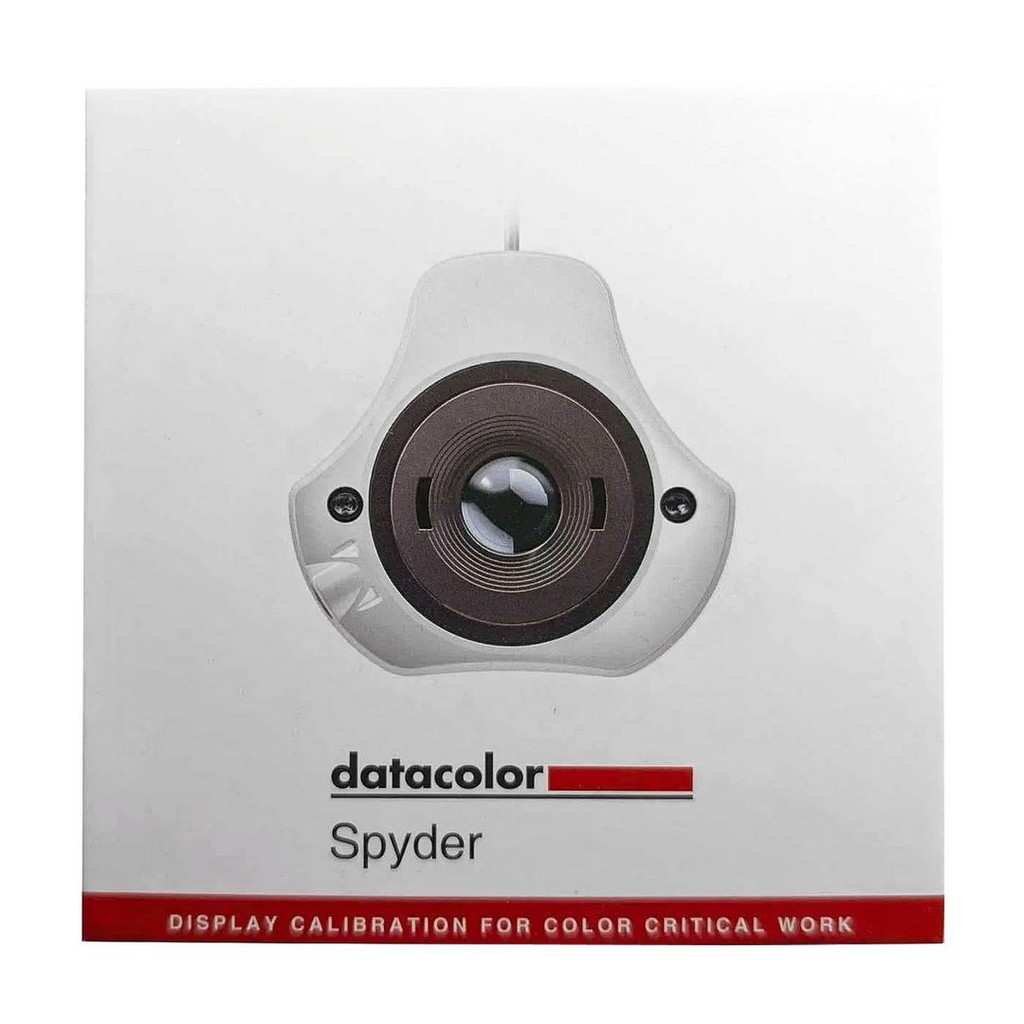
- Focus on: Color accuracy (IPS panel), wide color gamut (sRGB, Adobe RGB coverage), resolution (3440×1440 or higher), color calibration options.
- Consider: A matte finish for reducing reflections on your creative work.
- Example: A BenQ PD3400U or an LG UltraFine OLED Pro for professional-grade color fidelity.
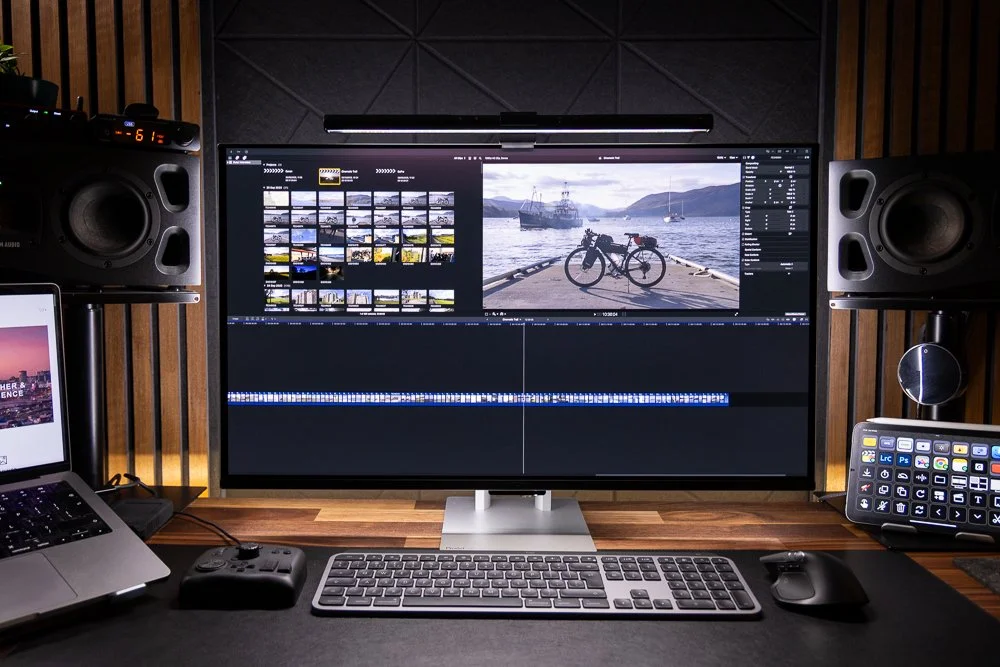
For Video Editors and Content Creators:
- Focus on: Resolution (3440×1440 minimum, 5120×1440 or 5120×2160 ideal), color accuracy (IPS), refresh rate for smoother playback, and sufficient ports.
- Consider: HDR support if your work involves HDR content.
- Example: A Samsung Odyssey G9 (for a super ultrawide experience) or an LG UltraWide with excellent color reproduction.
For General Office Productivity and Multitasking:
- Focus on: Screen real estate (3440×1440 is excellent), comfortable viewing angles (IPS or VA), and good ergonomics.
- Consider: A built-in USB hub for convenience. USB-C with Power Delivery is a huge plus.
- Example: A Lenovo ThinkVision, HP EliteDisplay, or an entry-level LG 34-inch ultrawide.
Popular Ultrawide Monitor Recommendations (General Examples)
Visual guide about What Is the Best Ultrawide Monitor for Work
- LG UltraWide Series: Consistently well-reviewed for their balance of features, performance, and price across various resolutions and panel types.
- Dell UltraSharp Series: Known for excellent color accuracy, ergonomics, and professional features, often with USB-C docking capabilities.
- Samsung Odyssey Series (Super Ultrawides): While heavily marketed towards gaming, their 32:9 aspect ratio and high refresh rates can be incredibly productive for certain demanding work tasks, offering immense screen real estate.
- BenQ Ultrawide Monitors: Often geared towards creative professionals, offering excellent color accuracy and specific features for designers and video editors.
Troubleshooting Common Ultrawide Issues
- Scaling Issues: Some operating systems or applications might not handle ultrawide resolutions perfectly, leading to stretched or small elements. Ensure your graphics drivers are up-to-date, and explore OS scaling settings. For macOS, third-party tools might be needed for optimal scaling.
- Windows Management: Getting used to managing windows on a wider screen takes time. Explore Windows Snap Layouts or use third-party window management software (like FancyZones in PowerToys) to create custom screen layouts.
- Performance Demands: Higher resolutions and wider aspect ratios require more graphical power. If you experience lag or stuttering, check if your graphics card can handle the resolution and refresh rate. Consider lowering settings or upgrading your GPU.
- Content Not Filling Screen: Some older content or applications might be designed for 16:9 and won’t naturally fill an ultrawide screen. Most monitors have aspect ratio settings to force content to fill the screen, though this might result in some stretching or cropping.
Conclusion
Choosing the best ultrawide monitor for work is an investment in your productivity and comfort. By understanding the core differences in resolution, panel types, and connectivity, and by considering your specific professional needs, you can find a display that transforms your workspace. Whether you’re coding, designing, or simply managing multiple spreadsheets, an ultrawide monitor offers a significantly enhanced and more efficient computing experience. Take the time to research, compare features, and consider how each aspect will benefit your daily tasks. Your future, more productive self will thank you.
Similar Posts