Windows 11 Shortcut Keys For Productivity: Essential Tips

Windows 11 Shortcut Keys for Productivity
Introduction to Windows 11 Shortcut Keys
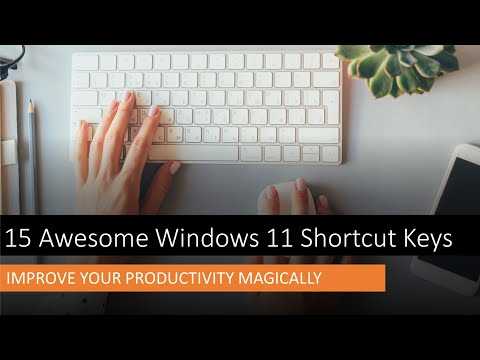
Windows 11 offers a variety of shortcut keys that can make your work faster and easier. These shortcuts help you perform tasks without reaching for your mouse. Using these keys saves time and enhances your overall productivity.Basic Windows 11 Shortcut Keys
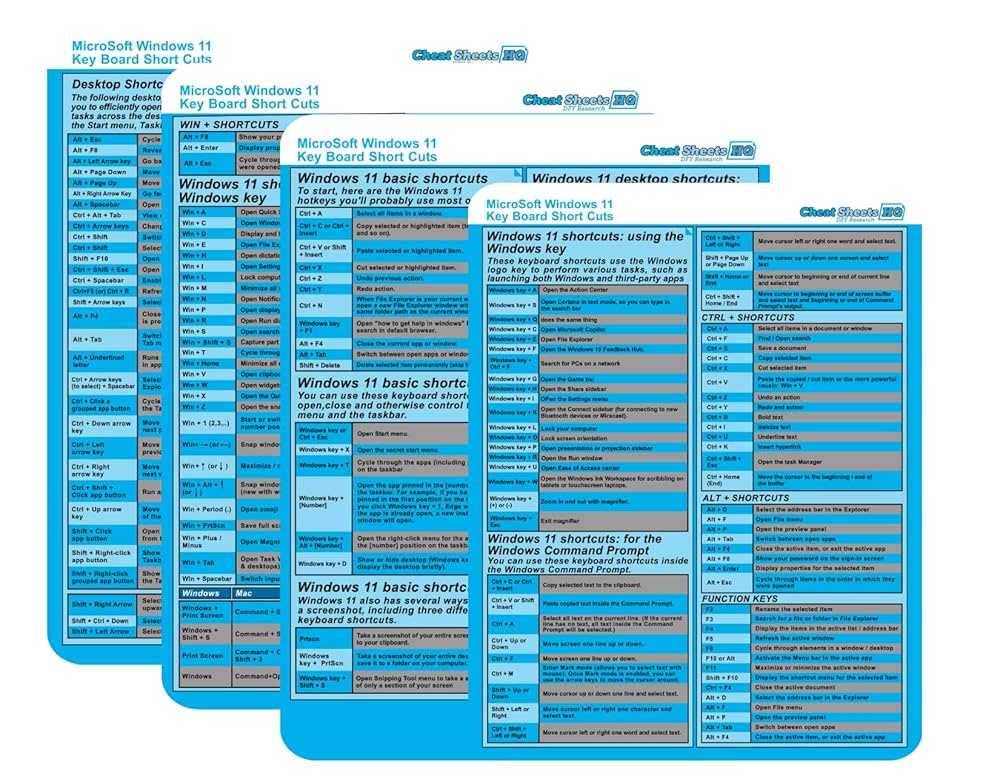
Many basic shortcuts work across Windows versions, but Windows 11 has some new ones that improve your experience. Here are some essential shortcuts to remember:- Win + D: Show Desktop. Quickly minimize all open windows.
- Win + E: Open File Explorer, so you can access your files fast.
- Win + L: Lock your PC to keep your data safe.
- Win + S: Open Search bar to find files, apps, or settings.
- Win + A: Open the Quick Settings panel for Wi-Fi, Bluetooth, and more.
Window Management Shortcut Keys
Managing multiple windows efficiently is key to boosting productivity. Windows 11 has shortcuts that help split screens and switch between apps easily.Snap Windows for Better Multitasking
Snapping windows allows you to organize your workspace neatly.- Win + Left Arrow: Snap the current window to the left side of the screen.
- Win + Right Arrow: Snap the current window to the right side.
- Win + Up Arrow: Maximize the window.
- Win + Down Arrow: Minimize or restore the window.
Switching Between Open Apps
Switching quickly keeps your workflow smooth.- Alt + Tab: Switch between open apps. Hold Alt and press Tab repeatedly to cycle through.
- Win + Tab: Open Task View to see all open windows and virtual desktops.
Virtual Desktop Shortcuts
Windows 11 allows multiple virtual desktops, helping you organize tasks better.Create and Switch Virtual Desktops
These shortcuts make managing desktops straightforward.- Win + Ctrl + D: Create a new virtual desktop.
- Win + Ctrl + Left or Right Arrow: Switch between virtual desktops.
- Win + Ctrl + F4: Close the current virtual desktop.
Quick Access to Settings and Notifications
Fast access to settings improves workflow and saves time.Accessing Settings
Use shortcuts to reach system settings quickly.- Win + I: Open Settings directly.
Notification Center and Action Center
Manage notifications with ease.- Win + N: Open Notifications and Quick Settings.
Special Function Keys in Windows 11
Some function keys have special roles in Windows 11.Volume and Brightness Controls
Adjust your device settings smoothly.- Fn + F1 to F12: Usually perform specific functions like mute, volume up/down, brightness control. Check your device for specific actions.
Snipping Tool and Screen Capture
Capture screens without extra software.- Win + Shift + S: Open Snipping Tool to capture part of your screen.
Using Keyboard Shortcuts for Productivity Apps
Many productivity apps have dedicated shortcuts.Microsoft Office Shortcut Keys
Speed up document work with these shortcuts.- Ctrl + C: Copy selected text or items.
- Ctrl + V: Paste from clipboard.
- Ctrl + Z: Undo last action.
- Ctrl + Y: Redo last action.
- Ctrl + B: Bold selected text.
- Ctrl + I: Italicize text.
- Ctrl + U: Underline text.
Browser Shortcuts in Windows 11
Navigate quickly in your preferred browser.- Ctrl + T: Open a new tab.
- Ctrl + W: Close current tab.
- Ctrl + Tab: Switch between open tabs.
- Alt + D: Focus on the address bar.
- F5: Reload page.
Creating Custom Shortcut Keys in Windows 11
You can set your own shortcuts for frequently used apps to boost efficiency.How to Create Custom Shortcuts
Follow these steps:- Right-click on the app shortcut icon on your desktop.
- Select ‘Properties.’
- Click on the ‘Shortcut’ tab.
- Click inside the ‘Shortcut key’ box and press your desired key combination.
- Click ‘OK’ to save changes.
Advantages of Custom Shortcuts
Custom shortcuts reduce navigation time significantly. You can assign easy-to-remember keys for apps you frequently use. This personalization helps you work faster.Additional Tips for Maximizing Productivity with Windows 11 Shortcuts
Beyond shortcuts, consider combining commands to enhance your workflow.Use Virtual Desktops for Different Tasks
Create virtual desktops for work, personal tasks, or entertainment. Switch between them with shortcuts to stay organized.Pin Favorite Apps to the Taskbar
Pinning apps allows quick access. Combine this with keyboard shortcuts for rapid launching.Keep Your System Updated
Regular updates ensure shortcuts and features work smoothly. Stay current to avoid glitches.Practice Making Shortcuts Part of Your Routine
The more you use shortcuts, the faster your workflow becomes. Set goals to learn new shortcuts regularly.Utilize Sticky Notes and Reminders
Combine keyboard shortcuts with reminder apps to keep track of important tasks.Explore Third-Party Tools
Tools like AutoHotkey allow creating custom scripts for more complex shortcuts and automations. Mastering Windows 11 shortcut keys can significantly improve how efficiently you work on your PC. By incorporating basic, window management, virtual desktop, and app-specific shortcuts into your daily routine, you can save time and reduce frustration. Remember to practice regularly, customize shortcuts where possible, and explore additional tools to tailor your experience to your needs. This practice will help you navigate Windows 11 effortlessly and make your digital tasks more enjoyable.Amazing Windows Shortcuts You Aren't Using
Frequently Asked Questions
How can I quickly switch between open applications using Windows 11 shortcut keys?
Press the Alt + Tab keys to cycle through your open applications. Holding down Alt and repeatedly pressing Tab allows you to navigate through the list. Releasing the keys switches to the selected application immediately, saving time compared to clicking on each window manually.
Is there a shortcut to snap windows into organized layouts on Windows 11?
Yes, press the Windows key + Z to open the Snap Layouts menu. From there, select a layout to position your active window efficiently. Alternatively, Windows key + Left or Right arrow keys snap the current window to the respective side of your screen, helping you arrange multiple windows quickly.
What shortcut allows me to access the Action Center or notification panel in Windows 11?
Use Windows key + A to open the Action Center directly. This shortcut provides instant access to notifications, quick settings, and other system features, enabling you to stay updated and adjust settings without navigating through menus.
Can I quickly lock my screen or log out using shortcut keys in Windows 11?
Yes, pressing Windows key + L locks your computer immediately, securing your workspace. To log out, press Ctrl + Alt + Del and select Log Out from the options that appear. These shortcuts help maintain privacy when stepping away from your device.
Final Thoughts
In summary, mastering Windows 11 shortcut keys for productivity boosts your efficiency and saves valuable time. These shortcuts allow quick access to essential functions, reducing the need for mouse navigation. Incorporating them into your daily routine makes multitasking smoother and more intuitive. Focusing on these key combinations helps you work smarter and stay organized.
Similar Posts