How To Use Virtual Desktops In Windows 11 For Better?

How to use virtual desktops in Windows 11
Virtual desktops are a handy feature in Windows 11 that help you organize your workspace. They allow you to create separate desktops for different tasks or projects, keeping things neat and focused. Learning how to use this feature can make your daily tasks more efficient and less cluttered.
What are virtual desktops in Windows 11?
Virtual desktops are multiple desktop environments within your computer. Each desktop can have its own open apps and windows. They work like physical desktops, but digitally, giving you more space to work with.
Why use virtual desktops?
Using virtual desktops helps you stay organized. You can keep work-related apps on one desktop and personal apps on another. This way, switching between tasks is faster and easier, reducing distractions.
How to create a new virtual desktop in Windows 11
Step 1: Open Task View
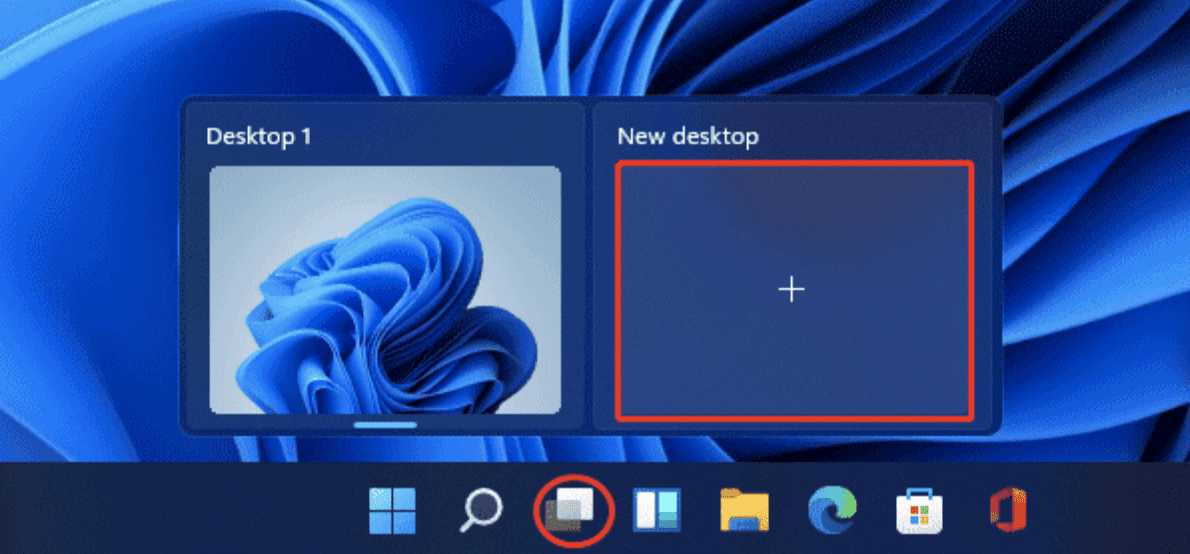
Click the Task View button on the taskbar, which looks like two overlapping rectangles. You can also press Windows key + Tab on your keyboard. This opens the Task View interface showing your current desktop and open apps.
Step 2: Add a new desktop
In the Task View menu, click the New desktop button at the top. This instantly creates a fresh virtual desktop ready for use. Repeat this step if you want to create more desktops.
Step 3: Switch between desktops
You can switch between desktops either by opening Task View and selecting the desktop you want or by using keyboard shortcuts. To switch, press Windows key + Ctrl + Left or Right Arrow. Each press moves you to the previous or next desktop.
How to organize apps across virtual desktops
Moving apps between desktops
Open Task View and hover over the app you want to move. Drag it to the desktop you want from the bottom of the screen. Alternatively, right-click the app, select Move to, and choose the destination desktop.
Closing a virtual desktop
In Task View, click the X icon on the desktop you wish to close. Any apps open on that desktop will either be moved to another desktop or closed, depending on your settings.
Customizing virtual desktops in Windows 11
Renaming desktops
Right-click a desktop in Task View and select Rename. Name it something descriptive, like “Work” or “Gaming,” to quickly identify its purpose.
Changing desktop backgrounds
You can set different wallpapers for each desktop for better visual separation. Right-click on the desktop background, choose Personalize, and select or upload a new background.
Using keyboard shortcuts for quick navigation
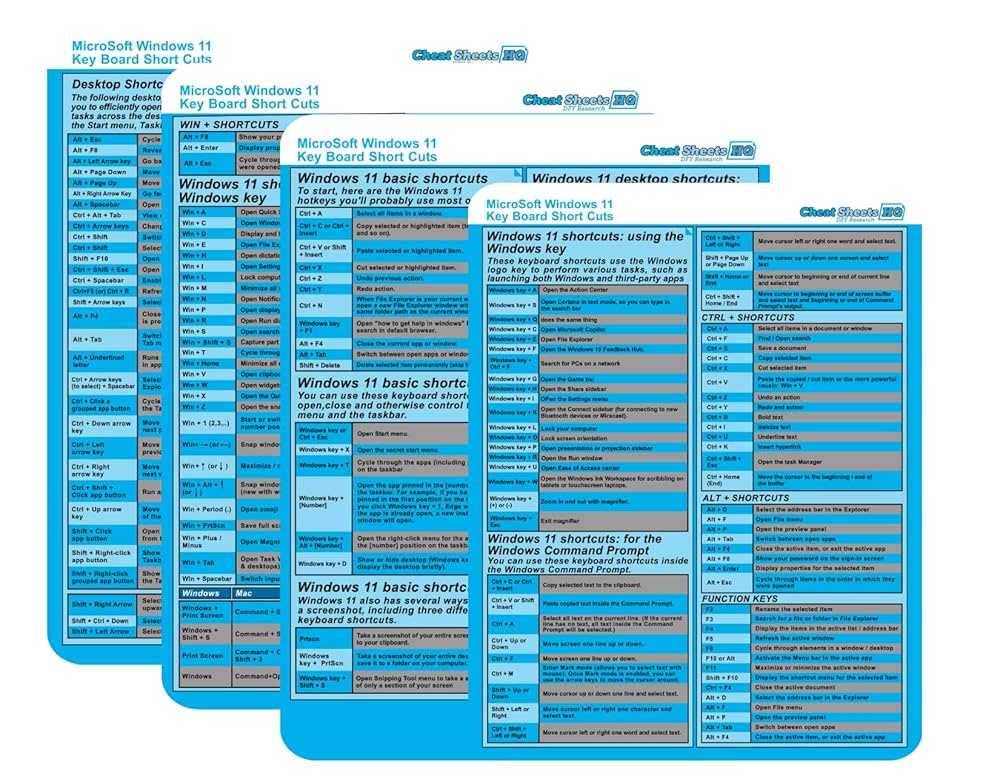
- Windows key + Tab opens Task View.
- Windows key + Ctrl + D creates a new virtual desktop.
- Windows key + Ctrl + F4 closes the current desktop.
- Windows key + Ctrl + Left or Right Arrow switches between desktops.
Managing virtual desktops with touch and mouse
Using a mouse
Click the Task View button on the taskbar or press Windows key + Tab. Then, click New desktop or select an existing desktop to switch.
Using touch
If you’re on a touchscreen device, swipe from the left edge to open the Task View. Tap New desktop to add one or tap on a desktop to switch to it.
Related topics and tips for better multitasking
Snap Layouts and Snap Groups
Windows 11 offers Snap Layouts for better window management. Hover over the maximize button to see layout options and organize multiple apps efficiently.
Using multiple monitors
If you connect multiple screens, virtual desktops can extend across monitors, giving you even more space to organize apps and tasks more effectively.
Shortcut keys for productivity
Combine virtual desktop shortcuts with other Windows shortcuts for smoother multitasking. For example, use Alt + Tab to move quickly between open apps on different desktops.
Security and privacy considerations
Each virtual desktop can have its own privacy settings. Be cautious when sharing screens or leaving desktops unattended to prevent others from viewing sensitive information.
Tips for maximizing your virtual desktop experience
- Rename desktops based on their purpose for easy identification.
- Set different wallpapers to visually distinguish desktops at a glance.
- Use keyboard shortcuts regularly to switch desktops faster.
- Combine virtual desktops with Snap Layouts for better window organization.
Troubleshooting common issues
If virtual desktops are not responding properly, restart your computer or update Windows 11 to the latest version. Ensure your graphics drivers are current to support multiple desktops smoothly.
Advanced tips for power users
Use third-party tools to enhance virtual desktop capabilities, such as managing many desktops or customizing shortcuts. Experiment with settings to find what works best for your workflow.
Understanding how to use virtual desktops in Windows 11 can significantly improve your productivity by keeping your workspace organized and uncluttered. With practice, switching between desktops becomes quick and seamless, making multitasking more efficient than ever.
How to Use the Windows 11 Multiple Desktop Feature!
Frequently Asked Questions
How can I switch between virtual desktops quickly in Windows 11?
Press Windows key + Tab to open the Task View, then select the desktop you want to switch to. Alternatively, use Windows key + Ctrl + Left or Right arrow to move between your desktops swiftly. These shortcuts help you navigate efficiently without opening multiple menus.
What steps do I follow to create a new virtual desktop in Windows 11?
Click on the Task View button on the taskbar or press Windows key + Tab. Then, click the ‘+ New Desktop’ button at the top of the screen. You can also press Windows key + Ctrl + D to add a new desktop instantly. This allows you to organize your workspace for different tasks.
How do I close an unwanted virtual desktop in Windows 11?
Open Task View by clicking the Task View button or pressing Windows key + Tab. Find the desktop you want to close and click the ‘X’ button on its thumbnail. Alternatively, press Windows key + Ctrl + F4 to close the current desktop directly. This helps keep your workspace clean and focused.
Can I customize the way virtual desktops are displayed in Windows 11?
While Windows 11 doesn’t offer extensive customization for virtual desktops, you can rename each desktop by opening Task View, right-clicking a desktop thumbnail, and selecting ‘Rename’. Renaming desktops helps identify their purpose easily. You can also organize apps across desktops as needed.
Is it possible to move an app from one virtual desktop to another in Windows 11?
Yes, you can move apps between desktops. Open Task View and right-click on the window of the app you want to move. Select ‘Move to’ and choose the desired desktop. This helps you manage your open applications more effectively across different workspaces.
Final Thoughts
Using virtual desktops in Windows 11 enhances your productivity by organizing your workspace efficiently. To create a new virtual desktop, press Windows key + Tab, then click “New desktop” at the top. Switch between desktops quickly by pressing Windows key + Ctrl + Left or Right arrow. You can also move applications between desktops by dragging them on the Task View. Customizing each desktop allows you to assign specific tasks or projects to different virtual spaces. How to use virtual desktops in Windows 11 simplifies multitasking and keeps your digital environment tidy, making your workflow smoother and more manageable.
Similar Posts