Why My Macbook Is Not Getting Charged Causes And Fixes

Why My MacBook Is Not Getting Charged
Common Causes of Charging Issues
Many MacBook users face the frustration of their device not charging properly. Understanding the common causes can help troubleshoot the problem. Usually, the issue falls into hardware or software categories.
Hardware problems often involve the charger, cable, or port. Software issues relate to system settings or firmware glitches that interfere with charging. Addressing both areas increases the chances of fixing the problem quickly.
Inspecting the Charger and Cable
Check for Physical Damage
Visually examine your charger and cable for frays, cracks, or bent connectors. Damaged cables can disrupt power flow and prevent your MacBook from charging. Replace any damaged parts immediately to avoid further issues.
Ensure Proper Connection
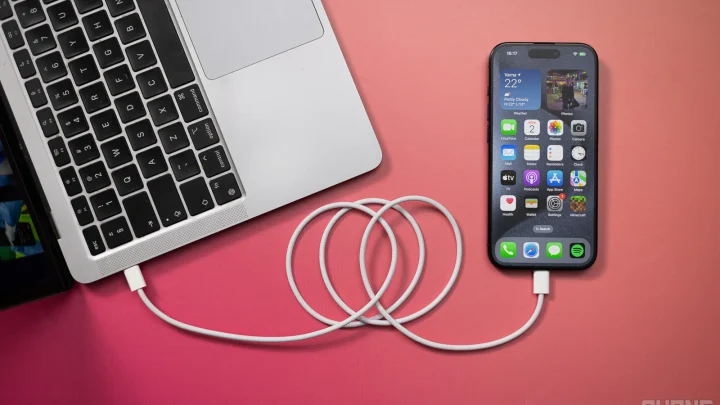
Make sure the charger is firmly plugged into an outlet and the connection to your MacBook is secure. Loose connections can cause intermittent charging or no charging at all. Try unplugging and reconnecting to ensure a tight fit.
Test the Power Outlet
Sometimes, the problem isn’t with your MacBook but with the power source. Try plugging the charger into a different outlet. Avoid using power strips that may have faulty wiring or insufficient power output.
Verifying the Charger and Port Compatibility
Use the Original Apple Charger
Always use the charger that came with your MacBook or a certified Apple replacement. Non-Apple chargers might not deliver the correct power, leading to charging issues. Check the wattage specifications to match your device’s requirements.
Inspect the Charging Port
Dust, lint, or debris in the charging port can obstruct the connection. Use a soft brush or compressed air to clean the port gently. Be cautious not to damage the delicate components inside.
Software Troubleshooting Steps
Restart Your MacBook
A simple restart can resolve temporary glitches that may prevent charging. Shut down your MacBook completely, wait a few seconds, and then turn it back on. Sometimes, this refreshes the system’s hardware detection.
Update MacOS
Software updates often include fixes for hardware recognition issues. Check for available updates by navigating to System Preferences and selecting Software Update. Installing the latest version can resolve compatibility problems.
Reset the SMC (System Management Controller)
Why Reset the SMC?
The SMC manages hardware functions related to power and battery. Resetting it can fix charging problems caused by software glitches.
How to Reset SMC on MacBook
- Shut down your MacBook.
- Press and hold the Shift + Control + Option keys on the left side and the power button simultaneously for 10 seconds.
- Release all keys and then press the power button to turn on your MacBook again.
Reset the NVRAM/PRAM
Why Reset NVRAM/PRAM?
This resets certain settings related to hardware, which may impact charging recognition.
How to Reset NVRAM/PRAM
- Shut down your MacBook.
- Turn it on and immediately press and hold the Option + Command + P + R keys.
- Keep holding the keys for about 20 seconds, then release and let the Mac start normally.
Battery Condition and Health
Check Battery Status
Click the battery icon in the menu bar while holding the Option key. If it says “Service Recommended,” your battery may be worn out and unable to hold charge. Consider replacing the battery if needed.
Run Apple Diagnostics
To check for hardware issues, restart your MacBook and hold the D key during startup. Follow the on-screen instructions to run the diagnostics and identify potential problems with charging components.
Hardware Repair and Replacement
When to Seek Professional Help
If all troubleshooting steps fail, it might be a hardware fault. Common issues include a faulty charging port, damaged logic board, or defective battery. Contact Apple Support or visit an authorized service center for repairs.
Replacing the Battery or Charging Port
- Battery replacement is necessary if it no longer holds charge effectively.
- Charging port issues require professional repairing or replacing the port.
Additional Tips and Tips for Prevention
Keep Software Up to Date
Regularly update your MacBook to prevent software conflicts that could interfere with charging. Updates often contain improvements for hardware compatibility.
Proper Charging Habits
- Avoid overcharging; unplug your MacBook once it reaches 100%.
- Use your MacBook on a stable, dry surface to prevent port damage.
- Store your MacBook in a cool, dry place to protect the battery from overheating.
Regular Maintenance
Perform periodic cleaning of the charging port and check the health of your battery. Staying proactive can prevent many charging issues before they occur.
Related Topics
- MacBook Battery Maintenance and Care
- How to Extend the Lifespan of Your MacBook
- Best Practices for MacBook Charging and Storage
- When to Replace Your MacBook Battery
Understanding why your MacBook isn’t charging involves examining hardware, software, and environmental factors. Taking proper steps can help resolve the issue quickly and keep your device functioning smoothly. Regular maintenance and cautious use are key to preventing future problems and extending your MacBook’s lifespan.
Frequently Asked Questions
What steps can I take if my MacBook isn’t charging despite being connected to power?
If your MacBook isn’t charging, first check that the power adapter and cable are securely plugged into both your MacBook and the power source. Inspect the cable and port for any visible damage or debris, and try using a different outlet or charger if available. Restart your MacBook to refresh the system. If the issue persists, reset the System Management Controller (SMC) to resolve hardware-related charging problems.
How do I identify if the charging port or cable has a defect?
Examine the charging port for dirt, dust, or damage that could obstruct connection. Gently clean the port using a soft brush or compressed air. Test your charger with another compatible device to verify if it works correctly. If the cable or port shows signs of physical damage or does not function properly with other devices, consider replacing the faulty component to restore charging capability.
Could software issues cause my MacBook not to charge, and how can I fix them?
Sometimes, software glitches can interfere with the charging process. Ensure your MacBook runs the latest macOS update, as updates often include bug fixes related to hardware functions. Restart your MacBook and reset the SMC to clear any temporary software issues affecting charging. If problems continue, boot into safe mode to check if third-party software is causing conflicts.
What should I do if my MacBook remains unresponsive even when plugged in for an extended period?
If your MacBook does not respond to charging even after several hours, try disconnecting the charger, then restarting the device. Check the battery status indicator if available. If the battery remains unresponsive, your MacBook’s internal battery or charging circuitry might need professional inspection. Contact Apple Support or an authorized service provider to diagnose and repair the hardware.
Final Thoughts
The issue of your MacBook not charging can stem from multiple sources. Check your charging cable and adapter for damage or debris that might block the connection. Restart your MacBook and reset the SMC to resolve minor hardware glitches. If problems persist, verify if your power source is functioning correctly. Ultimately, why my macbook is not getting charged? It could be due to a faulty charger, a software bug, or port issues. Identifying the root cause helps you take the right steps to get your MacBook charging again efficiently.
Similar Posts