Why Are My Airpods Stopping And Starting Issues

Why Are My AirPods Stopping and Starting? A Complete Guide to Troubleshooting
Understanding the Common Issue of AirPods Pausing and Reconnecting
Many AirPods users notice their earbuds frequently stopping and starting during use. This can be frustrating, especially when listening to music, making calls, or watching videos. The problem often stems from connection issues, software glitches, or hardware concerns that need careful examination. Recognizing the cause helps you choose the right fix quickly.Possible Reasons Behind AirPods Stopping and Starting
Several factors can lead to your AirPods pausing or disconnecting unexpectedly. Here are the most common causes:- Bluetooth Interference: Other wireless devices can interfere with the Bluetooth signal, causing interruptions.
- Low Battery Levels: When your AirPods or connected device have low battery, they might disconnect or stop playing.
- Software Glitches: Bugs or outdated firmware on your AirPods or iPhone can result in connectivity issues.
- Hardware Damage: Physical damage, such as water exposure or drops, may affect internal components.
- Incorrect Settings: Certain settings on your device or AirPods might lead to automatic pausing or disconnection.
- Connectivity Range Issues: Moving too far from your device can cause drops in connection.
How Bluetooth Interference Affects Your AirPods
Bluetooth operates on the 2.4 GHz frequency, which is crowded with Wi-Fi networks, microwaves, and other wireless devices. When multiple signals compete, your AirPods might struggle to maintain a stable connection, resulting in stopping and starting. Minimizing nearby wireless devices can help stabilize the connection.Tips to Reduce Bluetooth Interference
Try these steps to improve connection stability:
- Keep your AirPods close to your device.
- Avoid using your AirPods in crowded wireless environments.
- Turn off other Bluetooth devices when not in use.
- Update your device’s software regularly to optimize Bluetooth performance.
Battery Levels and Their Impact on AirPods Performance
Low battery causes your AirPods to stop or disconnect to conserve power. Both the earbuds and the charging case need sufficient charge for smooth operation. Always check the battery status before extended use to avoid interruptions.Best Practices for Battery Management
Follow these tips to prevent battery-related issues:
- Charge your AirPods regularly, especially before long listening sessions.
- Use the charging case to top up your AirPods when not in use.
- Keep your device’s battery percentage above 20% when using AirPods.
Software and Firmware Troubleshooting
Outdated software or firmware can cause connectivity issues. Apple frequently releases updates to fix bugs and improve performance. Ensuring both your device and AirPods firmware are current can reduce stopping and starting problems.How to Update Your AirPods Firmware
Although firmware updates happen automatically, you can encourage an update by:
- Ensuring your AirPods are connected to a device with an internet connection.
- Placing your AirPods in the charging case with the lid open.
- Keeping your device nearby and unlocked for the update to complete.
Checking and Adjusting Your Apple Device Settings
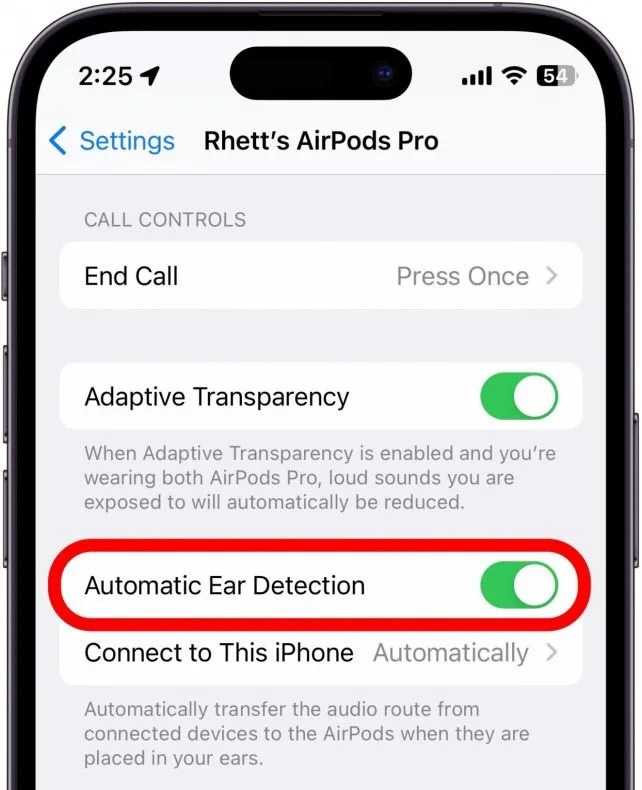
Incorrect settings on your iPhone or iPad can cause frequent pauses. Features like Automatic Ear Detection or Audio Sharing might interfere with playback if not configured properly.Managing Ear Detection and Auto Play
Disable Ear Detection if it causes issues:
- Go to Settings > Bluetooth.
- Tap the info icon next to your AirPods.
- Toggle off Automatic Ear Detection.
This prevents your AirPods from pausing when they mistakenly detect you’re not wearing them.
Addressing Hardware Damage and Wear
Physical damage can impair internal components responsible for connectivity and sound. If your AirPods have been dropped, exposed to water, or experience physical wear, they may stop and start unexpectedly.Signs of Hardware Damage
- Unusual sounds or no sound at all.
- AirPods not pairing or disconnecting frequently.
- Visible damage or dirt buildup.
In such cases, visiting an Apple Store or authorized repair shop is recommended for assessment and potential repairs.
Routine Maintenance and Care Tips
Proper care extends the lifespan and performance of your AirPods. Regular cleaning and handling can prevent many problems related to dirt or debris affecting sensors or microphones.Cleaning Your AirPods Safely
- Use a soft, dry cloth to wipe surfaces.
- Gently clean the speaker meshes with a dry cotton swab.
- Avoid using liquids, sharp objects, or abrasive materials.
Advanced Troubleshooting Steps
If basic steps fail, try these additional measures to resolve persistent stopping and starting issues.Resetting Your AirPods
- Place both AirPods in the charging case.
- Press and hold the setup button on the case until the status light flashes amber and white.
- Reconnect your AirPods to your device.
Re-pairing Your Devices
- Go to Settings > Bluetooth on your device.
- Forget your AirPods from the list.
- Initiate pairing again by opening the AirPods case near your device and following on-screen instructions.
When to Seek Professional Help
Persistent issues despite troubleshooting may point to hardware failure. Contact Apple support or visit an authorized service provider for repair options. Sometimes, replacing your AirPods might be the best solution if damage is extensive.Summary of Key Points to Fix AirPods Pausing and Starting
- Ensure your device and AirPods firmware are up to date.
- Keep your AirPods close and free from interference.
- Maintain good battery levels by charging regularly.
- Disable automatic ear detection if it causes issues.
- Perform resets and re-pair your AirPods if necessary.
- Check for physical damage and consult professionals if needed.
Frequently Asked Questions
What troubleshooting steps can I take if my AirPods keep disconnecting unexpectedly?
If your AirPods disconnect randomly, try resetting your device’s Bluetooth connection. Turn off Bluetooth on your device, wait a few seconds, and then turn it back on. Ensure your AirPods are fully charged and close to your device. You can also forget the AirPods from your device’s Bluetooth settings and then pair them again. Updating your device’s software and ensuring that your AirPods firmware is up to date can also help resolve disconnection issues.
Could interference from other devices cause my AirPods to stop and start?
Yes, other wireless devices can interfere with your AirPods’ connection. Devices like Wi-Fi routers, microwaves, or other Bluetooth gadgets may disrupt the signal. To minimize interference, move away from such devices or turn them off temporarily. Additionally, keeping your AirPods and device close together reduces the chance of interruptions caused by signal interference.
How can software updates improve the performance of my AirPods?
Software updates for your AirPods and connected device often include bug fixes and performance improvements. Regularly checking for and installing these updates can resolve issues like stuttering or frequent disconnections. Updating your iOS or device firmware ensures compatibility and smooth functioning of your AirPods, reducing the likelihood of stoppages and starts.
Are there specific settings I should adjust to prevent my AirPods from stopping and starting?
Adjusting certain settings can help maintain a stable connection. Disable automatic ear detection if it causes issues, or toggle Noise Cancellation on and off to see if it stabilizes playback. Also, reviewing Bluetooth preferences and ensuring that audio routing is correctly set can prevent unexpected stops. Resetting your AirPods can also resolve persistent configuration conflicts.
Can hardware issues cause my AirPods to have inconsistent playback?
Yes, hardware problems such as damaged internal components, battery issues, or loose connections can cause audio interruptions. If your AirPods are physically damaged or experiencing battery drain, they may stop or restart during use. In such cases, contacting Apple Support for repair or replacement might be necessary to restore proper functioning.
Final Thoughts
If your AirPods keep stopping and starting, it often points to connection issues or software glitches. Cleaning the headphones and resetting your device can often resolve these problems. Software updates also help fix bugs that cause interruptions. Battery life can affect performance, so ensure your AirPods are charged fully. Bluetooth interference from other devices might also cause sporadic pauses. In conclusion, why are my AirPods stopping and starting? Addressing connection, battery, and interference issues can restore smooth functionality and improve your listening experience.
Similar Posts