What To Do If Your Touchscreen Stops Working Iphone
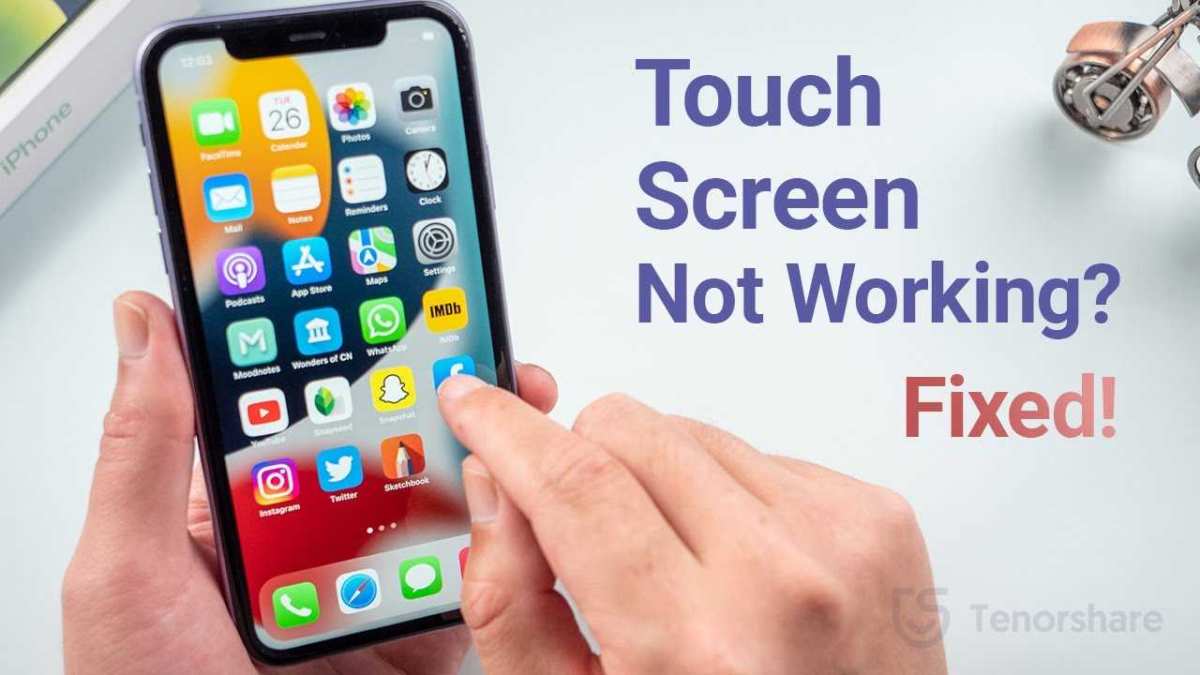

What to Do If Your Touchscreen Stops Working iPhone
1. Restart Your iPhone
If your iPhone’s touchscreen isn’t responding, the first step is often to restart your device. Holding down the power button and sliding to power off can resolve temporary glitches. After turning it back on, check if the touchscreen works properly. Sometimes, a simple reboot clears minor software bugs causing unresponsiveness.2. Check for Software Updates
Software updates can fix bugs that interfere with touchscreen functionality. Navigate to Settings, then General, and select Software Update. If an update is available, download and install it. Keeping your iPhone’s software current ensures better stability and fewer issues with the touchscreen.3. Clean the Screen Thoroughly
Dirt, oil, or moisture on the screen can cause it to stop responding. Use a soft, slightly damp cloth to gently wipe the display. Avoid using harsh chemicals or abrasive materials, which can damage the screen. Ensure your hands are clean and dry before touching the screen to improve responsiveness.4. Remove Screen Protectors and Cases
Sometimes, screen protectors or cases interfere with touch sensitivity. Carefully remove any screen protector and case to see if this restores functionality. Dirt or air bubbles trapped under protectors also affect responsiveness; replacing or repositioning them can help.5. Force Restart Your iPhone
If the touchscreen remains unresponsive, try a force restart. The method depends on your iPhone model:- iPhone 8 or later: Press and quickly release volume up button, then press and quickly release volume down button. Hold the side button until the Apple logo appears.
- iPhone 7 and 7 Plus: Press and hold both volume down and sleep/wake buttons until the Apple logo shows up.
- Older models: Hold the home button and sleep/wake button simultaneously until the Apple logo appears. This process can clear temporary system glitches causing touch issues.
- Avoid exposing your iPhone to extreme temperatures or water.
- Use a quality screen protector to prevent scratches and cracks.
- Handle your device carefully to prevent drops and impacts.
- Keep your software updated regularly to ensure optimal performance.
6. Update or Reinstall iOS
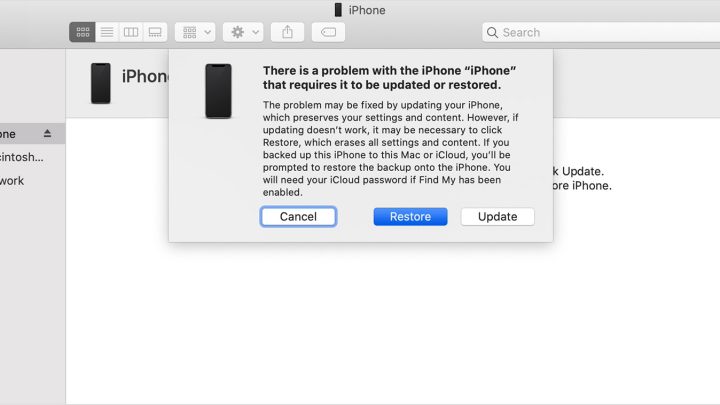
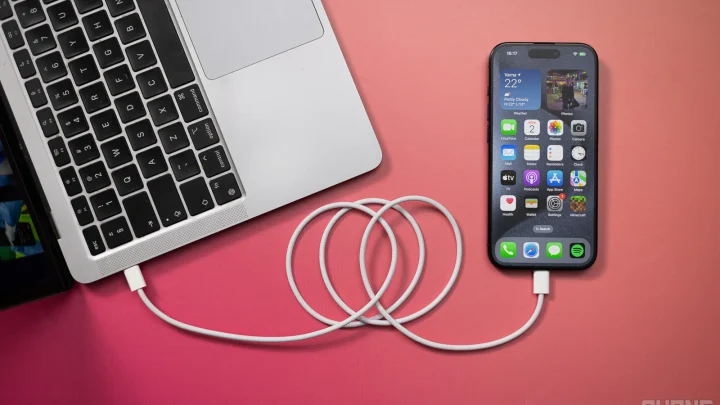
Outdated or corrupted iOS files may cause touchscreen problems. Connect your iPhone to a computer with iTunes (or Finder on macOS Catalina and later). Choose your device, then select Update to reinstall iOS without erasing data. If issues persist, consider a full restore, but back up your data first.7. Check for Hardware Damage
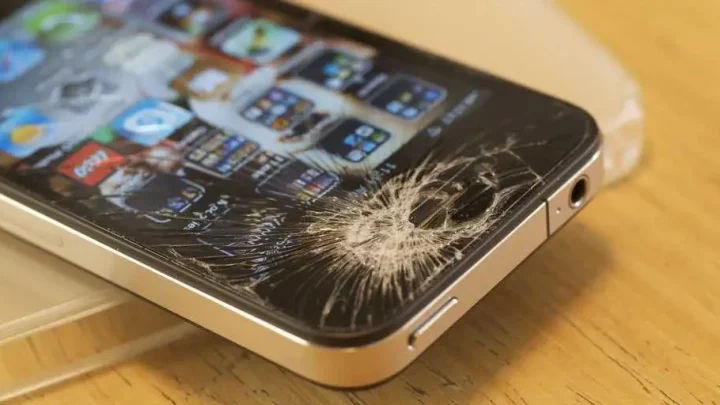
Physical damage such as cracks, drops, or water exposure can impair touchscreen functioning. Inspect your iPhone carefully for visible damage. If you notice cracks or water damage, visiting an authorized repair shop is essential. Damaged screens might require replacement to regain responsiveness.8. Calibrate or Reset Touch Settings
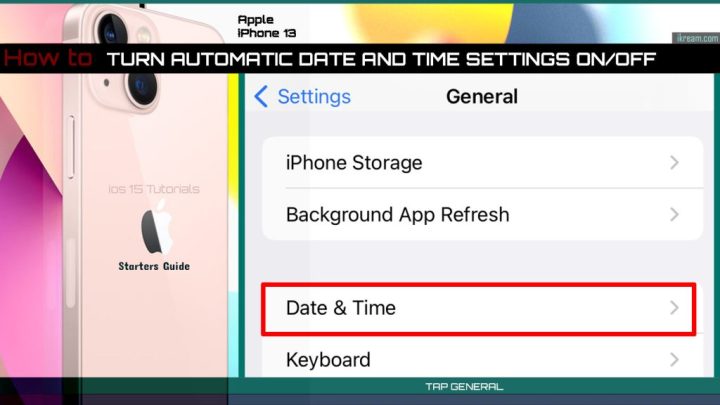
Though iPhones don’t need calibration like some devices, resetting touch settings can sometimes help. Go to Settings, then General, select Reset, and choose Reset All Settings. This resets preferences without deleting data, potentially fixing responsiveness issues.9. Use AssistiveTouch
If your touchscreen is partially responsive, enabling AssistiveTouch can help perform functions using on-screen controls. Navigate to Settings, then Accessibility, and turn on AssistiveTouch. This feature offers a virtual home button and other controls for easier navigation.10. Seek Professional Help
When all else fails, professional repair may be necessary. Contact Apple Support or visit an authorized repair center for a thorough diagnosis. If your iPhone is under warranty or covered by AppleCare+, repairs might be covered or discounted.Additional Tips to Prevent Screen Issues
Related Topics
How to Protect Your iPhone Screen from Damage
Best Screen Protectors for iPhones
How to Scan for Malware on Your iPhone
What to Do If Your iPhone Freezes or Crashes
This comprehensive list of steps ensures you explore all options to fix a non-responsive touchscreen. Each action targets common causes and offers practical solutions to restore your iPhone’s usability efficiently. Always remember, if hardware damage is suspected, professional repair is the safest course of action.Screen is frozen ?Touch doesn’t work ? Here’s how you fix it 😉#shorts #apple #iphone13 #ios #iphone
Frequently Asked Questions
How can I force restart my iPhone if the touchscreen is unresponsive?
If your iPhone’s touchscreen stops responding, try performing a force restart. The method varies depending on your iPhone model. For iPhone 8 or later, press and release the volume up button, then press and release the volume down button. Finally, press and hold the side button until the Apple logo appears. For iPhone 7 and 7 Plus, press and hold both the volume down and side buttons simultaneously until the Apple logo shows up. For earlier models, press and hold both the home button and the side or top button until the Apple logo appears. This can often resolve temporary software glitches causing the touchscreen to freeze.
What steps should I take if cleaning the screen doesn’t fix the touchscreen issue?
Ensure the screen is free from dirt, smudges, or moisture that might interfere with touch sensitivity. Use a soft, lint-free cloth slightly dampened with water or isopropyl alcohol to gently clean the screen. Avoid using excessive liquid or abrasive materials. After cleaning, dry the screen thoroughly and try interacting with it again. If the problem persists, check for any protective film or case interfering with touch input and remove them to see if the touchscreen responds better.
Could a recent software update cause touchscreen problems on my iPhone?
Yes, sometimes a software update can introduce bugs that affect touchscreen performance. To troubleshoot this, check if your device is running the latest version of iOS. If not, update to the latest version, as it may contain bug fixes that resolve your issue. If you already have the latest update and the touchscreen problem started afterward, try resetting your settings by navigating to Settings > General > Reset > Reset All Settings. This resets system preferences without deleting your data and may fix software-related touch problems.
Should I consider restoring my iPhone if the touchscreen remains unresponsive?
If other troubleshooting steps haven’t worked, restoring your iPhone might help. Connect your device to a computer with iTunes or Finder, then perform a complete restore. Ensure you back up your data before proceeding, as restoring will erase all content. After restoring, set up your iPhone as new to see if the touchscreen responds properly. If the issue continues even after a clean restore, it could indicate a hardware problem that requires professional repair.
What hardware issues could cause touchscreen failure on my iPhone?
Hardware problems like a damaged digitizer, faulty display connectors, or water damage can cause the touchscreen to stop working. If your iPhone has been dropped, exposed to moisture, or experienced physical impact, these could be the root causes. In such cases, you should visit an authorized service provider or Apple Store for a professional diagnosis. Hardware repairs might be necessary to restore full touchscreen functionality and ensure your device operates correctly.
Final Thoughts
Lorsque your touchscreen stops working iPhone, first try a force restart. This simple step often resolves temporary glitches. If the problem persists, update your iOS software to ensure compatibility and fix bugs. Cleaning the screen gently can remove dirt or smudges interfering with touch sensitivity. If restarting and updating don’t work, contact Apple Support or visit an authorized service provider. what to do if your touchscreen stops working iPhone? Follow these steps to troubleshoot effectively, and consult professionals when necessary to keep your device functioning perfectly.
Similar Posts