Lines On Iphone Screen Fix
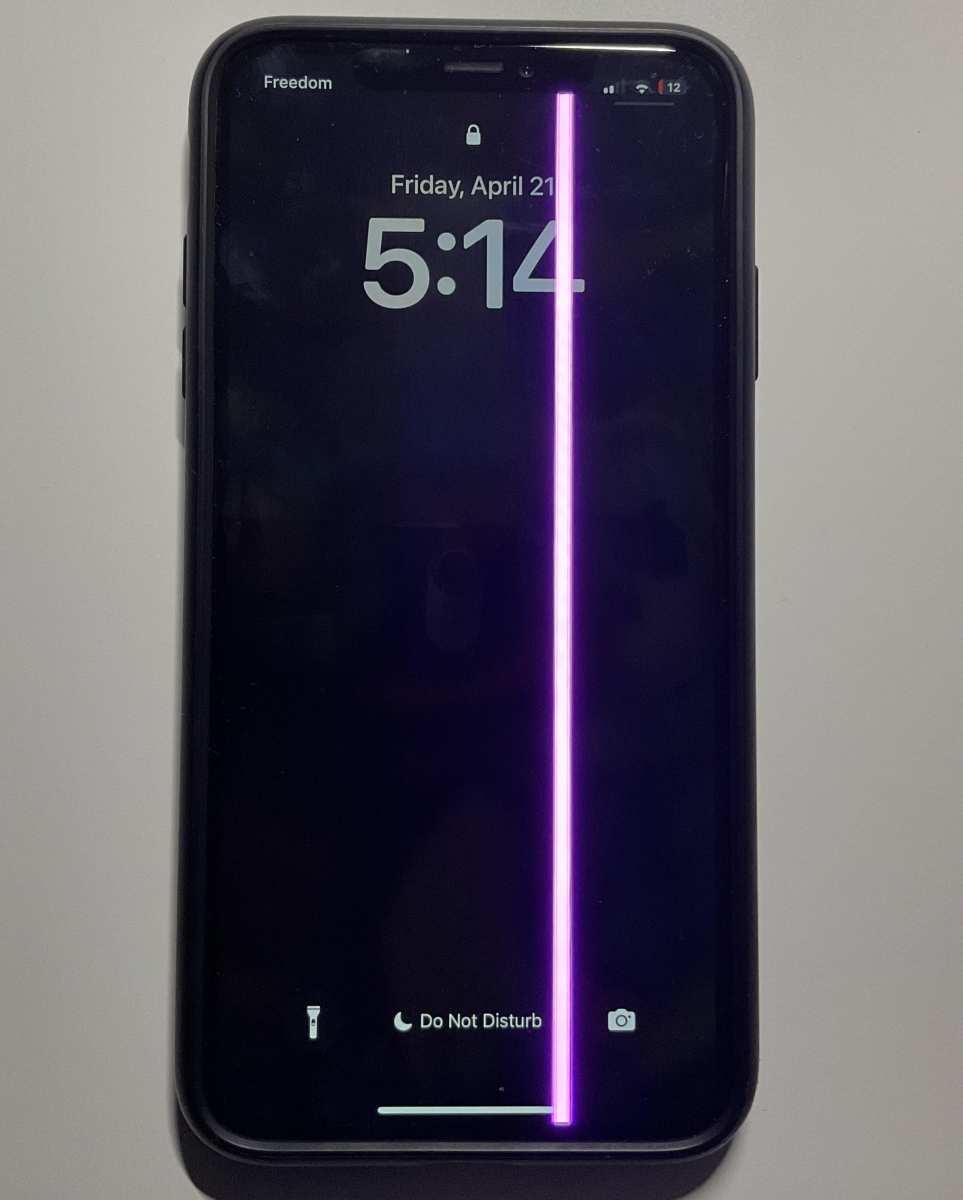

Lines on iPhone Screen Fix: How to Repair Screen Lines Effectively
Having lines appear on your iPhone screen can be frustrating and confusing. These lines could be horizontal, vertical, or even flickering, and they often make it hard to see what’s on your device. Many users wonder if this problem is fixable without going to a repair shop or if they need to replace their entire screen. The good news is, there are several ways to address and fix lines on an iPhone screen. In this article, we will explore in detail what causes these lines, how to troubleshoot them, and the best methods to repair your screen at home or with professional help.Understanding Why Lines Appear on an iPhone Screen
Before jumping into fixing the lines, it’s helpful to understand what causes them. In most cases, these lines are the result of hardware or software issues.Common Causes of Screen Lines
- Physical Damage – Dropping your iPhone or hitting it against a hard surface can cause internal damage to the display or its connectors.
- Loose or Damaged Connections – Over time, the internal flex cables that connect the screen to the logic board may become loose or break, leading to display issues.
- Manufacturing Defects – Sometimes, screens may have defects from the factory, which manifest as lines after some usage.
- Water Damage – Exposure to moisture can corrode internal parts and affect the display, resulting in lines or flickering.
- Software Glitches – In rare cases, software errors or outdated iOS versions might cause display anomalies, though physical lines typically suggest hardware issues.
How to Diagnose Whether Lines Are Hardware or Software-Related
While visual cues can help, you need to confirm whether your problem lies in hardware or software. Here’s how you can do it:Perform a Restart
Sometimes, a simple restart resets temporary glitches that affect your display. If the lines disappear after a reboot, it might be a software issue.Update iOS
Check if your device’s software is up to date. Outdated software can cause display anomalies. Go to Settings > General > Software Update to see if there’s a new version.Test in Safe Mode or Restore
– Boot your iPhone in safe mode or restore it to factory settings to see if the lines persist. If they do, it’s likely a hardware problem.Check for Physical Damage
– Inspect your screen for cracks, scratches, or other visible damage. Also, look for signs of water damage or loose parts.Effective Methods for Fixing Lines on iPhone Screen
Once you determine that the lines are hardware-related, such as a faulty connection or damaged display, here are practical solutions to repair your screen.Simple Troubleshooting Steps
Before attempting any repair, try these basic steps:- Force restart your iPhone to refresh the system.
- Clean your screen and connectors gently with a soft cloth to remove dirt or debris.
- Remove any case or screen protector that might be causing pressure on the device.
Perform a Screen Reset or Calibration
Sometimes, recalibrating the display can fix minor issues. This involves resetting your display settings or performing a soft reset, which can help clear software glitches affecting the display.Replacing the Screen or Display Assembly
For serious hardware issues, replacing the entire display assembly is often the most reliable solution. This involves:- Removing the damaged display carefully.
- Disconnecting the old screen from internal connectors.
- Installing a new, compatible display assembly.
Fixing Loose or Damaged Connectors
If internal connectors are loose or damaged:- Open the iPhone carefully using specialized tools.
- Inspect the flex cables connecting the display to the logic board.
- Secure any loose cables or replace damaged ones.
When to Seek Professional Repair
If you’re uncomfortable performing repairs yourself or if your efforts don’t fix the issue, professional repair is the safest route. Certified technicians can diagnose and repair:- Broken LCD or OLED screens
- Damaged internal connectors
- Water or corrosion damage affecting internal parts
Preventing Future Screen Problems
Prevention is always better than cure. Here are tips to keep your iPhone screen in good condition:- Use a sturdy, high-quality case and screen protector to prevent drops and scratches.
- Avoid exposing your device to water or extreme temperatures.
- Handle your iPhone with care, especially when inserting or removing SIM cards.
- Keep your software updated to prevent glitches that might affect display performance.
Summary of Repair Options
| Repair Method | Suitability | Cost | Difficulty | |—————-|————–|——-|————| | Restart and software update | Minor issues | Free | Easy | | Screen calibration | Minor display glitches | Free | Easy | | Cleaning connectors | Loose connections | Low | Moderate | | DIY screen replacement | Damaged display | Moderate to high | Difficult | | Professional repair | Hardware failure | High | Expert required | Dealing with lines on an iPhone screen can be a straightforward process if you understand the root cause. For minor software-related issues, simple resets or updates often do the trick. For hardware problems, replacing the screen or repairing internal connections is necessary. Always consider your comfort level and experience before attempting complex repairs, and don’t hesitate to consult a professional if needed. Taking care of your device and addressing display issues promptly helps extend your iPhone’s lifespan and prevents further damage.Frequently Asked Questions
What steps can I take to fix horizontal lines appearing on my iPhone screen?
If you notice horizontal lines on your iPhone screen, start by performing a soft reset. Press and hold the power button and volume down button simultaneously until the Apple logo appears. If lines persist, check for any debris or dirt on the screen and clean it gently with a microfiber cloth. If the problem continues, consider updating your iPhone’s software or restoring it through iTunes. Persistent issues may require professional repair or screen replacement.
How do software updates impact screen line issues on iPhones?
Software updates can sometimes resolve display glitches, including screen lines, by fixing bugs or compatibility issues. Ensure your iPhone runs the latest iOS version by navigating to Settings > General > Software Update. Installing updates can improve overall system stability, which may eliminate minor display problems. If updating doesn’t help, you might need to explore hardware solutions.
Can physical damage be the cause of lines on my iPhone display, and what should I do?
Yes, physical impacts such as drops or pressure can cause lines to appear on your iPhone screen. Inspect the device for any cracks or visible damage. If damage is apparent or lines appear after a fall, immediate repair is necessary. Contact an authorized service provider to evaluate whether the screen needs to be repaired or replaced. Continuing to use a damaged screen can worsen the issue over time.
Are there any DIY methods to fix lines on an iPhone screen?
While some minor glitches can be addressed with simple troubleshooting, fixing physical defects usually requires professional repair. You can try restarting your device or resetting settings, but avoid attempting to open or repair the screen yourself unless you have experience, as this can cause further damage. For persistent or hardware-related issues, seek assistance from certified technicians.
When should I consider replacing my iPhone screen due to lines?
If you notice persistent lines that do not go away after restarting or software updates, and the display shows other signs of damage like discoloration or cracks, replacing the screen becomes necessary. This step ensures the device functions properly and prevents further damage. Contact a professional repair service to evaluate the extent of the damage and perform the screen replacement safely.
Final Thoughts
Lines on iPhone screen fix is essential for restoring your device’s appearance and functionality. Using simple tools or visiting a professional can resolve these issues quickly. Applying screen repair kits at home offers an affordable option, but ensure you follow instructions carefully. Professional repair services guarantee quality and safety for more serious problems. In conclusion, addressing lines on iPhone screen fix promptly helps maintain your device’s performance. Acting swiftly prevents further damage and extends your phone’s lifespan.
Similar Posts































