How To Use Apple Ipad Pencil For Beginners
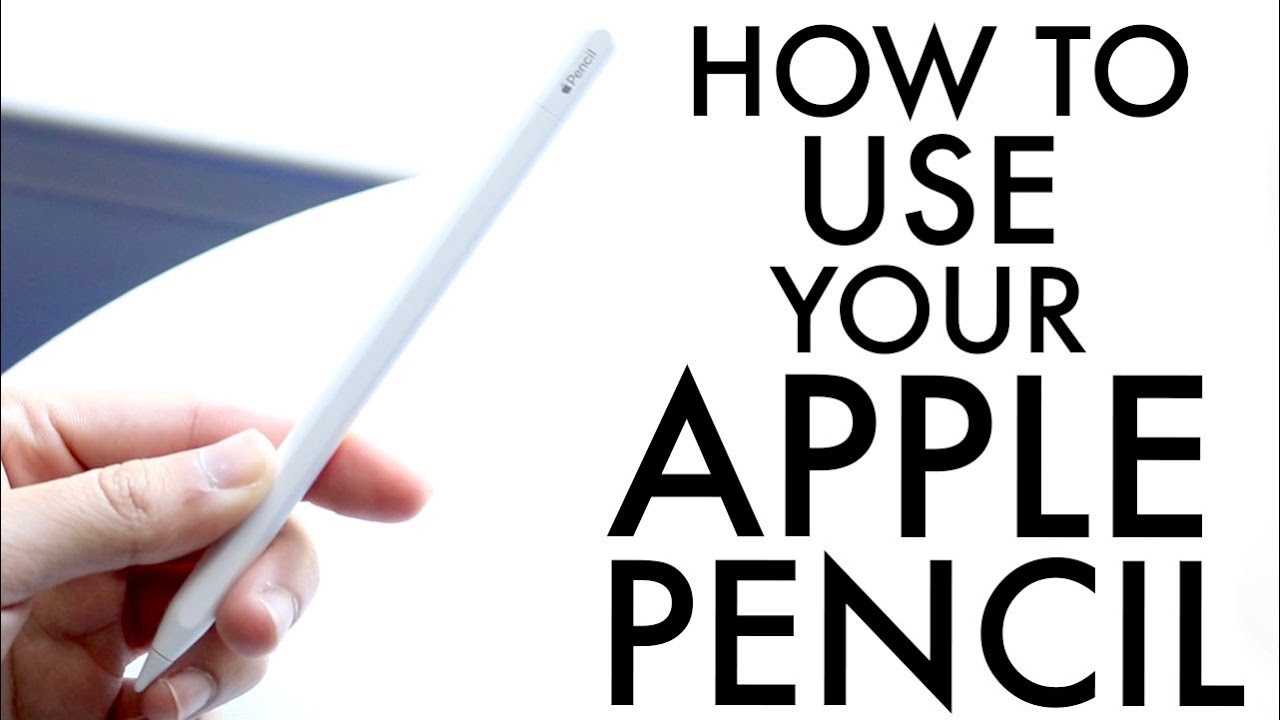

How to Use Apple iPad Pencil: A Complete Guide for Beginners and Beyond
Understanding the Apple iPad Pencil
The Apple iPad Pencil is a versatile tool designed to enhance your experience with iPads. It allows you to draw, sketch, write, and navigate with precision. Knowing its features helps you use it effectively for various tasks.Different Versions of the iPad Pencil
There are two main versions: the first-generation Apple Pencil and the second-generation Apple Pencil. The first generation works with earlier iPad models and charges via the Lightning port. The second-generation model is compatible with newer iPads and charges wirelessly by attaching magnetically.Getting Started with Your Apple iPad Pencil
Before using your Pencil, make sure it’s properly paired with your iPad. Turn on Bluetooth on your device, then connect the Pencil through the Bluetooth settings. A prompt will appear on the screen to confirm the pairing process.Pairing the Apple iPad Pencil
For the first-generation Pencil, plug it into the iPad’s charging port and follow the on-screen instructions. For the second-generation Pencil, attach it magnetically to the side of your iPad, and it will automatically pair. Keep the Pencil charged for uninterrupted use.Charging Your iPad Pencil
The first-generation Pencil charges via the Lightning port, which can be plugged into your iPad or a Lightning charger. The second-generation Pencil charges wirelessly when attached magnetically. Regular charging ensures smooth performance during your creative sessions.Using the Apple iPad Pencil for Drawing and Sketching
The Pencil makes drawing and sketching simple and natural. Launch apps like Notes, Procreate, or Adobe Fresco to access drawing tools. Use pressure and tilt to vary line thickness and shading, creating more realistic artwork.Adjusting Brush Settings
Most drawing apps let you customize brush size, opacity, and texture. Experiment with these settings to find your preferred style. The Pencil’s pressure sensitivity responds to how hard you press, giving you greater control.Using Palm Rejection
iPads are designed to ignore your palm when using the Pencil, so you can rest your hand on the screen while drawing. Enable palm rejection in your app settings for a smoother experience.Writing Notes with Apple iPad Pencil
The Pencil is perfect for jotting down notes quickly and neatly. Open the Notes app or compatible third-party apps. Write naturally as if using a pen and paper, which improves clarity and organization.Creating Handwritten Documents
You can write entire documents or annotate PDFs with the Pencil. Use handwriting recognition features to convert your notes into typed text if needed.Using Apple Pencil for Editing and Markup
Markup tools let you highlight text, add comments, or draw over images. Open your photos, PDFs, or screenshots and select the markup option. Use the Pencil for precise editing and annotations.Highlighting and Underlining
Choose different colors and styles to emphasize important parts of your documents or images. The Pencil provides control for detailed highlighting and underlining.Customizing Your Apple iPad Pencil Experience
Adjust settings to improve your workflow. Change double-tap functions, toggle pressure sensitivity, or customize gestures in your device or app settings. This personalization helps you work faster and more comfortably.Using Double-Tap Gesture (Second-Generation Pencil)
The second-generation Pencil supports a double-tap feature. Set it to switch between tools, like pen and eraser, to increase efficiency during creative tasks.Utilizing Shortcuts and Gestures
Many drawing and note-taking apps support gestures like undo or redo, which you can perform with specific Pencil movements or buttons. Mastering these shortcuts saves time.Advanced Features and Tips
Explore features such as tilt shading and pressure control for more nuanced work. Keep your apps updated to access the latest tools and improvements related to Pencil usage.Using Tilt for Shading and Effects
Tilt the Pencil to create shading effects or varied line opacity. This feature mimics traditional art tools and adds depth to your work.Managing Battery Life
Monitor your Pencil’s battery status from the iPad’s control center or settings. Turn off Bluetooth when not in use to conserve power, ensuring your Pencil is ready whenever needed.Troubleshooting Common Issues
If your Pencil isn’t responding, check the Bluetooth connection, ensure it’s charged, and restart your iPad. Re-pair the device if necessary. These simple steps often resolve most problems.Protecting and Storing Your Apple iPad Pencil
Always store your Pencil in a safe place when not in use. Use the magnetic attachment or a dedicated case to prevent damage. Regular cleaning with a soft cloth keeps it free of dirt and smudges.Complementary Accessories for a Better Experience
Consider using screen protectors for your iPad to avoid scratches. A stylus grip can improve comfort, and a carrying case keeps everything organized. Knowing how to properly use your Apple iPad Pencil opens up many creative and productive possibilities. With practice, you’ll become more comfortable navigating its features and fully enjoying your iPad’s capabilities. Remember to keep your Pencil charged, explore different apps, and customize settings to suit your workflow. The more you experiment, the more natural and enjoyable your experience will become.Frequently Asked Questions
How can I customize the settings of my Apple iPad Pencil for better performance?
To customize your Apple iPad Pencil, go to the Settings app on your iPad, then select “Apple Pencil.” Here, you can adjust settings such as double-tap functions (if supported), calibration, and preferences for drawing tools. Customizing these options allows you to tailor the Pencil’s behavior to suit your workflow and enhance your experience.
What are the best practices for charging my Apple iPad Pencil to ensure its longevity?
Charge your Apple iPad Pencil regularly by connecting it magnetically to your iPad’s side when not in use. Avoid exposing the Pencil to extreme temperatures and try to keep it charged between 20% and 80% for optimal battery health. Proper storage and cautious handling help maintain the Pencil’s battery life over time.
How do I troubleshoot if my Apple iPad Pencil isn’t responding correctly?
If your Apple iPad Pencil isn’t responding, first check that it is properly connected or paired with your iPad. Restart your device and try reconnecting the Pencil. Ensure that your iPad’s software is up to date, and clean the Pencil’s tip gently with a soft cloth. If problems persist, unpair and re-pair the Pencil or seek support from Apple.
Can I use my Apple iPad Pencil with other apps besides Notes or drawing programs?
Yes, the Apple iPad Pencil works with many compatible apps beyond dedicated drawing or note-taking apps. You can use it for tasks such as handwriting in email, editing photos, annotating PDFs, and even navigating through various applications. Compatibility depends on the app supporting Pencil input, so explore your app store for options.
What accessories can enhance my experience with the Apple iPad Pencil?
Consider using accessories like a protective sleeve or a tip cover to extend the Pencil’s lifespan. A quality screen protector can also prevent scratches on your iPad’s display. Additionally, a stylus grip or holder might improve comfort during extended use, making your experience more enjoyable and efficient.
Final Thoughts
To use Apple iPad Pencil effectively, start by pairing it with your iPad via Bluetooth settings. Choose the right app for your task, such as notes or drawing, to maximize its features. Adjust the pressure and tilt for precise control, especially for creative work. Practice different gestures to enhance your efficiency and comfort. Taking a few moments to familiarize yourself with the Pencil’s capabilities will ensure a smooth experience. In summary, how to use Apple iPad Pencil involves pairing, selecting suitable apps, and practicing various gestures. This approach helps you utilize the Pencil to its full potential and enhances your overall productivity.
Similar Posts