How To Use Android Pie Adaptive Battery Effectively
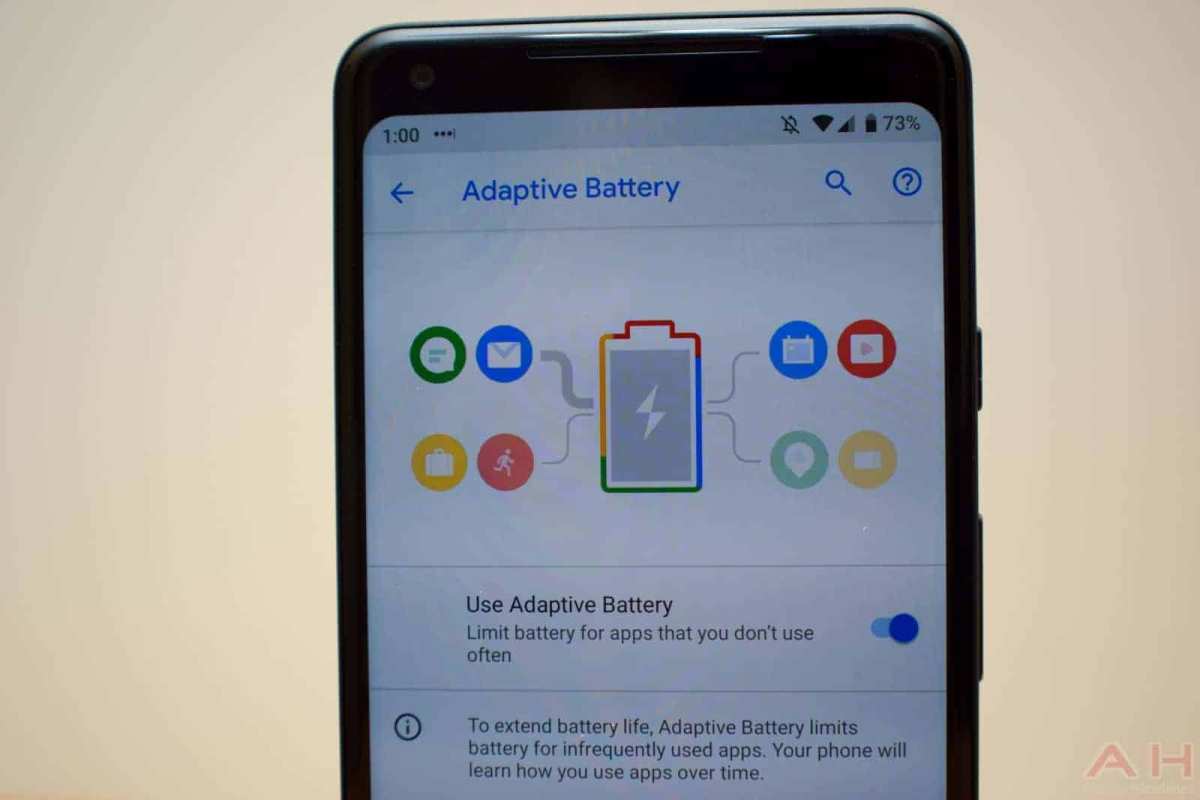
To use Android Pie adaptive battery effectively, simply enable it in your settings and let it learn your usage patterns. **Adaptive battery manages power by limiting background activity for seldom-used apps.** This feature helps extend your device’s battery life without sacrificing essential functions.
First, go to your device settings, tap on Battery, and activate the adaptive battery option. The system will start analyzing your habits immediately. You don’t need to do anything else for it to optimize power consumption.
Understanding how to use Android Pie adaptive battery lets you enjoy longer periods between charges while keeping your device responsive. It automatically adjusts to your habits, making your experience smoother.

How to Use Android Pie Adaptive Battery
Understanding how to use Android Pie’s Adaptive Battery feature can dramatically improve your phone’s battery life and overall performance. This innovative feature intelligently learns your usage habits and manages background activities to save power without bothering you with constant adjustments. In this section, you will find a detailed guide on how to effectively use and optimize Adaptive Battery on your Android device.
What Is Adaptive Battery and How Does It Work?
Adaptive Battery is a smart feature introduced in Android Pie (Android 9), designed to extend your device’s battery life. It uses machine learning to analyze how you use your apps and predicts which apps you are most likely to use next. The system then limits background activity for apps you don’t use often, conserving energy.
Key points about how Adaptive Battery functions:
- Focuses on apps you frequently use
- Restricts background activity for rarely used apps
- Learns your habits over time for better predictions
- Works in sync with other Android power-saving features
Understanding this mechanism helps you appreciate how your device intelligently manages resources, reducing unnecessary battery drain.
How to Enable Adaptive Battery on Your Android Device
Enabling Adaptive Battery is straightforward. Follow these simple steps to activate the feature:
- Open the Settings app on your device.
- Scroll down and tap on Battery.
- Look for the Adaptive Battery option; it may also be under Battery Optimization.
- Toggle the switch to On.
Once enabled, your device begins learning your app usage patterns to optimize power consumption.
Managing App Usage and Battery Optimization
While Adaptive Battery automatically controls background activities, you might want to manage specific apps manually for better efficiency. Here’s how:
Using Battery Usage Settings
This feature helps you identify power-hungry apps:
- Navigate to Settings > Battery.
- Tap on Battery Usage.
- Review the list to see which apps consume the most power.
If you spot apps that drain battery excessively without reason, consider restricting their background activity.
Restrict Apps’ Background Activity
To do this:
- Go to Settings > App & Notifications.
- Select the specific app you want to restrict.
- Tap on Battery.
- Choose Battery Optimization.
- Select Restricted or Optimize.
This method prevents apps from running in the background and helps conserve power.
Customizing Battery Settings for Better Performance
Beyond Adaptive Battery, you can tweak settings to further improve battery life:
- Activate Battery Saver Mode for maximum savings during low charge.
- Adjust screen brightness or turn on adaptive brightness to reduce power draw from the display.
- Reduce screen timeout duration so the display turns off faster when not in use.
- Limit or turn off location services for apps that don’t need it constantly.
These adjustments work together with Adaptive Battery to maximize your device’s longevity on a single charge.
Monitoring Battery Performance Over Time
Keeping an eye on your battery usage helps you understand how well Adaptive Battery is working and whether you need to make further adjustments. Here are some tips:
- Regularly check Battery Usage in settings to see which apps consume the most power.
- Notice patterns—if certain apps still drain battery excessively, restrict their background activities.
- Use third-party battery monitoring apps for more detailed analysis.
By monitoring regularly, you can fine-tune your settings for optimal power saving.
Tips for Maximizing Battery Life with Adaptive Battery
Here are some practical tips to make the most of Adaptive Battery:
- Keep your device updated with the latest Android security patches and updates, as these often include improvements to power management.
- Avoid keeping unnecessary apps open in the background.
- Turn off Bluetooth or Wi-Fi when not in use.
- Use dark mode if your device has an OLED screen, as it consumes less power.
- Limit notifications to prevent apps from waking your device frequently.
Implementing these tips alongside Adaptive Battery helps ensure your device stays powered longer during the day.
Troubleshooting Common Issues with Adaptive Battery
Sometimes, Adaptive Battery might not behave as expected. Here are common problems and how to fix them:
Battery Drains Quickly Despite Adaptive Battery Being Enabled
This can happen if certain apps are misbehaving or consuming more power than usual. Solution:
- Identify power-hungry apps through Battery Usage.
- Restrict or uninstall problematic apps.
- Perform a device restart to refresh system processes.
Adaptive Battery Not Learning Usage Patterns
This might occur if you recently changed habits or reset your device. To fix:
- Ensure Adaptive Battery is turned on in settings.
- Use your device normally for several days so it can gather data.
- Clear app cache or data if necessary, but be cautious.
Final Thoughts on Using Android Pie Adaptive Battery Effectively
Learning how to use Android Pie’s Adaptive Battery feature allows you to get more out of your device’s battery life with minimal effort. By enabling the feature, managing app permissions, customizing power settings, and monitoring usage patterns, you can keep your device running longer between charges. Remember to stay updated with software patches, as they often improve power management functionalities.
Through consistent adjustments and awareness of your device’s behavior, Adaptive Battery becomes a powerful tool in your daily smartphone routine. The goal is to use your device smarter, not harder, so you can enjoy your apps and functions without constantly worrying about running out of power.
Frequently Asked Questions
How can I customize the Adaptive Battery settings on my Android Pie device?
To customize Adaptive Battery, go to Settings > Battery > Adaptive Battery. From there, you can turn the feature on or off and adjust app usage preferences. You can also review which apps consume the most power and restrict background activity for certain apps to extend battery life further.
What should I do if Adaptive Battery isn’t saving battery as expected?
If Adaptive Battery isn’t performing well, ensure the feature is enabled in Settings. Restart your device to refresh system processes. Additionally, closing unused apps and limiting background activity for power-consuming apps can improve overall battery performance. Keeping your system updated also helps optimize battery management.
Can I disable Adaptive Battery for specific apps?
Yes, you can prevent Adaptive Battery from affecting certain apps by going to Settings > Battery > App Usage. Select the app you want to modify and disable adaptive management for it. This ensures the app runs without restrictions, which can be useful for apps that require constant background activity.
How does Adaptive Battery prioritize app activity to save power?
Adaptive Battery uses machine learning to analyze your app usage patterns and predict which apps you are unlikely to use soon. It then limits background activity for these apps, reducing unnecessary power drain. This process helps conserve battery by focusing resources on the apps you actively use.
Can I manually adjust what Adaptive Battery learns about my usage?
While you can’t directly control what Adaptive Battery learns, you can influence it by manually closing apps, restricting background activity for certain apps, and updating your preferences in Settings. Regularly reviewing app usage helps the system better understand your habits, leading to more efficient battery management.
Final Thoughts
Android Pie’s adaptive battery uses machine learning to prioritize your most used apps, conserving power. To use it effectively, ensure your device is updated to Android Pie.
Navigate to Settings > Battery > Adaptive Battery and enable the feature. It learns your usage patterns over time and adjusts power accordingly.
Regularly review which apps consume the most power and restrict background activity when necessary.
In conclusion, understanding how to use Android Pie adaptive battery helps prolong your device’s battery life and improves performance.

Similar Posts































