How To Restart Iphone Screen Broken Effectively

How to Restart an iPhone with a Broken Screen
When your iPhone screen gets cracked or stops working properly, it can feel overwhelming. But don’t worry — even if your screen is broken, you can still restart your device to fix minor issues, prepare it for repairs, or troubleshoot software problems. Restarting your iPhone with a broken screen isn’t as straightforward as tapping a button because you might not see what you’re doing. That’s why knowing a few different methods can save you time and frustration. In this guide, we will explore various ways to restart your iPhone when the screen is broken or unresponsive. We’ll cover all the necessary steps, whether your iPhone has a home button or uses Face ID, and offer tips to make the process easier. Let’s get started!Why Restarting Your iPhone Matters
Before jumping into the how-to, it’s good to understand why restarting is important. Restarting your iPhone can:- Fix temporary software glitches
- Improve device performance
- These often resolve minor bugs that cause screen issues or unresponsiveness
- Help with troubleshooting when your screen is broken or not responding properly
- Prepare your device for repairs or maintenance
Understanding Your iPhone Model
Different iPhone models have distinct methods for restarting, especially if the screen isn’t working properly. It helps to know your model because the process varies:- iPhone with Face ID (iPhone X and newer)
- iPhone with Home Button (iPhone 8 and earlier)
How to Restart an iPhone with a Broken Screen Using Hardware Keys
One of the most reliable ways to restart your iPhone is by using the hardware buttons. This method works regardless of your screen condition because it doesn’t depend on visual cues.Restarting iPhone with Face ID (iPhone X and newer)
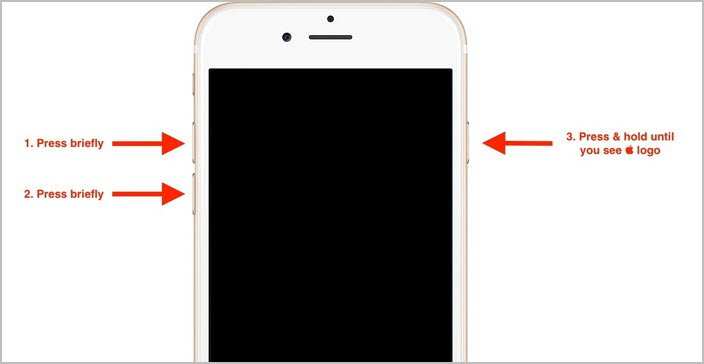
Follow these steps:- Press and hold the side button (located on the right edge of the device).
- Immediately press and release the volume up button.
- Then, press and release the volume down button.
- Keep holding the side button until the Apple logo appears on the screen.
Restarting iPhone with a Home Button (iPhone 8 and earlier)
Here’s what to do:- Press and hold the top or side button (depending on your model).
- Keep holding it until the Apple logo appears on the screen.
Using AssistiveTouch When the Screen Is Not Fully Responsive
If your screen is cracked but still responds to touch, you can use a virtual button called AssistiveTouch to restart your iPhone.Enable AssistiveTouch
Follow these steps:- Go to Settings > Accessibility > Touch.
- Tap on AssistiveTouch and turn it on.
- A floating button will appear on your screen.
Restart Using AssistiveTouch
Once enabled:- Tap the AssistiveTouch button.
- Select Device > More.
- Tap Restart.
Force Restart When the iPhone is Frozen or Unresponsive
Sometimes, your iPhone might freeze, especially with a broken screen. Force restarting can help resolve that.Force Restarting iPhone with Face ID
Repeat the following process:- Quickly press and release the volume up button.
- Quickly press and release the volume down button.
- Press and hold the side button until the Apple logo appears.
Force Restarting iPhone with a Home Button
Follow these steps:- Press and hold both the Home button and the side/top button simultaneously.
- Keep holding both buttons until the Apple logo appears.
Using a Computer to Restart or Reset Your iPhone
If your screen is completely unresponsive or broken, connecting your iPhone to a computer can help you restart or even do a full reset. This is especially useful if the device isn’t responding to button presses.Requirements
- A Mac or Windows PC with the latest iTunes installed (or Finder for newer macOS versions)
- The original Lightning cable or USB-C cable depending on your iPhone model
Steps to Restart or Enter Recovery Mode via Computer
Depending on your goal, you can restart or enter recovery mode:- To restart: connect your iPhone to the computer, force restart it using the appropriate buttons as described earlier. Once the Apple logo appears, release the buttons. Your device will restart normally.
- To enter recovery mode: follow the steps to perform a force restart, but keep holding the buttons until the recovery mode screen appears on your computer (iTunes or Finder will prompt you). From there, you can choose to update or restore your device.
Tips for Managing a Broken Screen During Restart
When your screen is cracked or damaged, consider these tips:- Perform the restart in a well-lit environment to better see any visual cues if your screen is partially responsive.
- If you can’t see anything, rely solely on the timing and button presses, as outlined above.
- Use a small mirror or ask someone for assistance to see your device’s responses.
- Be gentle with the device, especially if the screen is shattered, to avoid further damage or injury.
When to Seek Professional Help
If these methods don’t work or your iPhone still refuses to restart, it might be time to consult a professional technician. A broken screen may also cause internal hardware issues that require repair. Remember, restarting is a troubleshooting step; if persistent problems occur, visit an authorized repair center. Restarting an iPhone with a broken screen is possible using a combination of hardware button sequences, assistive features, or connecting to a computer. Knowing these methods can save you time and frustration, especially when you need to troubleshoot or prepare your device for repairs. Always be gentle with your device, and don’t hesitate to seek professional help when necessary. Whether your iPhone has a cracked display or isn’t responding at all, these tips ensure you can keep it running smoothly until you get it fixed.Frequently Asked Questions
What steps can I take to restart my iPhone if the screen is unresponsive due to damage?
If your iPhone’s screen is broken and unresponsive, try performing a force restart. For iPhone 8 or later, press and quickly release the volume up button, then press and quickly release the volume down button. Next, press and hold the side button until the Apple logo appears. This method forces your device to restart without relying on the screen. If the screen remains unresponsive, consider connecting your iPhone to a computer and using iTunes or Finder to restart or restore your device.
Is there an alternative method to restart my iPhone when the touchscreen doesn’t work?
Yes, if the touchscreen is completely unresponsive, a force restart remains the best option. For iPhones with Face ID, press and release the volume up button, press and release the volume down button, then hold the side button until the Apple logo appears. For models with a home button, hold both the home button and the side or top button simultaneously until the Apple logo shows up. Using physical button combinations bypasses the need for touchscreen interaction, allowing you to restart the device.
Can I restart my iPhone if the display is broken but the device still responds to power button presses?
Absolutely. Even if the display is damaged, pressing and holding the power button (and the volume buttons on some models) can trigger a restart. Hold the power button until the Apple logo appears, which indicates the device is restarting. If your device still responds to button presses but not to touch, this method should work. For persistent issues, connect your iPhone to a computer to perform a restart or seek professional repair services.
What should I do if my broken-screen iPhone doesn’t restart after multiple attempts?
If your iPhone doesn’t restart despite multiple tries, check the physical condition of the device. A severely damaged screen might prevent successful button presses. Connect your iPhone to a computer with iTunes or Finder and attempt a restart via the software. If this doesn’t work, consider visiting an authorized service provider for repairs or further assistance. Restoring your device through software may also resolve internal issues caused by the damage.
Final Thoughts
To restart an iPhone with a broken screen, press and hold the appropriate buttons quickly. This method works even if the screen is unresponsive. If the physical buttons are damaged, try connecting your iPhone to a computer with iTunes. Alternatively, use voice commands with Siri if enabled. These steps help you restart your device without needing a fully functional screen. In summary, knowing how to restart iPhone screen broken ensures your device responds promptly. Simply follow these guidelines to reboot your iPhone efficiently.
Similar Posts































