How To Reset An Ipad Without Apple Id In 55 Characters
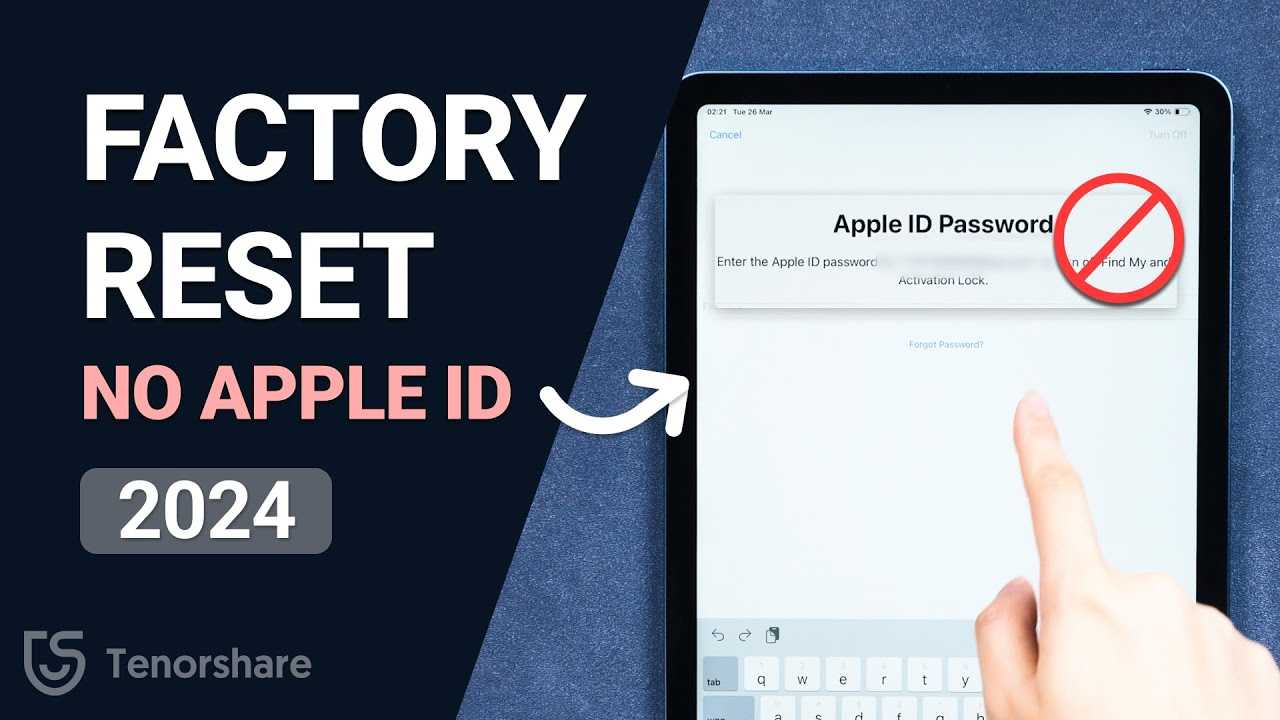

How to Reset an iPad Without Apple ID
Resetting an iPad without an Apple ID can seem tricky, but it is possible using various methods. If you’re locked out or forgot your Apple ID credentials, don’t worry. This guide will walk you through every step to reset your iPad effectively and safely.
Understanding Why You Might Need to Reset Your iPad
There are several reasons to reset your iPad without an Apple ID. You might have bought a second-hand device that is still linked to the previous owner’s account. Sometimes, the device is stuck in a forgotten password loop or needs a fresh start for troubleshooting issues.
Before resetting, ensure that you have backed up any important data if possible, as a reset will erase all your content. Knowing the reasons helps choose the best method for your situation.
Methods to Reset an iPad Without Apple ID
There are multiple methods to reset your iPad without entering your Apple ID, each suited to different scenarios. We will explore the most effective options, starting with the simplest.
Method 1: Using Recovery Mode and iTunes (or Finder on Mac)
This is a common way to reset an iPad when you cannot access your Apple ID. It requires a computer with iTunes installed or using Finder on Mac running macOS Catalina or later.
- Connect your iPad to the computer with a Lightning or USB-C cable.
- Open iTunes or Finder. Make sure it is updated to the latest version.
- Force restart your iPad to enter recovery mode:
Entering Recovery Mode
The method to enter recovery depends on your iPad model:
- iPad with Home Button: Press and hold the Home button and the Top (or Side) button simultaneously until the recovery mode screen appears.
- iPad without Home Button: Quickly press and release the volume up button, then the volume down button, then press and hold the Top button until the recovery mode screen shows.
Restoring the iPad
- Once in recovery mode, iTunes or Finder will prompt you to restore or update.
- Choose Restore. This erases all data and installs the latest iOS version.
- Wait for the process to complete. Your iPad will restart as a new device.
Note: This method deletes all data and settings, and bypasses the Apple ID verification step. However, if Activation Lock is enabled, you will need the Apple ID credentials to reactivate after the reset.
Method 2: Using Third-Party Software
If recovery mode does not work or Activation Lock appears, third-party tools can help bypass the Apple ID requirement. These tools often specialize in removing Apple ID or unlocking devices.
| Software Name | Features | Note |
|---|---|---|
| Dr.Fone – Unlock | Removes Apple ID, screen time, and passcodes | Requires a computer; some features may come at a cost |
| iMyFone LockWiper | Unlocks Apple ID and iCloud activation lock | Use with caution; results may vary depending on device model |
| Tenorshare 4UKey | Bypasses Apple ID and passcodes | Best used for personal devices; backup data beforehand |
Follow the software’s instructions carefully. These tools usually require connecting your iPad to the computer and putting the device into a certain mode.
Important Considerations When Using Third-Party Software
- Use trusted and reputable software to avoid malware or scams.
- Understand that bypassing Apple’s security features may violate terms of service or warranty conditions.
- Backup your device data beforehand if possible.
Potential Challenges and Risks in Resetting Without Apple ID
Attempting to reset your iPad without Apple ID can present several hurdles. Activation Lock is a security feature designed to prevent unauthorized access after a reset. If activated, it will require the original Apple ID and password to proceed after reset.
Using third-party tools may sometimes leave the device in an unresponsive state or cause software issues. Always weigh the risks and ensure proper backing up before attempting these methods.
How to Handle Activation Lock After Reset
Activation Lock is enabled to protect the device from theft. Even after resetting, you will need the original Apple ID credentials to activate it again. If you do not have these, options are limited.
If the device belongs to you but you forgot your credentials, try recovering your Apple ID through the Apple website. For second-hand devices, contact the seller or previous owner to get the login information.
What to Do if You Cannot Provide Apple ID Details
- Contact Apple Support with proof of purchase.
- Use account recovery options provided by Apple.
- Consider the device’s resale or recycling options if activation lock cannot be bypassed.
Tips for Ensuring a Successful Reset
Ensure your iPad is sufficiently charged before starting the reset process. Keeping your device connected to power prevents interruptions.
Always use official or trusted tools for resetting or bypassing lock screens. Improper procedures may brick your device or cause data loss.
Additional Tips for Resetting iPads
- Check for the latest iOS update compatible with your device before resetting.
- Disable Find My iPad before attempting a reset, if possible, to avoid activation lock issues.
- Record your Apple ID credentials after successful reset for future reference.
Remember, resetting an iPad without an Apple ID may sometimes only be temporary if Activation Lock is enabled. Always try to recover your Apple ID credentials first, as this is the most straightforward way to regain full access.
Summary of Key Points
- Recovery mode and iTunes offer a simple reset method, but Activation Lock may still require credentials.
- Third-party tools can assist in bypassing Apple ID, but come with risks and legal considerations.
- Always back up your data before resetting to prevent data loss.
- Activation Lock aims to protect your device, and bypassing it might not always be possible without the original Apple ID.
Knowing these methods and precautions helps you handle your iPad’s reset process more effectively, especially when you’re unable to access the Apple ID credentials. Always prioritize safety and security when performing device resets to protect your data and device integrity.
Frequently Asked Questions
Can I reset an iPad without the Apple ID if I forgot the password?
Yes, you can reset an iPad without the Apple ID even if you forgot the password. You need to put the device into recovery mode and restore it using a computer. Keep in mind that this process will erase all data on the iPad, and you might need the Apple ID credentials to reactivate the device afterward.
What steps should I follow to reset my iPad without an Apple ID using third-party software?
First, download a reputable third-party tool designed for iOS device recovery. Connect your iPad to your computer and open the software. Follow the instructions to put your device into recovery mode, then select the option to remove the Apple ID or reset the device. These tools typically walk you through each step to ensure a smooth process. Remember, using third-party software may carry security risks, so choose trusted providers.
Is it possible to reset an iPad if the device is disabled or not responding?
Yes, you can reset a disabled or unresponsive iPad by entering recovery mode. Connect your device to a computer, open iTunes (or Finder on macOS), and force restart the device to enter recovery mode. From there, you can choose the option to restore the device. This action erases all data, and you might need the Apple ID credentials afterward for reactivation.
Will resetting my iPad erase all my data if I don’t have the Apple ID?
Resetting your iPad will delete all data stored on the device. However, if Find My iPad is activated and the device is linked to an Apple ID, you will face Activation Lock after the reset, requiring the Apple ID and password to complete the setup. Without the Apple ID, you will be unable to access the device fully, which limits reactivation.
Are there legal or ethical considerations when resetting an iPad without the Apple ID?
Yes, it is important to ensure you are authorized to reset the device. Resetting or bypassing the Apple ID without permission can be illegal and violate the device’s terms of service. Always confirm that you own the device or have explicit permission from the owner before attempting a reset without the Apple ID.
Final Thoughts
To summarize, knowing how to reset an iPad without Apple ID is essential in certain situations. Use recovery mode with iTunes or Finder to perform a reset if you don’t have the Apple ID credentials. This method erases all data and settings, restoring your device to factory defaults. Keep in mind, for security reasons, some resets may require the Apple ID afterward. Following these steps ensures you can reset your iPad efficiently without an Apple ID when necessary.
Similar Posts































