How To Personalize Desktop Themes In Windows 11 Effectively


How to Personalize Desktop Themes in Windows 11
Customizing your desktop theme makes your Windows 11 experience more enjoyable and suited to your style. Personalization options allow you to change backgrounds, colors, sounds, and more to reflect your personality. In this section, we will explore the different ways to personalize your desktop themes step by step.
Accessing the Personalization Settings
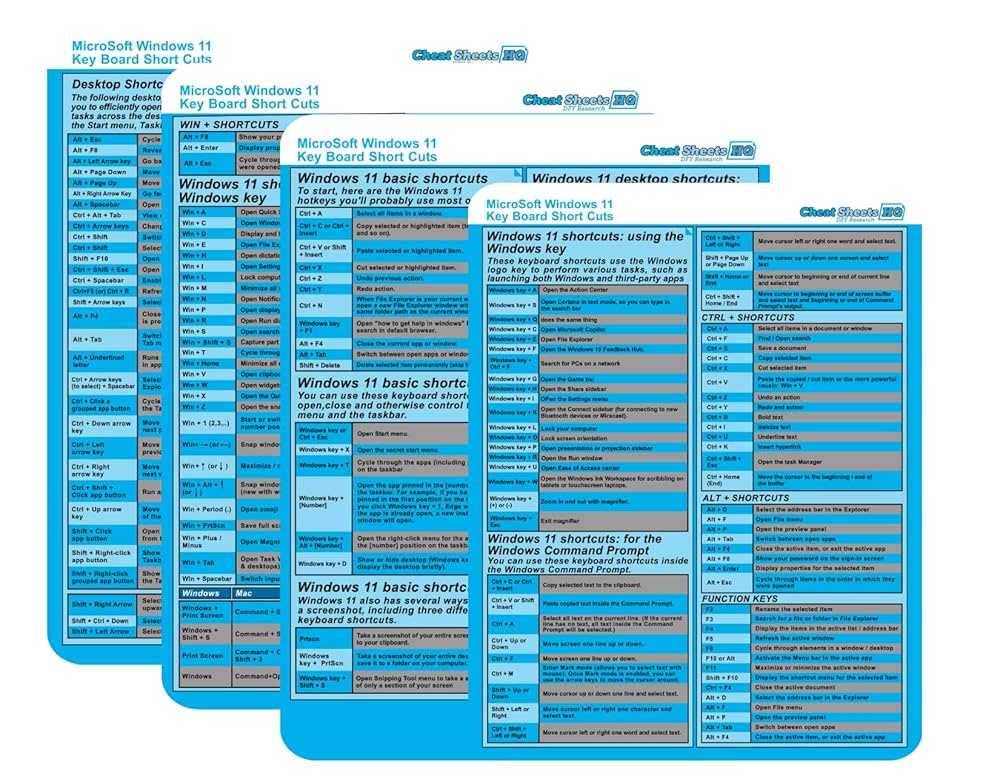
Begin by opening the Settings app on your Windows 11 device. You can do this quickly by pressing the Windows key plus the letter I. Once in Settings, click on the Personalization option. This section contains all the tools you need to customize your theme.
Alternatively, right-click on your desktop and select Personalize from the context menu. This shortcut brings you directly to the personalization panel, saving time and clicks.
Choosing a Default Theme
Windows 11 offers a variety of pre-installed themes that you can select with a single click. Scroll through the theme gallery within the Personalization menu. To apply a theme, simply click on its thumbnail, and your desktop background and colors will update automatically.
You can also preview themes before applying by hovering over each thumbnail. This helps you decide which look matches your mood or style best.
Creating a Custom Theme
To make your own personalized theme, start by selecting a background image that resonates with your style. You can choose from Windows backgrounds or upload your own images from your device.
After choosing a background, customize the accent colors, sounds, and mouse cursor to match your preferences. Once satisfied, click the Save theme button. Give your theme a unique name to access it quickly later.
This way, you keep your unique look available at all times, even if Windows updates or resets your settings.
Changing Desktop Backgrounds in Detail
Single Image Backgrounds
Select a single image from your gallery or browse online to find a picture that inspires you. To do this, click on Background in the Personalization menu, then choose Picture. Use the Browse Photos button to select an image stored on your device.
Slideshow Backgrounds
For a dynamic background, opt for a slideshow. Click on Background and select Slideshow. Add a folder with your favorite images, and Windows will rotate them automatically at your chosen interval. This gives your desktop a lively and fresh look every day.
Customizing Colors and Accent Settings
The color scheme greatly impacts the overall look of your desktop. Within the Personalization menu, click on Colors. Here, you can select a light, dark, or custom mode that suits your environment and lighting conditions.
Pick your preferred accent color from the palette, or create a custom color. This accent appears in taskbars, window borders, and other UI elements, creating a cohesive visual experience.
For more control, enable options like Show accent color on Start and taskbar to blend colors seamlessly across your Windows interface.
Customizing Sounds and Cursor Themes
To personalize system sounds, navigate to Themes and click on Sound settings. Here, you can select from preset sound schemes or create your own by assigning specific sounds to system events.
Cursor customization is also available under Mouse pointer. Choose from Windows default styles or upload your own custom cursor files for a truly personalized feel.
Using Themes from the Microsoft Store
Microsoft offers a variety of themes and wallpapers that you can download directly from the Microsoft Store. To access these, go to Personalization then click on Themes. Select Get more themes in Microsoft Store.
Browse through options ranging from nature scenes to sleek modern designs. Download your favorites and apply them with a single click to instantly change your desktop’s appearance.
Managing Multiple Themes for Different Occasions
If you want to switch themes based on your mood or activities, Windows 11 allows easy management. Create multiple themes with different backgrounds, colors, and sounds.
Switch between themes quickly by opening the Themes menu and selecting your preferred setup. This flexibility helps you maintain a fresh look for work, entertainment, or relaxation moments.
Using Themes on Multiple Devices
If you sign in with a Microsoft account, your personalized themes sync across all your Windows 11 devices. This ensures a consistent look without manually customizing each device.
To enable sync, go to Settings > Accounts > Synchronization settings and toggle on Personalization. Now your themes stay consistent wherever you log in.
Troubleshooting Common Customization Issues
If your themes or backgrounds aren’t updating correctly, ensure your Windows is up to date. Sometimes, a simple restart can fix minor glitches.
Check if your device has enough storage for theme downloads, especially if using high-resolution images or downloads from the store. Resetting personalization settings can also resolve stubborn issues.
Additional Tips for a Better Personalization Experience
- Create backups of your custom themes to prevent losing your settings after updates or resets.
- Experiment with different settings to find what feels most comfortable and visually appealing.
- Use high-quality images for backgrounds to enhance your desktop’s appearance without slowing down performance.
- Combine themes with wallpapers and icon packs for a fully customized desktop environment.
Personalizing your Windows 11 desktop is a simple yet powerful way to make your device feel more like your own. Regularly exploring new themes and customizing settings keeps your experience fresh and tailored to your tastes. With these step-by-step instructions and tips, you’ll have your perfect desktop environment in no time.
How to use Themes to Personalize the Desktop in Windows 11
Frequently Asked Questions
How can I change the background image on my Windows 11 desktop?
To change the background image, right-click anywhere on your desktop and select “Personalize.” In the Personalization settings, click on “Background.” Choose an image from the provided options or click “Browse photos” to select a custom image from your files. Once you’ve selected your preferred picture, it will automatically set as your desktop background.
What steps should I follow to customize the color scheme of my desktop?
Navigate to Settings by pressing Windows + I or clicking the Start menu and selecting Settings. Click on “Personalization,” then choose “Colors.” Here, you can select a color from the palette or enable the “Automatically pick an accent color from my background.” You can also toggle options for transparency effects to enhance your desktop’s appearance.
How do I set a new theme that includes wallpapers, sounds, and colors?
Open the Settings app and go to “Personalization,” then select “Themes.” Click on “Save current theme” after customizing your desktop background, sounds, and color settings. To use a pre-made theme, browse the available options under “Themes” and click on your preferred one to apply all settings at once.
Can I create a custom theme based on my preferences?
Yes, you can create a personalized theme by customizing various elements like backgrounds, colors, sounds, and mouse cursor. After setting each aspect to your liking, go back to the “Themes” section in Settings and click “Save current theme” to preserve your settings for future use.
What options do I have for changing the lock screen appearance in Windows 11?
To personalize your lock screen, open Settings and select “Personalization,” then click on “Lock screen.” Here, you can choose a background image or slideshow, and select which notifications or app status updates appear during lock screen display. Adjust these options to match your style and preferences.
Final Thoughts
Personalizing desktop themes in Windows 11 allows you to create a workspace that reflects your style. Begin by right-clicking on the desktop and selecting “Personalize.” Choose from preset themes or customize your own by adjusting backgrounds, colors, sounds, and mouse cursors. Save your personalized theme to easily switch between different moods or setups. By following these simple steps, you can make your Windows 11 experience uniquely yours. In conclusion, how to personalize desktop themes in Windows 11 is straightforward and empowers you to set up a comfortable, personalized environment quickly.
Similar Posts