How To Improve Battery Life In Windows 11 Laptops Tips
To boost your Windows 11 laptop’s battery life instantly, start by adjusting power settings, disabling unnecessary background apps, and reducing screen brightness. Keeping your system updated and managing your Wi-Fi and Bluetooth connections can also make a significant difference. A few simple tweaks can extend your battery life significantly and keep your device running longer on the go.
In short, optimizing your power settings, managing background processes, and controlling display and connectivity options are key. Regular maintenance and smart usage habits ensure your Windows 11 laptop stays powered up throughout the day without constantly reaching for the charger.
Battling with short battery life on your Windows 11 laptop? You’re not alone—many users struggle to keep their devices running all day, especially with the increasing demands of modern software. Fortunately, there are practical steps you can take to maximize your battery’s potential. From tweaking system settings to managing apps and display options, small changes can add up to longer usage time. Whether you’re working remotely, traveling, or just trying to get through a long meeting, optimizing your laptop’s battery life is essential for staying productive and connected. Let’s explore some easy and effective ways to make your Windows 11 device last longer between charges.

How to improve battery life in Windows 11 laptops
Understanding Battery Consumption in Windows 11
Knowing what drains your laptop’s battery helps you make smarter choices. Windows 11 provides detailed insights into which apps and processes use the most power. Checking these can guide you to close unnecessary applications and save energy.
Apps like streaming services, video conferencing tools, and heavy games tend to use a lot of power. Background processes also contribute to battery drain without your awareness. By monitoring battery consumption, you can identify and limit power-hungry activities.
Windows 11 offers a built-in Battery usage report under Settings. This report shows a breakdown of power consumption over the last 24 hours or 7 days. Use this data regularly to see which programs or features consume the most battery.
Adjusting Power Settings for Longer Battery Life
Changing your power plan is one of the quickest ways to extend battery life. Windows 11 has predefined power modes such as Best performance, Better performance, and Best power efficiency. Switching to a power-saving mode can significantly reduce energy use.
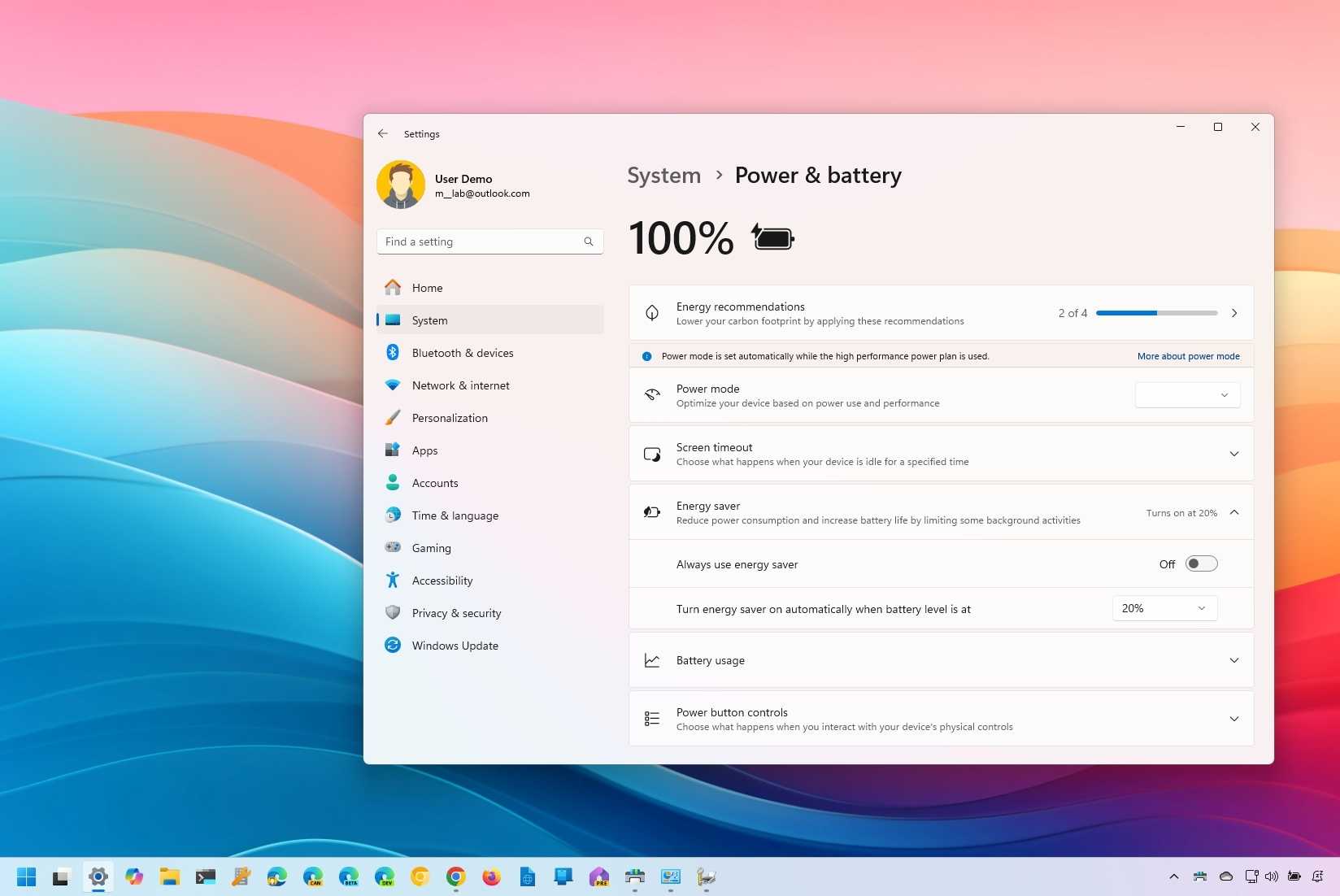
To access these settings, go to Start > Settings > System > Power & battery. Here, you can select Power mode and choose Power mode or Battery saver mode. The Battery saver mode reduces background activity and dims your screen to conserve energy.
Customizing a power plan allows you to control specific settings like screen brightness, sleep time, and CPU performance. Navigate to Control Panel > Hardware and Sound > Power Options to create or modify a plan tailored for battery longevity.
Managing Brightness and Display Settings
Your display is one of the biggest energy consumers on a laptop. Lowering screen brightness can dramatically extend battery life. Use the quick access toggle in the taskbar or press the function keys to adjust brightness easily.
Reducing screen timeout duration ensures your display turns off sooner when not in use. Set the timeout to the shortest comfortable period in Settings > System > Power & battery > Screen and Sleep options.
Disable dynamic backgrounds or animated wallpapers, as these can consume extra power. Consider switching to a static wallpaper or a simple color background to minimize energy drain.
Turning Off Unnecessary Features and Hardware
Wireless features like Wi-Fi and Bluetooth can drain your battery when not needed. Turn off Wi-Fi if you’re not browsing the internet, and disable Bluetooth if you’re not using connected devices.
Other hardware components like webcams and external devices should be turned off or unplugged if they are not in use. Disabling unnecessary hardware can be done through Device Manager or quick settings.
Utilize airplane mode during situations where network connectivity isn’t required. This mode disables Wi-Fi, Bluetooth, and cellular connections, saving power across all wireless components.
Controlling Background Apps and Processes
Many apps run in the background, consuming power without your knowledge. To manage these, go to Settings > Apps > Installed apps and review which applications run automatically.
Disable auto-start for apps that are not essential. This prevents them from running in the background upon startup and consuming resources.
In Task Manager, you can end background processes that are not necessary. Be cautious not to close system-critical processes, but unnecessary apps can be safely stopped to conserve energy.
Keeping Windows 11 and Drivers Up-to-Date
Updates often include improvements to efficiency and power management. Regularly check for Windows updates under Settings > Windows Update.
Manufacturers also release driver updates that enhance hardware performance and battery efficiency. Visit your device maker’s website or use Windows Update to ensure all drivers are current.
Updating BIOS and firmware can also boost system stability and energy management capabilities. Follow your manufacturer’s instructions carefully when performing firmware updates.
Utilizing Battery Saver Mode Effectively
Battery Saver mode is a simple tool to extend your laptop’s battery life when it’s running low. It reduces background activity, limits notifications, and dims the screen for optimal power savings.
Activate Battery Saver by clicking the battery icon on the taskbar or through Settings > System > Power & battery. Set it to turn on automatically at a specific battery percentage, such as 20 or 10 percent.
While Battery Saver is active, some apps and features may be restricted, so use it wisely when you need extra hours of usage.
Managing Storage and Disk Usage
A cluttered hard drive can slow down performance and increase power consumption. Regularly cleaning temporary files, cache, and unnecessary data helps keep your system efficient.
Use Storage Sense in Settings > System > Storage to automate disk cleanup. It deletes temporary files and manages local content to free up space.
Defragmenting traditional HDDs can improve performance, but SSDs do not require defragmentation. Check your disk type and optimize accordingly.
Optimizing Network and Connectivity Settings
Limit background data usage by disabling syncing and updates when on battery. You can control this in Settings > Windows Update and Settings > Accounts > Sync your settings.
Reducing network activity helps conserve power, especially during large downloads or uploads. Use metered connections to limit data transfer over Wi-Fi or Ethernet.
Disable Cortana and other online features that constantly communicate with servers if these are not necessary during portable use.
Additional Energy-Saving Tips
Unplug external devices like printers, external drives, or USB gadgets when not in use, as they draw power even if idle.
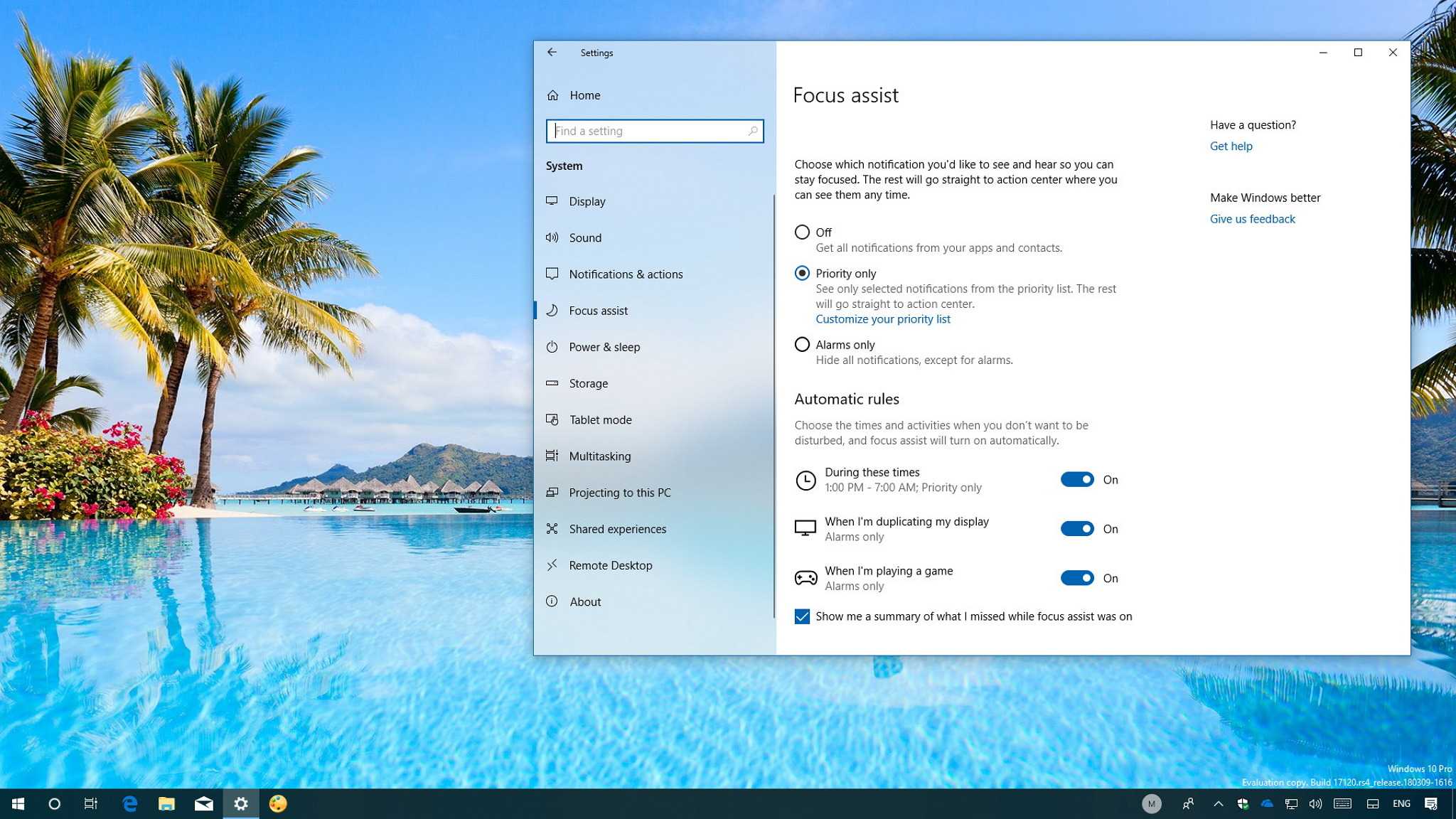
Turning off notifications and minimizing background activity reduces the workload on your CPU and RAM. Use Focus Assist to block distractions during important tasks.
Keep your laptop in a cool environment, because overheating can cause hardware to work harder, consuming more power. Proper ventilation and avoiding high temperature environments help maintain efficiency.
Summary of Key Strategies for Better Battery Life
- Adjust power settings to prioritize energy efficiency.
- Reduce screen brightness and shorten display timeout.
- Turn off wireless features when not needed.
- Manage background apps and processes carefully.
- Regularly update Windows and drivers for optimal performance.
- Use Battery Saver mode during low battery situations.
- Keep storage clean and optimize disk usage.
- Limit network activity and background syncs.
- Unplug unnecessary peripherals and disable notifications.
Implementing these changes can help you get the most out of your Windows 11 laptop’s battery. With consistent adjustments and mindful usage, you can enjoy longer usage times without sacrificing performance.
How To Improve Battery Life on Windows 11
Frequently Asked Questions
What system settings can I adjust to conserve battery life on my Windows 11 laptop?
Adjusting your power settings can significantly extend your battery life. Switch to the ‘Battery Saver’ mode via the Settings app, which reduces background activity and visual effects. Additionally, set your display to turn off sooner when inactive and lower screen brightness to minimize power consumption. Turning off Wi-Fi and Bluetooth when not in use also helps conserve battery power.
How does managing background applications impact battery performance?
Background applications continuously run and drain your battery. Review running apps through the Task Manager and close those that are unnecessary. Disable non-essential startup programs to prevent them from launching automatically. Limiting background activity ensures your system uses less energy, extending your battery life.
What hardware settings can I modify to improve battery longevity?
Reducing hardware usage can boost battery life. Adjust your device’s display brightness manually or enable adaptive brightness to automatically optimize it based on ambient light. Turn off keyboard backlighting when not needed and disconnect peripherals that consume power. Keeping hardware components in low-power modes helps conserve energy.
Are there software updates that can help improve battery efficiency?
Yes, regularly updating your Windows 11 system and device drivers ensures optimal performance and energy management. Updates often include improvements to power efficiency and bug fixes that can help your laptop run longer between charges. Enable automatic updates to stay current without manual intervention.
How can I use Windows 11’s built-in tools to monitor and improve battery health?
Windows 11 provides tools like Battery Health Report and Battery usage details to track your battery’s performance over time. Access the Battery Report via Command Prompt to identify apps or processes that consume excessive power. Use this information to adjust your usage habits and settings for better battery longevity.
Final Thoughts
To improve battery life in Windows 11 laptops, start by adjusting power settings to optimize energy use. Enable battery saver mode and reduce screen brightness for immediate gains. Closing unnecessary applications and disabling background processes can also extend battery longevity. Regularly update your device to benefit from performance improvements and bug fixes. Following these simple steps helps maximize your laptop’s battery life effectively.

Similar Posts