Troubleshooting Common Windows 11 Update Errors

Troubleshooting Common Windows 11 Update Errors
Understanding Why Windows 11 Updates Fail
Updating Windows 11 can sometimes be frustrating when errors appear. Many issues stem from incompatible hardware, corrupted files, or network problems. Knowing the root causes helps you identify the most effective solutions quickly. Incompatibility issues often happen if your device does not meet the minimum system requirements. Corrupted download files may cause the update process to halt unexpectedly. Network interruptions can prevent necessary files from downloading properly.Common Error Messages and What They Mean
When Windows 11 fails to update, you might see specific error codes or messages. These clues guide your troubleshooting steps. Some common errors include:- 0x8007000E: Not enough memory to complete the operation.
- 0x800F081F: Missing or corrupted system files needed for the update.
- Update KBxxxxx Fails: Specific updates that won’t install, often due to conflicts.
Preparation Before Troubleshooting
Before attempting fixes, back up your data. Creating a restore point ensures you can revert changes if needed. Ensure your device is connected to a stable internet network, preferably wired for reliability. Also, check that your system meets Windows 11’s minimum hardware specifications. Close all unnecessary programs to prevent interference during troubleshooting.Checking for Sufficient Storage Space
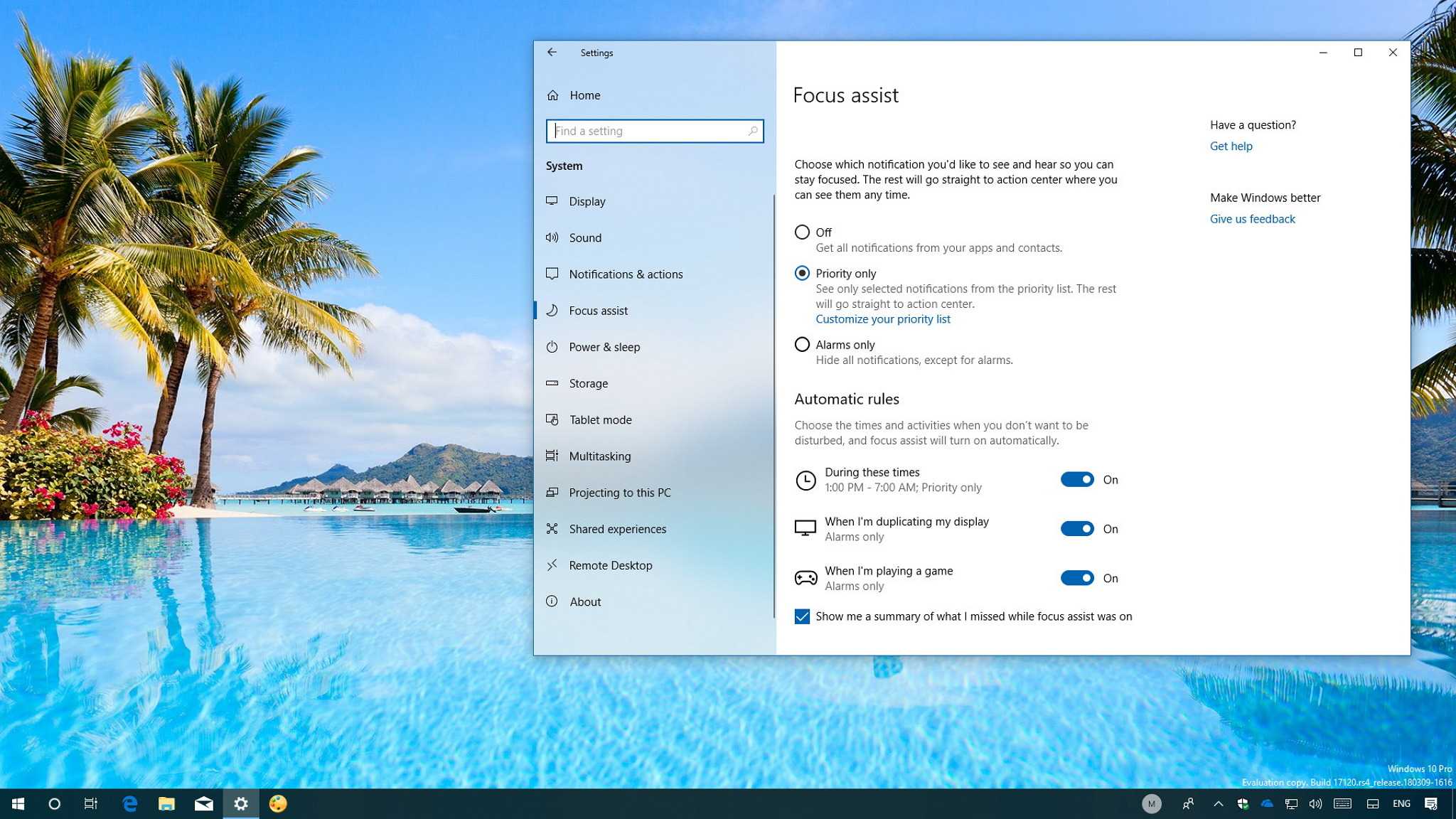
A common reason Windows updates fail is insufficient storage space. Navigate to Settings > Storage to see available space. If space is low, delete unnecessary files or use Disk Cleanup to free up room. This simple step often resolves update failures linked to space issues.Running Windows Update Troubleshooter
Microsoft provides a built-in tool to diagnose and fix update problems. Access it via Settings > System > Troubleshoot > Other troubleshooters. Select Windows Update and click “Run” to start the process. Follow the on-screen instructions, and the tool will attempt to fix common errors automatically. If issues persist, note down any error codes for further investigation.Resetting Windows Update Components
Sometimes, corrupt update components prevent progress. Resetting them involves stopping related services, deleting temporary files, and restarting services. Here’s a step-by-step guide:- Open Command Prompt as Administrator.
- Stop Windows Update services by entering:
net stop wuauserv
net stop bits
- Delete temporary update files with:
del /q /f /s %windir%\SoftwareDistribution\Download
del /q /f /s %windir%\SoftwareDistribution\DataStore
- Restart the services with:
net start wuauserv
net start bits
- Reboot your PC and try updating again.
Manually Downloading and Installing Updates
If automatic updates fail, manually downloading the update can help. Visit the Microsoft Update Catalog website and enter the KB number of the update. Download the appropriate file for your system architecture. Run the installer and follow the prompts. Manual installation bypasses some common issues with automatic updates.Checking for Hardware Compatibility Issues
Hardware problems can cause update errors, especially with driver conflicts. Ensure all device drivers are up to date by visiting manufacturer websites. Use Device Manager to scan for hardware issues. Incompatible hardware should be upgraded or temporarily disconnected during update attempts. Check Microsoft’s official list of Windows 11 compatible devices for reference.Using System File Checker and DISM Tools
Corrupted system files can block updates. Run System File Checker (SFC) with:sfc /scannowThis scans and repairs corrupted files automatically. For deeper repairs, use DISM with:
DISM /Online /Cleanup-Image /RestoreHealthThis command repairs the Windows image, often resolving stubborn errors. Run these tools in sequence for best results.
Addressing Network and Connectivity Problems
Poor or unstable internet connections interfere with updates. Switch to a wired connection if possible. Reset your network settings by running:netsh winsock reset netsh int ip resetRestart your device afterward. Disable VPNs or firewall software temporarily when updating to prevent interference.
Checking for Disk Errors
Damaged sectors on your hard drive can impede updates. Run Check Disk by opening Command Prompt as Administrator and entering:chkdsk /f /rFollow prompts to schedule a scan on next restart. Fixing disk errors can allow updates to proceed smoothly.
Reinstalling Windows 11 or Performing a Repair Install
If all else fails, a fresh install or repair might be necessary. Use the Windows 11 installation media to perform an in-place upgrade. This process keeps your files and programs while fixing system errors. Always back up important data before proceeding with reinstall options. This step guarantees a clean version of Windows 11, resolving persistent update errors.Monitoring and Preventing Future Errors
Regularly update drivers and software to avoid conflicts. Keep Windows up to date with the latest cumulative patches. Perform routine disk cleanup and file integrity checks. Create system restore points ahead of major updates to revert easily if needed. Staying proactive reduces the chances of encountering update failures later. Providing thorough guidance and detailed steps makes troubleshooting Windows 11 update errors less intimidating. Following these strategies helps ensure your device remains current with the latest features and security enhancements.How to Fix Windows 11 Update Errors? Update Failed Error
Frequently Asked Questions
What steps should I take if the Windows 11 update gets stuck during installation?
If the update process stalls, first restart your computer and try again. Ensure your device has enough free storage space and a stable internet connection. You can also run the Windows Update Troubleshooter from Settings > Update & Security > Troubleshoot, which detects and fixes common update issues automatically. If the problem persists, consider resetting Windows Update components by executing specific command prompts in an elevated Command Prompt.
How can I resolve error codes that appear during Windows 11 updates?
When encountering specific error codes, look up the code to identify its cause, as different errors require different solutions. Common fixes include deleting temporary update files, running the system file checker (SFC /scannow), or using the Deployment Image Servicing and Management tool (DISM /Online /Cleanup-Image /RestoreHealth). Updating device drivers and ensuring your system date and time are correct can also help resolve error codes effectively.
What should I do if Windows 11 update fails due to insufficient disk space?
If your system lacks enough disk space for the update, free up space by deleting unnecessary files and uninstalling unused applications. Use Storage Sense or Disk Cleanup tools to identify and remove temporary files, old system restore points, and other non-essential data. Moving large files to an external drive or cloud storage also provides additional space needed for a successful update.
How can I avoid update issues caused by incompatible drivers or hardware?
Before updating, check that all device drivers are compatible with Windows 11. Visit the hardware manufacturer’s website to download the latest driver versions. Disable or uninstall incompatible drivers temporarily if necessary. Additionally, disconnect any non-essential external devices to prevent conflicts during installation. Keep your BIOS firmware updated for better hardware compatibility with Windows 11 updates.
Final Thoughts
Troubleshooting common Windows 11 update errors helps resolve issues quickly. Start by checking your internet connection and freeing up disk space to prevent update failures. Running the Windows Update Troubleshooter can identify and fix common problems easily. If errors persist, consider resetting Windows Update components manually. Addressing these typical problems ensures your system stays current and secure without frustration.
Similar Posts