How To Make Youtube Floating Window In Android
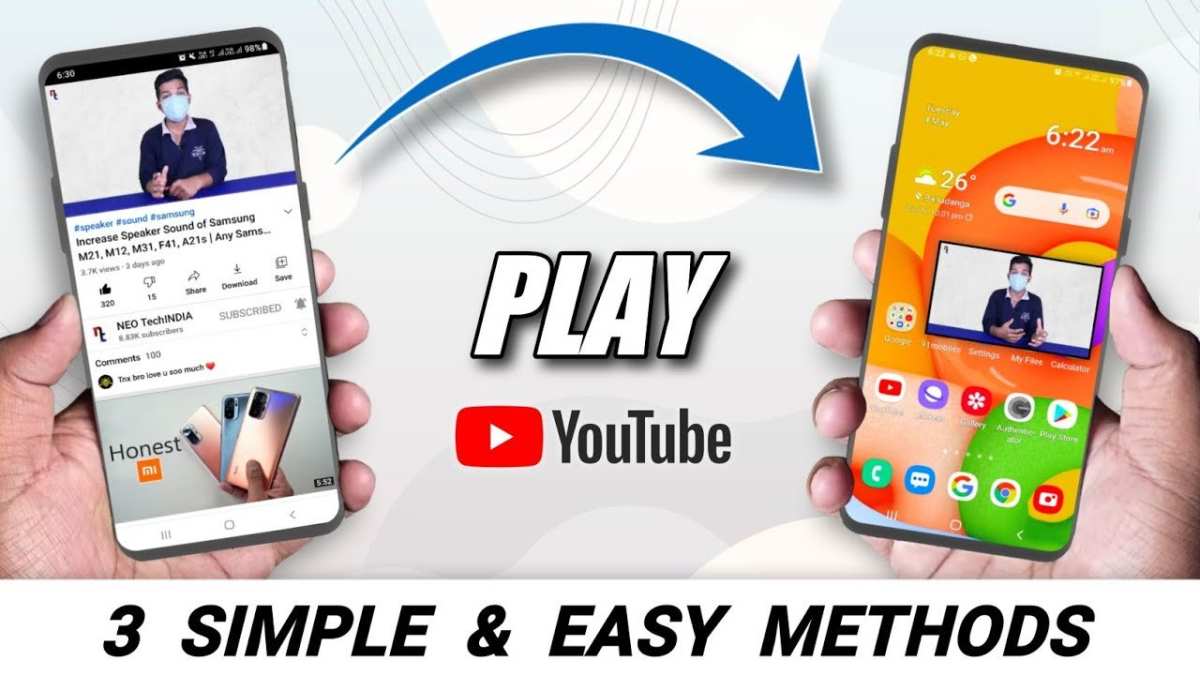
To create a YouTube floating window in Android, you need to enable picture-in-picture mode and use specific settings. **You simply activate the feature through your device settings and app options.** This process allows you to watch videos while multitasking seamlessly.
Knowing how to make youtube floating window in android saves time and keeps you connected to videos during other tasks. It’s straightforward once you follow the right steps. Get your device ready, and you’re set to enjoy videos in a flexible way.

How to Make YouTube Floating Window in Android
Everyone loves watching videos on their Android devices, but sometimes, you want to do more than just stare at the screen. Imagine being able to watch a YouTube video while browsing your favorite app or chatting with friends. That’s where the idea of a floating window comes in. In this guide, you’ll learn how to create a YouTube floating window in Android, making your experience more flexible and fun.
Let’s dive into what a floating window is and how it can change the way you enjoy videos on your device.
What is a YouTube Floating Window?
A floating window, also known as picture-in-picture (PiP) mode, is a small, resizable window that stays on top of other apps. When you enable PiP, you can continue watching your video while using other apps without interrupting your viewing experience. It’s an easy way to multitask—like watching a video while texting friends or checking social media.
While Android offers built-in PiP support for some apps, YouTube doesn’t make it straightforward for everyone. Fortunately, with a few tricks, you can create your own floating YouTube window on Android.
Why Use a Floating Window for YouTube?
You might wonder, why bother with a floating window? Here are some reasons people prefer this method:
- Multitasking: Watch videos while browsing social media, checking emails, or chatting.
- Flexibility: Resize or move the video window anywhere on your screen.
- Efficiency: Save time by doing multiple things at once.
- Better viewing experience: Keep an eye on videos without switching apps constantly.
Now, let’s explore how you can set this up on your Android device.
Methods to Create a YouTube Floating Window in Android
You can create a YouTube floating window in Android using different approaches. Some require installing third-party apps, while others depend on Android’s built-in features. Here’s a closer look at each method.
Using YouTube’s Built-in Picture-in-Picture Mode
Android 8.0 Oreo and newer versions support PiP mode for some apps, including YouTube. However, this feature is limited to YouTube Premium subscribers or when watching in the web browser.
**Steps to enable PiP for YouTube:**
- Update your YouTube app to the latest version from the Google Play Store.
- Open your device’s Settings app.
- Navigate to Apps & Notifications >Special app access >Picture-in-picture.
- Find YouTube in the list and toggle it on.
- Open YouTube, play a video, then press the home button.
- If supported, the video will shrink into a small window that stays on top.
**Limitations:**
– PiP mode isn’t available for all videos or accounts.
– Some devices or Android versions may not support this feature.
– It works better on YouTube Premium or when watching via a browser like Chrome.
Using YouTube in a Web Browser for PiP Mode
If the built-in app doesn’t work, Chrome offers a way to enable PiP mode for YouTube videos:
**Steps:**
- Open Chrome and go to youtube.com.
- Find the video you want to watch.
- Tap the three-dot menu at the top right corner of Chrome.
- Select Desktop site to load the desktop version of YouTube.
- Start playing the video, then press the home button.
- The video should now appear as a floating window.
**Tip:**
– Use Chrome’s PiP mode by long-pressing the video or using the PiP shortcut if available.
Using Third-Party Apps and Tools
If built-in options don’t meet your needs, you can use third-party apps to create floating YouTube windows. Many apps are available on Google Play, offering features like floating video players.
**Popular apps include:**
- Floating Apps: Allows you to open YouTube videos in small, movable windows.
- Video Popout Player: Supports floating videos from YouTube and other streaming platforms.
- LG Screen Share or Similar Tools: Some devices come with pre-installed floating window apps.
**How to use these apps:**
1. Download and install your preferred floating window app.
2. Launch the app and grant necessary permissions.
3. Open YouTube in the app’s interface or via sharing options.
4. Enable the floating window mode according to the app’s instructions.
5. Adjust the size and position of the floating window on your screen.
**Note:** Be cautious when using third-party apps; choose those with good reviews and updated regularly for security.
Adjusting and Customizing Your Floating Window
Once you have a floating window set up, customizing it makes your experience better.
Resizing and Moving the Floating Window
Most floating apps let you resize the window by dragging its edges. To move it:
- Touch and hold the window.
- Drag it to your preferred location on the screen.
Managing Multiple Floating Windows
If you want to run multiple floating videos:
- Use separate apps or instances if supported.
- Arrange them on your screen for multitasking.
Important Tips for Better Floating Window Usage
– Keep your device updated to ensure compatibility.
– Adjust screen brightness and volume for optimal viewing.
– Use a stable internet connection for smooth playback.
– Be mindful of battery usage, as floating windows may drain power faster.
Limitations and Precautions
While floating windows offer great convenience, they come with some limitations:
- Not all videos or apps support PiP or floating mode.
- Some devices or Android versions may restrict functionality.
- Using third-party apps might pose security risks — always choose reputable ones.
- Overusing floating windows can distract you from important tasks.
Additionally, consider the privacy implications when installing unknown apps and always review app permissions.
Creating a YouTube floating window on Android opens up new ways to enjoy your favorite videos. Whether you use built-in PiP features, browser tricks, or third-party apps, you have several options to make multitasking smoother. Remember to keep your device updated, choose secure apps, and experiment with resizing and positioning the floating window to suit your needs. With a little setup, you can turn your Android device into a multitasking powerhouse, watching YouTube videos while staying productive on other apps.
Frequently Asked Questions
What Android apps allow you to watch YouTube videos in a floating window?
Several third-party apps enable you to watch YouTube videos in a floating window. These include apps like “Floating Apps” and “YouTube in Picture,” which provide picture-in-picture features. Additionally, some launcher apps and custom ROMs offer built-in support for floating windows, allowing you to multitask while watching videos. Always ensure you download apps from trusted sources to protect your device security.
How can I enable YouTube’s picture-in-picture mode on my Android device?
To enable YouTube’s picture-in-picture mode, ensure your device runs on Android 8.0 Oreo or higher. Open the YouTube app, go to Settings, then select “General” and toggle on “Picture-in-picture.” Make sure the app has permission to appear over other apps in your device’s settings. Once enabled, simply start playing a video and press the home button to see the video continue in a floating window.
Are there specific permissions or settings needed to create a YouTube floating window on Android?
Yes, you need to grant the app permission to draw over other apps. Navigate to your device’s Settings, then to Apps & Notifications, select the app you want to use, and enable “Display over other apps” or similar permission. This allows the app to display videos in a floating window over other content. Also, ensure that your device’s developer options do not restrict overlay permissions if you encounter issues.
Final Thoughts
Pour faire une fenêtre flottante YouTube sur Android, utilisez l’option PiP (Picture-in-Picture) intégrée à Android 8.0 et versions ultérieures. Activez cette fonctionnalité dans les paramètres de l’application YouTube ou via les paramètres système. Ensuite, ouvrez la vidéo souhaitée et appuyez sur le bouton Home pour la réduire automatiquement en mode flottant.
Il est également possible d’utiliser des applications tierces pour personnaliser la fenêtre flottante. Certaines applications permettent de contrôler la taille et la position de la fenêtre pour une expérience optimale. Enfin, vérifiez que votre appareil prend en charge le mode PiP pour profiter pleinement de cette fonctionnalité.
En somme, apprendre comment faire youtube floating window in android est simple grâce aux options intégrées ou à des applications tierces. Cette méthode facilite la multitâche et améliore votre navigation.

Similar Posts































