How to Make YouTube Floating Window in Android Samsung
Here's the opening and the first five H2 sections of the article.
You tap the Home button while watching a YouTube video, expecting that little floating window to pop up. Instead, the video just disappears. Or maybe you've seen that tiny box appear once before, but you have no idea how you did it.
If you're trying to figure out how to make a YouTube floating window in Android Samsung, you're not alone. It's one of the most common frustrations with Samsung's One UI.
The short reason is that Samsung actually has two separate features for this: the system-level Picture-in-Picture mode and Samsung's own Pop-Up View. Manufacturer documentation confirms both exist, but only one works for YouTube right out of the box. As of 2026, the difference depends on your One UI version and whether you have YouTube Premium.
Let's break down exactly what you're seeing on your screen.
Quick Answer
Go to Settings > Apps > YouTube. Enable Picture-in-Picture. Open YouTube and play a video.
Swipe up to go home. The video shrinks into a floating window.
That's the short version. But here's the catch: if that doesn't work, you might be running One UI 6.1 where Samsung changed how PiP behaves. You can also use Pop-Up View from the Recent Apps screen, which doesn't need YouTube Premium.
Both methods are covered below step by step.
Why Most Samsung Users Can't Find the Floating Window (and What It Actually Looks Like)
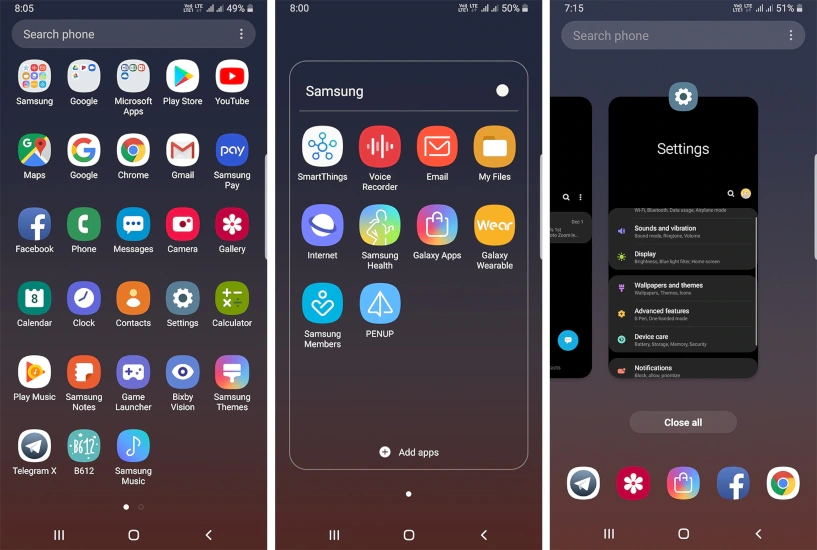
Here's the core problem: Samsung doesn't call it a "floating window" in the settings. You won't find a toggle with that name anywhere. Instead, the feature is buried under two different names depending on which method you use.
For Picture-in-Picture mode, you enable it under Settings > Apps > YouTube > Picture-in-picture. For Pop-Up View, you don't enable anything in settings. You trigger it from the Recent Apps screen or the Edge Panel.
Most users don't realize these are two distinct features with different triggers and different visual appearances.
Visually, the difference is obvious once you know what to look for. PiP creates a small rounded rectangle, usually in the bottom right corner of your screen. It has basic controls like play/pause and close.
Pop-Up View creates a larger rectangular window with a title bar at the top. That title bar includes a minimize button, a maximize button, and a close button.
So when someone says "my floating YouTube window disappeared," they might be dealing with either feature. The fix depends on which one they were using. We'll cover both.
The Two Ways to Float YouTube on a Samsung Phone (They Look Different)
Samsung phones running One UI 5.0 or newer give you two distinct ways to make YouTube float over other apps. They aren't interchangeable. Each has its own trigger, its own limitations, and its own best use.
Method 1: Picture-in-Picture (PiP)
This is a standard Android feature that Google built into the operating system. PiP shrinks any video app into a small floating box when you navigate away from it. It works with YouTube only if you have YouTube Premium in most regions.
Free users can sometimes get PiP depending on their location and YouTube app version.
Method 2: Pop-Up View
This is a Samsung-exclusive feature added to One UI. Pop-Up View turns any app into a floating window, not just video apps. You trigger it from the Recent Apps screen by tapping the app icon and selecting "Open in pop-up view." It doesn't require YouTube Premium.
It works with the free version of YouTube.
The visual difference is striking. PiP is a small, semi-transparent box with rounded corners. Pop-Up View is a full app window with a title bar.
You can resize Pop-Up View more aggressively. You can also move the PiP window, but it snaps to corners.
Which one should you use? That's the next two sections.
Method 1: Picture-in-Picture (PiP) – The System-Level Floating Video
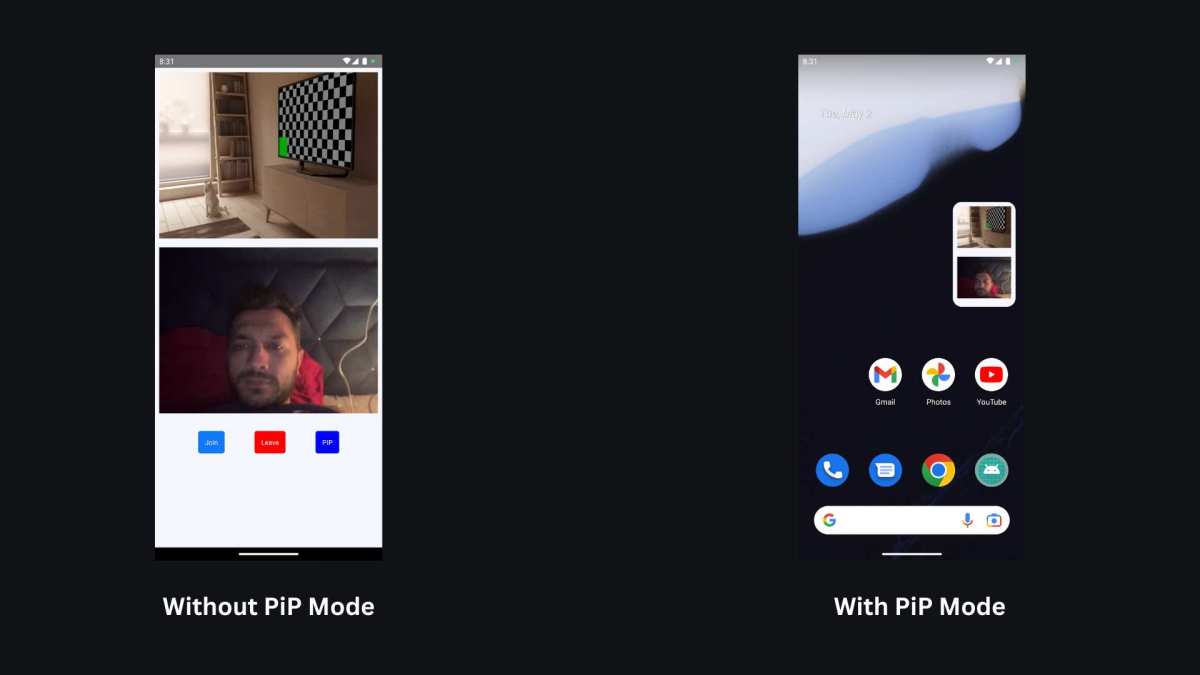
Picture-in-Picture mode is the default way to float YouTube on an Android Samsung phone. It's a feature baked into Android 12 and above. Samsung hasn't removed it in One UI 6.1, but they've made subtle changes to how it activates.
Step-by-Step Visual Guide to Enabling PiP on Samsung
First, you need to make sure PiP is turned on for the YouTube app. Here's the exact path:
- Open Settings on your Samsung phone.
- Tap Apps.
- Find and tap YouTube.
- Tap Picture-in-picture.
- Toggle it On.
That's it for the settings side. Now, here's where most people get stuck. Even if PiP is enabled, it needs a trigger to actually start.
The trigger is leaving the YouTube app while a video is playing.
How to Trigger PiP with Gestures vs. Navigation Buttons
If you're using navigation buttons (Back, Home, Recent Apps):
- Start playing any YouTube video.
- Press the Home button (the circle or physical button at the bottom center).
- The video should shrink into a small floating rectangle in the bottom right corner.
If you're using swipe gestures (Samsung's default since One UI 5):
- Start playing a YouTube video.
- Swipe up from the bottom of the screen to go home. Do a quick, short swipe. If you swipe too slowly, the Recent Apps screen opens instead.
- The video should enter PiP mode.
If the video doesn't shrink, you probably swiped too slowly. Try a faster, shorter swipe. Some users report that a very quick flick works best.
Samsung's gesture system has a timing window. If you hold your finger on the screen too long, it registers as a different command.
Visual Cue: The Shrink Animation When PiP Activates
When PiP activates, you'll see a brief animation. The video player shrinks down from its full-screen position into a small rectangle. The rectangle appears in the bottom right corner of your screen by default.
You can drag it to any of the four corners.
The floating window itself is about a quarter of the screen width. It has rounded corners. Tapping it once brings up a small set of controls: play/pause, close, and a button to return to full-screen.
The window stays on top of whatever app you open next.
PiP mode only works for videos. If you navigate away from YouTube while on a non-video screen, PiP doesn't activate.
Method 2: Samsung's Pop-Up View – The App-Window Floating Tray
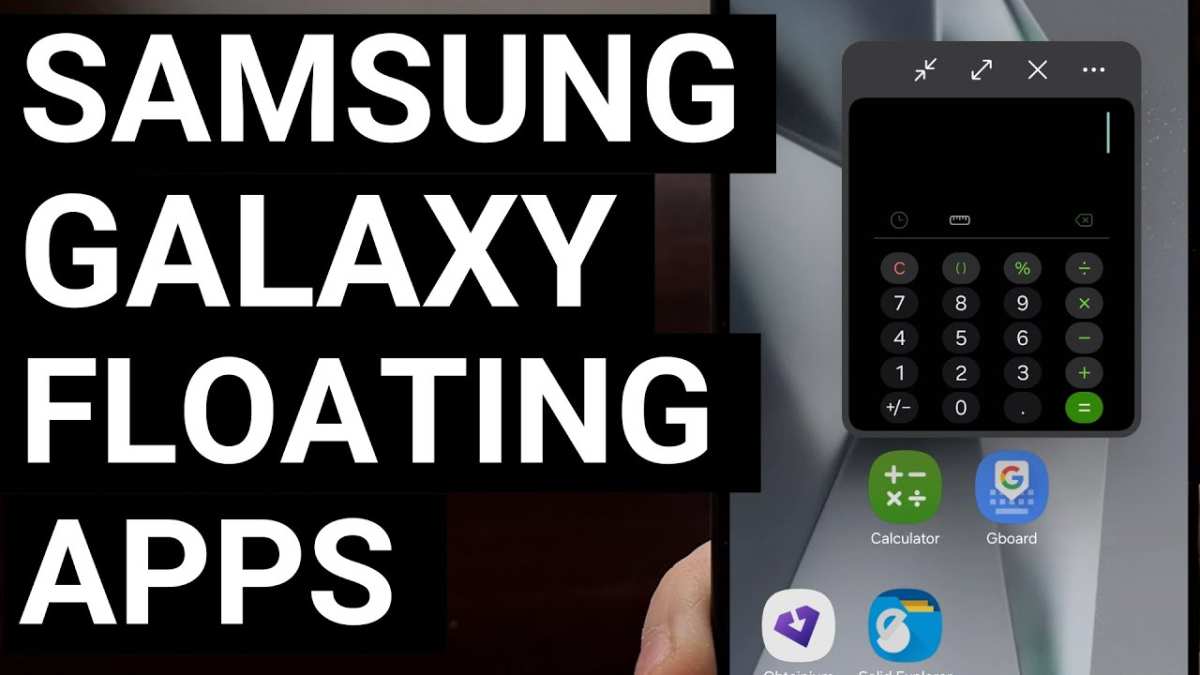
Pop-Up View is Samsung's own multitasking feature. It lets you run any app in a floating window, including YouTube. It doesn't require YouTube Premium.
It's available on all Samsung phones running One UI 3.0 or later.
Step-by-Step Visual Guide to Pop-Up View
There are two ways to open YouTube in Pop-Up View. Both are quick once you know where to look.
Method A: From the Recent Apps screen
- Open YouTube and start playing a video.
- Open the Recent Apps screen. If you use navigation buttons, tap the Recent Apps button (three lines). If you use gestures, swipe up from the bottom and pause halfway.
- Find the YouTube card in the list.
- Tap and hold the app icon at the top of the card.
- A menu appears. Tap "Open in pop-up view" .
- YouTube shrinks into a floating window with a title bar.
Method B: From the Edge Panel
- Open the Edge Panel by swiping inward from the edge handle on the right side of your screen.
- If you don't see YouTube in the Edge Panel, tap the edit (pencil) icon and add it.
- With YouTube running in the background, tap the YouTube icon in the Edge Panel.
- It opens in a floating window automatically.
How to Access It from Recent Apps vs. Edge Panel
The Recent Apps method is more reliable because it always works, regardless of your Edge Panel setup. The Edge Panel method is faster once you've set it up. Both methods produce the same floating window appearance.
The key difference is that Pop-Up View creates a full app window with a title bar. That title bar contains three buttons: a minus sign (minimize to a floating bubble), a square (maximize to full screen), and an X (close the window). You can resize the window by dragging any corner.
Visual Cue: The Title Bar and Resize Handles
Pop-Up View windows look different from PiP windows. They have a visible title bar at the top. The title bar shows the app name (YouTube) and the three control buttons.
The window itself is larger than a PiP window by default. You can make it as small as about a third of the screen or as large as nearly full screen.
You can also drag the window anywhere on your screen. It doesn't snap to corners like PiP does. You can overlap it with other windows.
Pop-Up View supports running multiple floating windows at once, though that gets messy quickly on a phone screen.
How to Tell Which One You're Using (Visual Checklist of Differences)
| Feature | Picture-in-Picture (PiP) | Pop-Up View |
|---|---|---|
| Appearance | Small rounded rectangle, no title bar | Rectangular window with title bar |
| Controls | Play/pause, close, full-screen (tap to show) | Minimize, maximize, close (always visible) |
| Resize | Fixed size (pinch to adjust slightly) | Drag corners freely to any size |
| Trigger | Swipe up or press Home while video plays | Recent Apps > app icon > "Open in pop-up view" |
| Premium needed? | Yes (most regions) | No |
| Works for non-video? | No | Yes |
If you see a tiny floating video with no visible buttons until you tap it, you're using PiP. If you see a full window with a title bar and buttons, you're using Pop-Up View. That one visual difference tells you everything.
Use the checklist above to confirm which method you've activated. It saves a lot of guessing.
Which one should you choose?
- Use PiP if you want the smallest possible floating video and you have YouTube Premium.
- Use Pop-Up View if you want more control over window size and you don't have YouTube Premium.
- Use PiP if you want the video to stay visible even after opening other apps (Pop-Up View can be hidden by other apps if not set to always-on-top).
- Use Pop-Up View if you want to resize the window aggressively or watch YouTube while using another app in split-screen.
Common Visual Mistakes That Break the Floating Window

Even after you set everything up correctly, things can go wrong. These are the three most common visual mistakes that keep the floating window from working.
The "It Just Disappeared" Problem
You swipe up to go home, and the video vanishes entirely. No floating window. No audio.
Nothing.
This usually means PiP isn't enabled in the YouTube app settings. Go to Settings > Apps > YouTube > Picture-in-picture and check that toggle. If it's already on, the issue might be your YouTube app version.
Open the Google Play Store, search for YouTube, and check if an update is available. Outdated versions sometimes break PiP support.
Another cause: you might have swiped too slowly with gestures. A quick flick works. A slow deliberate swipe opens the Recent Apps screen instead.
That doesn't trigger PiP.
The "App Won't Shrink" Issue
You tap the app icon in Recent Apps, but "Open in pop-up view" doesn't appear. Or it appears but does nothing.
This happens when the app isn't supported for Pop-Up View. Most apps are, but some system apps and games block it. YouTube is supported.
So if the option is missing, check if you're on the latest One UI version. Samsung added and removed this option across different builds. One UI 6.1 restored it after complaints.
If the option is there but the window doesn't appear, restart your phone. That clears a temporary glitch in the window manager.
The "Wrong App Is Floating" Confusion
You meant to float YouTube, but a different app pops up instead. Or the window shows YouTube but with the wrong video.
This happens when you trigger Pop-Up View from the Edge Panel. The Edge Panel opens the last app you used. If you were in Settings before tapping YouTube on the Edge Panel, it might float the wrong instance.
The fix is simple: close the floating window, then open YouTube normally first. Then use the Recent Apps method.
For PiP, the wrong app floats if you had a different video app open in the background. Close all apps and try again with only YouTube running.
Pop-Up View vs. PiP: Which Should You Use for YouTube?
Here's the honest breakdown. Both methods get you a floating YouTube window. But they serve different situations.
Use PiP when:
- You have YouTube Premium.
- You want the smallest possible window.
- You need the video to stay on top of every app.
- You don't want to fiddle with controls.
Use Pop-Up View when:
- You don't have YouTube Premium.
- You want a larger window with more controls.
- You need to resize the window aggressively.
- You want to interact with the YouTube app (comments, search) while it floats.
Pop-Up View gives you more flexibility. But it requires an extra step to trigger. PiP is simpler.
It activates automatically when you leave the app.
One important difference: PiP keeps playing video even if you lock your phone or open a full-screen game. Pop-Up View can be hidden behind other windows. If you need truly persistent floating video, PiP wins.
| Feature | PiP | Pop-Up View |
|---|---|---|
| Premium required | Yes (most regions) | No |
| Trigger | Swipe up or press Home | Recent Apps > app icon > pop-up |
| Window size | Fixed small | Fully resizable |
| Always on top | Yes | Yes, but can be covered |
| Works with phone locked | Yes (audio only) | No |
| Controls visible | Only on tap | Always visible |
Best Use Cases for Each Floating Method
When PiP works best:
- Watching a tutorial while following along in another app.
- Listening to a podcast or interview while scrolling social media.
- Keeping a live stream on while you reply to messages.
- Any situation where you want the minimal visual footprint.
When Pop-Up View works best:
- You need to read YouTube comments while watching.
- You want to search for another video while the current one plays.
- You're comparing videos side by side (with split screen).
- You don't have YouTube Premium and need a free floating option.
A note on battery life. PiP uses less power because the window is smaller and the app is in a lower-power state. Pop-Up View keeps the full app running.
If you're low on battery, stick with PiP.
Pro Tips for Controlling Floating YouTube Windows on Samsung
Pinch-to-Resize and Drag Zones
For PiP: You can pinch in or out to resize the window slightly. It doesn't get much smaller, but it can get a bit bigger. Drag the window by touching and holding any part of it.
It snaps to corners automatically.
For Pop-Up View: Drag any corner to resize freely. Drag the title bar to move it. The window doesn't snap, so you can place it anywhere.
Double-tap the title bar to maximize the window instantly.
Keeping Audio Playing When the Window Is Hidden
PiP keeps audio playing even if you hide the window off screen. You can drag it to the edge. Only a sliver remains visible.
The audio continues.
Pop-Up View has a minimize button. Tap the minus sign in the title bar. The window shrinks to a small floating bubble.
Tap the bubble to bring it back. Audio keeps playing while minimized.
Pro Tip: Use Both at Once
This is the advanced move. Start YouTube in Pop-Up View. Then trigger PiP from within that window by swiping up.
You get the small PiP window with full app controls accessible by tapping the PiP window. It's redundant, but some users prefer this workflow.
Frequently Asked Questions about YouTube Floating on Samsung
Why doesn't PiP work on my Samsung phone?
The most common cause is the PiP setting being disabled in YouTube's app settings. Go to Settings > Apps > YouTube > Picture-in-picture and turn it on. If it's already on, update the YouTube app.
Some regions also require YouTube Premium for PiP.
Can I get a floating YouTube window without Premium?
Yes. Use Samsung's Pop-Up View feature. Open the Recent Apps screen, tap the YouTube app icon, and select "Open in pop-up view." This works with the free version of YouTube.
No subscription needed.
How do I close the floating YouTube window on Samsung?
For PiP: tap the window to reveal controls, then tap the X button. Alternatively, drag the window down to the bottom of the screen. For Pop-Up View: tap the X button in the title bar.
You can also drag the window off screen to dismiss it.
Does the floating window work on Samsung tablets?
Yes. Both PiP and Pop-Up View work on Samsung tablets running One UI. The process is identical.
On tablets, Pop-Up View is especially useful because the larger screen gives you more room for multiple floating windows.
Why does my floating window keep disappearing when I open another app?
If you're using Pop-Up View, some apps can cover the floating window. It's still there, but hidden behind the new app. Drag it or minimize the new app to see it.
PiP stays on top of everything by default.
Can I resize the PiP window on Samsung?
Yes, but the range is limited. Pinch in to make it slightly smaller. Pinch out to make it slightly larger.
Pop-Up View gives you full control. You can resize it from a small square to nearly full screen.
The Bottom Line: One Method Works for Everyone, the Other for Power Users
If you take one thing from this guide, let it be this. You have two legitimate ways to get a floating YouTube window on your Samsung phone. Both work.
Both have trade-offs.
Picture-in-Picture is the simpler path. Enable the toggle in settings. Swipe up from a playing video.
That's it. The window stays small. It stays on top.
Audio keeps playing. It just works.
Pop-Up View takes one extra step. But it gives you a full app window with controls, resize freedom, and no Premium requirement. It's the better choice if you want to interact with YouTube while watching.
Try PiP first. If you don't have Premium or you want more control, switch to Pop-Up View. Both are built into your phone right now.
No apps to download. No settings to hunt for. Just two different ways to do the same thing.

Similar Posts





















