How To Make Your Own Stickers On Android For Fun Or Projects
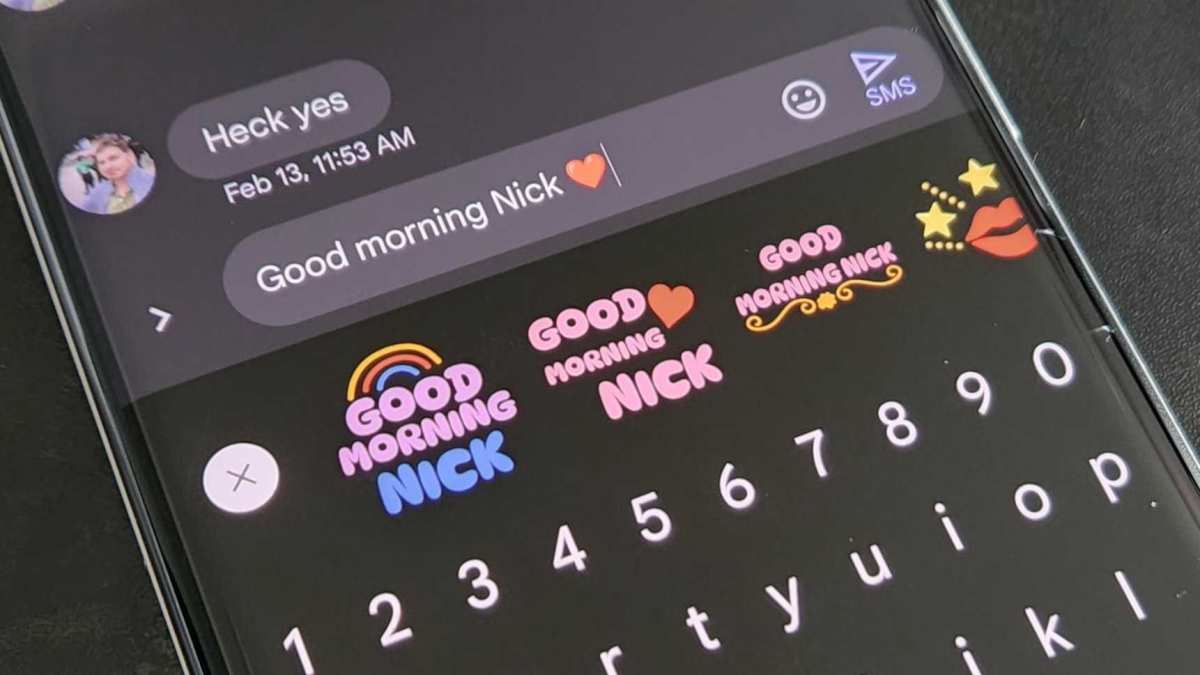
How to Make Your Own Stickers on Android
Creating your own stickers on an Android device might seem challenging at first, but it can be a fun and rewarding activity once you get the hang of it. Stickers help you express your feelings, add flair to your messages, and personalize your conversations. Whether you’re a beginner or someone with some design experience, this guide will walk you through each step to make custom stickers that look great and are easy to use. From choosing the right tools to exporting your finished stickers, you’ll learn everything you need to know about making your own stickers on Android.Understanding the Basics of Stickers and Why You Should Make Your Own
Before diving into the how-to, let’s look at what makes stickers special and why creating your own can be such a fun idea.- Express Yourself: Stickers let you show emotions, ideas, or jokes more vividly than plain text.
- Personal Touch: Custom stickers make your conversations unique, reflecting your personality or interests.
- Creative Outlet: Designing stickers allows you to explore your artistic side, whether you’re a beginner or experienced designer.
- Save Money: Making your own stickers can save you from buying packs, and you get exactly what you want.
Choosing the Right Tools and Apps for Sticker Creation
The first step is to pick suitable apps that can help you create and edit stickers with ease. Several options are available on the Google Play Store, and some are free, while others may charge a small fee.Popular Apps for Making Stickers on Android
- Sticker Maker for WhatsApp: This app allows you to create custom sticker packs suitable for WhatsApp directly. It has an easy-to-use interface and basic editing tools.
- PicsArt Photo & Video Editor: Known for its versatile editing features, PicsArt lets you cut out images, add effects, and create stickers from your photos.
- Sticker Studio: This app specializes in sticker creation. You can draw your own stickers or use existing images to make personalized packs.
- Canva: A powerful design app that offers templates and editing tools to create custom stickers with text, graphics, and more.
- Background Eraser: Useful for removing backgrounds from images, making it easier to isolate subjects for stickers.
Preparing Your Images for Sticker Creation
Once you’ve selected your app, you need to gather or create images to turn into stickers. Here are some tips to prepare your images:Use High-Quality Images
– Start with clear, high-resolution photos for better results. – Avoid images with blurry or pixelated areas, as these won’t look good when resized.Keep Backgrounds Simple or Transparent
– For stickers, transparent backgrounds work best because they let your sticker blend seamlessly into chats. – Use a background eraser app to remove unwanted backgrounds effectively.Focus on the Main Subject
– Crop images closely around the main subject to make the sticker stand out. – Avoid including too much unnecessary space around your subject.Size and Resolution
– Stickers should generally be around 512×512 pixels for optimal display on most messaging apps. – Keep file sizes small to ensure smooth sharing and quick loading.Designing Your Stickers: Step-by-Step Guide
Now that you’ve prepared your images, it’s time to turn them into stickers. Let’s go through the process step-by-step.Step 1: Open Your Chosen Sticker Maker App
– Launch your app of choice and look for options like “Create Sticker” or “New Pack.” – Some apps ask you to create a pack before adding individual stickers.Step 2: Import or Capture Your Image
– Select images from your gallery or take new photos. – Many apps support importing images directly from your device’s storage.Step 3: Edit and Isolate the Main Subject
– Use editing tools to crop, resize, or enhance your image. – Remove backgrounds with built-in background erasers or manually cut out parts. – Add elements like borders or outlines to make your sticker pop.Step 4: Save and Organize Your Stickers
– Once satisfied, save your sticker. – Organize your stickers into packs or categories for easy access later. – Most apps allow you to add multiple stickers to a single pack.Exporting Your Stickers for Use in Messaging Apps
After creating your stickers, you need to export them correctly to use in messaging platforms like WhatsApp, Telegram, or Messenger.How to Export and Add Stickers to WhatsApp
– Save your sticker pack within your app, then tap the export or share button. – Many apps offer one-tap options to add stickers directly to WhatsApp. – If not, you might have to manually transfer your sticker images to WhatsApp’s sticker folder through file management apps.Using Stickers in Other Messaging Platforms
– For platforms like Telegram, you can usually upload your sticker pack directly via their sticker bot or app. – Check the app’s instructions for exporting and importing stickers compatible with different messaging services.Tips for Creating Eye-Catching Stickers
Creating stickers that stand out takes a little extra effort. Here are some tips:- Use Bold Colors: Bright and contrasting colors attract attention.
- Keep It Simple: Don’t overcrowd your stickers with too many details, especially for smaller sizes.
- Add Text: Incorporate funny, cute, or expressive words to boost your sticker’s personality.
- Maintain Consistency: If you’re making multiple stickers, stick to a theme or color palette.
- Use Transparent Backgrounds: This makes your stickers more versatile and professional-looking.
Common Mistakes to Avoid When Making Stickers on Android
To ensure your stickers look perfect, steer clear of these pitfalls: – Using low-resolution images that look pixelated when resized. – Leaving large backgrounds or excessive empty space. – Over-complicating designs, making stickers hard to recognize. – Forgetting to save sticker packs properly before exporting. – Ignoring the requirements of the target messaging app, like size limits.Additional Tips for Enhancing Your Sticker Making Experience
– Practice editing multiple images to improve your skills. – Explore different apps to find the one that suits your style. – Join online communities or forums dedicated to custom stickers for inspiration. – Keep experimenting with designs, colors, and effects to develop your unique sticker style. – Back up your sticker packs regularly to avoid losing your work. Making your own stickers on Android is a simple yet creative activity. With the right tools, a little patience, and some imagination, you can craft custom stickers that perfectly match your personality and messaging style. Have fun designing, and share your unique creations with friends and family!Frequently Asked Questions
What tools can I use to create custom stickers directly on my Android device?
You can use various apps like Sticker Maker, PicsArt, or Adobe Photoshop Express to craft custom stickers. These apps allow you to import images, cut out backgrounds, add text or decorations, and save your creations in formats compatible with messaging platforms.
How do I remove backgrounds from photos to make stickers on Android?
Many Android apps such as Background Eraser and PicsArt provide tools to erase or cut out backgrounds from images. You can manually select areas to keep or remove, ensuring your sticker focuses on the desired subject. Save your edited image as a PNG file with transparency for best results.
Can I add text or effects to my stickers on Android devices?
Yes, most sticker creation apps come with features to add text, emojis, and various effects. You can customize fonts, colors, and styles to match your preferences. Experiment with different options to make your stickers more expressive and unique.
What are the best practices to ensure my stickers look clear and professional?
Use high-resolution images and transparent backgrounds when creating stickers. Keep the subject focused and avoid overly complex details that might get lost in small sizes. Preview your stickers on different devices to ensure they maintain clarity and quality.
How can I share my custom stickers with friends on messaging apps?
After creating and saving your stickers as PNG files with transparent backgrounds, import them into sticker packs within messaging apps like WhatsApp. Many apps support adding custom stickers directly or through specific sticker pack apps, making sharing simple and quick.
Final Thoughts
Making your own stickers on Android is simple and fun. Use popular apps like Sticker Maker or Canva to create personalized designs easily. Upload your images, remove backgrounds, and add text or decorations to suit your style. Once you finish editing, save your stickers in the proper format and add them to your messaging apps. This process allows you to express yourself uniquely in chats. In conclusion, knowing how to make your own stickers on Android empowers you to personalize your messages creatively and effortlessly.
Similar Posts































