How To Make Your Android Device Faster For Better?

How to Make Your Android Device Faster
When your Android phone suddenly starts slowing down, it can be frustrating. You might notice apps taking longer to open, videos buffering, or your device freezing unexpectedly. Luckily, there are many simple steps you can take to improve your device’s speed and get it running smoothly again. In this guide, we will explore detailed ways to make your Android device faster. From clearing clutter to adjusting settings, we’ll cover everything you need to know to optimize your device’s performance.Understanding Why Your Android Device Becomes Slow
Before diving into the solutions, it’s good to understand why your Android phone might be lagging. Several factors can cause slowness:- Too many apps running in the background: Apps often stay active even when you’re not using them, consuming RAM and processing power.
- Low storage space: When your device runs out of space, it struggles to operate efficiently.
- Accumulated cache and junk files: Apps store temporary files that can build up over time, clogging your device.
- Outdated software: Running an outdated Android version can lead to bugs and performance issues.
- Malware or unwanted apps: Some apps contain malware or unnecessary services that slow down the system.
- Overloaded RAM: Too many apps open at once can exhaust your device’s memory.
Simple Steps to Improve Your Android Speed
Let’s look at practical, straightforward steps to boost your Android device’s performance.Close Unused Apps and Processes
Many apps run in the background without you realizing it. To free up resources: – Tap on the recent apps button or use the gesture to view open apps. – Swipe away apps you are not using. – For more control, go to Settings > Apps or Application Manager > Running to see active processes. – Stop or force close apps that are unnecessary or seem to be slowing down your device.Clear Cache and Junk Files
Over time, cache files and temporary data pile up, making your device sluggish. To clear them: – Open Settings > Storage. – Tap on ‘Cached data’ and confirm to clear cache for all apps. – Alternatively, go to Settings > Apps, select individual apps, and tap ‘Clear Cache.’ – Use a trusted cleaning app to remove junk files easily, but avoid overly aggressive cleaners that might delete important app data.Manage and Uninstall Unnecessary Apps
Having too many apps cluttering your device can reduce speed: – Review your installed apps and identify those you no longer use. – Uninstall unnecessary apps by holding their icons and selecting ‘Uninstall’ or via Settings > Apps. – Be cautious of pre-installed bloatware; consider disabling apps you can’t uninstall to free up resources.Free Up Storage Space
Low storage can hinder device speed: – Delete old photos, videos, or files you no longer need. – Use cloud services like Google Photos or Drive to store media and free up local space. – Move large apps or games to an SD card if your device supports it. – Regularly check storage and manage it proactively.Update Your Android Software and Apps
Keeping your device updated ensures it runs smoothly: – Check for Android system updates via Settings > System > Software Update. – Update apps through the Google Play Store to benefit from performance improvements and bug fixes. – Enable auto-updates to keep everything current without manual checks.Adjust Settings to Maximize Performance
Tweaking some settings can make a noticeable difference.Disable Animations and Visual Effects
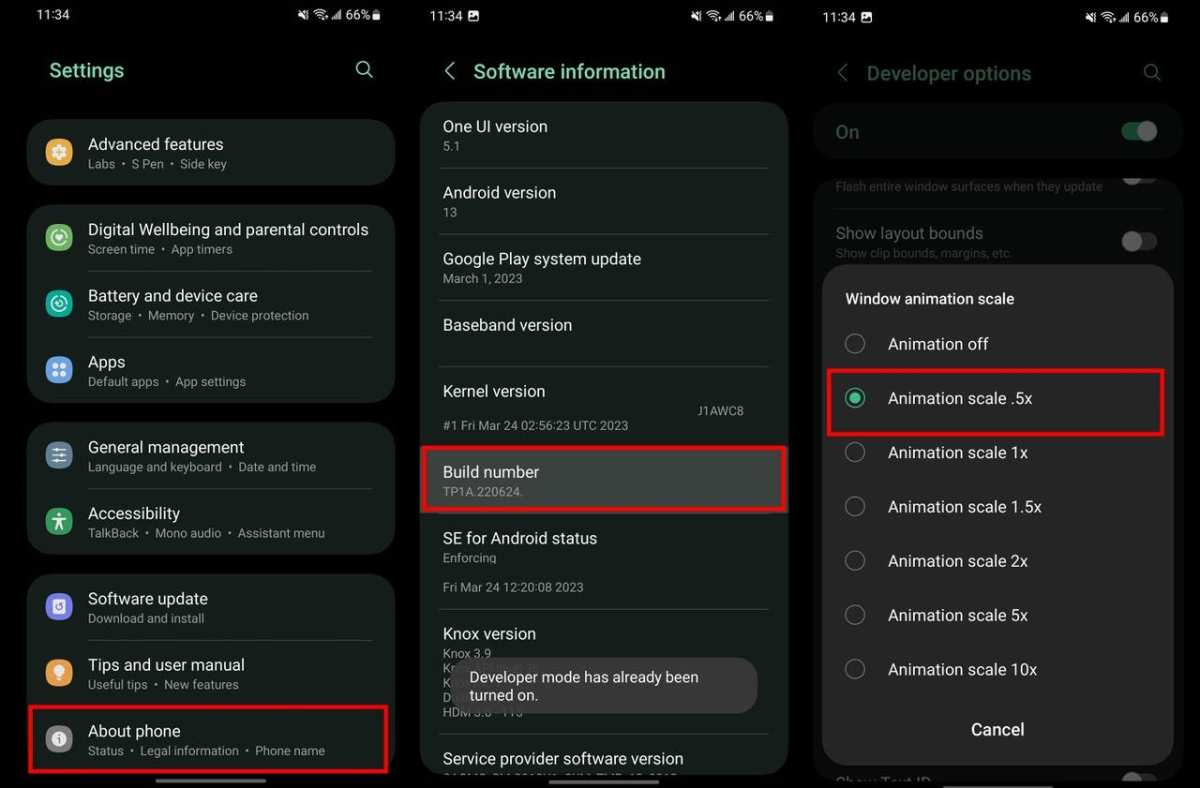
Animations make devices look lively, but they can slow things down: – Enable Developer Options by going to Settings > About phone > Tap ‘Build number’ seven times. – Return to Settings > Developer Options. – Scroll to drawing options: Window animation scale, Transition animation scale, and Animator duration scale. – Set each to ‘Off’ or ‘0.5x’ to reduce animation effects.Optimize Battery Settings
Battery-saving modes often improve performance: – Activate Battery Saver mode in Settings > Battery. – Limit background activity for apps that don’t need to run constantly.Limit Background Data Usage
Some apps refresh data in the background, consuming resources: – Go to Settings > Apps & notifications > App info. – Select individual apps and restrict background data. – Use Data Saver mode in Settings > Network & Internet.Using Built-in Tools and Third-Party Apps
Leverage tools to assist in speeding up your device.Built-in Phone Optimization Features
Many Android manufacturers include their own cleaning and optimization tools: – For example, Samsung’s Device Care offers options to optimize RAM, storage, and battery. – Use these tools regularly to keep your device in top form.Third-Party Cleaning and Boost Apps
Choose reputable apps that help clean junk files and boost RAM: – Examples include CCleaner, Norton Clean, or Files by Google. – Always read reviews and ensure the app’s permissions are reasonable.Advanced Tips for Power Users
If you want a more aggressive approach, consider advanced options:Factory Reset Your Device
A factory reset can eliminate persistent issues: – Backup all your data first. – Navigate to Settings > System > Reset options > Erase all data. – Follow prompts and set your device up anew.Custom ROMs and Rooting
These are more technical options: – Installing a custom ROM can improve performance and add features. – Rooting grants deeper control over your device. – Note: These methods can void warranties and should only be performed if you’re comfortable with technical procedures.Regular Maintenance Tips
To keep your Android device fast over the long term: – Restart your device weekly to clear temporary caches. – Avoid installing too many apps at once. – Keep your device updated regularly. – Monitor app permissions and remove or disable unnecessary ones. – Use a minimalist approach to app usage; only keep apps you truly need. Making your Android device faster is achievable through a combination of simple maintenance tasks and smart adjustments. Regularly closing background apps, clearing cache, managing storage, updating software, and tweaking settings can significantly improve performance. If you follow these steps consistently, your device will run more smoothly and respond faster to your commands. Remember, a well-maintained Android device offers a better user experience, whether for work, entertainment, or everyday communication.Frequently Asked Questions
How can I delete unnecessary files to improve my Android device’s speed?
Removing unused or duplicate files, clearing cache data, and deleting old downloads free up storage space on your device. This reduces the load on your system, leading to faster performance. Use your device’s built-in file manager or third-party cleaning apps to identify and delete these files efficiently.
What settings should I adjust to optimize my Android device’s performance?
Disable or limit background app activity, reduce or turn off animations, and update your device’s software regularly. These adjustments lessen the processing burden and prevent apps from consuming resources unnecessarily, which helps your device run more smoothly.
How can I extend my Android device’s speed by managing apps better?
Close apps that you’re not actively using, uninstall those you no longer need, and restrict background data for apps that do not require constant updates. Managing app activity ensures your device’s processing power focuses on the essential tasks, improving overall speed.
Are there any hardware upgrades that can make my Android device faster?
While most hardware upgrades are limited on smartphones, you can enhance speed by replacing your device with models that have higher RAM or faster processors. Additionally, inserting a higher capacity or faster SD card can improve app load times and data access on compatible devices.
How often should I restart my Android device to maintain optimal speed?
Restart your device at least once a week to clear temporary files and close background processes. Regular restarts can prevent apps from slowing down your device over time and help maintain smooth operation.
Final Thoughts
To make your android device faster, start by clearing the cache and unnecessary files. Regularly delete unused apps to free up space. Keep your software updated to benefit from performance improvements. These simple steps can significantly improve your device’s speed and responsiveness. Improving your device’s performance becomes easier when you follow these practical tips. Knowing how to make your android device faster helps ensure it runs smoothly for all your needs.
Similar Posts































