How To Make Your Android Faster Developer Options Tips

How to Make Your Android Faster Using Developer Options
When your Android device begins to lag or feels slow, it can be frustrating. Luckily, there are ways to improve its performance, and one effective method is by using Developer Options. Developer Options offer a set of advanced features designed for developers, but they can also help regular users optimize their devices. In this guide, you’ll learn step-by-step how to activate Developer Options and tweak settings to make your Android run faster. Let’s explore each aspect in detail so you can get the most out of your device’s speed.Getting Started with Developer Options
Before diving into specific tweaks, you need to enable Developer Options on your Android device. It’s a simple process:- Open the Settings app on your device.
- Scroll down and tap on About Phone.
- Look for the Build Number entry. It might be under a sub-menu like Software Information on some devices.
- Tap on the Build Number seven times rapidly. You will see a message saying, “You are now a developer!”
- Go back to Settings, and you’ll now see Developer Options listed.
Reducing Background Processes
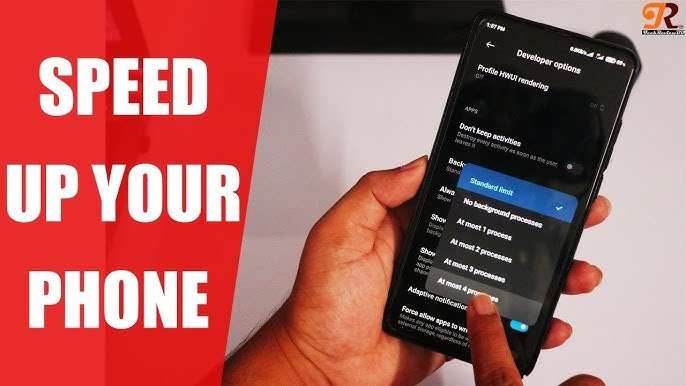
One major reason your Android device slows down is the number of apps running in the background. These apps consume RAM and processing power, causing lag. Developer Options provide settings to limit background processes:Adjust Background Process Limit
- Navigate to Developer Options.
- Find the setting called Limit Background Processes.
- Tap on it and select a lower number, such as 1 process or Custom.
Disable Apps Running in Background
You can also manually stop apps that you don’t need running:- Go to Settings >Apps & Notifications.
- Select an app that’s consuming resources.
- Tap Force Stop to temporarily deactivate it.
Turning Off Animations to Speed Up Your Device
Animations give your device a smooth feel, but they also consume processing power. Disabling or reducing animations can noticeably boost performance:Adjust Animation Scale Settings
- Open Developer Options.
- Look for the following settings:
- Window Animation Scale
- Transition Animation Scale
- Animator Duration Scale
- Set all these options to 0.5x or Animation off.
Enabling USB Debugging and Its Impact
While primarily used for app development, enabling USB Debugging can help you access deeper system features:- Navigate to Developer Options.
- Find USB Debugging and toggle it on.
Managing Hardware Layer Rendering
Hardware acceleration improves rendering speed, which can help with smoother scrolling and faster graphics:Force GPU Rendering
- Within Developer Options, locate Force GPU Rendering.
- Toggle it on to utilize your device’s GPU for rendering tasks, bypassing slower CPU processes.
Controlling Background Services and Processes
Another way to enhance speed involves controlling which services run in the background:Disable Unnecessary Services
- In Developer Options, find Process Stats or similar settings.
- This provides insights into app resource usage.
- Identify apps or services that consume high CPU or RAM and disable or uninstall them if unnecessary.
Cleaning Up with Storage and Cache Management
While Developer Options don’t directly manage storage, they can help facilitate better device cleanup:Using the Built-In Storage Tools
- Go to Settings >Storage.
- Clear cache data for apps that take up significant space.
- Remove unnecessary files or uninstall apps you no longer need.
Other Tips for Speeding Up Your Android Device
Besides Developer Options, consider these additional tips:- Keep your device updated: Install the latest firmware and app updates for best performance.
- Remove bloatware: Uninstall or disable pre-installed apps you don’t use.
- Use lightweight apps: Opt for simpler versions of apps when available.
- Restart regularly: A simple reboot clears temporary files and resets processes, helping speed things up.
Summary
In summary, using Developer Options to limit background processes, disable animations, enable hardware acceleration, and manage background services can significantly boost your device’s speed. Remember to be cautious when changing settings—adjust one thing at a time and see how your device responds. Keep your device clean, avoid unnecessary apps, and stay updated to maintain optimal performance over time. By applying these simple yet effective techniques, you can enjoy a faster, more responsive Android device without needing to replace it. Small tweaks within Developer Options make a meaningful difference, providing you with a smoother experience during everyday use.Frequently Asked Questions
What are some effective ways to reduce background processes for better performance?
To make your Android device faster, go to Developer Options and disable or limit background processes. You can set the “Limit background processes” option to a specific number, such as 4 or 3, to prevent unnecessary apps from consuming resources. Additionally, disable any unnecessary services like “Bluetooth Scanning” or “Location Services” to free up CPU and RAM usage, resulting in smoother performance.
How can tweaking animation scales improve my device’s speed?
Reducing or turning off window and transition animations in Developer Options can significantly increase your device’s responsiveness. Set “Window animation scale,” “Transition animation scale,” and “Animator duration scale” to 0.5x or off. This minimizes the time spent on visual effects, making navigation faster and more fluid without affecting the core functionality.
What steps can I take to clear cache and improve speed directly from Developer Options?
While clearing cache isn’t a direct option in Developer Options, you can access the storage settings to manually clear app caches. Additionally, regularly restarting your device helps clear temporary files and frees up memory. Using Developer Options, you can enable “Show CPU usage” to monitor app activity and identify which apps might be causing slowdowns, then take action accordingly.
Final Thoughts
To make your Android faster developer options are essential. Start by enabling Developer Options in your settings, then turn off animations to improve speed. Clearing background processes can also free up resources. Regularly updating your device ensures optimal performance. In conclusion, knowing how to make your Android faster developer options can significantly enhance your experience and device responsiveness.
Similar Posts































