How To Make Space Internal Storage Android: Easy Tips

How to Make Space Internal Storage on Android Devices
When your Android phone or tablet starts running out of space, it can become frustrating. Apps may slow down, updates might fail, and you might struggle to take new photos or videos. The good news is, you don’t need to buy a new device — there are practical ways to clear up space and keep your device working smoothly. In this guide, we’ll walk through detailed steps and tips on how to make space in your internal storage on Android devices. Understanding your device’s storage is the first step. Android devices usually come with a set amount of internal storage, which holds your apps, photos, videos, and system data. Over time, this storage can fill up quickly, especially if you store many large files or install numerous apps. To free up space effectively, you need a clear plan and some tools at your disposal. Let’s dive into how to do that.Check Your Storage to Know What’s Taking Up Space
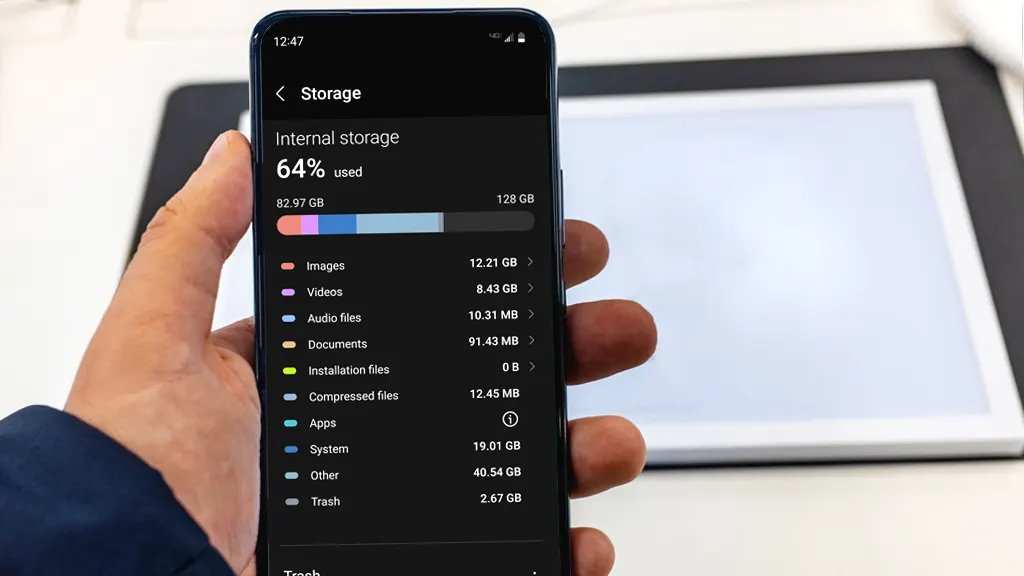
Before removing anything, it’s important to understand what’s occupying the most space on your device.Steps to Check Storage Usage
- Open the Settings app on your Android device.
- Scroll down and tap on “Storage” or “Device Care” depending on your device model.
- You will see a breakdown of your internal storage, including categories like Apps, Images, Videos, Audio, and Other Files.
- Identify the biggest space consumers. This helps you decide what to delete or move.
Clear Unnecessary Apps and App Data
Apps can occupy a lot of space, especially if you have many installed or if some apps store cached data.How to Uninstall Unneeded Apps
- Go to Settings > Apps & Notifications > See all apps.
- Scroll through the list and identify apps you no longer use.
- Tap on an app, then select “Uninstall” to remove it from your device.
Clear Cache and App Data
- In the same app info menu, tap on “Storage & cache.”
- Click on “Clear Cache” to remove temporary files that apps use.
- If necessary, tap “Clear Storage” or “Clear Data” to delete app data. Be careful — this may erase saved information like login details or game progress.
Manage and Remove Large Files
Large media files are often the main reason for storage shortages.Identify Large Files
- Use a file manager app or built-in storage tools like “Files by Google.”
- Navigate to the “Large Files” section to see files taking up more space.
- Review these files and decide whether to delete, move, or back them up.
Delete Unwanted Media Files
- Open your Photos or Gallery app.
- Select photos and videos you no longer need.
- Use the delete option to remove them permanently from your device.
Backup Before Deleting
– Consider uploading important photos and videos to cloud services like Google Photos or Dropbox before deleting them from your device. – Moving files to an SD card or external storage is another good option if your device supports it.Utilize Cloud Storage for Photos and Videos
Storing media files in the cloud reduces the amount of space they take up on your device.Google Photos and Google Drive
- Google Photos offers free storage for photos and videos at compressed quality, or you can choose high quality for unlimited storage.
- Google Drive can store documents, large files, and backups.
Steps to Upload Files to Cloud
- Open the respective app (Google Photos or Google Drive).
- Tap the upload icon and select files you want to store online.
- Ensure the upload completes before deleting local copies.
Remove Duplicate and Unnecessary Files
Over time, duplicate files and unwanted downloads clutter your storage.How to Find and Delete Duplicates
- Use a file cleaner app like “Files by Google” or other third-party tools designed for duplicate detection.
- Scan your device for duplicate photos, videos, or files.
- Review and delete duplicates to recover space.
Clear Downloads Folder
- Open the Files app or your default file manager.
- Navigate to “Downloads.”
- Delete files you no longer need, such as old PDFs, installers, or media files.
Manage App Data and Caches More Effectively
Some apps store unnecessary data even after cache clearing.Regularly Review App Storage
- In Settings > Apps, check each app’s storage details.
- If an app uses a lot of data and cache, consider deleting or reinstalling it.
Use Storage Optimization Features
- Some Android devices have built-in tools like “Device Care” or “Storage Cleaner.”
- Run these features periodically to automate cleaning tasks.
Move Apps and Data to External Storage or SD Card
If your device supports a microSD card, you can move certain data or apps to it.How to Transfer Data
- Insert the SD card into your device.
- Go to Settings > Storage > Transfer Data to SD card or move apps to SD card.
- Follow on-screen instructions to complete the transfer.
Perform Factory Reset as a Last Resort
If your storage is severely clogged and other methods don’t help, a factory reset might be necessary.Precautions Before Reset
- Back up all important files to the cloud or an external device.
- Ensure you remember your login credentials for apps and accounts.
How to Reset
- Go to Settings > System > Reset options.
- Select “Erase all data (factory reset).” Follow prompts to reset your device.
Final Tips and Best Practices
To keep your Android device running smoothly over time:- Regularly check your storage and clear cache.
- Delete or move large files periodically.
- Use cloud storage for media files.
- Avoid installing unnecessary apps.
- Keep your device updated to ensure optimal performance and storage management features.
Frequently Asked Questions
What steps can I take to remove unnecessary app data and free up space?
To free up space, review your installed apps and clear cache data. Go to your device settings, select Apps, and choose specific apps to clear their cache or data. Uninstall apps that you no longer use, which can recover significant storage. Additionally, consider deleting app downloads and offline content you no longer need.
How does deleting old media files help improve internal storage capacity?
Removing old photos, videos, and audio files that you no longer need reduces clutter and frees up substantial storage space. Transfer any important media to a computer or cloud storage before deleting them from your device. Regularly cleaning out media files prevents your device from becoming overwhelmed with unnecessary data.
What options are available for managing large files on my Android device?
You can identify large files by using file manager apps or built-in storage analysis tools. Delete or move these files to an external storage device or cloud services to save space. Also, consider compressing large files or deleting duplicated items to optimize your internal storage.
Are there features within Android that automate storage management?
Yes, Android offers features such as Smart Storage, which automatically deletes backed-up photos and videos after a certain period, and storage manager tools that suggest files to delete. Enable these features in your device settings to help maintain optimal storage without manual effort.
Can moving files to an SD card help in increasing internal storage space?
If your device supports an SD card, shifting media files, downloads, and even some apps to the SD card frees up internal storage. To do this, set the SD card as the default storage location for downloads and configure apps to store data externally when possible, which reduces the load on your device’s internal memory.
Final Thoughts
To free up space on your Android device’s internal storage, start by deleting unnecessary apps and clear app caches regularly. Transfer photos, videos, and files to external storage or cloud services to save space. Lastly, use built-in tools to identify large files and remove old downloads. How to make space internal storage android is straightforward with these simple steps. Keep your device optimized by managing storage efficiently, ensuring smooth performance and quick access to essential files.
Similar Posts































