How To Make Notes On Ipad
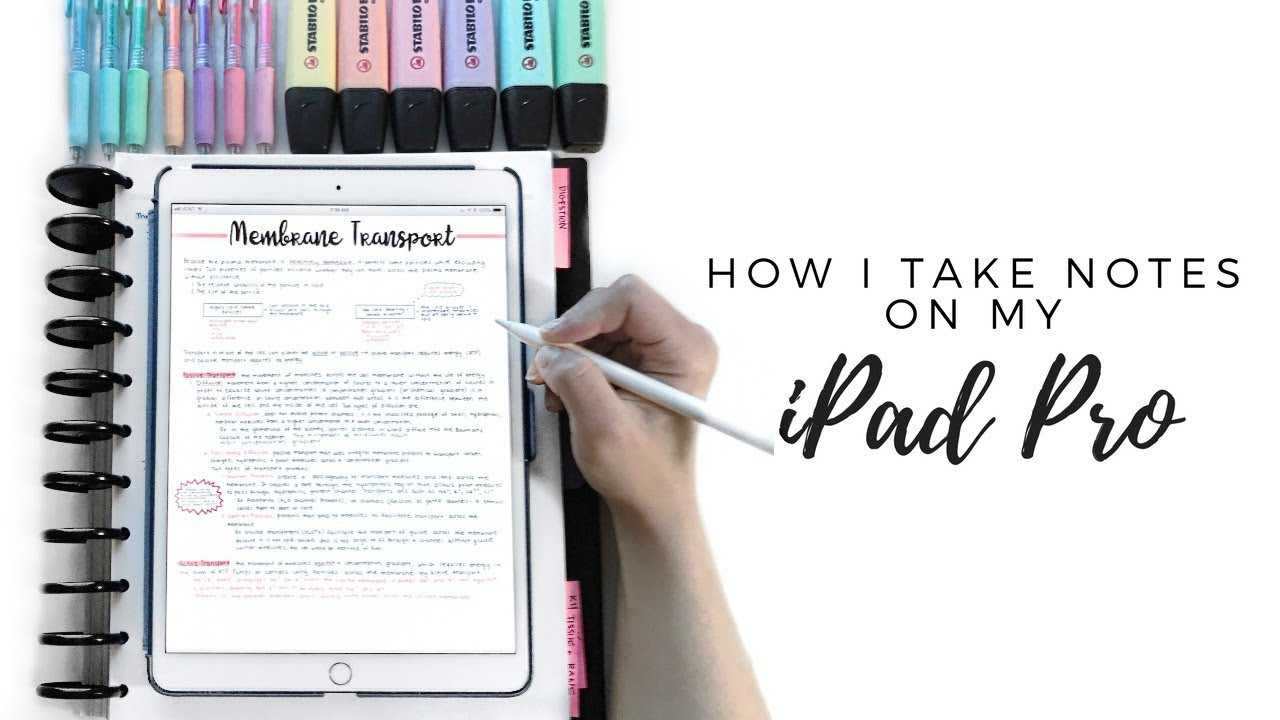

How to Make Notes on iPad: A Complete Guide
Using an iPad to take notes is a smart choice for students, professionals, and anyone who loves to stay organized. The iPad offers a variety of tools and apps that make note-taking easy and enjoyable. In this section, we’ll explore all the essential ways you can make notes on your iPad effectively.
Understanding the Benefits of Making Notes on iPad
Before diving into methods, it’s good to recognize why an iPad is a popular device for note-taking. Its portability means you can carry your notes anywhere without bulk. The digital features allow you to edit, organize, and share notes seamlessly.
The iPad also supports handwriting and typing, giving flexibility in how you capture information. Plus, cloud integration ensures your notes are backed up and accessible across devices. All these features make the iPad a powerful tool for efficient note-taking.
Essential iPad Apps for Note-Taking
Choosing the right app is key to making the most of your iPad notes. Here are some popular options:
- Apple Notes: Pre-installed and simple to use, perfect for quick notes and sketches.
- Notability: Features handwriting, typing, and audio recording, ideal for comprehensive notes.
- GoodNotes: Excellent for handwritten notes, annotation, and organizing notebooks.
- Microsoft OneNote: Great for collaboration and syncing with other Microsoft tools.
- Evernote: Known for organizing large amounts of information and integrating multimedia.
Getting Started with Apple Notes
Apple Notes is the default app on your iPad and offers a straightforward way to start taking notes. To create a new note, simply open the app and tap the ‘New Note’ icon. You can type, draw, add images, or make checklists easily.
Organize your notes into folders for better management. Use the search feature to quickly find specific notes. This app is perfect for beginners due to its simplicity and quick access.
Using Notability for Handwritten and Audio Notes
Creating Handwritten Notes
Notability allows you to draw or write naturally with an Apple Pencil or your finger. Choose your preferred pen type, color, and thickness to customize your writing.
Adjust the zoom level for better precision, especially for detailed diagrams. You can also insert images, PDFs, or web clips into your notes for richer content.
Recording Audio Notes
One of Notability’s standout features is audio recording. Tap the record button while taking notes to capture lectures or meetings. The app syncs the audio with your handwriting, so you can listen back to specific parts of your notes.
This feature is especially useful for students who want to revisit class recordings alongside their notes.
Organizing Notes in GoodNotes
GoodNotes provides a digital notebook look that mimics traditional paper notebooks. Create multiple notebooks for different subjects or projects. Use tabs and page thumbnails for quick navigation.
The app supports handwriting recognition, so you can search handwritten content. Markup tools like highlighters and sticky notes help emphasize important details.
Advanced Features in Microsoft OneNote
OneNote stands out with its collaboration features. Share notebooks with others and work together in real time. Use sections and pages to organize large amounts of information efficiently.
The app supports audio recordings, images, and files. Its integration with Microsoft Office makes it a good choice for students and professionals alike.
Techniques for Effective Note-Taking on iPad
Using Handwriting and Typing Appropriately
Combine handwriting and typing to maximize your efficiency. Handwrite quick notes and diagrams, then type summaries or detailed explanations.
This hybrid approach helps keep your notes organized and easy to review later.
Inserting Multimedia Content
Add images, videos, or sound recordings to enrich your notes. Visuals can clarify complex ideas, while audio can capture lectures or meetings.
Most note-taking apps support multimedia insertion, making your notes more comprehensive.
Organizing and Tagging Notes
Create folders and tags to categorize your notes. Consistent organization helps you locate information quickly when needed.
Use color-coding or highlighting to prioritize key points or categorize subjects.
Syncing and Backing Up Your Notes
Make sure your notes are safe and accessible across devices. Use iCloud with Apple Notes or cloud services like OneDrive or Dropbox for other apps.
Regularly back up your data to prevent loss and ensure your notes are always available, whether you are on an iPad or another device.
Utilizing Apple Pencil for Precision Note-Taking
If you have an Apple Pencil, you can enjoy precise and natural handwriting. Use it for sketches, annotations, or detailed diagrams.
Adjust your writing pressure and angles for varied effects. The Pencil makes the digital note-taking experience feel more like writing on paper.
Customizing Your Note-Taking Workflow
Experiment with different apps, tools, and techniques to find what works best for you. Create templates for common notes or checklists to save time.
Use shortcuts and gestures on your iPad to speed up your workflow. The more you customize, the more efficient your note-taking becomes.
Enhancing Your Notes with Annotations and Highlights
Annotations make your notes clearer and more organized. Use highlighters for important points, and add sticky notes for additional comments.
This method helps you review key information quickly and effectively.
Sharing and Exporting Your Notes
Most note apps allow you to share notes via email, messaging, or cloud links. Export your notes as PDFs, images, or other formats for presentations or collaborations.
Sharing your work enables better collaboration and makes reviewing easier.
Tips for Better Note-Taking on iPad
- Keep your handwriting legible: Clear handwriting saves you time during review sessions.
- Use consistent organization: Keep folders and tags uniform to find notes faster.
- Add visuals whenever possible: Diagrams and images improve understanding.
- Review and revise: Regularly go back to update notes for clarity and accuracy.
- Experiment with different tools: Don’t hesitate to try new apps or features to improve your workflow.
Related Topics for Making Notes on iPad
- Best stylus options for iPad: Elevate your note-taking with the right digital pen.
- Using screen protectors and stylus tips: Maintain smooth writing and prevent damage.
- Tips for students: Effective ways to study with iPad notes.
- Creating digital notebooks: Organize your notes into neat, accessible structures.
- Integrating notes with other productivity tools: Combine your notes with calendars, reminders, and task managers.
By exploring these methods and tools, you can turn your iPad into a powerful note-taking device that enhances your learning and organization. Whether you prefer handwriting or typing, multimedia or text, the iPad offers flexible ways to capture and keep your ideas neatly arranged.
HOW TO take notes on iPad! | Student Tips & Tricks
Frequently Asked Questions
What are some effective ways to organize notes on an iPad?
To keep your notes well-organized on an iPad, create folders for different subjects or projects. Use consistent naming conventions for easy retrieval. You can also utilize tags to categorize notes further and search quickly. Taking advantage of note-taking apps’ features, such as color-coding or prioritizing, helps maintain clarity and accessibility.
How can I add annotations to my handwritten notes on the iPad?
Most note-taking apps support annotation features that allow you to add markings, highlights, or comments to handwritten notes. Use an Apple Pencil or your finger to write naturally. Once you finish, select the annotation tool within the app to emphasize or clarify specific parts of your notes, making them more informative and visually clear.
What are the best tools or apps for making notes on an iPad?
Popular applications like Notability, GoodNotes, and Apple Notes provide extensive features for note-taking. They support handwriting, typing, drawing, and multimedia insertion. Choose the app that best fits your style—whether you prefer freehand writing or typing—and explore their organizational options to enhance your note management.
How can I ensure my notes are saved and backed up properly on an iPad?
Ensure your notes automatically sync with cloud services such as iCloud, Google Drive, or Dropbox. Enable synchronization within your chosen app settings to prevent data loss. Regularly check that your notes are backed up, especially after significant updates or additions, to keep your information safe and accessible across devices.
What techniques can I use to write more efficiently on the iPad?
To write more efficiently, customize your keyboard settings to include shortcuts or predictive text. Use stylus tools for precise handwriting input. Organize your workspace with templates or predefined formats, and utilize features like text recognition for converting handwritten notes into typed text, which speeds up the review process.
Final Thoughts
Making notes on an iPad is a straightforward process. Use Apple Notes or download third-party apps like Notability or GoodNotes for more features. Customize your tools with different pens, colors, and templates to suit your needs. Organize your notes efficiently by creating folders or tagging important sections. Sync your notes with iCloud to access them across devices. In conclusion, knowing how to make notes on iPad involves choosing the right apps, customizing your tools, and organizing effectively. With these steps, you can stay organized and productive using your iPad.
Similar Posts