How To Make A Free Playlist On Android For Easy Music Access
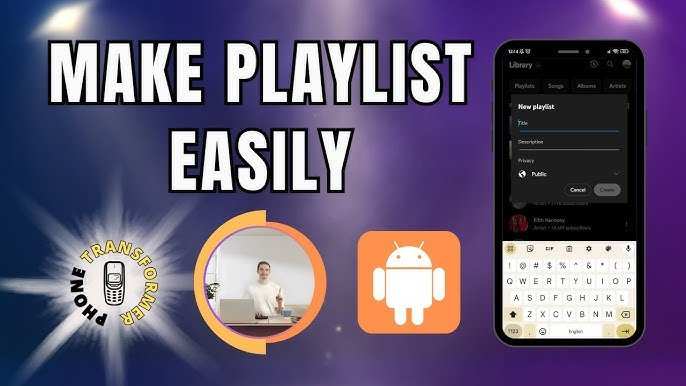
How to Make a Free Playlist on Android
Creating a playlist on your Android device is a fantastic way to enjoy your favorite music without the hassle of paying for subscriptions or streaming services. Whether you want a playlist for a workout, a road trip, or just relaxing at home, the process is simple and doesn’t require any extra costs. In this guide, you’ll learn step-by-step how to make a free playlist on Android using different apps and methods, plus helpful tips to keep your music well-organized and accessible anytime.Understanding What a Playlist Is
Before diving into the how-to, let’s clarify what a playlist actually is. A playlist is a collection of songs or audio files grouped together that you can listen to in sequence or randomly. On Android, playlists allow you to organize your music library, making it easy to find and enjoy your favorite tracks without searching through hundreds of files each time. Why Create a Playlist?- Enjoy music tailored to your mood or activity
- Save time searching for songs
- Keep your favorite tracks organized
- Share your playlists with friends easily
Choosing the Right App for Creating Free Playlists on Android
To make your playlist, you’ll need a good music app that supports playlist creation. Fortunately, many free apps do this well:Google Play Music (Now YouTube Music)
– Google has replaced Google Play Music with YouTube Music, but it’s still a favorite for many users. – You can create playlists easily with your existing music library or streaming options. – Offers free tier with ads, which includes playlist features.Spotify (Free Version)
– The most popular streaming app worldwide. – Free version allows playlist creation with ads. – You can add songs to playlists, but with certain playback restrictions.VLC Media Player
– Ideal if you have stored music files on your device. – Completely free and open-source. – Supports playlist creation from local files.Other Notable Apps
– JetAudio, Music Player, Poweramp (some free features). Choose an app based on your needs:- If you’re mostly listening to locally stored music, VLC is a great option.
- If you like streaming music and sharing playlists, YouTube Music or Spotify work well.
Preparing Your Music Files on Android
Before creating a playlist, make sure your music files are organized and ready:- Save your music files in a dedicated folder for easy access.
- Ensure the music files are in compatible formats like MP3, WAV, or AAC.
- Organize songs by artist, album, or genre for easier selection.
Creating a Playlist Using Your Music App
Different apps have different steps, but the core process remains similar. Here’s how to create a playlist in some popular apps:Creating a Playlist in YouTube Music
- Open the YouTube Music app.
- Navigate to the “Library” tab at the bottom.
- Tap on “Playlists” and then select “Create new playlist.”
- Enter a name for your playlist.
- Start adding songs:
- Search for songs or browse your library.
- Tap the three-dot menu next to a song.
- Select “Add to playlist” and choose your playlist.
- Continue adding songs until your playlist is complete.
- Tap “Save,” and your playlist is ready to listen to or share!
Creating a Playlist in Spotify (Free Version)
- Open the Spotify app.
- Tap on “Your Library” from the bottom menu.
- Choose “Playlists” and tap “Create Playlist.”
- Name your playlist and tap “Create.”
- Add songs by:
- Searching for tracks or browsing.
- Pressing the three-dot menu next to a song.
- Selecting “Add to Playlist” and choosing your new playlist.
- Keep adding your favorite songs, then enjoy your custom playlist.
Creating a Playlist with VLC Media Player
- Open VLC on your Android device.
- Navigate to the “Audio” section and browse your local files.
- Select the first song to add, then tap the menu icon.
- Choose “Add to playlist” or “Create new playlist.”
- Name your playlist and add subsequent songs the same way.
- Access your playlist anytime from VLC’s playlist menu.
Editing and Managing Your Playlists
Once your playlist is created, you might want to tweak it:- Remove songs by long-pressing on the track and selecting delete or remove.
- Change the order of songs by dragging and dropping them.
- Rename your playlist for better organization.
- Add new songs anytime by repeating the adding process.
Tips for Making the Best Free Playlist on Android
– Mix different genres and artists to keep your playlist interesting. – Use descriptive names for your playlists to recognize their mood or purpose. – Keep your playlist manageable—don’t overload it with hundreds of songs. – Update your playlist regularly to match your current mood or activities. – Use playlists for specific occasions, like workout sessions, road trips, or relaxing evenings.How to Keep Your Playlist Accessible and Organized
Organizing your playlists right from the start saves time later:- Create separate playlists for different types of music or moods.
- Rename playlists to reflect their content clearly.
- Use consistent naming conventions for easy searching.
- Back up your playlists if the app supports exporting files or sharing links.
Additional Ways to Create Free Playlists on Android
If you’re not a fan of apps or prefer manual control, you can also create playlists by: – Using file manager apps to organize music files into folders that act like playlists. – Making custom playlists in music editing software on your PC and then transferring them to your Android device. Remember, the key is to find a method that suits your listening style and keeps things simple.Final Thoughts on Making Free Playlists on Android
Creating your own music playlist on Android is straightforward, fun, and a great way to enjoy your favorite tunes anytime. By selecting the right app, organizing your files, and customizing your playlists, you can craft a personalized music experience that fits your life. Whether you prefer local files or streamed songs, there’s a method that works for you—just start experimenting and make your musical moments even better.Frequently Asked Questions
What steps are needed to create a playlist on an Android device for free?
To create a playlist on your Android device without cost, open your preferred music app, such as Google Play Music or YouTube Music. Navigate to the library or playlist section, then select the option to create a new playlist. Name your playlist, and start adding songs by searching for them or browsing your library. Save the playlist once you’ve added your desired tracks.
Can I add songs from different sources to my Android playlist without paying?
Yes, you can add songs from various free sources to your playlist. Use apps like YouTube or free music streaming services that allow offline downloads or playlist creation. After downloading or accessing these songs, open your playlist and add the tracks as needed. Be sure to respect copyright laws when using free content from different sources.
How do I organize my playlist for easier navigation on Android?
You can organize your playlist by editing the order of songs within the app. Most apps provide options to manually drag and drop tracks to set the sequence. Additionally, you may create multiple playlists based on genres or moods, helping you find the right music quickly when needed.
Final Thoughts
To make a free playlist on Android, start by choosing a music app like Spotify or YouTube Music that offers free options. Create an account if needed and navigate to the playlist section. Add your favorite songs by searching and selecting them. Save your playlist and enjoy your custom mix anytime. Following these simple steps, you can easily make a free playlist on Android and tailor it to your musical taste without any cost.
Similar Posts































