How To Make A 3 Way Call Android Efficiently
How to Make a 3 Way Call on Android
Making a three-way call on your Android device can seem tricky at first, but once you understand the process, it becomes a simple task. A three-way call allows you to chat with two people at the same time, making it perfect for coordinating plans, having a group discussion, or resolving issues directly. In this guide, we’ll walk through each step of how to set up a three-way call, explore various methods based on your device or carrier, and offer helpful tips to ensure your calls go smoothly.Understanding the Basics of Three-Way Calling
Before diving into the steps, let’s briefly clarify what three-way calling is and how it works on Android devices.- A three-way call connects three people in one conversation.
- It uses the network’s conference calling feature, which most carriers support.
- Not all Android phones or plans support this feature, so it’s good to check if your provider offers it.
- Some devices and carriers may have different steps, but the core process remains similar.
Checking if Your Carrier Supports Three-Way Calling
Some carriers include conference calling in their standard plans, while others may require an add-on or extra fee. Here’s how to verify your eligibility:- Visit your mobile carrier’s website and look for conference calling or three-way calling information.
- Call customer service and ask directly if your plan supports three-way calls.
- Check your device’s user manual or settings to see if the conference call feature appears.
Steps to Make a Three-Way Call on Android
The following method works on most Android phones and networks supporting conference calls:Initiate the First Call
Start by dialing the first person you want to include in the call:- Open your Phone app and dial the first contact.
- Wait for the person to answer.
- Once connected, stay on the line.
Add the Second Person to the Call
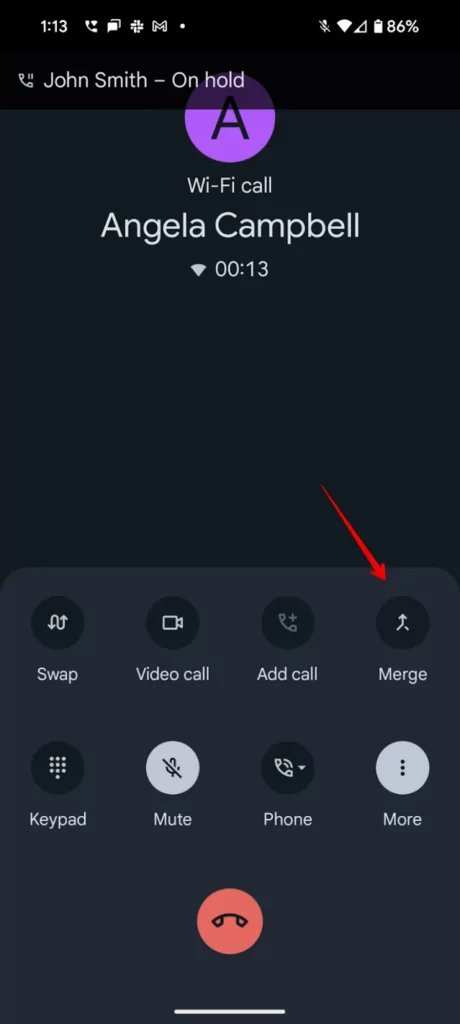
Now, bring the second person into the conversation:- Tap the “Add Call” button on your screen. Usually, it looks like a plus sign (+) or says “Add Call.”
- Dial the second contact or select it from your contact list.
- Wait for the second person to answer.
- Once they are on the line, tap “Merge Calls” or “Conference” to connect all three callers.
Tips for a Smooth Conference Call
– **Hold on to a strong signal** for clear audio and fewer disconnections. – **Inform both callers** that you are merging the calls to avoid confusion. – During the call, you can **mute individual lines** if there’s background noise or if someone needs to speak privately. – **Keep an eye on your phone’s display** to see who’s on the call and manage the conversation efficiently.Using In-Call Menu Options for Conference Calls
Most Android devices have built-in options to manage multi-party calls easily. Here’s how:- After merging the calls, look for a menu or options button (often three dots) on the call screen.
- Select options like “Manage Calls” or “Add Call” to add more participants or to see all active calls.
- If you want to drop someone from the call, simply select their name and choose “End Call” for that participant.
Alternative Methods for Making a 3-Way Call
If your carrier or device doesn’t support conference calling natively, there are other options:Third-Party Apps
Apps like WhatsApp, Zoom, Google Meet, Skype, or Facebook Messenger allow group calls over the internet. Here’s what to keep in mind: – Make sure all participants have the same app installed. – Create a group or start a call from the chat window. – These apps often offer better control and higher-quality audio/video than traditional calls. – Many of these platforms are free and work over Wi-Fi or cellular data.Using VoIP Services
Voice over Internet Protocol (VoIP) apps are a good choice for group calls: – Sign up for services like Viber or Line. – Initiate a group call directly within the app. – It’s especially useful if your cellular plan doesn’t support multiple calls at once.Troubleshooting Common Issues
Sometimes, making a three-way call doesn’t work as expected. Here are common problems and how to resolve them:- Call drops or poor audio quality: Check your signal strength and restart your phone.
- Cannot merge calls: Confirm if your carrier supports conference calling. If not, consider the third-party app option.
- Feature missing on device: Update your phone’s software and carrier settings.
- Multiple calls not supported on your plan: Contact your carrier or consider upgrading your plan.
Important Tips to Remember
– Always inform the other callers before merging calls to avoid confusion. – Be aware of privacy; everyone in a conference call should agree to be part of it. – Use mute options to manage background noise. – Practice the steps with someone you trust to become comfortable with the process. Making a three-way call on your Android is straightforward once you understand the procedure. Whether through your device’s built-in features or by using third-party apps, you can efficiently connect with multiple people at once. Follow these detailed steps, check your carrier support, and explore alternative solutions if needed. With a little practice, you’ll be able to set up group conversations quickly and easily whenever the need arises.Frequently Asked Questions
Can I add multiple participants to a three-way call on Android?
Yes, most Android devices allow you to add more than two participants during a call. While the process varies slightly depending on your device and carrier, generally, you can split the call or add participants through the call menu. After initiating the first call, tap the “Add call” button, dial the new contact, and then merge the calls to create a three-way conversation. Some carriers or devices may support conference calls with multiple participants simultaneously.
What steps should I follow to initiate a three-way call with an existing call on Android?
Start by calling your first contact. Once connected, tap the “Add call” button on your screen. Dial the second contact and wait for them to answer. After both parties are connected, tap the “Merge” or “Merge calls” option to establish a three-way call. Make sure your carrier supports conference calling, as some may have limitations on the number of participants.
How can I troubleshoot if I can’t merge calls during a three-way call on Android?
If you’re unable to merge calls, check whether your carrier supports conference calls and ensure your plan includes this feature. Restart your device to resolve temporary glitches. Verify that your device’s software is up to date and that your network connection is stable. If issues persist, contact your carrier’s customer support for assistance or explore alternative apps that facilitate conference calls.
Are there any third-party apps to facilitate three-way calling on Android devices?
Yes, several third-party apps, such as Zoom, WhatsApp, or Skype, enable conference calls with multiple participants. These apps often offer higher flexibility and additional features like video conferencing. Using these solutions requires all participants to have the app installed and an internet connection. Check app permissions and privacy settings before usage to ensure secure communication.
Does using Wi-Fi calling affect the ability to make a three-way call on Android?
Wi-Fi calling generally allows you to make and receive calls over a Wi-Fi network instead of cellular networks, which typically does not impact your ability to create a three-way call. As long as Wi-Fi calling is active and your carrier supports conference calls via Wi-Fi, you can initiate and merge calls just like with cellular calling. Confirm with your carrier if you experience any connectivity issues while using Wi-Fi calling for conference calls.
Final Thoughts
To make a 3 way call android, start by dialing the first number. Once connected, tap the “Add call” button to include the second contact. When both parties are on the line, press “Merge calls” to join the conversations. This simple process allows you to efficiently manage three-way calls on your device. In conclusion, understanding how to make a 3 way call android helps you communicate seamlessly with multiple contacts at once. Just follow these straightforward steps to connect all parties easily and effectively.
Similar Posts































