How To Make Video Call From Apple To Android Efficiently
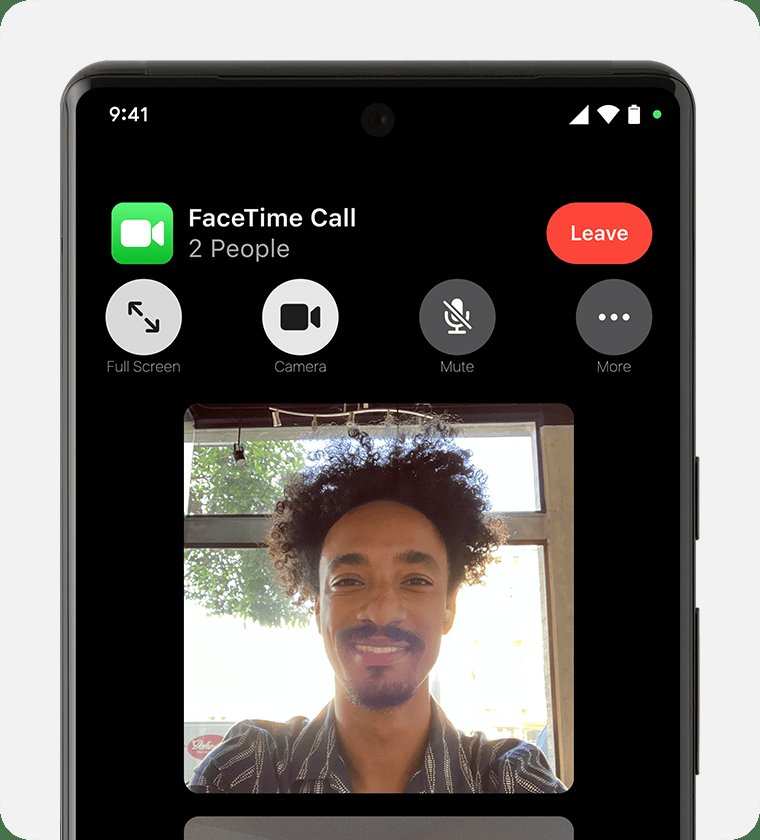
Making a video call from Apple to Android is straightforward with the right app. **Use services like Google Meet or WhatsApp to connect across platforms easily.** These apps are compatible with both operating systems and do not require complex setups.
Simply install the app, sign in, and send a link or call directly. Knowing how to make a video call from Apple to Android can save time and keep you connected without hassle.

How to Make Video Call from Apple to Android
Making a video call from an Apple device to an Android device might seem tricky at first, but with the right apps and steps, it can be simple and clear. Let’s explore how you can connect with someone using an iPhone or iPad to chat visually with friends, family, or colleagues who have an Android phone. We will go over the best apps to use, how to set them up, and tips to ensure your video calls work smoothly.
Understanding the Challenges of Cross-Platform Video Calls
Before diving into how to make these calls, it’s good to understand why they aren’t always straightforward. Apple devices typically use FaceTime for video chats, but FaceTime only works between Apple products. Android phones don’t support FaceTime, which means you can’t directly call an Android device using FaceTime. Now, the question is: how do you connect different devices?
Some of the main challenges include:
- FaceTime is exclusive to Apple devices
- Android devices do not support FaceTime natively
- Both devices need to use compatible apps for video chatting
- Network stability affects video call quality
Thankfully, multiple third-party apps bridge this gap and allow seamless video communication across platforms.
Choosing the Best Apps for Cross-Platform Video Calls
The key to making a successful video call from Apple to Android is selecting the right app. Here are some popular options:
WhatsApp is widely used around the world, and it supports video calls between Apple and Android devices. Both users need to have WhatsApp installed and an active internet connection. It’s simple, fast, and reliable.
Google Duo
Google Duo is designed specifically for cross-platform video calls. It offers high-quality video, simple setup, and is integrated with Google services. Google Duo is available on both iOS and Android devices, making it a top choice.
Zoom
Zoom is popular for video conferencing, but it also works great for one-on-one calls. It’s easy to set up and supports multiple participants if needed. Both parties need to download the app, but it’s straightforward to connect.
Facebook Messenger
If you and your friend use Facebook, Messenger can be a handy option. It supports video calls on both iPhone and Android phones.
Other Options
Other available apps include Microsoft Teams, Skype, and Snapchat. Select the app that your contact uses most often for convenience.
How to Set Up and Use These Apps for Video Calls
Once you’ve selected the app you want to use, follow these steps to start a video call:
Using WhatsApp
- Download and install WhatsApp from the App Store or Google Play Store.
- Open WhatsApp and verify your phone number.
- Allow necessary permissions, such as access to contacts and camera.
- Find your contact in your chat list or search for their name.
- Tap their name, then press the camera icon at the top right to start a video call.
Using Google Duo
- Download Google Duo from the App Store or Google Play Store.
- Open the app and sign in with your Google account.
- Allow required permissions like camera and microphone.
- Tap the “New Call” button or select a contact from your list.
- Press the video icon to initiate the call.
Using Zoom
- Download and install Zoom on both devices.
- Create a free account or log in with existing credentials.
- Tap “New Meeting” to start a call or “Join” if you received a link.
- If creating a new meeting, invite your friend by sharing the meeting ID or link.
- Once both are in the meeting, tap the video icon to start the video stream.
Using Facebook Messenger
- Open Facebook Messenger and find your contact.
- Tap their name to open the chat window.
- Press the video camera icon to start the video call.
Ensuring Proper Network and Device Settings
For the best experience, double-check your device and network configurations:
- Use a stable Wi-Fi connection when possible for higher quality calls.
- Make sure both devices have the latest app updates installed.
- Check that both devices have enough battery life or are plugged in.
- Ensure your device camera and microphone are properly enabled and functioning.
- Close background apps that might interfere with your call quality.
Tips for Improving Video Call Quality
Even with the best apps, some tips can help make your calls clearer:
- Position your device in a well-lit area to improve video clarity.
- Keep your camera lens clean for a sharper image.
- Use headphones with a microphone to reduce echo and background noise.
- Make sure both devices are close enough to each other so that the video frame captures both faces clearly.
- Pause other internet activities during the call to prioritize your video connection.
Alternative Methods for Cross-Platform Video Calling
If you prefer not to use third-party apps, there are other options:
Using a Browser-Based Service
Some services, like Google Meet or Jitsi, allow you to make video calls directly in a web browser without installing anything. These platforms are compatible with any device with a web browser and internet access. You just create a meeting link and share it.
Sharing Screen or Video Files
If live video chat isn’t necessary, sharing videos or screens via email or cloud services can sometimes substitute for a video call.
Common Issues and Troubleshooting
Sometimes, your video call may face hurdles. Here’s how to fix common issues:
- Voice or video not working: Check app permissions, restart the app, or restart your device.
- Call drops or lagging: Switch to Wi-Fi, reduce other internet traffic, or restart your router.
- Unable to find contact: Ensure both are using the same app and that your contact info is correct.
- App crashes: Update the app to the latest version or reinstall it.
Making video calls from Apple to Android doesn’t cut down your options. With these apps and tips, you can stay connected easily and enjoy face-to-face chats regardless of the device each person has. The key is picking the right platform, ensuring both devices are set up properly, and maintaining a good internet connection. Whether it’s for catching up with friends or collaborating with colleagues, connecting across platforms is more achievable than ever.
Frequently Asked Questions
What apps are best suited for making video calls between Apple and Android devices?
Apps like WhatsApp, Google Meet, Skype, and Zoom offer seamless video calling features compatible with both Apple and Android devices. These applications allow users to connect without compatibility issues, providing high-quality video and audio during calls.
How do I set up a video call from an Apple device to an Android device?
First, ensure both devices have the same app installed, such as WhatsApp or Skype. Sign into your account on both devices, then locate your contact and select the video call option within the app. Make sure both devices have internet access to facilitate the call.
What should I do if my video call isn’t connecting between an Apple and Android device?
Check your internet connection on both devices to ensure stability. Update the app to the latest version, restart both devices, and verify that they both have granted necessary permissions for camera and microphone access. If problems persist, try switching to a different app or network.
Are there any limitations when making video calls from Apple to Android devices?
Some apps may have limitations like reduced video quality or restricted features when used across different operating systems. Additionally, users might experience minor lag or connectivity issues depending on their network speeds. Using popular, cross-platform apps can minimize these issues.
Can I use native calling features for video calls between Apple and Android devices?
No, native calling features like FaceTime are exclusive to Apple devices and cannot be used to connect with Android users. You need to rely on third-party apps such as WhatsApp, Google Meet, or Skype for cross-platform video communication.
Final Thoughts
To make a video call from Apple to Android, use apps like WhatsApp, Google Duo, or Skype. Download the app on both devices and sign in with the same account or linked phone number. Ensure both devices have a stable internet connection for smooth calls.
Simply open the app, select the contact, and initiate the video call. These apps work across platforms, making communication effortless.
In conclusion, making a video call from Apple to Android is straightforward with the right apps. Just open the chosen app, select your contact, and start your video call. How to make video call from apple to android becomes easy when you use these versatile communication tools.

Similar Posts































