How To Make Your Number Private Android: Simple Steps
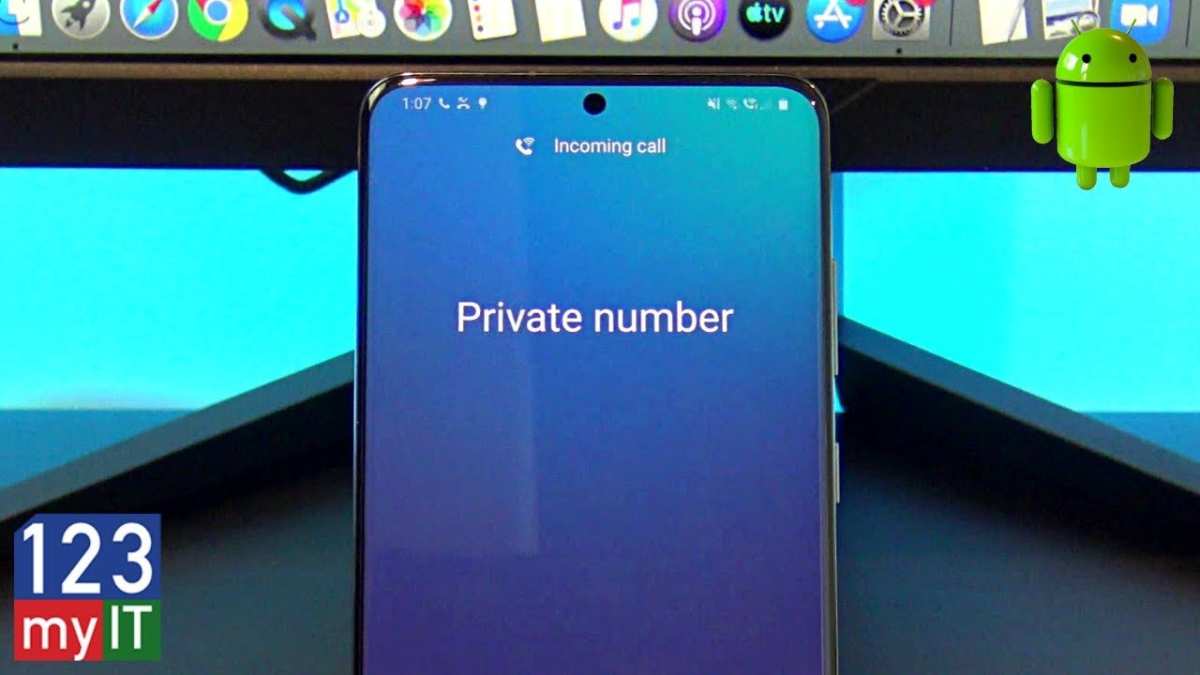
How to Make Your Number Private on Android
If you are tired of revealing your phone number every time you make a call or send a message, you’re not alone. Many Android users want to keep their phone number private to protect their privacy, avoid spam, or simply prevent unwanted callers from seeing it. Luckily, Android devices provide several options to hide your number from the person you’re calling or messaging. In this guide, we will walk you through the different methods to make your number private on Android, explain how each works, and share helpful tips for managing your privacy effectively.Understanding Caller ID and How It Affects Your Privacy
Before diving into the steps, it’s good to know what Caller ID is and how hiding your number impacts your calls. – Caller ID is the feature that displays your phone number on the recipient’s device when you call or message. – When you hide your number, the recipient will see a message like “Private Number,” “Unknown,” or “Blocked.” – Some people prefer to keep their number private during sensitive calls, business conversations, or when interacting with strangers. Knowing this, you can decide whether to hide your number temporarily or make it a permanent setting.Methods to Make Your Number Private on Android
There are several ways to hide your number on your Android device. You can choose the method that best fits your needs, whether it’s a quick toggle before each call or a permanent setting change.Using Android’s Built-in Caller ID Settings
Most Android phones come with a built-in option to hide your number. This method allows you to change your caller ID setting directly from your device settings. – Step-by-step instructions:- Open the Phone app on your Android device.
- Tap the three-dot menu icon or the settings icon, usually located in the top right corner.
- Select Settings or Call Settings.
- Look for an option called Additional Settings, Call Accounts, or Caller ID & Spam.
- Tap on Caller ID.
- Select Hide Number or Never Send to hide your caller ID.
- If prompted, confirm your choice and exit the settings.
This change will apply to all outgoing calls unless you revert it. Some carriers may override this setting, so check with your provider if it doesn’t work.
Using the Carrier’s Service Code for Temporary Privacy
Another quick way to hide your number is by dialing a special code before making a call. This method is useful for one-time calls. – Common codes:- *67 (most common in North America)
- #31# (used in some regions)
- Open your Phone app.
- Dial *67 followed by the number you want to call, e.g., *67 123-456-7890.
- Press the call button.
This method only hides your number for that specific call. Once the call ends, your number will appear normally for future calls unless you dial the code again.
Using Radio or Network Settings for Permanent Privacy
Some carriers allow you to set your number to be hidden on all outgoing calls permanently through your account settings or by contacting customer support. – How to do it:- Log into your carrier’s website or app.
- Navigate to your account or call settings.
- Look for options related to your caller ID or number presentation.
- Enable the setting to hide your number permanently.
Using Third-Party Apps to Hide Your Number
If the built-in options don’t suit your needs, you can use third-party apps that offer additional privacy features. – Popular apps include:- Burner apps, which provide temporary or secondary numbers.
- Private number apps, designed to hide your Caller ID during calls.
Most third-party apps require access to your contacts and call logs. Read reviews and permissions carefully before installing them.
– Setup steps:- Download a reputable app from the Google Play Store.
- Follow the app’s instructions to set up a private number or hide your caller ID.
- Use the app to make calls when you need to keep your number hidden.
Important Tips for Managing Your Privacy on Android
While hiding your number can be useful, there are additional steps you should take to protect your privacy. – Always be cautious about sharing your number: Only give your number to trusted contacts. – Regularly check privacy settings: Ensure your caller ID settings are still active if you change phones or update your carrier. – Use a secondary or virtual number: Consider apps that provide a temporary or disposable number for extra privacy. – Be aware of regional laws and carrier policies: Some regions have regulations about hiding caller IDs, and carriers may restrict certain features.Potential Limitations and Things to Keep in Mind
While hiding your number is straightforward, a few limitations exist. – Some recipients’ phones or networks may block calls from private numbers, preventing your call from going through. – Certain emergency services or government agencies may require your number to be visible. – When making group calls or conference calls, your caller ID might be visible to all participants. – Not all carriers support caller ID hiding, or they may require specific steps to enable it. Keeping your phone number private on Android is simple and can be done in multiple ways to fit your privacy needs. Whether you want a quick one-time hide using the *67 code, a permanent change through your carrier, or prefer using settings on your device, Android provides flexibility to manage your caller ID effectively. Remember to stay aware of your carrier’s policies and regional laws, and always prioritize your privacy and security when communicating. By following these steps, you can control how much of your personal information you share during calls and messages, helping you communicate confidently and securely.Frequently Asked Questions
How can I hide my caller ID on an Android device for individual calls?
To hide your caller ID for specific calls, open the Phone app and dial *67 before the phone number you want to call. This temporarily blocks your number, making it appear as private to the recipient. Once you hang up, your caller ID will be visible again for future calls unless you repeat the process.
What settings should I adjust to make my number always private on Android?
Go to the Phone app settings, select ‘Calls’ or ‘Calling accounts,’ then find the ‘Additional settings’ or ‘More settings.’ Tap on ‘Show my caller ID’ and select ‘Hide number.’ This change will ensure your number remains private for all outgoing calls until you change this setting back.
Can I make my number private when sending messages on Android?
Most messaging apps do not display your phone number publicly, but if you want to keep your number hidden when sending messages, use apps that support anonymous messaging or create a secondary number through a virtual number service. Check the app’s privacy settings to control who can see your contact details.
Is it possible to block caller ID on Android for outgoing international calls?
Yes, you can block your caller ID for international calls by dialing *31# before the country code and phone number. Confirm with your carrier if this feature is supported for international dialing, as some providers may have different procedures or restrictions.
What should I do if my Android device’s caller ID is not hiding despite settings adjustments?
Verify your carrier’s policies on caller ID blocking, as some carriers override device settings. Restart your phone after changing settings, and if the issue persists, contact your carrier to ensure the service is active or to request a specific blocking feature. You might also check for software updates that could fix related bugs.
Final Thoughts
To make your number private android, start by opening the Phone app. Tap the menu icon and select Settings. Find the option labeled ‘Caller ID’ or ‘Show My Caller ID.’ Disable this setting to hide your number during calls. Alternatively, you can dial *#67# before making a call for a quick private call. In conclusion, knowing how to make your number private android helps protect your privacy. Follow these simple steps to ensure your number stays confidential whenever needed.
Similar Posts