How To Make Private Number On Android: Step-By-Step Guide

How to Make Private Number on Android
Many Android users wonder how they can hide their phone number when making calls. Whether you want to keep your number private for personal reasons or protect your privacy during business calls, learning how to make a private number on Android is quite simple once you understand the different methods available. In this detailed guide, we’ll walk you through the various options to hide your caller ID, step by step, so you can make calls with confidence and privacy.
Why Hide Your Phone Number?
Before diving into how to hide your number, let’s understand why some people choose to do so. Hiding your number can help you:
- Protect your privacy when calling unknown or new contacts
- Avoid giving out your personal number for sales or surveys
- Prevent your number from being displayed in caller ID logs or call records
- Stay anonymous during sensitive conversations
Knowing the reasons can help you decide which method works best for your needs.
Methods to Make a Private Number on Android
There are several ways to hide your caller ID on an Android device. These include using built-in settings, dialing specific codes, or leveraging carrier services. We’ll explore each method in detail to ensure you understand how to use them effectively.
Using Android’s Built-in Caller ID Settings
Most Android phones have an option that lets you hide your number completely or temporarily. Here’s how to set it up:
- Open the Phone app on your Android device.
- Tap on the three-dot menu icon in the top right corner to access settings.
- Select Settings or Call Settings from the menu.
- Look for an option called Supplementary Services, Additional Settings, or directly labeled Caller ID.
- Tap on Caller ID.
- Choose Hide number or Never from the options.
Once done, your outgoing calls will display as “Private” or “Unknown” on the recipient’s caller ID, depending on their phone service.
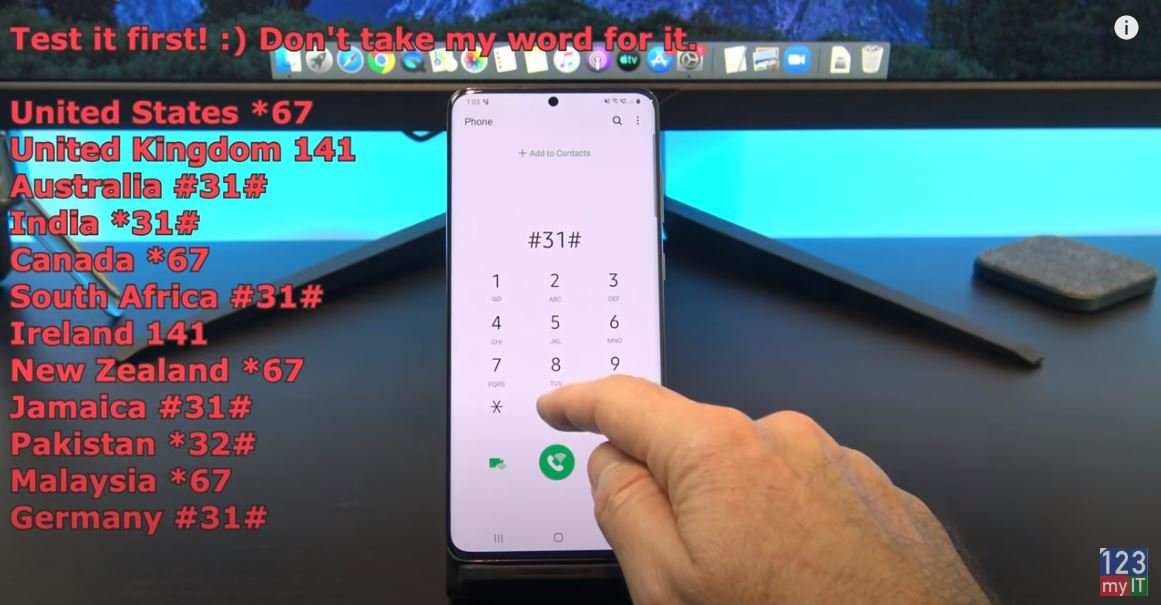
Using Dialing Codes to Hide Your Number Temporarily
If you want to hide your number for just one call, dialing a special code is the easiest way. Here’s how:
- Before dialing the phone number, enter #31#.
- Then, dial the recipient’s number as usual.
This method works on most Android devices and network carriers. Your number will be hidden for that specific call only, and your caller ID will be restored automatically after the call ends.
Using Carrier Services and Subscriptions
Sometimes, your carrier offers additional services or settings to control caller ID visibility. To explore this:
- Contact your mobile service provider’s customer support.
- Ask about options to block caller ID or set permanent privacy settings.
- Many carriers provide online account management where you can adjust caller ID preferences.
- Some carriers may offer paid services to hide your number across all calls automatically.
Always verify whether your carrier’s services are compatible with your Android device and network plan.
Using Third-Party Apps to Hide Your Number
If built-in options don’t suffice, you can consider third-party apps designed for privacy and caller ID management. These apps often offer features such as:
- One-click caller ID blocking
- Temporary hiding options for specific calls
- Customizable privacy settings
Popular apps include Fake Call, Caller ID Blocker, and others available on the Google Play Store. Before installing, check reviews and permissions to ensure your privacy and security.
How to Make Multiple Calls with Hidden Number
If you often need to hide your number, setting it permanently might be more convenient. Here are a few tips:
- Use Android’s built-in settings to hide your number for all outgoing calls.
- Set up a dedicated calling profile within your phone’s settings to toggle between private and visible calls easily.
- Leverage carrier services for continuous caller ID blocking without manual adjustments each time.
Remember that some carriers or networks may restrict permanent hiding or may default to showing your number for certain types of calls, such as emergency or premium numbers.
Things to Keep in Mind When Making Private Calls
While hiding your number is straightforward, there are a few important things to remember:
- Some recipients may have their caller ID set to block private numbers, so they won’t answer your calls.
- Legal regulations may apply in your region regarding caller anonymity; ensure you’re complying with local laws.
- Hiding your number doesn’t guarantee privacy if you’re using third-party apps or services that record or share your info.
- Always double-check your settings before making an important or sensitive call.
Troubleshooting Common Issues
If your caller ID isn’t hiding despite following these steps, try the following:
- Restart your device to update settings.
- Check your carrier’s policies and confirm if caller ID blocking is active on your account.
- Ensure your Android OS is updated to the latest version for optimal functionality.
- Contact your mobile provider for further assistance if issues persist.
Learning how to make a private number on Android gives you better control over your privacy. Whether you prefer a quick toggle, a one-time code, or ongoing settings, this guide provides all the tools you need to keep your calls discreet. Remember to respect others’ privacy and use these features responsibly.
Frequently Asked Questions
How can I hide my phone number when making a call on Android?
You can hide your number by dialing a specific code before the phone number you want to call. Typically, entering *67 before dialing the number will conceal your caller ID on most networks. For example, dial *67 followed by the number you want to call. Keep in mind that some carriers or recipients may have caller ID blocking disabled or blocked, so this method might not always work.
What settings should I adjust on my Android device to keep my number private by default?
Navigate to your phone’s Settings, then select ‘Calls’ or ‘Phone’. Tap on ‘Caller ID’ or ‘Additional Settings’ and choose the option to hide your number. This setting will ensure your number remains private for all outgoing calls until you decide to change it back. Remember, available options might vary depending on your device model and carrier.
Are there third-party apps that can help me make my number private on Android?
Yes, several third-party apps can manage caller ID settings, including hiding your number. These apps often provide quick toggles to hide or display your number as needed. However, use trusted apps from reputable developers and ensure they are compatible with your device. Always review app permissions to protect your privacy.
Can I make my number appear as a different number when calling from my Android?
Some carriers and third-party services allow you to spoof your caller ID to display a different number. You might need to subscribe to specific services or use a dedicated app for this purpose. Be aware that calling with a fake number can be illegal or against service terms in some regions, so check local laws and carrier policies before proceeding.
Final Thoughts
To make a private number on Android, you can easily hide your caller ID through your phone’s settings or by dialing a specific code. Check your phone’s call settings and select the option to hide your number. Alternatively, dial *67 before making a call to temporarily conceal your number. Remember, some networks may block private numbers from receiving calls, so testing with a friend can help. Making your number private enhances your privacy and allows you to control who sees your caller ID. In conclusion, how to make private number on android involves simple steps through settings or dialing codes. Applying these methods helps safeguard your privacy during calls.
Similar Posts































