How To Hard Reset Ipad: Step-By-Step Guide

How to Hard Reset iPad: A Complete Guide
Sometimes your iPad may stop responding, freeze, or become unresponsive. In these moments, performing a hard reset can help fix the issue quickly. A hard reset is different from turning off and on your device because it forces the iPad to restart even if the screen is frozen.
Understanding the Need for a Hard Reset
A hard reset can resolve common problems like app crashes, unresponsive screens, or sluggish performance. It is a useful troubleshooting step before seeking professional help or considering more drastic solutions. Knowing when and how to perform a hard reset is essential for every iPad user.
Are You Ready to Hard Reset Your iPad?
Before starting, make sure your device is charged or connected to a power source. Confirm that your data is backed up if possible, but remember that a hard reset does not delete your data. It simply restarts the device forcefully.
Different Methods to Hard Reset Your iPad
Hard Reset for iPads with Face ID
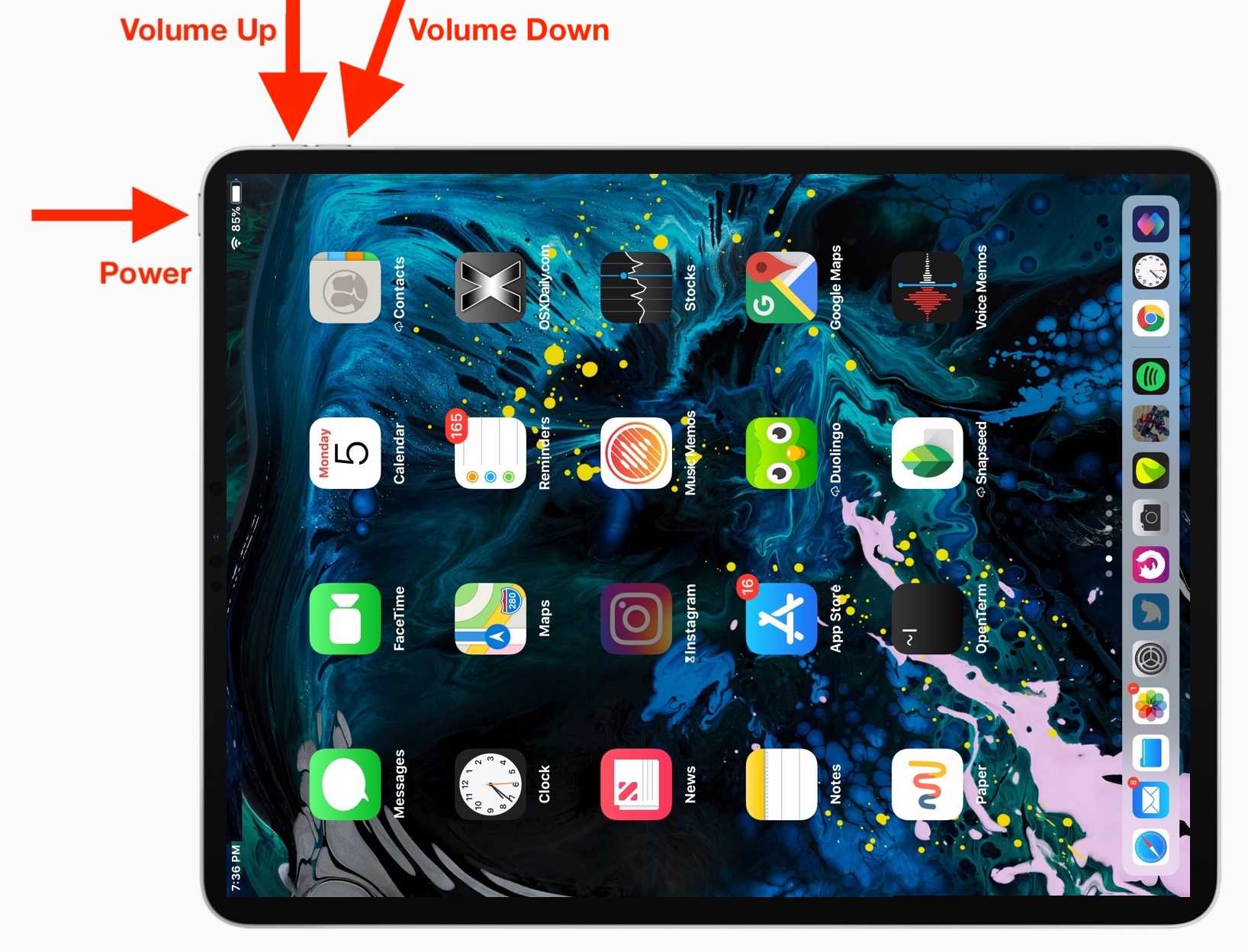
If your iPad features Face ID, the process to hard reset is straightforward. These models include the latest iPad Pro, iPad Air, and newer iPads. Follow these simple steps to perform a hard reset:
- Press and quickly release the Volume Up button.
- Press and quickly release the Volume Down button.
- Press and hold the Top button until the Apple logo appears on the screen.
Once the Apple logo shows, release the button. Your iPad will restart, and the process is complete.
Hard Reset for iPads with Home Button
Devices with a Home button, such as older iPad models, follow a slightly different method. Here’s what you need to do:
- Press and hold both the Home button and the Top (or Side) button at the same time.
- Keep holding both buttons until the Apple logo appears, then release.
This process ensures your older iPad restarts and can fix minor glitches or frozen screens.
Using AssistiveTouch to Perform a Hard Reset
If your physical buttons are damaged or unresponsive, you can use AssistiveTouch. This feature allows you to perform a restart without hardware buttons:
- Go to Settings >Accessibility >Touch >AssistiveTouch.
- Turn on AssistiveTouch.
- Tap the on-screen AssistiveTouch button.
- Select Device >More >Restart.
This method is particularly useful if your physical buttons are broken or the device is unresponsive.
Tips to Make the Hard Reset More Effective
Ensure Proper Timing When Using Buttons
Timing is key when following the button sequences. Press and release buttons quickly but firmly for a successful reset. If the process doesn’t work initially, try again with the correct timing.
Check Your Screen Before Resetting
If the screen is frozen but the device still reacts to touches, try closing apps first. If unresponsive, proceed with the hard reset. It’s a quick way to troubleshoot without risking data loss.
Perform a Soft Reset First
Before a hard reset, try turning your iPad off and on normally. Press the Power button and slide to power off. Turn it back on to see if the problem resolves. If not, then perform a hard reset.
Important Precautions Before Hard Reset
Backup Your Data Regularly
Although a hard reset doesn’t delete data, it’s good practice to back up your iPad regularly. Use iCloud or connect to a computer for a full backup.
Know When Not to Hard Reset
If your iPad is experiencing hardware issues or persistent errors, consult an Apple technician instead of repeatedly performing resets. Forced restarts are helpful for temporary bugs but not for hardware repairs.
Be Patient During the Process
After initiating the reset, the Apple logo may take a few seconds to appear. Don’t press any buttons during this time. Patience ensures that the reset completes successfully.
Additional Troubleshooting Options
Update iOS to Prevent Frozen Screens
Regularly updating your iPad’s software can reduce the chances of freezing. Go to Settings >General >Software Update. Install any available updates.
Reset All Settings if Problems Persist
If your iPad continues to act up, consider resetting all settings. This process doesn’t delete your data but restores settings to default. Navigate to Settings >General >Reset >Reset All Settings.
Resetting Your iPad to Factory Settings
If nothing else works, a full reset to factory settings may be necessary. Remember, this deletes all data and requires a backup beforehand. Use iTunes or Finder on your computer to perform this reset.
Knowing how to perform a hard reset can save you from many common iPad problems. Whether your device is frozen, unresponsive, or glitching, the right reset method can bring it back to life quickly. Always try soft resets first, and use hard resets as a troubleshooting step when needed. Maintaining regular backups and software updates can help prevent issues that require such procedures. Practice these methods so that you’re prepared whenever your iPad needs a quick restart.
How To Hard Reset Your iPad? #ipadtutorial
Frequently Asked Questions
What should I do if my iPad is unresponsive and I cannot turn it off normally?
If your iPad becomes unresponsive, perform a force restart to reset the device. For models with a Home button, press and hold both the Home button and the Power button until the Apple logo appears. For newer models without a Home button, quickly press and release the volume up button, then quickly press and release the volume down button, and finally press and hold the top button until the Apple logo appears.
How can I perform a hard reset when my iPad’s screen is frozen or stuck?
To resolve a frozen screen, a hard reset often helps. Depending on your iPad model, press the appropriate buttons: for devices with a Home button, press and hold the Home and Power buttons simultaneously until the Apple logo shows up. For newer models, press the volume up button, then the volume down button, and hold the top button until the logo appears. This process forces the device to restart and can fix temporary glitches.
Is it safe to perform a hard reset on my iPad, and will I lose data?
Performing a hard reset is generally safe and does not delete any data or settings. It simply forces your iPad to restart when it’s not responding. However, if your device is experiencing ongoing issues, consider backing up your data regularly in case further troubleshooting becomes necessary.
When should I consider resetting my iPad to factory settings instead of a hard reset?
Use a factory reset when your iPad continues to have problems after a hard reset, or if you want to erase all content before selling or giving away the device. A factory reset deletes all data and settings, so ensure you back up important information beforehand. Hard reset, on the other hand, only forces a restart without removing personal data.
Final Thoughts
In summary, knowing how to hard reset iPad is essential for troubleshooting issues quickly. It involves pressing specific buttons to force restart the device, which can resolve minor glitches. Always follow the correct steps for your iPad model to avoid any problems. Practicing this simple process helps keep your device running smoothly and efficiently.
Similar Posts































