How To Get Into Pairing Mode Airpods Efficiently
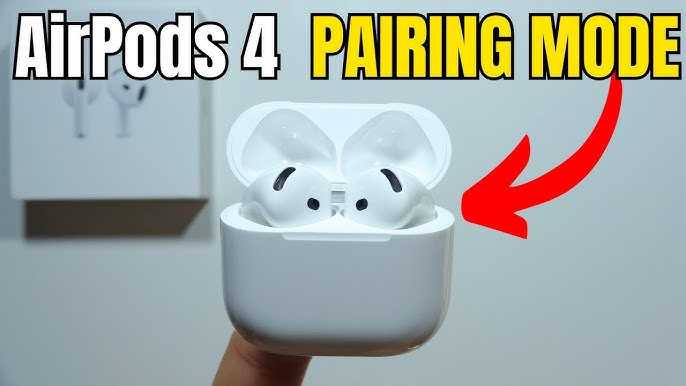

How to Get into Pairing Mode on AirPods
Getting your AirPods into pairing mode is a simple process, but knowing the exact steps makes it easier, especially if you’re setting them up for the first time. Whether you want to connect your AirPods to your iPhone, iPad, Android device, or other Bluetooth-enabled gadget, entering pairing mode is essential. This guide will walk you through each step carefully, so your AirPods connect quickly and without fuss.
Understanding When You Need to Put AirPods into Pairing Mode
Typically, your AirPods automatically enter pairing mode when you open the case near an Apple device that hasn’t been connected before. However, sometimes they don’t do this, especially if they have been used with other devices recently. You will need to manually put your AirPods into pairing mode in these situations.
Other common reasons to access pairing mode include:
- Connecting to a new device for the first time
- Resetting your AirPods
- Reconnecting after a disconnection issue
- Switching between multiple devices
The Basic Method: How to Get AirPods into Pairing Mode
Step 1: Ensure Your AirPods Are Charged
Before starting, make sure your AirPods are charged or at least have enough power to connect. If the battery is too low, they may not enter pairing mode or connect properly.
Step 2: Open the AirPods Case
Leave your AirPods inside the case and open the lid. Keep the case close to your device for a smoother connection process.
Step 3: Locate the Setup Button
On the back of your AirPods case is a small, circular button called the setup or pairing button. You will need this to manually enter pairing mode.
Step 4: Press and Hold the Setup Button
Press and hold this button for about 3 seconds. The status light on the front or inside the case will start flashing white, indicating your AirPods are in pairing mode.
Connecting to Different Devices
Connecting AirPods to Apple Devices
If your AirPods are linked to an Apple device, they often connect automatically once they’re in pairing mode. Simply open the case near your device, and a prompt should appear.
Connecting AirPods to Android or Other Devices
For non-Apple devices, manually put your AirPods into pairing mode using the steps above. Then, go to your device’s Bluetooth settings and select your AirPods from the list of available devices.
How to Reset AirPods for Re-Pairing
Why Resetting Is Necessary
If your AirPods aren’t entering pairing mode or are having connection issues, resetting them can clear previous pairings and settings.
Resetting Steps
- Ensure your AirPods are in their case and charged.
- Open the lid of the case.
- Press and hold the setup button on the back for at least 15 seconds.
- The status light will flash amber, then white, indicating the reset is complete.
Re-enter Pairing Mode After Reset
Following a reset, your AirPods will automatically enter pairing mode when you open the case lid. If they don’t, repeat the steps mentioned earlier to manually put them into pairing mode.
Tips for Smooth Pairing
- Keep your device within close range: The closer your device is to your AirPods, the easier the connection process.
- Ensure Bluetooth is enabled: Make sure Bluetooth is turned on in your device settings.
- Close other Bluetooth devices: Sometimes, multiple active Bluetooth devices can cause interference.
- Update your device software: A current operating system improves compatibility with your AirPods.
Additional Troubleshooting for Pairing Mode Issues
AirPods Won’t Enter Pairing Mode
If your AirPods aren’t flashing white or entering pairing mode, try resetting them or replacing the battery if possible.
Low Battery Problems
Low battery levels can prevent proper pairing. Charge your AirPods thoroughly before attempting to connect.
Interference from Other Devices
Turn off other Bluetooth devices nearby that could be causing interference during pairing.
Understanding LED Indicator Lights
| Light Color | Status |
|---|---|
| White flashing | AirPods are in pairing mode |
| Amber | Battery low or AirPods need charging |
| Green | Fully charged or connected |
Knowing what each light indicates helps you troubleshoot and confirm that your AirPods are ready to connect.
Compatibility and Device Support
Most Bluetooth devices support pairing with AirPods, making the process straightforward on Android, Windows, or other non-Apple gadgets. Just remember to manually put your AirPods into pairing mode as described.
Some features like automatic switching between Apple devices will only work if your AirPods are connected to an Apple ID.
Summary of Steps to Enter Pairing Mode on AirPods
- Ensure AirPods are charged
- Open the case lid
- Locate the setup button on the back
- Press and hold the button for approximately 3 seconds
- The LED flashes white, indicating pairing mode is active
- Connect your device via Bluetooth settings
Following these steps carefully guarantees a quick and trouble-free connection process. Remember, patience and proper steps are key to getting your AirPods into pairing mode easily and successfully.
Frequently Asked Questions
How do I initiate pairing mode on my AirPods when they are already connected to a device?
To start pairing mode on your AirPods when they are currently connected to a device, disconnect them first. Then, place your AirPods in the charging case and open the lid. Press and hold the setup button located on the back of the case until the status light flashes white. This indicates that the AirPods are now in pairing mode, ready to connect to a new device.
What steps should I follow to put my AirPods into pairing mode without using my iPhone?
To pair your AirPods with a device other than your iPhone, keep the AirPods in their case and open the lid. Find the setup button on the back of the case and hold it down. Continue holding until the LED on the front of the case turns white, signaling they are in pairing mode. You can now select your AirPods from the Bluetooth menu on the new device to connect.
How can I troubleshoot if my AirPods are not entering pairing mode?
If your AirPods do not enter pairing mode, ensure they are not connected to another device. Reset them by placing them in the charging case, closing the lid for at least 15 seconds, then opening it again. Press and hold the setup button on the back until the LED flashes white. If issues persist, check that your AirPods are charged and try restarting your device’s Bluetooth settings.
Final Thoughts
Getting into pairing mode airpods is straightforward. First, place your AirPods inside the charging case and open it. Press and hold the setup button on the back until the status light flashes white. This process makes your AirPods discoverable on your device. Ensure Bluetooth is enabled on your device for a smooth connection. In conclusion, how to get into pairing mode airpods involves opening the case, holding the setup button, and waiting for the white flash. Follow these steps for quick and easy pairing every time.
Similar Posts































