How To Free Space On Ipad Quickly And Easily

How to Free Space on iPad: The Complete Guide
If your iPad starts running slow or gives you a warning about low storage, it’s time to free up space. Clearing space helps your device run smoothly and gives you room for new apps, photos, or updates. Here’s how you can quickly and easily make more space on your iPad.
Check Your iPad Storage
The first step to freeing space is knowing what’s taking up most of your storage. Apple makes this easy with built-in tools.
Using the Settings App
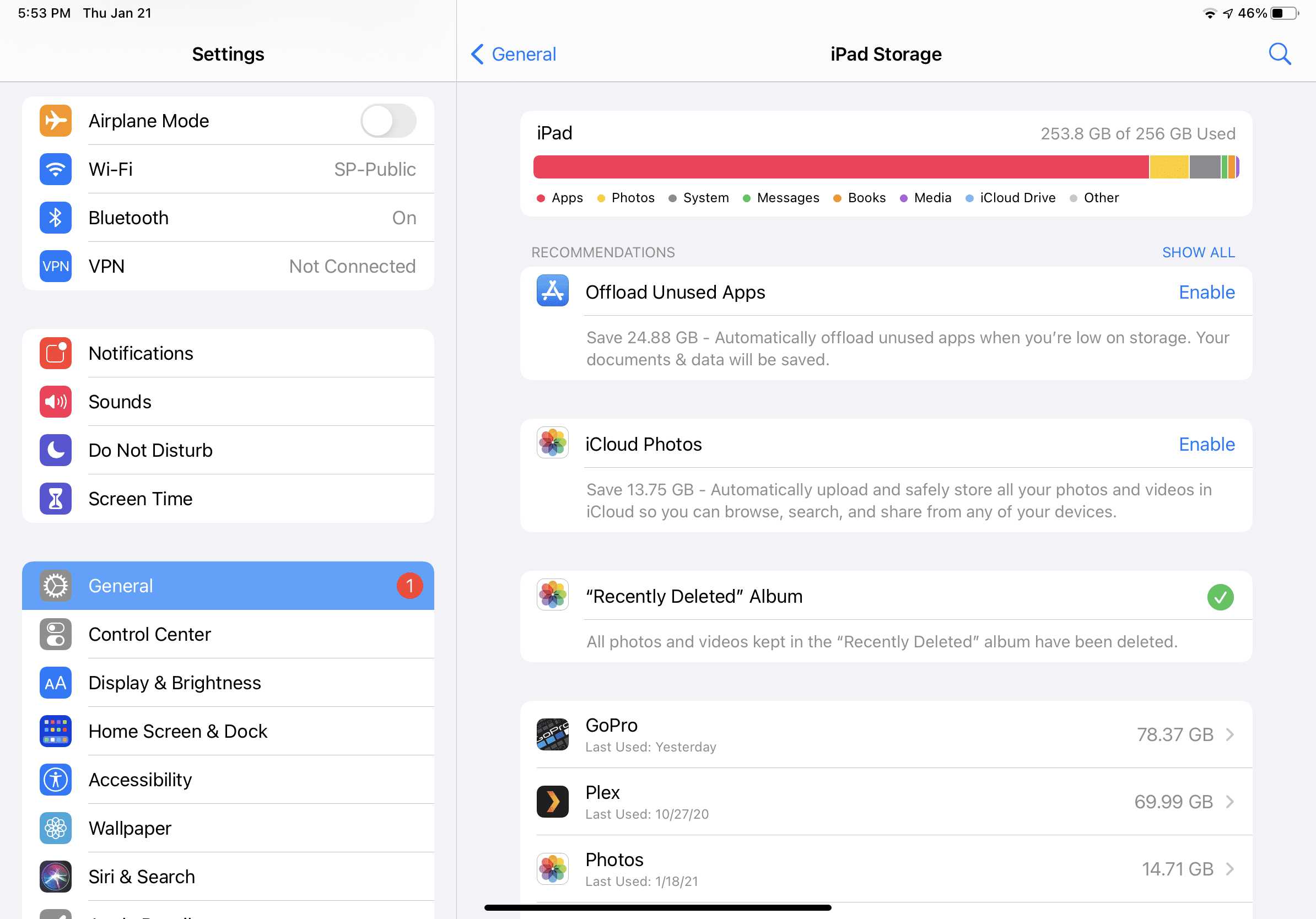
Open the Settings app on your iPad. Tap on General, then select iPad Storage. Here, you’ll see a detailed breakdown of what uses storage space.
This screen shows suggestions for freeing space, like offloading unused apps or deleting large files. Review the list carefully to identify big apps or files you no longer need.
Understanding Your Storage Breakdown
- Apps: Often take up significant space, especially games or multimedia apps.
- Photos and Videos: High-resolution images and videos consume a lot of storage.
- Messages: Attachments like videos or images can pile up over time.
- Music and Podcasts: Large media files stored offline can fill your device.
- Other Data: Cache, Safari files, and system files also contribute to storage usage.
How to Delete Unused Apps
Apps can take up most of the storage, especially if you have many that are rarely used. Removing unused apps is straightforward.
Manual Deletion
On the iPad, press and hold the app icon until a menu appears or all icons begin to shake. Tap Remove App, then confirm.
Alternatively, go to Settings, tap on General, then iPad Storage. Find the app you want to delete and tap on it, then select Delete App.
Offloading Unused Apps
In the same iPad Storage menu, enable Offload Unused Apps. This feature removes apps you don’t use but keeps their data. When you reinstall, your app is restored to how you left it.
Managing Photos and Videos
Photos and videos can quickly occupy gigabytes of space. Here are some ways to free up space while keeping your memories safe.
Using iCloud Photos
Enable iCloud Photos by going to Settings, tapping on Your Name, then iCloud. Select Photos and turn on iCloud Photos.
This uploads all your media to iCloud allowing you to delete local copies while still accessing them through your device.
Optimize Storage Settings
In the same Photos settings, choose Optimize iPad Storage. This replaces full-resolution photos with smaller versions, freeing up space while keeping your library accessible.
Deleting Unwanted Photos and Videos
Go through your Photos app and delete the images or videos you no longer need. Remember to empty the Recently Deleted album to permanently free up space.
Managing Messages and Attachments
Messages can pile up with images, videos, and other files. Regularly cleaning your message history helps save storage.
Deleting Old Conversations
Open the Messages app, then swipe left on conversations you no longer want. Tap Delete to remove entire chats.
Removing Attachments
Within each conversation, delete unwanted media attachments. Tap and hold the specific photo or video, then select More. Choose the items to delete, then tap the trash icon.
Setting Message Duration
Prevent future buildup by setting messages to delete automatically. Open Settings, tap Messages, then Keep Messages. Choose a shorter duration like 30 Days or 1 Year.
Clearing Safari Cache and Website Data
Your Safari browser stores data that can accumulate over time, occupying space.
How to Clear Safari Data
Navigate to Settings, select Safari. Tap Clear History and Website Data. Confirm to remove browsing history, cookies, and cache.
Managing Saved Website Data
In Safari settings, tap Advanced then Website Data. From here, you can remove data from specific websites or all at once.
Removing Old Downloads and Files
Check your Files app or Downloads folder for outdated or unnecessary files. Delete or move files you no longer need to iCloud or an external drive.
Using the Files App
Open the Files app and browse through cloud storage or local folders. Tap Select to choose files, then tap Delete.
Managing Cloud Files
If you use cloud services like Dropbox or Google Drive, review and delete files stored there to free your iPad storage.
Resetting Your iPad as a Last Resort
If your storage remains full despite cleaning, resetting your device can help. However, back up important data first.
Performing a Factory Reset
Go to Settings, tap on General, then Reset. Select Erase All Content and Settings. Follow the prompts to reset your device.
Restoring Data After Reset
Use iCloud or iTunes backup to restore your data after the reset. This step helps you regain only what’s necessary while freeing up space.
Additional Tips for Maintaining Free Space
Consistently monitoring storage helps keep your iPad running smoothly. Here are a few quick habits to consider:
- Regularly review and delete unnecessary apps and files.
- Enable automatic photo and message management features.
- Use cloud storage for media and documents.
- Update your device to the latest iOS version for better storage management features.
By following these steps and tips, you’ll be able to keep your iPad free of clutter. Taking a proactive approach prevents storage issues and ensures your device remains quick and efficient.
How to Free Up Space on iPad
Frequently Asked Questions
What are some efficient ways to clear cache and temporary files on an iPad?
To free up space, you can clear cache and temporary files by going into specific app settings. For Safari, navigate to Settings > Safari > Clear History and Website Data. For other apps, delete unnecessary downloads or logs within their settings or delete and reinstall the app if needed. Regularly clearing these files helps maintain optimal storage space on your device.
How can I manage my app storage to free up space on my iPad?
Check your app storage usage by going to Settings > General > iPad Storage. Review the list of apps and delete those that you no longer use or need. You can also offload unused apps, which removes the app itself but keeps your data and documents. Reinstalling the app later restores your data without taking up additional space.
What steps should I take to remove large files or media that are taking up space?
Identify large files or media in your Photos and Files apps by sorting them by size. Delete videos, photos, or documents that are no longer necessary. Also, consider transferring important media to a computer or cloud storage service and removing them from your iPad to free up significant space.
Can optimizing iCloud settings help free up local storage on my iPad?
Yes, enabling iCloud Photo Library or Optimize iPad Storage helps manage your media by storing full-resolution files in the cloud while keeping smaller versions on your device. This reduces the amount of local storage used, making more space available for essential apps and files.
What are some best practices for maintaining free space on my iPad regularly?
Regularly review and delete unnecessary apps, files, and media. Clear cache and temporary data frequently. Set up automatic backups to cloud services and remove local copies of files you no longer need. Keeping your apps updated also helps optimize storage management on your device.
Final Thoughts
Pour libérer de l’espace sur votre iPad, commencez par supprimer les applications que vous n’utilisez pas souvent. Videz également le cache de Safari et supprimez vos vieux messages et pièces jointes. Utilisez l’option de stockage dans les réglages pour identifier les fichiers encombrants. En suivant ces étapes, vous pouvez facilement libérer de l’espace et optimiser votre appareil. En résumé, savoir comment free space on iPad vous aide à maintenir ses performances. Supprimer régulièrement les fichiers inutiles garantit un espace suffisant pour vos besoins. Gardez votre iPad fonctionnel et rapide avec ces conseils simples.
Similar Posts































