How To Fix Iphone Screen: Simple Repair Tips

How to Fix iPhone Screen
If your iPhone screen has become cracked, unresponsive, or displays strange lines or colors, you might feel worried or overwhelmed. Fortunately, many common iPhone screen issues can be fixed without needing a new device. This guide will walk you through different ways to fix your iPhone screen, whether you want to do it yourself or seek professional help. We’ll explore detailed steps, helpful tips, and what to consider before starting any repair.Understanding Common iPhone Screen Problems
Before fixing your iPhone screen, it’s essential to know what kind of problem you are dealing with. Here are some typical issues:- Cracked Screen: The glass layer is broken or shattered, often due to drops or impacts.
- Unresponsive Touch Screen: The screen doesn’t respond to finger taps or gestures.
- Display Flickering or Lines: Vertical or horizontal lines appear, or the display flickers repeatedly.
- Discoloration or Dead Pixels: Areas of the screen show unusual colors or black spots that don’t change.
- Black Screen: The screen remains black even when the phone is on.
Assessing Whether You Can Fix the Screen Yourself
Not all screen problems require a professional repair. Some issues, like minor cracks or unresponsiveness, can be fixed at home with the right tools and patience. But, remember, opening your iPhone may void any existing warranty or AppleCare coverage. Consider these points:- Do you have some experience repairing small electronics?
- Are you comfortable handling delicate parts and tools?
- Is your iPhone out of warranty or AppleCare coverage?
- Do you have access to a clean, well-lit workspace?
Gathering the Necessary Tools and Parts
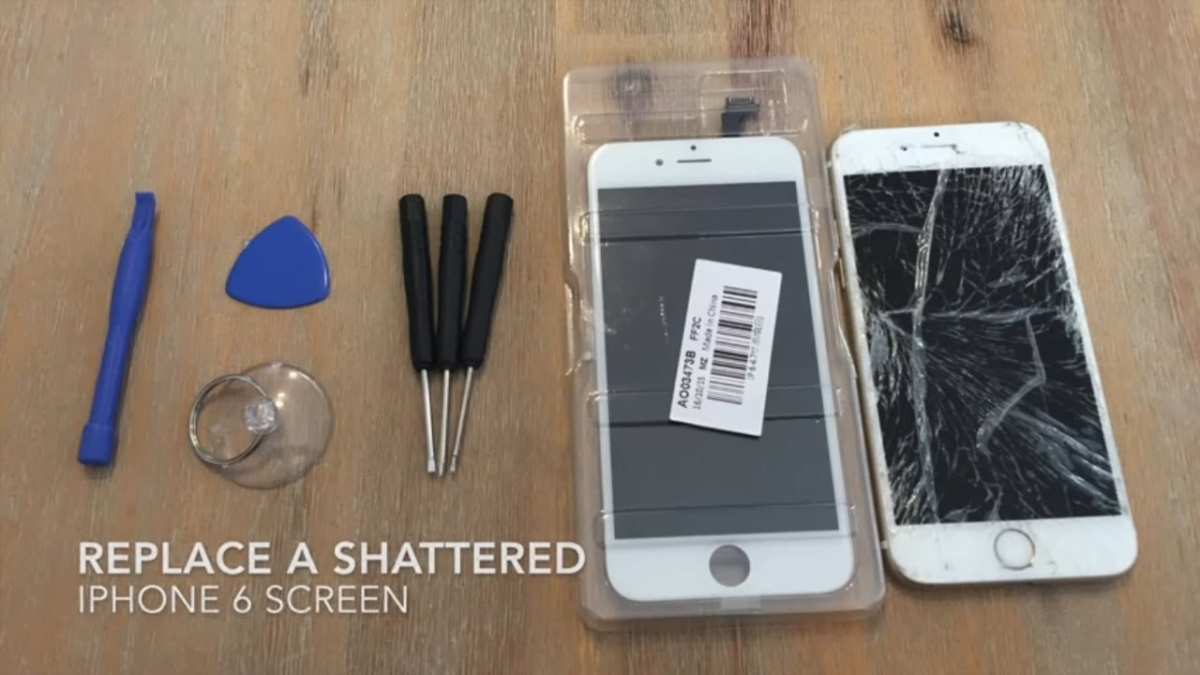
Before starting any repair, assemble all the tools and parts you need. Here’s a list of common items:- Replacement screen assembly: Ensure it’s compatible with your iPhone model.
- Precision screwdriver set: Small Phillips and Pentalobe screwdrivers.
- Plastic pry tools: To open your device without damaging it.
- Suction cup: To lift the screen gently.
- Tweezers: For handling small parts and connectors.
- Adhesive strips or glue: For reassembling the device securely.
- Anti-static wrist strap: To prevent static electricity from damaging internal components.
Preparing Your Workspace Safely
Safety should be your top priority when fixing your iPhone screen. To avoid damaging your phone or injuring yourself, follow these tips:- Work in a clean, dust-free environment to prevent particles from entering your device.
- Use an anti-static mat or wrist strap to protect internal components from static electricity.
- Organize screws and small parts in labeled containers or magnetic mats.
- Turn off your iPhone completely before starting the repair process.
- Keep your workspace well-lit so you can see every step clearly.
Step-by-Step Guide to Fixing Your iPhone Screen
Now, let’s walk through the process of replacing a cracked or damaged iPhone screen. Keep in mind that each iPhone model may have slightly different steps, so consult a detailed repair guide specific to your device.Disassemble Your iPhone
1. Power off your iPhone completely to avoid short circuits or further damage. 2. Remove the two pentalobe screws at the bottom of the device next to the charging port. 3. Use the suction cup to gently lift the screen near the bottom. Place a plastic pry tool inside the gap to loosen the adhesive. 4. Carefully slide the pry tool around the edges to separate the screen from the rear case. Do not yank—it’s connected by several cables inside.Disconnect the Battery and Screen Cables
1. Remove any metal shields protecting the internal connectors, using a screwdriver. 2. Use plastic tools to disconnect the battery connector first. This step prevents power from flowing while you work. 3. Carefully disconnect the display cables, which connect the screen to the main logic board.Replace the Screen
1. Remove the broken screen assembly completely. 2. Transfer any necessary components from the old screen to the new one (like the front camera, earpiece speaker, and sensors). 3. Connect the new screen’s cables to the logic board. Ensure they click into place securely. 4. Reconnect the battery and test the screen before final assembly to confirm everything works properly.Reassemble Your iPhone
1. Reattach any metal shields or screws removed earlier. 2. Carefully align the new screen with the device’s frame. 3. Press gently along the edges to seal the display. 4. Screw in the pentalobe screws at the bottom. 5. Turn on your iPhone to check the display quality and responsiveness.Additional Fixes for Common Screen Problems
Sometimes, your iPhone might have issues beyond physical damage, like software glitches or loose connections. Here are solutions for those issues:Perform a Force Restart
– For iPhone 8 or later: Press and release volume up, then press and release volume down, then press and hold the side button until the Apple logo appears. – For older models: Press and hold the home button and side/top button together until the Apple logo appears. This simple step can fix temporary display glitches.Update Your iPhone Software
– Connect your device to Wi-Fi and go to Settings > General > Software Update. – Download and install any available updates. Sometimes, display issues can be resolved through software patches.Check for Loose Connections or Swollen Battery
– Open the device carefully and verify all display cables are securely connected. – If your battery appears swollen or bloated, replace it immediately, as it can damage the screen or cause other problems.When to Seek Professional Help
While DIY repairs work for many cases, some situations are better left to professionals:- The damage is extensive, and the screen is shattered into many pieces.
- You’re uncomfortable handling tiny parts or using delicate tools.
- The device has internal damage beyond the screen, like water damage or a faulty display connector.
- You want to ensure the repair doesn’t void your warranty or AppleCare coverage.
Preventing Future Screen Damage
Once your screen is fixed, protect it to avoid future problems:- Use a durable case that absorbs shocks from accidental drops.
- Add a screen protector to prevent scratches and cracks.
- Avoid placing your phone in pockets with keys or coins.
- Handle your device carefully, especially in crowded or high-risk environments.
Frequently Asked Questions
What are the initial steps to take if my iPhone screen is unresponsive?
If your iPhone screen becomes unresponsive, try performing a force restart. For iPhone 8 or later, quickly press and release the volume up button, then press and release the volume down button. Next, press and hold the side button until the Apple logo appears. For earlier models, follow the specific button combinations for force restart. If the screen remains unresponsive, consider cleaning the screen carefully to remove dirt or debris that might be causing the issue.
How can I replace a cracked iPhone screen myself?
Replacing a cracked iPhone screen requires careful procedures. First, power off your device and remove the SIM card. Use specialized tools to open the device carefully, disconnect the display connectors, and gently detach the broken screen. Install the new screen by connecting it securely, reassembling the device in the reverse order, and powering it on to test the repair. Always follow detailed guides or videos specific to your iPhone model, and consider seeking professional help if you feel uncertain about the process.
What tools are necessary for professional screen repair, and where can I get them?
Professional screen repair typically involves tools like a Pry tool, suction cup, small Phillips and pentalobe screwdrivers, tweezers, and adhesive strips. You will also need an anti-static mat to prevent static damage. These tools can be purchased from specialized electronics repair stores or online platforms. Investing in quality tools ensures safer and more precise repairs, reducing the risk of further damage to your device.
Final Thoughts
Pour conclure, réparer un écran d’iPhone peut sembler difficile, mais avec les bonnes étapes, c’est faisable. Vérifiez si vous pouvez faire une réparation simple ou si vous devez consulter un professionnel. Si vous souhaitez savoir comment fix iPhone screen, il est important de suivre des tutoriels fiables ou de faire appel à un technicien qualifié. En résumé, en prenant soin de votre appareil et en suivant ces conseils, vous pouvez facilement réparer un écran cassé ou défectueux.
Similar Posts































