How To Do An Update On Airpods: Step-By-Step Guide
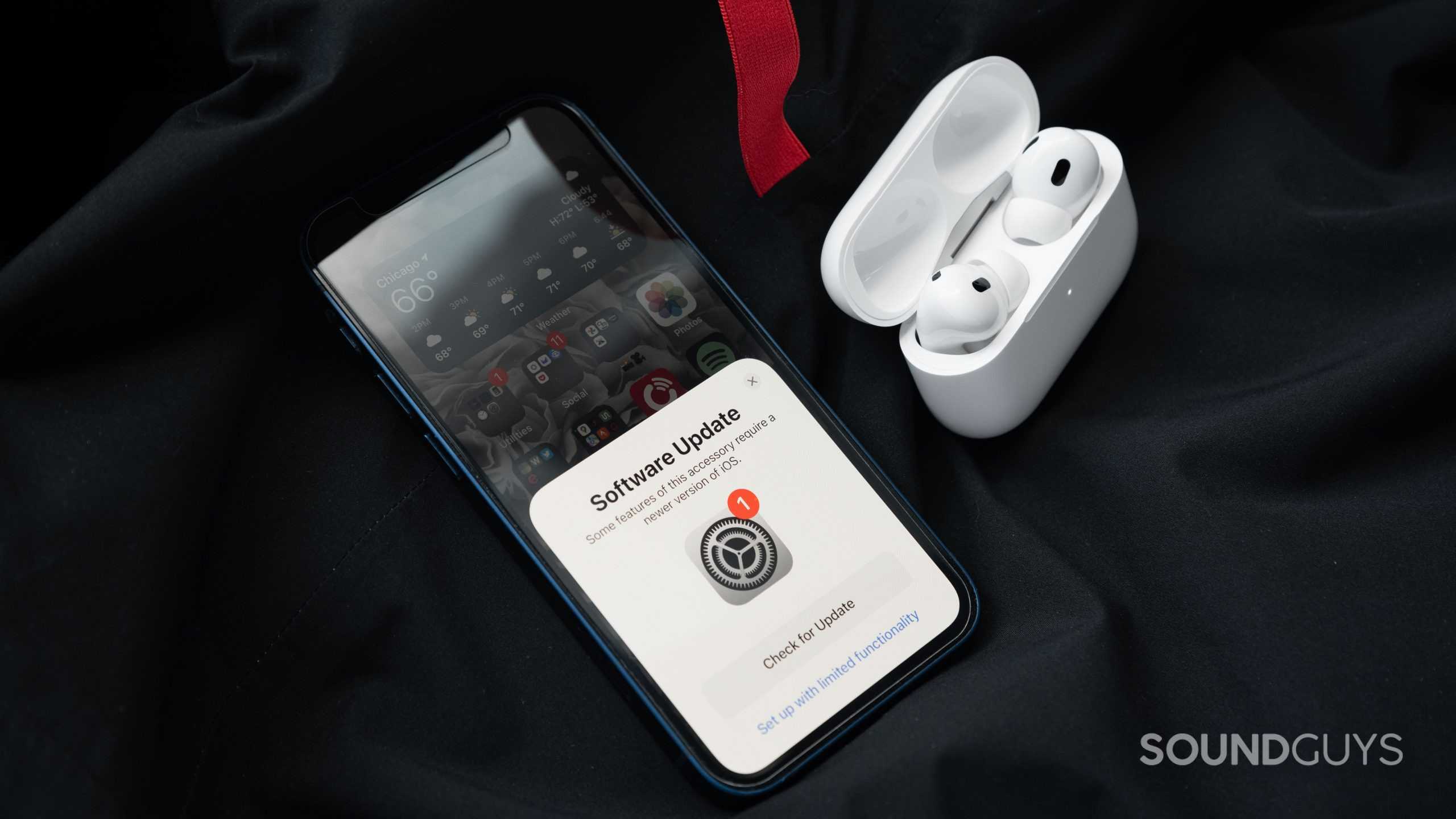

How to Do an Update on AirPods: A Complete Guide
Understanding Why Updating Your AirPods Is Important
Updating your AirPods ensures they work smoothly and have the latest features. Apple releases updates that fix bugs, improve performance, and add new capabilities. Without updates, your AirPods might not perform optimally or connect properly.Checking Your AirPods Firmware Version
Before updating, it’s helpful to know your current firmware version. Connect your AirPods to your device, then go to Settings, select Bluetooth, find your AirPods, and tap the info icon. Here, you will see the firmware version listed.Ensuring Compatibility for Firmware Updates
Most updates happen automatically when your AirPods are linked to a compatible device. Make sure your iPhone or iPad runs the latest iOS or iPadOS version for smooth updates. Compatibility issues can prevent firmware updates from installing properly.How AirPods Receive Firmware Updates
Updates are downloaded silently when your AirPods are connected to your device. The process occurs in the background and usually takes place while your AirPods are charging. This means you rarely need to manually trigger updates.How to Force an AirPods Firmware Update
While you can’t manually update firmware, you can ensure your AirPods update promptly. Follow these steps:- Make sure your AirPods are connected to your device.
- Place your AirPods in their case.
- Connect the charging case to power using a Lightning cable.
- Keep your device nearby with an internet connection.
- Ensure your device is unlocked and Bluetooth is turned on.
- Keep the AirPods in the charging case for at least 30 minutes.
Best Practices for Updating AirPods
To ensure a smooth and successful update:- Keep your iPhone or iPad updated to the latest iOS or iPadOS version.
- Make sure your AirPods are charged and placed in the case.
- Connect your case to power if possible.
- Maintain a stable internet connection on your device.
- Avoid disconnecting or turning off Bluetooth during the process.
Troubleshooting AirPods Update Issues
Sometimes, updates don’t install properly. If your AirPods aren’t updating:Check the Firmware Version
Confirm if the firmware has changed after a while. If not, try the steps again.Reset Your AirPods
To reset:- Put your AirPods in the case.
- Open the lid and press the setup button on the back for 15 seconds.
- The LED flashes amber then white, indicating a reset.
Update iOS or iPadOS
Ensure your device’s system is up-to-date. Sometimes, outdated software can cause update issues.Contact Apple Support
If problems persist, visit an Apple Store or contact support for help.Additional Tips for Maintaining Your AirPods
Keeping your AirPods updated is part of good maintenance:- Regularly check the firmware version.
- Keep your device’s software updated.
- Clean your AirPods and case gently to prevent connectivity issues.
- Avoid exposing your AirPods to extreme temperatures.
Related Topics
How to Reset AirPods
Resetting your AirPods can resolve many issues and sometimes triggers firmware updates. Follow the reset process carefully for best results.How to Check AirPods Firmware Version
Checking the firmware version helps confirm if your AirPods are up-to-date. It’s a quick process on your connected device.How to Connect AirPods to a New Device
Connecting your AirPods to a new device might prompt firmware updates to synchronize features. Make sure Bluetooth is enabled on the new device.Summary of Key Points
- Firmware updates occur automatically but can be prompted with proper charging and connection.
- Keeping your device updated supports the AirPods update process.
- Resetting and troubleshooting help resolve update issues quickly.
- Regular maintenance prolongs the lifespan and improves the performance of your AirPods.
Frequently Asked Questions
How can I check if my AirPods need a software update?
To determine if your AirPods require an update, connect them to your iPhone or iPad. Navigate to the Bluetooth settings, find your AirPods, and tap the “i” icon. If an update is available, your device will notify you or automatically install the latest firmware when your AirPods are charging and near your paired device. You can also check the firmware version in the same menu to see if it matches the latest release from Apple.
What steps should I follow to update my AirPods manually?
AirPods automatically update when they are connected to your device, charging, and within Bluetooth range. To expedite the process, ensure your AirPods are in their case, the case is charging, and your iPhone or iPad is connected to Wi-Fi. Keep your device close to the AirPods and leave them connected for a while; the firmware will update seamlessly in the background without any manual initiation needed.
Why isn’t my AirPods updating even when connected and charging?
If your AirPods are not updating, ensure they are correctly placed in the charging case, and the case is plugged into power. Confirm that your device has a stable internet connection and is running the latest version of iOS or iPadOS. Sometimes, restart your device or reset your AirPods by holding the setup button on the case until the LED flashes amber, then reconnect your AirPods to initiate a fresh update process.
Can I force an AirPods update if it hasn’t occurred automatically?
Typically, AirPods update automatically when all conditions are met. However, to encourage updates, ensure your AirPods are in their case with enough charge, connect your device to Wi-Fi, and keep your AirPods close to your device during charging. Occasionally, disconnecting and reconnecting your AirPods, or resetting and re-pairing them, can stimulate the update process.
How do I know if my AirPods are running the latest firmware version?
You can check the firmware version by connecting your AirPods to your iPhone or iPad, opening Bluetooth settings, and tapping the “i” icon next to your AirPods. The firmware version appears at the top of the screen. Cross-reference this with the latest firmware version listed on Apple’s support website to verify if your AirPods are up to date.
Final Thoughts
To do an update on AirPods, ensure they are connected to a paired iPhone or iPad. Keep your device connected to Wi-Fi and charged. The update will happen automatically when your AirPods are charging and near your device. Check the firmware version through your device settings to confirm the update. Regular updates improve performance and fix bugs, making your AirPods more reliable. In conclusion, knowing how to do an update on AirPods allows you to maintain their functionality smoothly. Following these steps ensures your earbuds stay current and perform at their best.
Similar Posts































