How To Clear All History On Ipad Effectively

How to Clear All History on iPad
Clearing your history on an iPad is a simple process that helps protect your privacy and free up storage space. Whether you want to erase your browsing data or delete recent activity, knowing the right steps is important.
Understanding What ‘History’ Encompasses on iPad
On your iPad, ‘history’ can refer to different types of data. Browsing history includes the websites you’ve visited, while app activity and search history are stored within specific apps or services. Clearing all this data ensures your activities remain private.
It’s helpful to know exactly what you want to delete. Clearing browsing data removes website visits, cache, cookies, and saved login info. Clearing app history deletes recent searches or activity logs within individual applications.
Why Clear All History on Your iPad?
There are multiple reasons to clear your history. It can protect your personal information from prying eyes. Clearing data can also improve your device’s speed by freeing up storage occupied by cached files.
In addition, if your iPad starts acting slow or apps crash often, clearing history might help. Regularly deleting history can also prevent unauthorized access to sensitive browsing info if you share your device.
Preparing to Clear Your History
Before deleting all data, back up your important information. You may want to save passwords or bookmarks. Consider whether you want to clear all history or just specific parts.
If you use iCloud, some data might sync across devices. Knowing these settings helps you decide what to delete and what to keep.
How to Clear Browser History on Your iPad
Clearing Safari Browsing Data
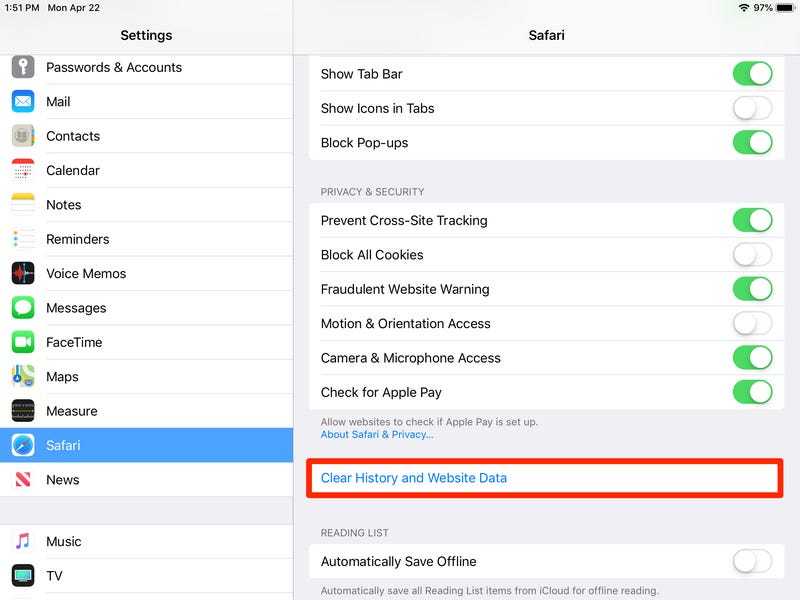
Safari is the default browser on iPads. To clear its history, open the Settings app and scroll down to Safari. Tap on ‘Clear History and Website Data’.
You’ll see a confirmation prompt. Confirm by tapping ‘Clear’ to delete all browsing history, cookies, and cached files.
This removal affects all Safari activity, including those saved in the browser’s history tab or autocomplete suggestions.
Using Other Browsers like Chrome or Firefox
If you use Chrome, open the app, tap the three-dot menu, and select ‘History’. Then tap ‘Clear browsing data’. Choose the time range and data types to delete, then confirm.
For Firefox, tap the menu button, select ‘Settings’, then ‘Clear Private Data’. Select what data to erase and confirm.
Remember, clearing data in these browsers is similar but tailored to each app’s interface.
Deleting Search and App History
Clearing Search History in Safari
Safari stores recent searches, which can be cleared separately. Go to Settings, then Safari, and tap ‘Clear History’.
This removes all recent search entries, making it harder for others to see what you’ve searched for.
Erasing App Activity and Search Logs
Many apps keep logs of your activity or searches. To clear these, open the app and look for settings related to privacy or history.
Popular apps like Google, YouTube, or Amazon allow you to delete search history within their settings menu.
Practicing this regularly helps keep your app activity private and decluttered.
Clearing Cookies and Cache for Better Privacy
Cookies are small files that websites save on your device to remember your login info or preferences. Cache stores temporary files to make loading faster.
Clearing cookies and cache can resolve issues with site loading or login problems. It also removes stored data that could be used to track your activity.
In Safari, go to Settings > Safari > ‘Clear History and Website Data’. For Chrome or Firefox, find similar options within app settings.
Resetting Network Settings to Remove All Browsing Data
If you want to remove all network-related data, resetting network settings clears stored Wi-Fi passwords, VPNs, and other network info. To do this, go to Settings > General > Reset > Reset Network Settings.
This method is more drastic but can help resolve persistent browsing issues or privacy concerns.
Clearing History in Apple Apps and Services
Removing Siri & Search History
Siri suggests content based on your usage, which can be cleared for privacy. Visit Settings > Siri & Search, then tap ‘My Data’.
From there, you can disable Siri suggestions or reset your Siri & Search history in the settings.
Clearing Location and Map History
Location data is stored by Maps and other location services. To clear history, go to Settings > Privacy > Location Services.
Disable location access or reset location & traffic data in Maps settings to clear stored locations.
Resetting Your iPad for Complete Data Removal
Factory Reset: The Last Step
If you want to erase all your data, perform a factory reset. Go to Settings > General > Transfer or Reset iPad > Erase All Content and Settings.
This will delete everything on your device, including history, apps, photos, and settings. Make sure to back up important info before proceeding.
After reset, your iPad will restart as a new device, with all history erased permanently.
Tips for Maintaining Privacy After Clearing History
- Regularly clear browsing data to stay private.
- Use private or incognito modes when browsing sensitive sites.
- Keep software updated to protect against privacy vulnerabilities.
- Limit app permissions for location and data sharing.
Additional Tools and Apps for Privacy Management
Consider using privacy-focused apps or VPNs to enhance your security. These tools can prevent tracking and keep your activities private.
Some security apps also offer features to clear history and cache automatically on your schedule.
By following these steps, you can effectively clear all history on your iPad, safeguarding your privacy and keeping your device running smoothly. Regular maintenance and cautious browsing habits help ensure your personal data stays protected.
Easy and Fast! Learn to Clear Your iPad's Browsing History Quickly
Frequently Asked Questions
How can I delete all browsing data from my iPad’s Safari browser?
To remove all browsing data, open the Settings app on your iPad and scroll down to Safari. Tap on Safari, then select “Clear History and Website Data.” Confirm your choice when prompted. This action deletes your browsing history, cookies, and cached data, helping to free up storage and protect your privacy.
What is the best way to clear all app activity and history on my iPad?
To clear app activity, you need to delete or reset individual apps. For specific app data, go to Settings, find the app in the list, and choose “Delete App” to remove it completely. For resetting app data without deleting the app, check if the app offers a reset or clear history option within its settings. Remember, some apps may retain data on their servers, which this process won’t delete.
How do I erase all personal data before selling or giving away my iPad?
Perform a factory reset to erase all personal data from your device. Go to Settings > General > Transfer or Reset iPad, then tap “Erase All Content and Settings.” Confirm your Apple ID and device passcode if prompted. This process deletes all information and restores the iPad to its original state, ensuring your data remains private.
Final Thoughts
To clear all history on iPad, start by opening the Settings app. Tap on Safari and then select ‘Clear History and Website Data.’ Confirm your choice to erase your browsing data permanently. If you use other browsers, follow their specific steps. Regularly clearing your history helps protect your privacy and keeps your device running smoothly. Remember, how to clear all history on iPad is straightforward with these simple steps. Implementing this habit regularly ensures your browsing remains private and clutter-free.
Similar Posts































