How Do You Fix An Iphone Screen That Won T Respond To Touch
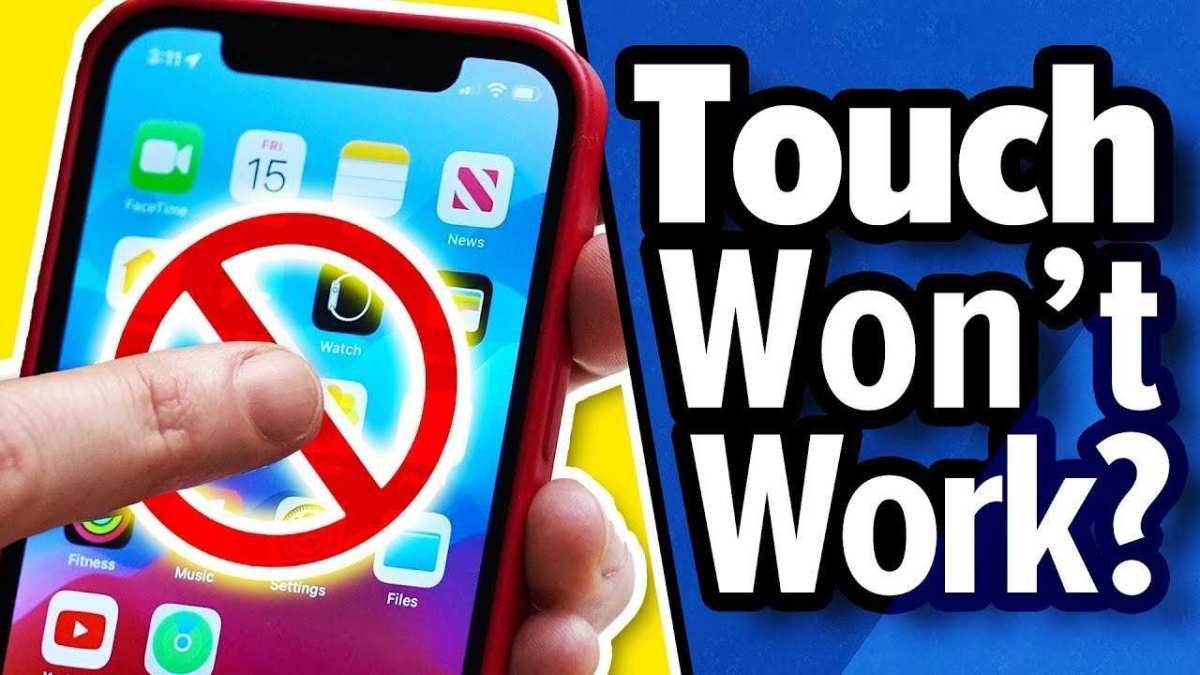

How do you fix an iPhone screen that won’t respond to touch?
Understanding the Causes of Touchscreen Issues
When your iPhone screen stops responding to touch, it can be frustrating and confusing. Several factors could cause this problem. It might be a software glitch, physical damage, or even dirt and debris blocking the screen. Identifying the root cause helps determine the best fix.Common Software-Related Problems
Software glitches happen when the iOS system has temporary errors. This can occur after a software update or if multiple apps are running simultaneously. Sometimes, an app might crash and freeze the touchscreen, causing unresponsiveness.Physical Damage and Hardware Issues
Physical damage is a major cause of touchscreen problems. Dropping your iPhone or exposure to water can damage the internal components. This may lead to unresponsive screens due to broken connectors or damaged digitizers.Dirty or Obstructed Screen
Dirt, sweat, or oil on the screen can interfere with touch sensitivity. Small particles can create false touches or block the signal from your finger to the device.Initial Troubleshooting Steps
Before trying complicated fixes, start with simple troubleshooting. These steps can sometimes resolve the issue quickly.Restart Your iPhone
A simple restart refreshes the iOS system and clears temporary bugs. For most iPhones, press and hold the side button along with volume buttons until the slider appears. Slide to power off, then turn your device back on.Check for Screen Obstructions
Clean your screen gently with a microfiber cloth. Make sure no dirt, oil, or protective film is blocking the surface. Dry the screen thoroughly.Remove Any Screen Protectors or Cases
Sometimes, screen protectors or cases can interfere with touch sensitivity. Remove them to see if responsiveness improves.Update Your iOS Software
Keeping your software current is vital. Apple frequently releases updates that fix bugs impacting the touchscreen.- Go to Settings
- Select General
- Tap Software Update
- If an update is available, download and install it
Perform a Force Restart
If your device is unresponsive, a force restart might fix temporary glitches. The method varies depending on your iPhone model.| iPhone Model | Steps to Force Restart |
|---|---|
| iPhone 8 or later | Press and quickly release volume up. Press and quickly release volume down. Then, press and hold the side button until Apple logo appears. |
| iPhone 7 or 7 Plus | Press and hold both the volume down and power buttons until the Apple logo shows up. |
| iPhone 6s or earlier | Press and hold the home button and the power button simultaneously until the Apple logo appears. |
Fixing Software Glitches with a Factory Reset
If updating or restarting doesn’t work, a factory reset might help. However, this erases all data, so back up your device first.- Go to Settings
- Select General
- Tap Reset or Transfer or Reset iPhone
- Choose Erase All Content and Settings
- Enter your passcode and confirm
When to Seek Professional Help
If your touchscreen remains unresponsive after troubleshooting, hardware damage might be the culprit. Contact Apple Support or visit an authorized service provider. They can perform detailed diagnostics.Repair Options for a Non-Responsive iPhone Screen
Depending on the issue, you can choose between DIY repairs or professional services.DIY Repair: Replacing the Digitizer
Replacing the digitizer is an advanced fix that involves opening the phone. You will need specialized tools and replacement parts.- Order a compatible replacement digitizer for your model
- Follow a step-by-step guide or video tutorial
- Take safety precautions to avoid further damage
Professional Screen Replacement
Most users opt for professional repair services. Authorized Apple technicians use genuine parts to ensure quality. This process usually takes a few hours to a day depending on the location.Preventive Measures to Avoid Touchscreen Problems
Prevention is better than cure. Follow these tips to keep your iPhone screen responsive and in good condition.- Use a high-quality screen protector to reduce physical damage
- Avoid exposing your iPhone to water or extreme temperatures
- Regularly clean the screen with a soft, lint-free cloth
- Avoid dropping the device or placing heavy objects on it
- Keep your iPhone’s software up to date for optimal performance
Additional Tips and Related Topics
Some other tips can help troubleshoot or enhance your iPhone’s touchscreen performance.Calibrating the Touchscreen
While iPhones don’t need manual calibration, resetting settings can sometimes improve responsiveness. Go to Settings, then General, and Reset, then Reset All Settings.Using Accessibility Features
Features like Touch Accommodations can help if the screen is intermittently unresponsive. Find this in Settings under Accessibility.Considering External Factors
Environmental factors such as moisture or extreme cold can interfere with touchscreen sensitivity. Keep your device in optimal conditions.Upgrading Hardware: When is it Necessary?
If your device is old or has extensive damage, replacing it might be more practical than repairs. Consult with professionals for the best solution.Summary of Troubleshooting Steps
To quickly recap, these are key steps to fix an unresponsive iPhone screen:- Clean the screen and remove obstructions
- Update iOS software
- Force restart your device
- Perform a factory reset if needed
- Seek professional repairs for hardware issues
Screen is frozen ?Touch doesn’t work ? Here’s how you fix it 😉#shorts #apple #iphone13 #ios #iphone
Frequently Asked Questions
What steps can I take if my iPhone screen is unresponsive due to software issues?
If your iPhone screen stops responding, try restarting your device first. Press and hold the power button along with the volume down button until the Apple logo appears. This can resolve temporary software glitches. You can also check for any pending software updates by navigating to Settings > General > Software Update, as updates often fix bugs affecting touch responsiveness.
How can hardware problems cause touch issues on an iPhone screen, and what should I do about it?
Hardware damages like a cracked screen, water exposure, or internal component failure can interfere with touch sensitivity. Inspect your device for visible damage and avoid applying pressure to the screen. If you suspect hardware issues, it’s best to visit an authorized service provider or Apple Store to get the device professionally examined and repaired.
Are there any specific settings I can adjust to improve touch responsiveness on my iPhone?
Yes, accessing Settings > Accessibility > Touch can help improve responsiveness. Turning on features like AssistiveTouch can help if the screen still responds partially. Additionally, disabling the Reduce Motion or increasing display contrast under Accessibility may help if visual glitches are affecting touch input.
Can cleaning my iPhone screen help resolve touch response problems?
Absolutely. Dirt, fingerprints, or moisture can cause the screen to become unresponsive. Use a soft, slightly damp lint-free cloth to clean the surface gently. Avoid using harsh chemicals or abrasive materials, which could damage the screen. Cleaning your device regularly helps maintain proper touch functionality.
When should I consider replacing my iPhone screen instead of repairing it?
If your screen has significant cracks, shattered glass, or multiple dead zones where touch does not work, replacing the screen might be the most effective solution. Cost-wise and for best performance, professional screen replacement ensures your device functions properly and looks new. Contact authorized technicians to evaluate the damage and recommend the right course of action.
Final Thoughts
To fix an iPhone screen that won’t respond to touch, start by restarting your device. This step can resolve temporary glitches causing touch issues. If the problem persists, update your iPhone’s software as outdated software can lead to touch screen problems. Perform a force restart or reset settings if necessary, but back up your data first. In cases where these steps don’t work, visit an authorized service provider. how do you fix an iPhone screen that won’t respond to touch? Following these steps can help you resolve the issue efficiently and get your device working smoothly again.
Similar Posts































