How Do I Move All Photos From Google Photos To Apple Photos?
If you’re looking to move all your photos from Google Photos to Apple Photos, the process is pretty straightforward! First, download all your photos from Google Photos to your computer, then upload them to Apple Photos using the Photos app. It may seem daunting, but with a bit of patience, you can have all your cherished memories safely transferred.
In this blog post, we’ll guide you through each step of the process to ensure a smooth transfer. With so many of us relying on digital photos for preserving memories, having them in a single, easily accessible location is invaluable. Whether you’re switching from Android to iPhone or just prefer the Apple ecosystem, we’ve got you covered to make this transition hassle-free. Let’s dive in!

How do I move all photos from Google Photos to Apple Photos?
Moving your cherished memories from Google Photos to Apple Photos can seem daunting. However, with the right steps, it can be a smooth process. In this guide, we will walk you through the details to ensure you don’t miss a single photo.
Why Move Photos from Google Photos to Apple Photos?
There are several reasons why you might want to transfer your photos:
- Device Compatibility: If you have switched to an Apple device, you may want all your photos in one place.
- Storage Options: Apple offers different storage plans that might suit your needs better than Google.
- User Experience: Many users prefer the interface of Apple Photos over Google Photos.
Understanding the benefits can motivate you to take action and start the moving process today.
Preparing for the Transfer
Before diving into the transfer, make sure you prepare properly. Here are the steps to ensure everything goes smoothly:
- Check Your Storage: Ensure you have enough space on your Apple device to accommodate all your photos.
- Update Your Apps: Ensure that both Google Photos and Apple Photos apps are updated to the latest version.
- Wi-Fi Connection: Use a strong Wi-Fi connection to avoid interruptions during the transfer.
Taking these steps will ensure that the process is as hassle-free as possible.
Using the Google Photos App
One of the simplest methods of transferring photos is by utilizing the Google Photos app directly. Here’s how you can do it:
- Open Google Photos App: Launch the app on your device.
- Select Photos: Go to your library and select all the photos you want to transfer. You can do this easily by tapping and holding on a photo and dragging to select.
- Download Photos: Once selected, tap on the download icon to save them to your device.
This method is straightforward but can be time-consuming if you have a lot of photos.
Using a Computer to Download Photos
If you’re more comfortable using a computer, follow these steps to download your Google Photos:
- Log in to Google Photos: Open your web browser and go to the Google Photos website. Sign in with your Google account.
- Select Your Photos: Click on “Photos” in the left sidebar. You can select multiple photos by clicking on them while holding the Ctrl key.
- Download Selected Photos: Click on the three-dot menu on the top right and choose the “Download” option.
This method may be faster, especially for larger batches of photos.
Importing Photos into Apple Photos
After downloading your photos, it’s time to import them into Apple Photos. Here’s how to do that:
- Open Apple Photos: Launch the Photos app on your Mac or iPhone.
- Import Photos: Click on “File” at the top left corner and select “Import.” Choose the downloaded photos from your device.
- Organize Your Photos: After importing, you can create albums or folders to keep your photos organized.
Your photos will now be easily accessible from Apple Photos!
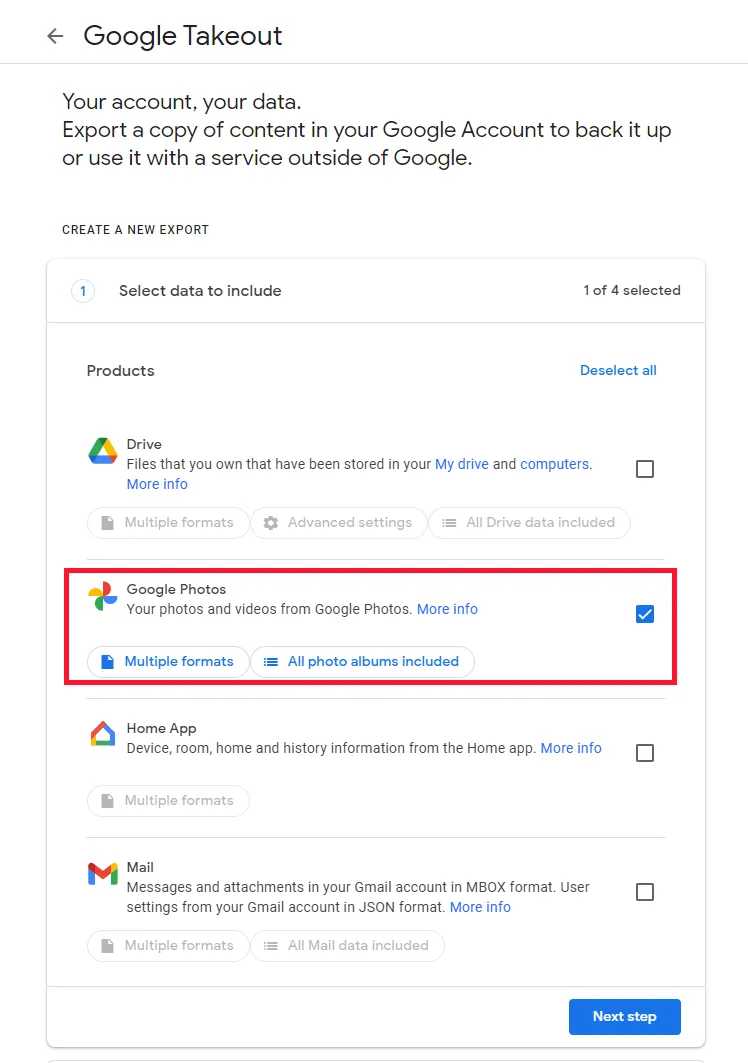
Using Google Takeout for Bulk Download
For those with a significant number of photos, Google Takeout is an invaluable tool. It allows you to download all your data at once. Here’s how you can use it:
- Visit Google Takeout: Go to the Google Takeout website and log in.
- Select Google Photos: Deselect all services, then scroll down to select “Google Photos.”
- Choose File Type: Decide how you want the data exported. You can select .zip or .tgz format based on your preference.
- Download Archive: Click on “Create Archive.” This process may take some time, depending on your photo count.
Once your archive is ready, you will receive a download link via email.
Extracting Files for Apple Photos
After downloading your archive, you will need to extract the files for Apple Photos. Here’s how:
- Locate the Downloaded File: Find the .zip file in your downloads folder.
- Extract File: Right-click on the file and select “Extract All.” Choose a destination folder.
- Check for Organizational Structure: Ensure that the photos are organized in the way you want before importing.
Keeping your files organized will help you find photos easily later on.
Troubleshooting Common Issues
As with any process, you may encounter some issues along the way. Here are some common problems and how to address them:
- Missing Photos: If some photos do not transfer, ensure you check Google Photos for them before downloading again.
- Slow Download Speeds: Ensure you are on a stable internet connection. Try pausing other downloads to improve speed.
- Storage Space Issues: If you run out of storage on your Apple device, consider deleting unwanted apps or files.
Being aware of these common hiccups can save you valuable time.
Tips for Keeping Your Photos Organized
Once your photos are safely in Apple Photos, keeping them organized is crucial. Here are some tips:
- Create Albums: Group your photos into albums by events, trips, or themes.
- Utilize Tags: Use tags or keywords for easy searching later.
- Regular Backups: Regularly back up your photos to avoid accidental loss.
Being organized will make finding and sharing your photos a breeze.
Syncing with iCloud
To ensure your photos are always accessible, consider syncing them with iCloud. Here’s how:
- Open Settings: On your Apple device, open Settings and tap on your name.
- Select iCloud: Tap on “iCloud” and then “Photos.”
- Enable iCloud Photos: Turn on “iCloud Photos” to sync your images seamlessly across devices.
Syncing with iCloud helps keep your memories safe and ensures they are always at your fingertips.
By following these steps, you can successfully move your photos from Google Photos to Apple Photos. This process not only preserves your memories but also enhances your experience with Apple’s ecosystem. Now, it’s time for you to start transferring your photos and enjoy a more organized library!
how to transfer all photos from google photos to iphone gallery
Frequently Asked Questions
What steps do I need to follow to export photos from Google Photos?
To export photos from Google Photos, start by logging into your Google Photos account on a web browser. Go to the ‘Settings’ and select ‘Export your data’ using Google Takeout. Choose ‘Google Photos’ from the list of available data, select the file format and size according to your preference, and then click on ‘Create export.’ You’ll receive an email once the export is ready for download.
Can I transfer photos directly from Google Photos to Apple Photos on my iPhone?
You can’t transfer photos directly between the two apps on your iPhone. Instead, you need to first download the exported photos from Google Photos to your computer or device. Once downloaded, you can sync or import these photos into the Apple Photos app on your iPhone or Mac.
Is there a limit to how many photos I can move at once?
Yes, Google Takeout may impose limitations based on the size of the export file. Typically, it allows you to create multiple files if the total size exceeds a certain limit, such as 2GB. You can combine these files after downloading them to ensure all your photos are in a single location before importing them into Apple Photos.
Do I need to worry about the quality of photos when moving them?
No, transferring your photos from Google Photos to Apple Photos maintains the original quality. However, ensure you select the correct settings during export to preserve the resolution and image quality.
Will my organized albums and folders transfer to Apple Photos?
While your photos will transfer successfully, any albums or organizational structure from Google Photos won’t automatically carry over to Apple Photos. You will need to create these albums manually in the Apple Photos app after importing.
How can I ensure all my photos have been moved successfully?
After completing the import into Apple Photos, review your library to check if all photos have transferred correctly. You can compare the number of photos in both apps before and after the transfer to ensure completeness.
Final Thoughts
To move all photos from Google Photos to Apple Photos, start by downloading the Google Photos app on your device. Sign in to your Google account, select the photos you wish to transfer, and then download them to your device.
Next, open the Apple Photos app and import the downloaded images. This process ensures that all your cherished memories transition smoothly from Google Photos to Apple Photos. Following these simple steps makes it easy to answer the question, “How do I move all photos from Google Photos to Apple Photos?”

Similar Posts































