How Do I Delete Photos From Google Photos But Not My Device?

How do I delete photos from Google Photos but not my device?
Deleting photos from Google Photos without removing them from your device is a common concern among users. Many people enjoy using Google Photos for its cloud storage and organizational features but want to keep their device storage free of clutter. This article will guide you through the process of managing your photos effectively.Understanding Google Photos and Device Storage
Before diving into the deletion process, it’s essential to understand how Google Photos and device storage work together. Google Photos offers cloud storage, allowing you to save and access photos without using your device space. When you upload a photo to Google Photos, it remains on the cloud unless you delete it. However, it still occupies space on your device if you have the same photo saved locally.Benefits of Using Google Photos
Using Google Photos has several advantages:- Free up device storage space.
- Automatically back up your photos.
- Organize photos with tags and search features.
- Share photos easily with friends and family.
How to Delete Photos from Google Photos
Now let’s explore the steps to delete photos from Google Photos without affecting the copies on your device.Step 1: Accessing Google Photos
Start by opening the Google Photos app on your device. If you do not have the app, download and install it from the Google Play Store or Apple App Store. Once open, sign in to your Google account if prompted.Step 2: Selecting Photos to Delete
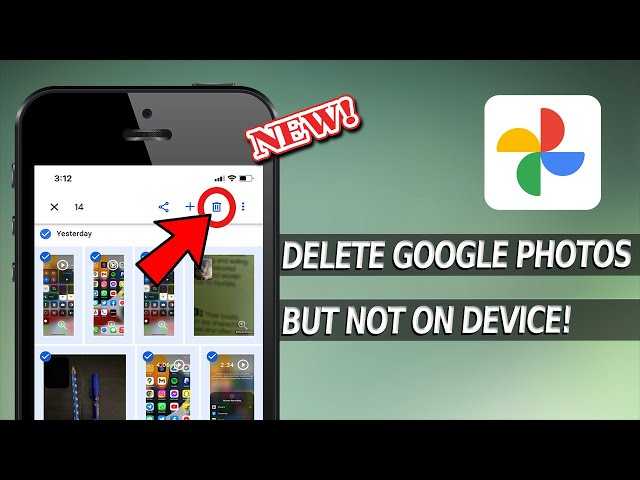
In the Google Photos app, navigate through your pictures. You can choose to select multiple photos by long-pressing on one photo, then tapping on additional photos you want to delete. Be careful not to confuse selecting photos for deletion from the cloud with those on your device.Step 3: Deleting Selected Photos
After selecting the photos, look for the trash bin icon, usually located at the top right corner of the screen. Tap on it to initiate the deletion process. A confirmation message will prompt you to confirm your action. Remember, this action will remove the photos from Google Photos but keep them on your device.Important Considerations
While the process is straightforward, here are some important considerations to remember before deleting photos:- Check for backups: Ensure all photos are safely backed up before deletion.
- Understand what will be deleted: Only photos stored in Google Photos will be removed from the cloud.
- Know the difference: Deleted images from Google Photos will not affect your local copies.
Alternative Methods to Manage Photos
If you prefer not to delete photos, several alternative methods can help you manage your storage effectively.Method 1: Use the “Free Up Space” Feature
Google Photos offers a “Free Up Space” feature that allows you to remove photos already backed up to cloud storage from your device. Here’s how: 1. Open Google Photos. 2. Tap on the “Free Up Space” option in the sidebar or settings. 3. The app will identify photos that are stored in the cloud. 4. Confirm to remove them from your device. This method ensures that you save space without permanently deleting your photos.Method 2: Archive Photos
Another option is to archive photos you don’t want to see regularly without deleting them. Archiving moves them out of the main photo feed while keeping them stored in your account. To archive photos: 1. Select the photo you want to archive. 2. Tap the three dots in the top right corner. 3. Choose “Archive.” Archived photos can be accessed later but won’t clutter your main view.Managing Storage on Your Device
It is essential to maintain optimal storage on your device. Here are some tips to help you manage storage effectively:- Regularly review and delete unnecessary apps.
- Clear app caches to free up space.
- Offload unused photos to external storage devices.
- Use cloud storage alternatives when needed.
How To Delete Photos From Google Photos Without Deleting From Phone
Frequently Asked Questions
Can I remove specific photos from Google Photos while keeping them on my phone?
Yes, you can remove specific photos from Google Photos without affecting the copies stored on your device. Open the Google Photos app, select the photos you want to delete, and choose the “Delete from Google Photos” option. This action will only remove them from the cloud storage, keeping them intact on your phone.
Will deleting photos from Google Photos free up space on my Google account?
Absolutely. When you delete photos from Google Photos, it frees up space in your Google account’s storage. This action only removes the cloud copy, allowing you to manage your storage more effectively while retaining the photos on your device.
How can I ensure that my photos remain on my device after deleting from Google Photos?
To ensure your photos remain on your device after deletion from Google Photos, first confirm that you have a local copy saved on your phone. You can check this by accessing your gallery or file manager. Once confirmed, you can safely delete them from Google Photos without losing the files on your device.
What happens if I mistakenly delete a photo from both Google Photos and my device?
If you accidentally delete a photo from both Google Photos and your device, it may be difficult to recover it. Google Photos has a trash feature that retains deleted items for 30 days, so you can restore them within that period if you act quickly. However, if it’s also deleted from your device, recovery options become limited.
Is there a way to back up my photos on my device while using Google Photos?
Yes, you can back up your photos on your device by using the backup feature in Google Photos while keeping your original files intact. Make sure the “Back up & sync” option is enabled in the app settings. This allows you to back up photos to Google Photos, giving you access to them online while keeping them stored on your device as well.
Final Thoughts
To delete photos from Google Photos but not my device, first, open the Google Photos app. Select the images you want to remove and tap the trash icon. This action removes them from Google Photos while keeping them stored locally on your device. Remember, this process ensures your photos stay on your device, offering you space on Google Photos without losing your cherished memories. Following these steps makes it easy to manage your photo library effectively. Always double-check your selections to avoid any accidental deletions.
Similar Posts































