Does Apple Pencil 1 Work with iPad Pro 11?

If you’ve upgraded to an iPad Pro 11 or are thinking about it, you might be wondering whether your existing first-generation Apple Pencil will work with the new tablet. The short answer is no – the original Apple Pencil (Apple Pencil 1) is not compatible with any generation of the 11-inch iPad Pro. This isn’t just a minor firmware quirk; it’s a hardware mismatch that prevents pairing and charging. In this guide we’ll break down exactly why the two don’t work together, which iPads do support the Apple Pencil 1, what your best stylus options are for the iPad Pro 11, and how to build a creative workflow that gets the most out of your modern iPad.
Why the Apple Pencil 1 and iPad Pro 11 Are Not Compatible
The core incompatibility comes down to the physical connector and the way the stylus pairs with the tablet. The Apple Pencil 1 relies entirely on a male Lightning connector that plugs directly into the iPad’s Lightning port to establish the initial Bluetooth connection and to charge the pen. When Apple released the 2018 iPad Pro 11 (and every iPad Pro after it), the company switched from Lightning to USB-C, removing the Lightning port altogether. Without that port, the Pencil 1 has no way to physically connect to the tablet.
Some users wonder whether a Lightning‑to‑USB‑C adapter or a USB‑C‑capable female Lightning dongle might bridge the gap. While it’s technically possible to plug the Pencil into such an adapter, the iPad Pro’s software was never designed to recognise the Pencil 1 through an adapter. Charging often fails, and the pairing handshake never completes. Attempting this workaround is not recommended, and Apple does not support it.
Beyond the connector, the pairing process itself is fundamentally different on newer iPad Pro models. The Apple Pencil 2 attaches magnetically to the flat side of the iPad Pro 11 and pairs instantly via a wireless handshake. The Pencil 1’s pairing routine – physically plugging it into the Lightning port – simply has no equivalent on a USB‑C device. This design shift by Apple was intentional, paving the way for a more seamless and compact stylus experience with the second generation.
Which iPads Actually Support the Apple Pencil 1?
Even though the Pencil 1 doesn’t work with the 11-inch iPad Pro, it’s still a capable stylus on many other iPad models that retain a Lightning port. If you own one of these devices, your original Pencil can deliver the full pressure‑sensitive, tilt‑responsive drawing and note‑taking experience it was known for.
Here’s the complete list of iPads that support the Apple Pencil 1:
| iPad Model | Screen Size |
|---|---|
| iPad Pro 12.9-inch (1st generation) | 12.9″ |
| iPad Pro 12.9-inch (2nd generation) | 12.9″ |
| iPad Pro 10.5-inch | 10.5″ |
| iPad Pro 9.7-inch | 9.7″ |
| iPad (6th generation) | 9.7″ |
| iPad (7th generation) | 10.2″ |
| iPad (8th generation) | 10.2″ |
| iPad (9th generation) | 10.2″ |
| iPad (10th generation) – requires USB‑C to Apple Pencil adapter | 10.9″ |
| iPad Air (3rd generation) | 10.5″ |
| iPad mini (5th generation) | 7.9″ |
| iPad mini (6th generation) – requires USB‑C to Apple Pencil adapter | 8.3″ |
Note that the iPad (10th generation) and iPad mini (6th generation) technically support the Pencil 1, but only if you use the Apple‑issued USB‑C to Apple Pencil adapter (sold separately) – these models have USB‑C and no Lightning port, but the adapter allows wired pairing and charging. The iPad Pro 11, however, was never given this adapter‑based compatibility path.
Apple Pencil 2: The Built-for-iPad-Pro 11 Stylus
For anyone using an iPad Pro 11 (1st, 2nd, 3rd, or 4th generation), the natural and officially supported stylus is the Apple Pencil 2. It was designed hand‑in‑hand with the modern iPad Pro family and addresses almost every limitation of its predecessor.
Key improvements over the Apple Pencil 1:
- Magnetic attachment & wireless charging – It snaps onto the flat edge of the iPad Pro 11 with magnets, staying securely in place while charging automatically. No more protruding connector or awkward charging posture.
- Double‑tap gesture – A quick tap on the flat side of the Pencil 2 can switch tools (for example, between a pen and eraser) in supported apps, speeding up your creative flow.
- Matte, seamless design – The single‑piece body has no removable cap (the cap on the Pencil 1 was easy to lose) and a slightly flattened side that prevents it from rolling off a desk.
- Lower latency – Apple decreased the latency to as low as 9ms on iPad Pro models with ProMotion, making strokes feel almost instantaneous.
- Hover support – On M2‑powered iPad Pro models, the Pencil 2 can be detected up to 12mm above the screen, letting you preview brush strokes before committing.
The Apple Pencil 2 is compatible with:
- iPad Pro 11-inch (1st, 2nd, 3rd, and 4th generation)
- iPad Pro 12.9-inch (3rd, 4th, 5th, and 6th generation)
- iPad Air (4th and 5th generation)
- iPad mini (6th generation)
If you already own an iPad Pro 11, the Apple Pencil 2 is the most integrated, responsive stylus you can get – and it’s the one Apple recommends.
Third‑Party Stylus Options for iPad Pro 11
You don’t have to buy the Apple Pencil 2. Several third‑party styluses work perfectly with the iPad Pro 11, and they often cost significantly less while serving specific needs. Here are two of the most popular alternatives.
Logitech Crayon – Originally designed for the education market, this palm‑rejecting stylus uses Apple’s compatible technology and connects instantly (no pairing). It’s rugged, has a flat shape to prevent rolling, and delivers smooth lines. However, it lacks pressure sensitivity, so it’s better for note‑taking and basic sketching than for pro‑level digital art. It charges via a built‑in Lightning port (or USB‑C on newer models) and lasts about 7 hours per charge.
Adonit Pixel – Aimed at illustrators and designers, the Pixel offers pressure sensitivity, shortcut buttons, and fine‑tip precision. It connects via Bluetooth and works with many creative apps. While it’s not as tightly integrated as the Apple Pencil 2 and may exhibit slightly higher latency, it’s a solid option if you want pressure sensitivity at a lower price point.
Other capable third‑party picks include the Zagg Pro Stylus (dual‑tip, palm rejection) and the JamJake Stylus (budget, no Bluetooth pairing needed). Always check for “Made for iPad” certification or strong user reviews before buying.
Creative Workflows: Maximise Your iPad Pro 11 Setup
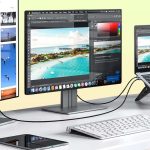
The iPad Pro 11 is a powerhouse for digital art, notetaking, and even video production. Pairing the right stylus is just one part of the equation – your entire creative environment can elevate what you produce. Many artists and content creators use the iPad Pro as a portable studio for recording tutorials, voice‑overs, or live streams. Getting your surrounding gear right makes a striking difference.
Lighting – Whether you’re filming yourself drawing or capturing a product unboxing, good illumination is non‑negotiable. A properly positioned light source eliminates harsh shadows and makes skin tones look natural. If you plan to show your face or your desk, invest time in organising a flattering ring‑light arrangement that stays out of your way while you sketch.
Audio – Your audience will forgive less‑than‑perfect video, but poor sound often drives them away. A clear voice‑over or live commentary gives your content a professional edge. Beyond the built‑in iPad microphones, choosing a dedicated recording microphone that matches your recording style (USB‑C or wireless) can elevate your project dramatically. And before you finalise anything, applying simple techniques to cut out background hum and hiss ensures your audio remains clean and distraction‑free.
AI‑assisted productivity – If your work goes beyond drawing – say you’re a developer who prototypes on the iPad or a student writing code – you might find cross‑tool workflows valuable. For example, integrating Claude into your software development routine can speed up debugging or generate boilerplate code while you stay focused on the iPad’s touch interface. Similarly, when you’re collecting research or brainstorming ideas, harnessing dynamic Claude widgets can organise your thoughts in ways a traditional note‑taking app cannot.
These combinations turn the iPad Pro 11 from a simple drawing tablet into a complete mobile workstation, and they’re all achievable with the right accessories and tools.
Frequently Asked Questions
Can I use the Apple Pencil 1 with the iPad Pro 11 via a third‑party adapter?
No. While you can physically connect the Pencil to a Lightning‑to‑USB‑C adapter, the iPad Pro 11 will not recognise it. The pairing protocol requires direct Lightning‑port communication, and neither charging nor data handshake will work reliably.
Which iPad Pro 11 models are compatible with the Apple Pencil 2?
All models of the 11-inch iPad Pro work with the Apple Pencil 2: the 1st generation (2018), 2nd generation (2020), 3rd generation (2021, M1), and 4th generation (2022, M2).
Does the Apple Pencil 1 have any advantages over the Pencil 2?
The Pencil 1 remains a capable pressure‑sensitive stylus for older iPads. It has the same tip precision and low latency as the original design, and it can be a more budget‑friendly option on the used market. However, when used on a supported iPad, the Pencil 2 is superior in every technical respect.
I have an iPad Pro 11 and a Pencil 1. Can I use the Pencil 1 with a different iPad and share files?
Yes. You can keep the Pencil 1 for an older Lightning‑equipped iPad and transfer art or notes via iCloud or AirDrop to your iPad Pro 11. The stylus itself simply won’t pair with or draw on the Pro.
Is the Logitech Crayon as good as the Apple Pencil for drawing?
The Crayon is excellent for writing, annotating, and basic sketching, but it lacks pressure sensitivity. Professional digital painters and illustrators will miss the ability to vary stroke weight based on pressure, which is where the Apple Pencil 2 shines.
Can I use two Pencils at once on the iPad Pro 11?
No. The iPad Pro 11 supports only one paired Apple Pencil at a time, and multitasking with two simultaneous Pencil inputs isn’t possible.
Conclusion
The first‑generation Apple Pencil is a dead end for the iPad Pro 11 – the hardware shift from Lightning to USB‑C means it simply cannot connect. If you’re moving to the Pro 11, the Apple Pencil 2 is the native, high‑performance stylus that unlocks all the tablet’s creative potential, from magnetic charging to hover previews. For those who don’t need pressure sensitivity or want to save money, third‑party options like the Logitech Crayon or Adonit Pixel are viable alternatives that work out of the box.
Before you make a purchase, think about what you’ll actually do with the stylus. A professional illustrator will feel the difference in response and pressure, while a notetaker may be perfectly satisfied with a simpler tool. In any case, the iPad Pro 11 remains an extraordinary canvas – just make sure you pair it with a stylus it can truly use.

Similar Posts