Disabling Vibration And Haptic Feedback Where Not Needed
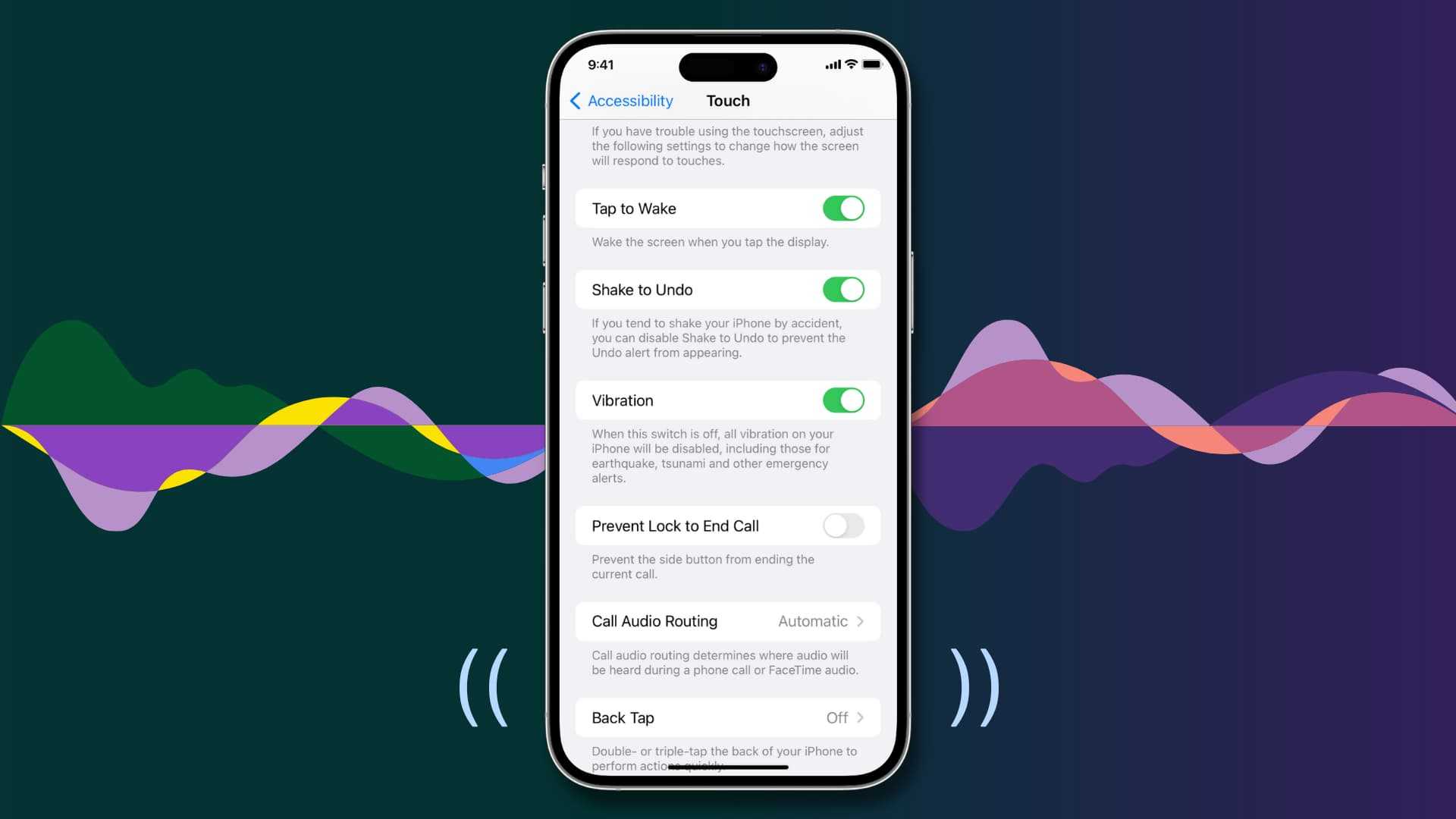

Disabling Vibration and Haptic Feedback Where Not Needed
Understanding Vibration and Haptic Feedback
Vibration and haptic feedback are features built into many devices like smartphones, gaming controllers, and wearable tech. They provide tactile sensations to alert users to notifications, button presses, or in-game actions. While these sensations can enhance user experience, they are not always necessary and can sometimes be distracting or draining on battery life. Knowing when and how to disable them helps improve device comfort and performance.Why Disable Vibration and Haptic Feedback?
Many users find vibration and haptic feedback unnecessary during certain activities. For example, during quiet work environments, vibrations can be disruptive. They may also be undesirable during long gaming sessions, where constant feedback becomes tiresome. Disabling these features can help:- Reduce distractions and improve focus
- Save battery life
- Prevent discomfort or irritation for sensitive users
- Limit accidental activations
How Vibration and Haptic Feedback Impact Battery Life
Vibrations consume battery energy, especially when activated frequently or continuously. On devices with limited power, turning off unnecessary haptic feedback can prolong usage time. For example, disabling vibrations on smartphones can save several percentage points of battery per day. This small change significantly enhances device longevity, particularly during extended use periods.Common Devices Where Disabling Vibration Is Beneficial
Many devices offer options to turn off vibrations, including:Smartphones and Tablets
Most phones allow users to disable vibrations for notifications, touch feedback, and calls. This helps maintain a quiet environment and extends battery life.Gaming Consoles and Controllers
Gamers often disable haptic feedback to avoid motion sickness or distraction. It also helps in competitive gaming by reducing unnecessary sensory input.Wearables and Smartwatches
Disabling vibrations on wearables prevents constant alerts during meetings or sleep, making them more comfortable.Computers and Laptops
Some laptops with touchpads and keyboards provide haptic feedback options that can be turned off to improve typing comfort.Steps to Disable Vibration and Haptic Feedback on Smartphones
Disabling vibrations on a smartphone involves navigating through settings menus. Here’s a general guide:- Open the device’s Settings app
- Tap on Sound or Notifications
- Find options labeled Vibration or Haptic Feedback
- Toggle the switches to disable vibrations for notifications, touch feedback, and keypad inputs
Android Devices
– Access Settings > Sound & Vibration > Vibration & Feedback – Turn off “Vibrate on touch” and similar options – Adjust notification vibration settings individually if needediOS Devices (iPhone)
– Go to Settings > Sounds & Haptics – Turn off “Vibrate on Silent” and “Vibrate on Ring” – For feedback during typing, disable “Keyboard Feedback” in Accessibility settingsDisabling Haptic Feedback on Gaming Devices and Controllers
Gaming controllers often include options to disable haptic feedback. Access the device’s settings or configuration app:- Open the controller’s companion app or settings menu
- Locate haptic or vibration settings
- Toggle to disable vibrations
Adjusting Vibration Settings in Operating Systems
Both Windows and macOS have options to manage haptic feedback:Windows
– Navigate to Settings > Devices > Bluetooth & other devices – Select your device and click on Device properties – Adjust vibration or feedback settings if availablemacOS
– Access System Preferences > Sound or Accessibility – Disable haptic feedback options for trackpads and keyboardsUsing Third-Party Apps and Tools to Manage Vibration
Some devices benefit from third-party applications that control vibration settings more precisely. These apps can:- Disable vibrations for specific apps or actions
- Allow scheduled vibration modes
- Provide more granular control over feedback intensity
Customizing Vibration Patterns and Intensity
For users who prefer some feedback but want to reduce distraction, many devices allow customization:- Adjust vibration strength – softer signals can be less intrusive
- Modify vibration patterns – use shorter, less frequent patterns
- Create profiles for different activities – work, sleep, gaming
Best Practices for Managing Vibration and Haptic Feedback
To optimize device performance, consider these best practices:Disable vibrations during meetings or sleep hours
Set scheduled profiles or manual toggles to silence vibrations when needed.Use silent or Do Not Disturb modes
Activate these modes to suppress all notifications, including vibrations.Regularly review and update setting preferences
What was necessary at one point may not be anymore, so adapt settings over time to suit changing needs.Potential Drawbacks of Disabling Vibration and Haptic Feedback
While turning off vibrations offers benefits, some users may experience drawbacks:- Missing important notifications
- Reduced tactile confirmation for actions
- Potential for increased accidental device drops or unread alerts
Summary of Key Tips for Disabling Vibration and Haptic Feedback
– Know your device’s settings menu options – Turn off vibrations during specific activities or times – Customize feedback patterns if available – Utilize Do Not Disturb modes for silence – Consider third-party tools for advanced control Disabling vibration and haptic feedback where they are not needed can greatly improve your device experience. It reduces distractions, conserves battery, and enhances comfort during prolonged use. Always review device-specific instructions to ensure you turn off vibrations in all relevant areas, ensuring a tailor-made experience suited to your preferences.How To Enable Haptics & Vibration in Silent mode on iPhone
Frequently Asked Questions
How can I disable vibration for specific apps on my device?
You can usually turn off vibration for individual apps through your device’s settings. Navigate to Settings > Apps & Notifications > [App Name] > Notifications, then look for vibration options. Toggle off vibration to prevent the app from causing haptic feedback during notifications or actions.
What is the best way to prevent unintentional haptic feedback while gaming?
To avoid accidental vibrations during gaming, disable haptic feedback in your device’s settings under Sound & Vibration. Some games also provide in-game options to control vibration; turning these off ensures you won’t experience unnecessary feedback during gameplay.
Can I turn off haptic feedback on my keyboard for a quieter typing experience?
Yes, most devices offer the option to disable keyboard haptic feedback. Access your keyboard settings, find the vibration or haptic feedback toggle, and switch it off. This change will make typing quieter and reduce unnecessary vibrations.
How do I disable haptic notifications to reduce distractions?
To minimize distractions, go to Settings > Sounds & Notifications > Notifications. From there, you can turn off vibration or haptic feedback for specific notification types or all alerts, depending on your preferences.
Is it possible to disable haptic feedback system-wide without affecting other functions?
Yes, most devices allow you to turn off system-wide haptic feedback in the settings menu. Navigate to Settings > Sound & Vibration, and disable options like ‘Vibrate on Touch’ or ‘Haptic Feedback.’ This ensures that only essential functions retain vibration if needed.
Final Thoughts
Disabling vibration and haptic feedback where not needed can significantly improve your device’s performance and battery life. Unnecessary feedback may distract you and drain resources. Turning off these features conserves energy and enhances the user experience. Incorporating this simple step allows you to customize your device for greater comfort. Addressing feedback settings ensures a smoother, more efficient use. Prioritize disabling vibration and haptic feedback where not needed for optimal device performance.
Similar Posts