Can I Upgrade My Pc To Windows 11 For Free 2023

Yes, you can upgrade your PC to Windows 11 for free if your device meets the system requirements. Microsoft has made the upgrade accessible without extra cost for eligible users, making it easier than ever to enjoy the latest features and security improvements.
If your PC qualifies based on hardware specifications, you can upgrade to Windows 11 at no additional charge. However, devices that don’t meet the minimum requirements may not be able to upgrade or might need hardware updates. This means checking your system’s compatibility is the first step to deciding if a free upgrade is possible.
Upgrading to Windows 11 can bring a fresh look, improved performance, and better security to your computer. Many users are eager to jump to the latest OS, but whether you can upgrade without paying depends on your device’s hardware and compatibility. In this article, we’ll explore who qualifies for a free upgrade, how to check your system, and what steps to follow to upgrade smoothly.

Can I upgrade my PC to Windows 11 for free?
Understanding the Free Upgrade Offer from Microsoft
Many users wonder if upgrading to Windows 11 will cost them money. Microsoft has made the transition quite straightforward for eligible PCs by offering a free upgrade. This policy means that if your current Windows 10 device qualifies, you can move to Windows 11 without paying extra.
Microsoft’s goal is to get as many compatible devices as possible onto Windows 11. This approach benefits users by providing the latest features, security updates, and improvements at no additional cost. However, it’s important to check if your PC meets specific requirements before proceeding.
Minimum Hardware Requirements for Windows 11
Before considering the upgrade, understanding hardware requirements is essential. Windows 11 has specific specifications that your PC must meet to ensure optimal performance. These include:
- Processor: 1 GHz or faster with 2 or more cores on a compatible 64-bit processor
- RAM: 4 GB or more
- Storage: 64 GB or larger storage device
- System firmware: UEFI, Secure Boot capable
- TPM: Trusted Platform Module (TPM) version 2.0
- Graphics card: Compatible with DirectX 12 or later, with WDDM 2.0 driver
- Display: HD display that is greater than 9 inches with 8 bits per color channel
Meeting these requirements is crucial because they ensure your device can handle Windows 11 smoothly. Devices that do not meet these benchmarks may experience reduced performance or compatibility issues.
How to Check if Your PC Can Upgrade for Free
Once you know the minimum specifications, it’s time to verify whether your PC qualifies. Microsoft provides a free tool called the PC Health Check app, which scans your system and confirms compatibility. You can download it directly from Microsoft’s official website.
Alternatively, you can manually check your system specs:
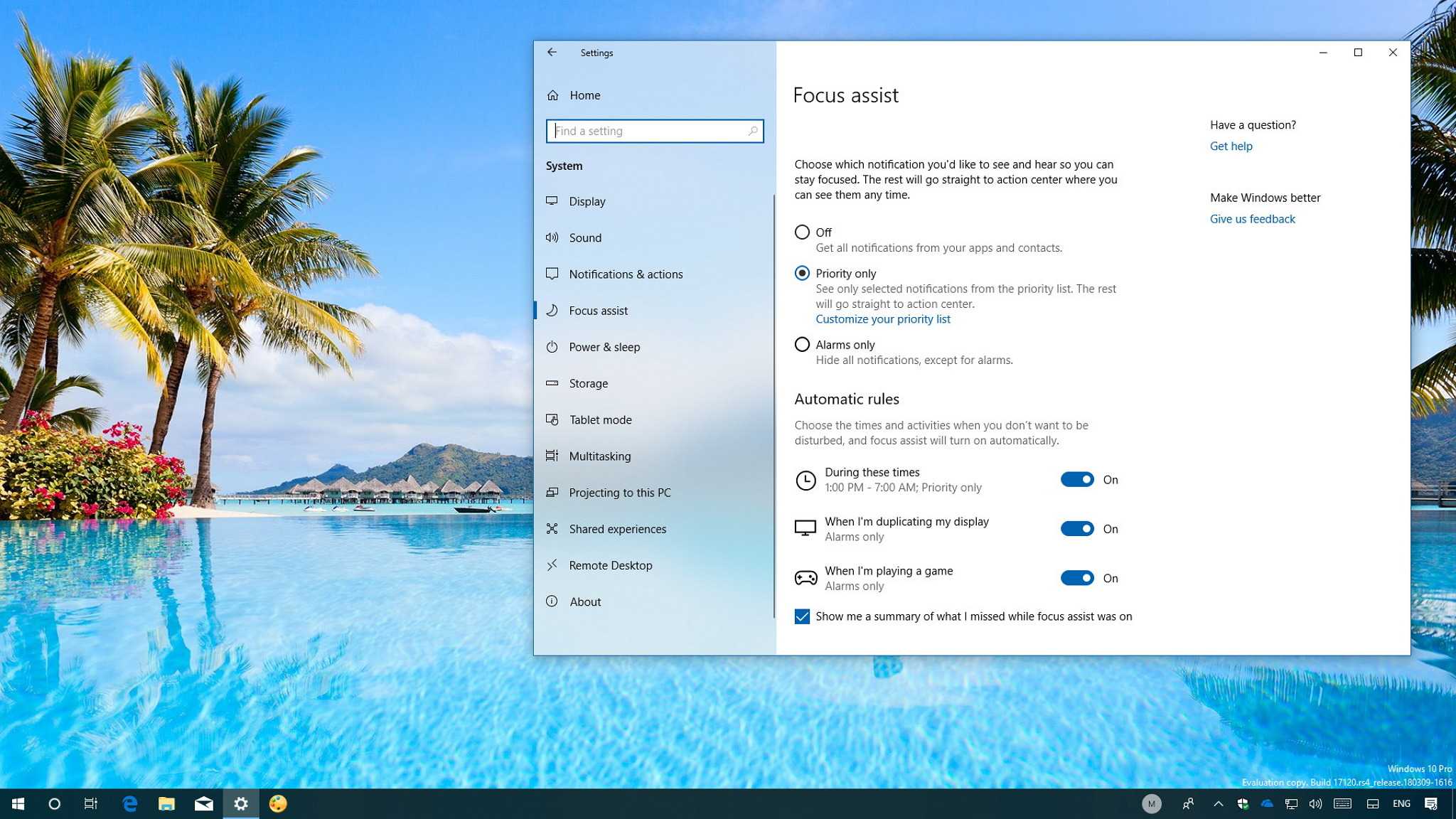
– Open Settings
– Click on System
– Select About to view device specifications
– Use the TPM Management tool by typing “tpm.msc” in the search bar to check TPM version
If your device passes these checks, you’re eligible for a free upgrade. If not, you might need hardware upgrades or consider purchasing a new PC.
Steps to Upgrade to Windows 11 for Free
The upgrade process is designed to be easy and user-friendly. Follow these steps:
1. Back up important files to avoid data loss during the upgrade.
2. Ensure your device is connected to the internet and is plugged in.
3. Open Windows Update in Settings.
4. Click on “Check for updates.”
5. If your PC is eligible, you’ll see an option to upgrade to Windows 11.
6. Follow the on-screen instructions to download and install the update.
7. Your PC may restart multiple times during the process.
Microsoft recommends keeping your device updated to avoid potential issues during the upgrade.
Potential Challenges During the Upgrade
While the process is generally smooth, some users encounter problems. Common issues include:
– Compatibility warnings despite meeting minimum specs.
– Insufficient storage space for the upgrade.
– Driver compatibility problems leading to hardware malfunctions.
– Errors during installation or download failures.
To mitigate these challenges:
– Free up space by deleting unnecessary files.
– Update device drivers before starting the upgrade.
– Ensure your BIOS is up to date.
– Seek support from Microsoft or device manufacturers if issues persist.
Is It Worth Upgrading to Windows 11?
Upgrading offers several benefits, such as:
– A refreshed, modern interface with a centered Start menu.
– Improved multitasking features like Snap Layouts.
– Better gaming performance with Auto HDR.
– Enhanced security features and regular updates.
– Support for newer hardware and applications.
However, consider your device’s age and hardware compatibility. Some older PCs may not support Windows 11 efficiently, and sticking with Windows 10 might be better for performance and stability.
How to Prepare Your PC for a Smooth Upgrade
Preparation helps ensure the upgrade happens without issues:
– Back up all essential data to an external drive or cloud.
– Update your current Windows version to the latest build.
– Remove unnecessary files and applications to free space.
– Connect your device to a stable power source.
– Update your device drivers where possible.
– Disable or uninstall third-party security software temporarily to prevent conflicts.
Following these steps minimizes the risk of errors and helps the upgrade proceed faster.
How Long Does the Free Upgrade Take?
The time for the upgrade varies based on your device’s specifications and internet speed. Typically, it takes between 30 minutes and a few hours. Faster hardware and a good internet connection will reduce download and installation times.
It’s recommended to perform the upgrade during a period when you can leave your PC uninterrupted. Patience is key, as rushing can cause errors or incomplete installations.
What If Your PC Isn’t Eligible for the Free Upgrade?
If your device doesn’t meet Windows 11 requirements, you have options:
– Upgrade hardware components like RAM or storage.
– Consider buying a new PC compatible with Windows 11.
– Continue using Windows 10, which Microsoft will support until October 2025.
Some users choose to keep their current setup if it functions well, but staying updated with security patches is important to stay protected.
Legal and Licensing Aspects of the Free Upgrade
The free upgrade offer is valid only for genuine copies of Windows 10. You cannot legally upgrade pirated or unlicensed versions to Windows 11 and receive the free update.
Once upgraded, your Windows 11 license remains valid for the life of your device, provided you follow Microsoft’s licensing terms. Ensure your Windows 10 key is genuine before starting the process.
In summary, if your PC meets Microsoft’s hardware requirements, you can indeed upgrade to Windows 11 for free. The process is straightforward but requires proper preparation and verification of compatibility. Weigh the benefits of Windows 11 against your device’s capabilities to determine if the upgrade is the right choice.
Many users find that upgrading brings a fresh look and new features that improve their computing experience without additional cost. Just remember to back up your data and ensure your hardware is prepared for a smooth transition.
Frequently Asked Questions
What are the hardware requirements for upgrading to Windows 11 for free?
To upgrade to Windows 11 without cost, your PC must meet specific hardware criteria. These include a compatible 64-bit processor, at least 4GB of RAM, 64GB storage, UEFI firmware with Secure Boot capability, Trusted Platform Module (TPM) version 2.0, and a display larger than 9 inches with HD resolution. Ensure your device adheres to these specifications to qualify for the free upgrade.
How can I check if my PC is eligible for a Windows 11 upgrade?
You can verify your device’s eligibility by using the PC Health Check tool provided by Microsoft. Download and run the tool to get a detailed report on your system’s compatibility. If your PC passes the assessment, you are well-positioned to upgrade to Windows 11 at no additional cost.
Is it necessary to perform a clean installation or can I upgrade directly from Windows 10?
You can upgrade directly from Windows 10 to Windows 11 through the Windows Update feature if your device meets the required specifications. Microsoft supports a seamless upgrade process that preserves your files and apps. A clean installation might be preferred for a fresh start, but it is not mandatory for the free upgrade.
Are there any limitations or restrictions when upgrading to Windows 11 for free?
While the upgrade process is free for eligible devices, some older hardware may not support all Windows 11 features. Additionally, devices that do not meet the hardware requirements will not qualify for the upgrade, and Microsoft might require a clean installation instead of an upgrade in some cases.
Can I upgrade multiple PCs to Windows 11 without additional cost?
Yes, you can upgrade multiple PCs to Windows 11 free of charge, provided each device meets the eligibility criteria. Microsoft offers the upgrade at no cost, so businesses and individuals with several compatible devices can upgrade simultaneously without incurring extra expenses.
Final Thoughts
Can I upgrade my PC to Windows 11 for free? Yes, if your device meets the system requirements, Microsoft offers a free upgrade. Check your PC’s compatibility using the PC Health Check tool.
Ensure your Windows 10 version is up to date before upgrading. If eligible, the upgrade process is straightforward through Windows Update.
In summary, upgrading for free depends on your device’s specifications. So, can I upgrade my PC to Windows 11 for free? Yes, but only if your system meets the criteria.

Similar Posts