Are Ultrawide Monitors Better Than Dual Monitors
Deciding between an ultrawide monitor and a dual monitor setup can significantly impact your productivity and workflow. This guide delves into the advantages and disadvantages of each, helping you understand which is the superior choice for your specific needs. We’ll cover everything from desk space and budget to visual immersion and multitasking capabilities. 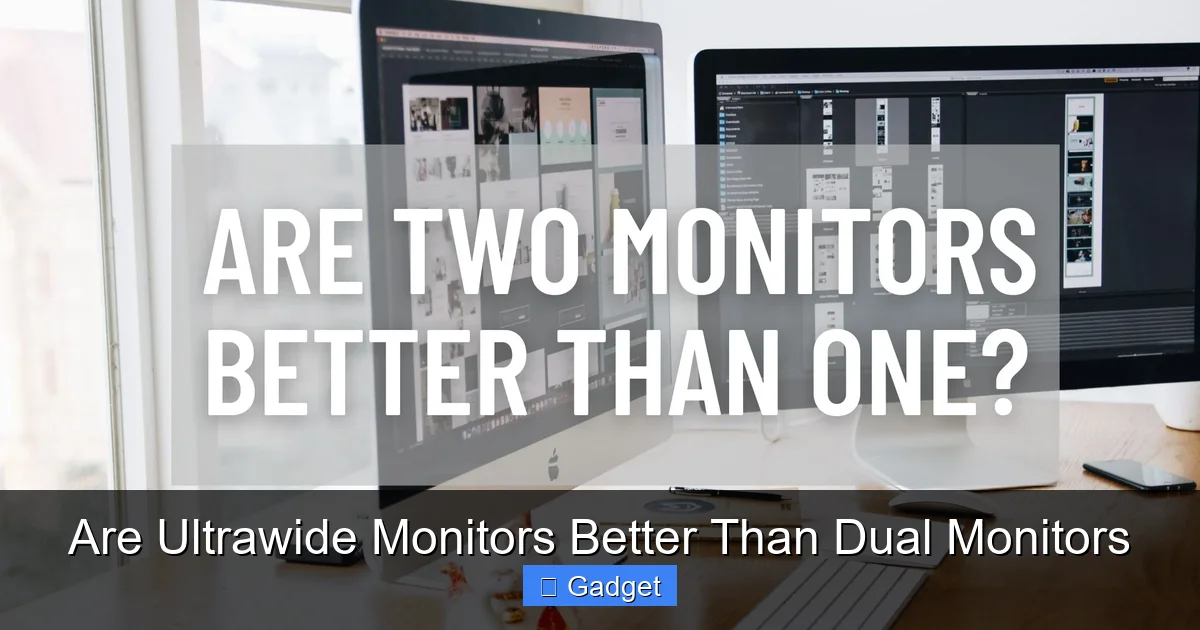
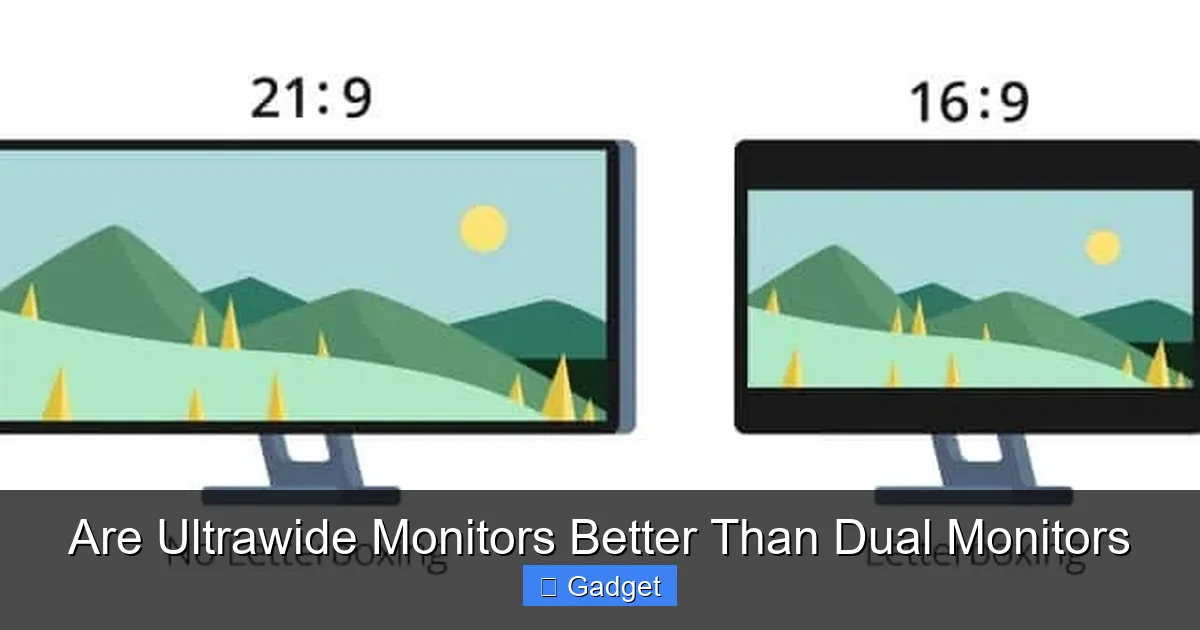
Are Ultrawide Monitors Better Than Dual Monitors?
In the quest for enhanced productivity, better gaming experiences, or a more immersive creative workflow, many users find themselves at a crossroads: should they invest in an ultrawide monitor or opt for a classic dual monitor setup? Both configurations offer expanded screen real estate, but they do so in fundamentally different ways, catering to distinct needs and preferences. This guide will break down the pros and cons of each, helping you make an informed decision about which setup is truly “better” for you.Key Takeaways
- Desk Real Estate: Ultrawide monitors offer a single, expansive display, often taking up less horizontal desk space than two separate monitors, but can require more depth.
- Multitasking Capabilities: Dual monitors excel at true side-by-side multitasking, allowing distinct applications to be viewed simultaneously without overlap, whereas ultrawides can create a more integrated workflow.
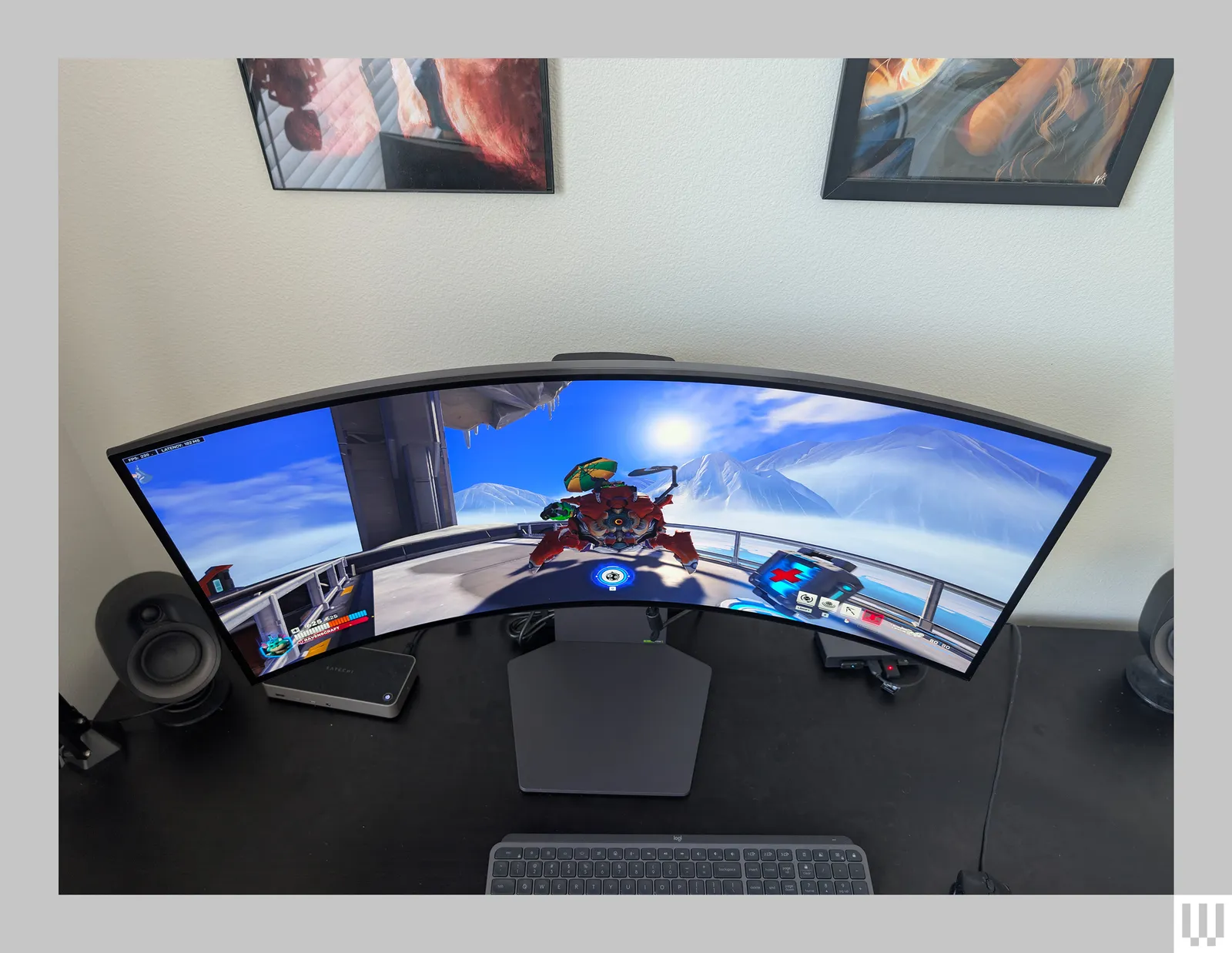
- Visual Immersion: Ultrawide monitors provide a more immersive experience, ideal for gaming, video editing, and cinematic content, wrapping your field of view.
- Cost Considerations: While a single high-end ultrawide can be expensive, a dual monitor setup can also add up, especially if purchasing two matching displays.
- Content Compatibility: Some older games and applications may not fully support the ultrawide aspect ratio, leading to letterboxing or stretching.
- Workflow Preferences: The best choice often comes down to personal preference and the specific tasks you perform most often on your computer.
Understanding the Difference: Ultrawide vs. Dual Monitors
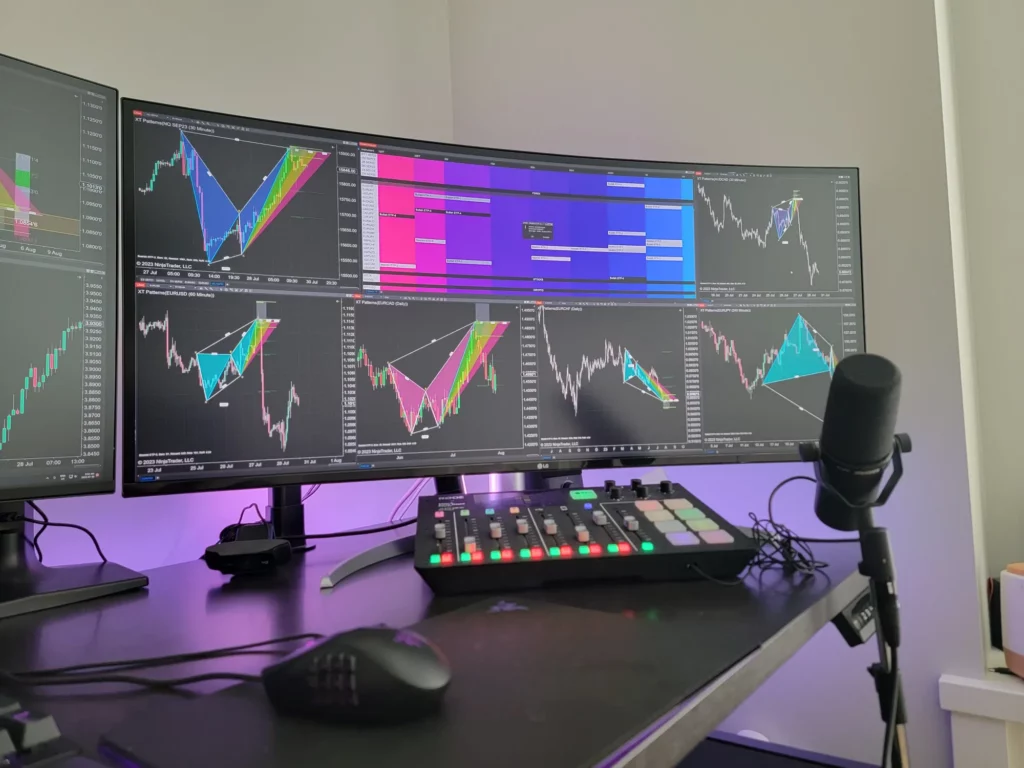
Before we dive into which is better, let’s clarify what we’re comparing. An ultrawide monitor is a single display with an aspect ratio wider than the standard 16:9, typically 21:9 or even 32:9. This means it’s significantly wider than it is tall, offering a panoramic view. Think of it as one very long, continuous screen. A dual monitor setup, on the other hand, involves using two separate monitors placed side-by-side. These monitors can be identical or different, standard 16:9 displays or even ultrawides themselves. The key here is having two distinct screens that you can arrange and manage independently.The Case for Ultrawide Monitors
Ultrawide monitors have surged in popularity for a good reason. They offer a unique visual experience and can streamline certain workflows.Visual guide about Are Ultrawide Monitors Better Than Dual Monitors
Advantages of Ultrawide Monitors
There are several compelling reasons why an ultrawide monitor might be the superior choice for your setup.Visual guide about Are Ultrawide Monitors Better Than Dual Monitors
Seamless Immersion
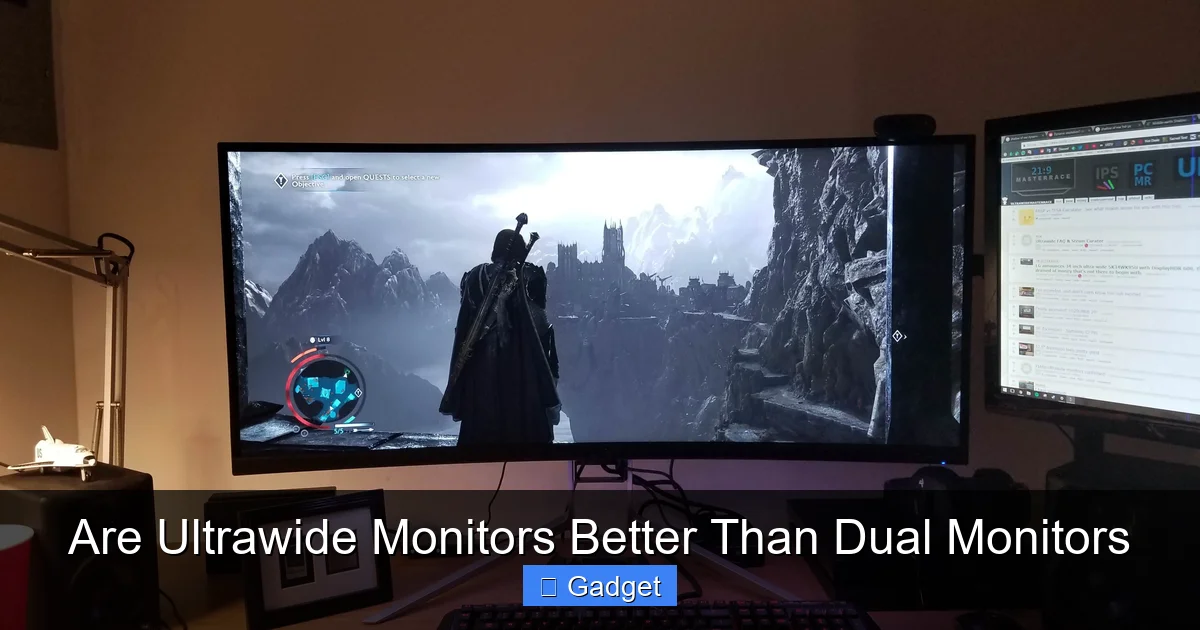
Perhaps the biggest draw of an ultrawide monitor is its immersive quality. With a wider field of view, it can pull you into games, movies, and creative projects like no other. For gamers, this means seeing more of the game world without the distracting bezel that separates two monitors. Video editors can have a longer timeline visible at once, making editing more fluid. If you’re wondering whether an ultrawide is right for your creative work, check out our guide on whether ultrawide monitors are good for photo editing.Reduced Bezel Clutter
A single, expansive screen means no bezels in the middle of your primary workspace. This uninterrupted view is fantastic for tasks where continuity is important, such as comparing documents side-by-side, working with wide spreadsheets, or simply enjoying a panoramic view.Desk Space Efficiency (Potentially)
While ultrawides are physically wide, they can sometimes take up less desk real estate than two monitors. Two monitors, especially larger ones, require significant horizontal space and can be difficult to position optimally. A single ultrawide, while deep, might allow for a cleaner, more minimalist desk setup. For tips on optimizing your workspace, read our article on how much desk space an ultrawide monitor actually needs.Simplified Cable Management
One monitor means one power cable and one display cable (or two, depending on your ports). This is a significant advantage over managing the cables for two separate displays, often leading to a tidier workspace.Enhanced Single-Application Workflow
For applications designed to take advantage of wide aspect ratios, an ultrawide is a dream. Think of photo editing software with toolbars on the sides and a massive canvas in the center, or programming IDEs where you can have your code, terminal, and file explorer all comfortably visible.Disadvantages of Ultrawide Monitors
Despite their strengths, ultrawide monitors aren’t perfect for everyone.Visual guide about Are Ultrawide Monitors Better Than Dual Monitors
Content Compatibility Issues
Not all content is created equal for ultrawide displays. Many older games, for instance, will either display with black bars on the sides (letterboxing) or stretch the image, distorting the aspect ratio. While this is improving, it’s still a factor to consider for dedicated gamers.Window Management Can Be Tricky
With one massive screen, managing multiple windows can sometimes be overwhelming. You might need to rely on window management software (like FancyZones in Microsoft PowerToys) to effectively divide your screen into usable zones, which adds an extra layer of complexity.Less Flexibility for True Side-by-Side Multitasking
While you can split an ultrawide screen into multiple “virtual” monitors, it’s not the same as having two independent displays. Sometimes, you just want to have a chat window on one screen and your work on another, with no chance of overlap. This is where dual monitors truly shine.Cost
High-quality ultrawide monitors, especially those with high refresh rates, good color accuracy, and advanced features, can be quite expensive. You might be paying a premium for that expansive single panel. To understand why, read our breakdown on why ultrawide monitors are more expensive.Potential for Neck Strain
Depending on the size and curvature of the ultrawide monitor, you might find yourself turning your head more to see content at the edges, which can lead to neck strain if not positioned carefully.The Case for Dual Monitors
The dual monitor setup is a tried-and-true configuration that many professionals and enthusiasts have relied on for years. It offers a different set of advantages.Advantages of Dual Monitors
Why do so many people stick with dual monitors? The benefits are clear:Superior Multitasking Flexibility
This is the killer feature of dual monitors. You can have your primary application on one screen and a reference document, email, chat, or streaming video on the other. The separation is clean, and you can easily move between tasks without ever having to split a single display. This is ideal for workflows where constant switching between distinct applications is the norm.No Content Compatibility Issues
Standard 16:9 content looks exactly as it’s intended on standard 16:9 monitors. You won’t encounter stretching, letterboxing, or aspect ratio issues with games, movies, or applications designed for typical screen formats.Independent Control and Arrangement
You have more granular control over how your displays are arranged and used. You can stack them vertically, place one slightly behind the other, or position them at different angles. Each monitor can also have its own resolution and refresh rate (though matching is often preferred for a seamless experience).Cost-Effectiveness (Potentially)
While two high-end monitors can be expensive, you can often find excellent deals on mid-range or even budget 16:9 monitors. This can make a dual setup more accessible than a premium ultrawide, especially if your needs are basic.Ease of Use for Beginners
For users new to multi-display setups, dual monitors are generally easier to get acquainted with. The concept of having two distinct screens is more intuitive than mastering window snapping and partitioning on a single, vast display.Disadvantages of Dual Monitors
However, dual monitors also come with their own set of drawbacks.The Dreaded Bezel
The bezels between two monitors are the most significant downside. They break up the visual continuity, which can be jarring in full-screen applications like games or when trying to work with wide documents that span across both screens.More Desk Space Required
Two monitors, especially when positioned side-by-side for optimal viewing angles, typically require more horizontal desk space than a single ultrawide monitor. This can be a problem for users with limited desk real estate.More Complex Cable Management
Two monitors mean two power cables and at least two display cables (potentially more if you’re using multiple graphics cards or have specific port requirements). This can lead to a more cluttered desk and a more challenging setup process.Potential for Mismatched Performance
If you don’t buy two identical monitors, you might experience slight differences in color reproduction, brightness, or refresh rates, which can be noticeable and slightly annoying.Less Immersive for Panoramic Content
While you can stretch content across two monitors, it’s rarely ideal. The bezel in the middle ruins the immersive effect that an ultrawide provides for movies or games designed for a wider aspect ratio.Which is Right for You? A Workflow Analysis
The “better” choice depends entirely on how you use your computer. Let’s break it down by common use cases.For Gamers
Ultrawide: If your priority is immersion and you play modern games that support ultrawide resolutions, an ultrawide monitor is a fantastic choice. You’ll get a wider field of view, seeing more of the game world. However, be prepared for potential compatibility issues with older titles. Dual Monitors: If you play a wide variety of games, including older titles or those with strict aspect ratio requirements, dual monitors offer more flexibility. You can dedicate one monitor to the game and use the other for guides, chat, or streaming without disrupting the game’s display. However, you miss out on the ultrawide immersion.For Content Creators (Video Editors, Graphic Designers)
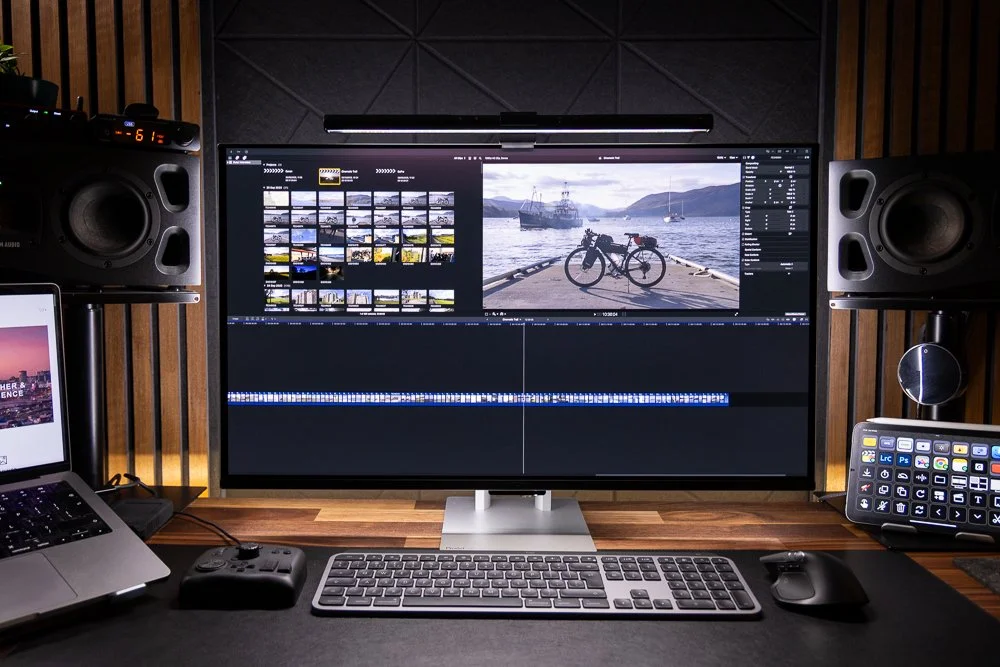
Ultrawide: Video editors can greatly benefit from the extended timeline view. Graphic designers can have their canvas front and center with toolbars neatly arranged on the sides. The immersive, uninterrupted view can enhance focus. Dual Monitors: Some prefer to have their primary editing suite on one monitor and a media browser, project files, or other reference material on the second. This separation can be more efficient for managing multiple assets and windows. It really depends on your specific software and workflow.For Programmers and Developers
Ultrawide: An ultrawide can be great for having your code editor, terminal, and other development tools visible simultaneously on one continuous surface. It can reduce the need to constantly switch windows. Learn more in our article on whether ultrawide monitors are good for coding. Dual Monitors: Many developers love the dual monitor setup for having their code on one screen and documentation, a browser, or a virtual machine on the other. The clear separation is often preferred for managing complex projects with multiple dependencies.For Office Workers and General Productivity
Ultrawide: For tasks like comparing documents, working with large spreadsheets, or simply having multiple browser tabs open in a more organized fashion, an ultrawide can be very effective. Window management software is key here. Dual Monitors: The classic choice for office work. Having email on one screen and a report on another is incredibly straightforward and efficient. It’s excellent for multitasking between discrete applications. Most people find this setup very intuitive.For Multitaskers
Ultrawide: Can offer a good multitasking experience if you use window snapping and organization tools effectively. It keeps everything on one visual plane. Dual Monitors: Offer unparalleled flexibility for true side-by-side multitasking. The ability to dedicate an entire screen to a specific task without compromising the primary display is hard to beat for heavy multitaskers.Tips for Optimizing Your Setup
Regardless of whether you choose an ultrawide or dual monitors, optimization is key.For Ultrawide Monitors:
- Invest in Window Management Software: Tools like Microsoft PowerToys’ FancyZones, DisplayFusion, or built-in OS features can help you create custom screen layouts.
- Consider a Curved Ultrawide: For larger ultrawide displays (34 inches and above), a curve can help bring the edges closer to your field of view, reducing neck strain and enhancing immersion.
- Adjust Monitor Arm/Stand: Ensure the ultrawide is positioned at the correct height and distance to avoid discomfort.
For Dual Monitors:
- Match Your Monitors (If Possible): Identical monitors will provide a consistent visual experience. If not, try to match resolution, size, and refresh rate as closely as possible.
- Use a Dual Monitor Stand/Arm: This can help declutter your desk, allow for better positioning, and ensure both monitors are at the correct ergonomic height.
- Configure Display Settings Carefully: Ensure your operating system is set up to recognize both monitors correctly and that your primary display is set to your preference.
- Consider Monitor Size and Resolution: Smaller, higher-resolution monitors can offer more pixels per inch, while larger monitors can provide a more expansive view. Choose based on your needs and desk space.
Troubleshooting Common Issues
Sometimes, new monitor setups can present challenges.Issue: Game not displaying correctly on ultrawide.
Solution: Check the game’s settings for ultrawide resolution support. If not available, look for community patches or mods that enable it. Alternatively, you may need to accept letterboxing or stretching.Issue: Bezel between dual monitors is too distracting.
Solution: Position the monitors closer together. Consider a monitor with a thinner bezel. For gaming, try to keep your main field of view on one monitor or use games that have good ultrawide support if you’re considering that route.Issue: Windows are not snapping or organizing well on ultrawide.
Solution: Install and configure dedicated window management software. Experiment with different zone layouts until you find what works best for your workflow.Issue: One of the dual monitors is significantly dimmer or has different colors.
Solution: Adjust the settings on each monitor individually. If the difference is still too great, the monitors may have manufacturing variations, or one might be faulty.Conclusion: The Verdict
So, are ultrawide monitors better than dual monitors? The answer is a resounding **”it depends.”** Choose an ultrawide monitor if:- You prioritize visual immersion for gaming and media.
- You have specific creative workflows that benefit from an expansive, single canvas (like video editing timelines).
- You appreciate a cleaner, minimalist desk setup with fewer cables and no central bezel.
- You are comfortable using window management software to organize your workspace.
- Your primary need is efficient, true side-by-side multitasking between distinct applications.
- You work with a wide variety of software and content that may not support ultrawide aspect ratios.
- You prefer the simplicity and flexibility of having two independent screens.
- Desk space is less of a concern, and you’re not bothered by the presence of a bezel.

Similar Posts