Android How To Make Collage: Easy Step-By-Step Guide
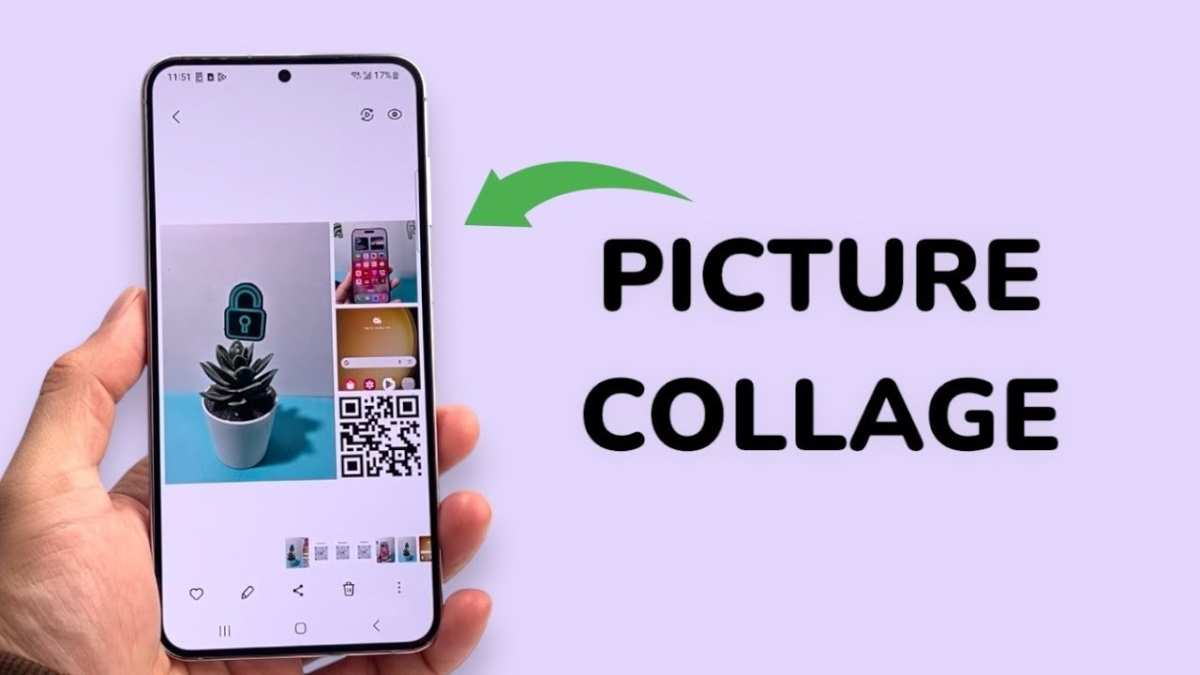

Android How to Make Collage: The Complete Guide for Beginners
Creating a photo collage on your Android device is a fun and easy way to showcase your favorite memories. Whether you want to make a collage for a social media post, a gift, or just for fun, there are many apps and techniques you can use to make the process simple and enjoyable. In this guide, we’ll walk through everything you need to know about how to make a collage on Android, from choosing the right app to adding special touches that make your collage stand out.Choosing the Right App for Your Collage
Before you start creating your masterpiece, it’s important to pick the best app for your needs. There are numerous options available on the Google Play Store, each with different features, ease of use, and customization options. Here are some popular apps that can help you make stunning collages.- Canva: Known for its user-friendly interface and a wide range of templates, Canva allows you to create professional-looking collages with just a few taps. It offers free and premium options.
- PicsArt: A versatile app that combines photo editing and collage making. It provides creative tools like stickers, text, and effects to enhance your collage.
- PhotoGrid: Specializes in making collages quickly and easily. It offers various grid layouts, backgrounds, and editing options.
- Google Photos: If you’re already using Google Photos for storage, it has a simple collage feature that automatically arranges your photos into a basic layout.
Step-by-Step Guide to Making a Collage on Android
Once you’ve picked your app, it’s time to start creating your collage. Here’s a detailed step-by-step process that applies to most collage-making apps:Gather Your Photos
Start by selecting the photos you want to include. Think about the theme, color scheme, or story you want your collage to tell. To make your process smooth:- Choose high-quality images for clarity.
- Decide on a few favorite photos to keep your collage balanced.
- Organize your selected photos in a folder for quick access.
Open Your Collage App and Select a Layout
Most apps will give you the choice of different grid styles or freeform layouts:- Choose a template or grid that fits your collection of photos.
- Many apps allow you to change the number of photos in the collage, such as 2×2, 3×3, or more complex arrangements.
Add Photos to Your Layout
Follow these general steps:- Tap on the placeholder images within the layout.
- Select photos from your gallery or camera roll.
- Adjust the position and size of each photo to your liking.
Customize Your Collage
This step allows you to add your personal touch:- Backgrounds: Choose colors, patterns, or images to serve as the backdrop.
- Text: Add captions, quotes, or titles to give context or make it more fun.
- Stickers and Decorations: Use stickers, emojis, or clipart to brighten up your collage.
- Filters and Effects: Enhance your photos with filters or effects to create a cohesive look.
Adjust and Fine-Tune Your Collage
The final touches include:- Resizing or cropping individual images.
- Adjusting the spacing between photos.
- Refining colors and brightness.
- Ensuring all elements are aligned properly for a neat appearance.
Saving and Sharing Your Collage
Once you’re happy with your creation, it’s time to save and share:- Tap the save or export button.
- Choose the resolution or quality settings to ensure your collage looks great on different devices.
- Save the file to your device or directly upload it to social media platforms such as Instagram, Facebook, or WhatsApp.
Tips for Creating Amazing Collages on Android
To help your collages look their very best, keep these tips in mind:- Plan Your Layout: Think about the story or theme before you start, so your collage feels cohesive.
- Limit Your Colors: Using a consistent color palette can make your collage look more harmonious.
- Use High-Resolution Photos: Clear images ensure your collage looks sharp and professional.
- Experiment with Different Layouts: Don’t be afraid to try various grid styles or freeform arrangements to see what looks best.
- Add Personal Touches: Incorporate favorite stickers, handwritten notes, or meaningful quotes to make your collage unique.
Advanced Techniques for Making Your Collage Stand Out
Once you’re comfortable with basic collage creation, you can explore more advanced features:- Layering Elements: Some apps let you layer images, stickers, and text for a more dynamic look.
- Using Blurred or Faded Backgrounds: Create depth by blurring background images or fading elements into the background.
- Creating Collages with Overlapping Photos: Instead of strict grids, overlap photos for a more artistic effect.
- Incorporating Frames and Borders: Use frames to highlight specific images within your collage.
- Adding Custom Filters and Effects: Apply unique filters to individual photos for a personalized style.
Maintaining Your Collage Files for Future Use
After creating your collage, consider:- Saving a high-resolution version in your device’s storage.
- Backing up your work to cloud storage like Google Drive or Dropbox.
- Organizing your collage files in folders for easy access later.
Frequently Asked Questions
What are the best apps to create photo collages on Android devices?
Several apps excel at making photo collages on Android, including Canva, PhotoGrid, and PicsArt. These apps offer user-friendly interfaces, a variety of templates, and customization options. Download one of these from the Google Play Store, select the collage feature, and start adding your photos to create a personalized collage.
How can I customize the layout of my collage on Android?
Most collage apps allow you to choose from multiple layout options. After selecting your photos, browse through the available templates or grid styles. You can adjust the size, spacing, and arrangement of images, and often add text or stickers to personalize your collage further.
Is it possible to edit photos individually within a collage on Android?
Yes, many apps enable you to edit individual photos before placing them in the collage. You can crop, apply filters, adjust brightness or contrast, and add effects to each photo. These editing tools help you enhance each image to suit your overall design.
How do I save and share my created collage on Android?
Once you finish designing your collage, tap the save button to store it in your device’s gallery or a preferred folder. From there, you can easily share your collage via social media platforms, messaging apps, or email directly from your device.
Can I add text or stickers to my collage on Android?
Absolutely. Most collage apps include options to add text, stickers, and other decorative elements. You can select the placement, size, font, and color to customize your collage’s appearance and make it more expressive or playful.
Final Thoughts
In summary, creating a collage on Android is straightforward with various apps available. Simply choose your preferred app, select photos, and customize your layout. Android how to make collage involves selecting images, arranging them creatively, and saving your masterpiece easily. With these simple steps, you can produce stunning collages without hassle. Keep experimenting with different styles to enhance your visual storytelling skills.
Similar Posts































