How To Make A Photo Collage On Android: Easy Guide
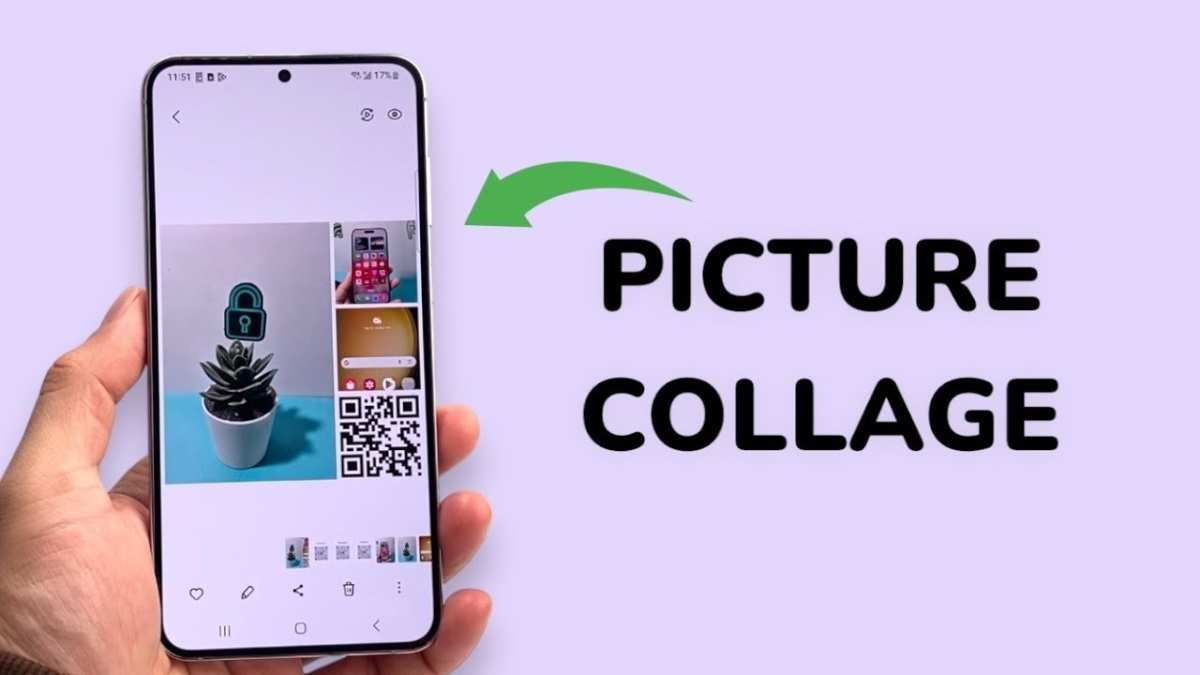
To make a photo collage on Android, simply select a user-friendly app and follow a few quick steps. **You just need to choose your photos, arrange them as you like, and save your creation.** Wondering how to make a photo collage on Android? It’s easier than you think. With the right app, you can craft personalized collages in minutes. No need for complicated software—just tap, drag, and customize to suit your style.
How to Make a Photo Collage on Android
Creating a photo collage on your Android device is a fun way to combine multiple pictures into one beautiful and eye-catching image. Whether you want to showcase your favorite memories, prepare a gift, or simply organize your photos creatively, making a photo collage is easier than you think. In this guide, we’ll walk through the steps to craft stunning photo collages on Android, explore the best apps available, and share tips to help you enhance your creations.
Understanding What a Photo Collage Is
Before diving into the how-to steps, it’s helpful to understand what a photo collage really is. Think of a collage as a picture puzzle where several photos are put together to tell a story or display a theme. Unlike single photos, collages allow you to:
- Show multiple moments in one view
- Create themed arrangements, like holiday or birthday collages
- Design personalized greeting cards or posters
- Share memories easily on social media
Photo collages can be simple with just a few photos or complex with many images, different shapes, and decorative elements.
Choosing the Right App for Making a Photo Collage
The first step to making your collage is selecting a good app. Several apps are available on the Google Play Store, and each offers unique features. Here are some popular options:
- Canva
- PicCollage
- PhotoGrid
- Pixlr
- Fotor
When choosing an app, consider these factors:
- Ease of use — You want an app with simple controls and clear options.
- Design options — Look for apps that offer templates, stickers, fonts, and backgrounds.
- Editing features — Adjustments like cropping, resizing, filters, and text add more creativity.
- Export quality — Ensure the app allows saving images in high resolution for sharing or printing.
Step-by-Step Guide to Making a Photo Collage on Android
Once you’ve picked an app, follow these general steps to create a collage:
Step 1: Install and Open Your Chosen App
Head to the Google Play Store, search for your selected app, and tap install. After installation, open the app and look for options like “Create Collage,” “Start New,” or similar.
Step 2: Select Photos for Your Collage
Most apps will ask you to choose the photos you want in your collage. You can pick images from your gallery or take new pictures directly within the app. Aim to select high-quality images to make your collage look sharp and vibrant.
Step 3: Choose a Layout or Template
Many apps offer pre-designed templates or grid layouts. Pick one that suits your purpose, such as a grid for equal-sized photos, a freeform layout for more creative arrangements, or thematic templates for specific occasions.
Step 4: Arrange and Customize the Photos
After choosing a layout, you can move, resize, or rotate your photos. Some apps allow you to:
- Drag photos to different positions
- Zoom in or out on images
- Add borders and spacing between images
Make sure the arrangement looks balanced and visually appealing. Don’t be afraid to experiment with different placements.
Step 5: Add Personal Touches
Enhance your collage by adding text, stickers, or decorations. For example, you might include captions, titles, or fun stickers to match the theme. Adjust font styles and colors to blend well with your images.
Step 6: Fine-Tune Your Collage
Before finalizing, review your work. Adjust brightness, contrast, or filters if the app offers editing tools. Ensure all images are clear and colors are vibrant. Play with backgrounds or patterns if your app provides these options.
Step 7: Save and Share Your Collage
Once satisfied, save your collage to your device. Choose the highest resolution available to keep quality sharp. Now, you can share your masterpiece directly to social media platforms, send it via messaging apps, or print it out.
Tips to Make Your Collage Stand Out
Creating a memorable collage involves more than just putting photos together. Here are some tips:
- Plan your theme: Decide whether your collage will be fun, sentimental, or artistic.
- Choose complementary images: Select photos that match in style or color for a cohesive look.
- Use borders and spacing thoughtfully: Avoid overcrowding and give each photo space to breathe.
- Add captions or quotes: Personal touches like heartfelt words can add meaning.
- Experiment with layouts: Don’t settle on the first design. Try different arrangements until you find the perfect one.
Creative Ideas for Photo Collages
Looking for inspiration? Here are some creative ways to use photo collages:
- Memory wall — Showcase your favorite moments from a vacation or special event.
- Greetings and cards — Design personalized holiday or birthday cards.
- Before and after — Show progress or transformation over time, like a makeover or project.
- Theme collections — Create collages based on seasons, hobbies, or interests.
- Storytelling — Use multiple images to tell a story or document an activity step by step.
Common Mistakes to Avoid
To make sure your collage looks professional and appealing, watch out for these pitfalls:
- Overloading with too many photos — Keep it simple for clarity.
- Using low-quality images — Blurry or pixelated photos ruin the look.
- Choosing incompatible colors or styles — Aim for a harmonious palette.
- Ignoring alignment and spacing — Keep everything neat and organized.
- Skipping edits — Small adjustments can make a big difference in final appearance.
Making a photo collage on Android is a straightforward process that allows you to showcase your creativity. With the right app and some patience, you can create stunning compositions that capture your memories beautifully. Remember to plan your layout, experiment with different styles, and add personal touches to make each collage unique. Whether you’re creating a keepsake for yourself or a gift for someone special, your photos can tell a story that words sometimes cannot.
Now that you have all the info, go ahead and start creating your own amazing photo collages!
Frequently Asked Questions
What are some popular apps I can use to create a photo collage on Android?
Some widely used apps for making photo collages on Android include Google Photos, Canva, Pic Collage, and Adobe Spark Post. These apps offer user-friendly interfaces and a variety of templates that make arranging your photos easy and fun.
How can I customize the layout of my photo collage on Android?
Most collage apps provide options to choose different grid styles and aspect ratios. You can easily drag and drop your photos into the layout, resize or reposition images, and choose different backgrounds or border styles to personalize your collage according to your preferences.
What steps should I follow to add text or stickers to my collage on Android?
To add text or stickers, open your collage in the app, then select the respective tools usually found in the editing menu. Tap on the text or sticker option, type your message or select stickers from the library, and place them anywhere on the collage. Adjust the size, color, and style as needed.
Can I edit or enhance my photos before adding them into a collage on Android?
Yes, most collage apps allow you to edit individual photos before placing them into the collage. You can crop, rotate, adjust brightness, contrast, and apply filters to enhance each photo, ensuring your collage looks polished and vibrant.
How do I save or share my completed photo collage on Android?
Once you finish editing your collage, tap the save option to store it in your gallery or device. Many apps also provide direct sharing options to social media platforms, messaging apps, or email, allowing you to share your creation immediately with friends and family.
Final Thoughts
To make a photo collage on Android, start by choosing a user-friendly app like Canva or PicsArt. Select the collage feature and pick a layout that suits your photos. Add your images, resize, and adjust them for a balanced look. Customize with stickers, text, and backgrounds to personalize your creation.
Once satisfied, save or directly share your collage. Practicing these simple steps helps you create beautiful photo collages effortlessly. Making a photo collage on Android becomes quick and enjoyable with these easy-to-follow methods.

Similar Posts































