How To Make A Ringtone From A Song On Android In Simple?
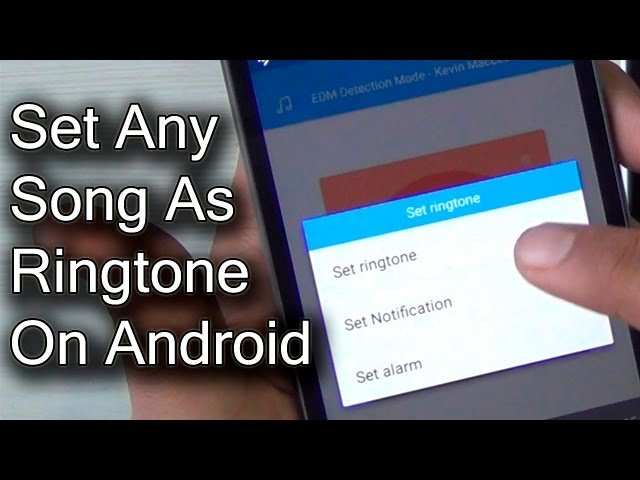
How to Make a Ringtone from a Song on Android
Creating your own custom ringtone from a favorite song on your Android device is easier than you might think. It allows you to personalize your phone, making it uniquely yours and giving you a fun way to set apart your incoming calls. Whether you’re aiming to use a catchy chorus, a favorite melody, or a funny sound bite, this guide will walk you through every step of the process. Let’s explore how you can craft perfect ringtones directly from your music collection in a simple, straightforward manner.Understanding Why Making Your Own Ringtone Matters
Before diving into the process, it’s helpful to understand why creating your own ringtone adds value. Default ringtones are common and easily recognizable, which can make your phone less distinctive. By making a custom ringtone, you:- Express your personality through music choices
- Use meaningful or favorite parts of songs
- Avoid having the same ringtone as others
- Control exactly which part of the song rings when called
What You Need Before You Start
To make your own ringtone from a song on Android, gather these essentials:- An Android smartphone or tablet running Android OS (preferably Android 8 or higher for better app support)
- The song you want to turn into a ringtone; ensure it is stored locally on your device
- Basic knowledge of using your device’s apps and settings
- A ringtone maker app (many are free and easy to use)
Choosing the Right Song for Your Ringtone
Pick a song or sound clip that suits your personality. Keep in mind:Factors to Consider When Selecting a Song
- Length: Ringtones are usually 20-30 seconds long. Choose a part of the song that is catchy and clear within this duration.
- Quality: Use songs with good audio clarity. Low-quality recordings may sound distorted when used as ringtones.
- Legal Rights: Ensure you have the rights or permission to use the song, especially for public or shared uses, to avoid copyright issues.
Popular Sound Choices
- A favorite chorus or hook
- A funny or quirky sound effect
- An inspiring quote from a song or speech
How to Use Built-in Tools to Make a Ringtone
Most Android phones include basic tools to create ringtones without needing third-party apps. Here’s a simple way using your device’s default options:Using the Music or Voice Recorder App
- Open your music player app or file manager.
- Find and select the song you want to turn into a ringtone.
- Use the editing or trimming feature (if available) to select the desired part of the song.
- Save this clip as a new file in your device’s storage.
Best Apps to Make Ringtones on Android
For more control and features, third-party apps are a great choice. Here are some top-rated options:Ringdroid
Ringdroid is a popular, easy-to-use app designed specifically for creating ringtones, alarms, and notification sounds. It provides:- Precise trimming tools
- Multiple file formats support
- Directly sets ringtone after editing
MP3 Cutter and Ringtone Maker
This app allows you to cut parts of your MP3 files quickly and save them as ringtones. It offers:- User-friendly interface
- Ability to save multiple tones
- Option to set the ringtone directly from the app
Using a Ringtone Maker App Step-by-Step
- Download and install your preferred ringtone maker from the Google Play Store.
- Open the app and grant necessary permissions to access your audio files.
- Select the song you want to edit from your device’s storage.
- Use the trimming tool to select the segment you wish to use as a ringtone.
- Preview the selected segment to ensure it sounds right.
- Save the clip and give it a recognizable name.
- Follow the app’s prompts to set it as your ringtone, notification, or alarm sound.
How to Set Your Custom Ringtone on Android
Once you have created your ringtone, follow these steps to set it on your device:Assigning the Ringtone to a Contact
- Open the Contacts app or Phone app.
- Select the contact you want to assign a unique ringtone to.
- Tap on the ‘Edit’ or pencil icon.
- Scroll to find the ‘Ringtone’ option.
- Choose your newly created ringtone from the list.
- Save the changes.
Setting as Default Ringtone
- Go to your device’s Settings app.
- Select ‘Sounds & Vibration’ or ‘Sound’.
- Tap on ‘Ringtone’ or ‘Phone Ringtone’.
- Scroll through the list and select your custom ringtone.
- Confirm and exit settings.
Tips for Creating Better Ringtones
To make sure your ringtones sound professional and appealing, consider these tips:- Trim the sound at natural pauses or impactful moments.
- Avoid overly long segments; keep the clip around 20-30 seconds.
- Use the highest possible audio quality for clarity.
- Preview your ringtone on different speakers to ensure it sounds good across devices.
- Save multiple ringtones for different contacts or moods.
Common Mistakes to Avoid
Here’s what to watch out for to ensure your ringtone creation process goes smoothly:- Using copyrighted material without permission.
- Not saving the edited clip correctly, leading to loss of work.
- Choosing very quiet or distorted parts of the song.
- Overcomplicating the edit with excessive trimming, which may cut off important parts.
Frequently Asked Questions
What are the steps to cut a specific part of a song for a ringtone on Android?
To cut a specific segment of a song, open a ringtone maker app on your Android device. Import the song you want to use, then select the start and end points of the section you prefer as your ringtone. Use the app’s editing tools to fine-tune the selection. Once satisfied, save the clip in the ringtone format and set it as your default or contact-specific ringtone directly within the app or your phone’s settings.
Can I create a custom ringtone from any music file stored on my Android device?
Yes, most music files on your device can be turned into ringtones. Use a ringtone editing app to browse and select a song from your storage. After importing, trim or edit the file to create a desired ringtone segment. Save and assign the new ringtone through your device’s sound settings or within the app if it offers direct setting options.
Are there any free apps available to make ringtones from songs on Android?
Several free apps are available for creating ringtones on Android, such as Ringtone Maker, MP3 Cutter, and Ringdroid. These apps allow you to import music files, cut or trim loops, and save the customized ringtones without any cost. You can download them from the Google Play Store and follow their simple editing procedures to make your personalized ringtones.
Final Thoughts
Making a ringtone from a song on Android is simple and quick. Use a dedicated app or your device’s built-in editor to trim the song to your preferred segment. Save the clip as a ringtone in your settings. By following these steps, you can easily create personalized ringtones. Remember, how to make a ringtone from a song on android depends on the app you choose, but the process remains straightforward. Enjoy customizing your phone with your favorite sounds!
Similar Posts































