How To Make A Song A Ringtone Android In Few Steps
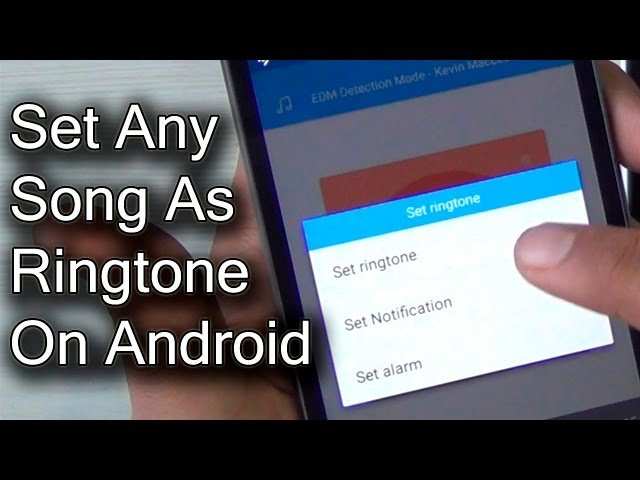
How to Make a Song a Ringtone on Android
Making a song into a ringtone on your Android device is a simple process that allows you to personalize your phone and enjoy your favorite tunes every time someone calls. Whether you want to cut a specific part of a song, use a song from your music library, or create a custom ringtone, this guide will walk you through each step in detail. We will explore various methods, including using built-in Android features and third-party apps, to help you choose the best way suited for your needs.Understanding Ringtones on Android Devices
Before diving into the how-to, it’s important to understand what ringtones are and how Android handles them.What Is a Ringtone?
A ringtone is an audio file designed to alert you of incoming calls. It can be any sound, including music, voice recordings, or sound effects. Android devices typically accept MP3, WAV, and OGG formats for ringtones.How Android Devices Store Ringtones
Ringtones are stored in specific folders on your device’s internal storage or SD card. Common locations include:- Audio folder: /Music/ or /Audio/
- Ringtones folder: /Ringtones/
- Notifications folder: /Notifications/
Steps to Make a Song a Ringtone on Android
Here, we’ll explore several methods, starting with the simplest built-in options and progressing to more advanced techniques involving third-party apps.Using Built-in Android Settings
Many Android devices, particularly those with stock Android or minimal customizations, allow you to set a song as a ringtone directly from the music player or file manager.- Locate the song: Open your music app or file manager and find the song you want to use as a ringtone.
- Open song options: Tap the three-dot menu or options icon next to the song.
- Select “Set as ringtone”: If available, tap this option. Some devices may label it differently, such as “Use as” or “Assign to.”
- Confirm your choice: You might be prompted to choose whether to set the ringtone for all calls or just specific contacts.
Using the Files App and Manual Placement
If your device does not support setting a ringtone directly, you can manually save the song to the appropriate folder.- Trim the song (if needed): Use a basic audio editor to select the part of the song you want as a ringtone (more on this below).
- Save the trimmed song: Ensure it’s in MP3 format for maximum compatibility.
- Connect your Android device to a computer or use a file manager: Transfer the file to your device’s internal storage or SD card.
- Place the file: Save the song to the /Ringtones/ folder. If it doesn’t exist, you can create it.
- Set the song as ringtone: Go to your device Settings > Sound & vibration > Ringtone, then select your new ringtone from the list.
Using Ringtone Maker Apps
For more precise control over the part of the song you want as a ringtone, ringtone maker apps are handy. They allow you to cut and customize audio clips easily.Popular ringtone maker apps include:
- MP3 Cutter and Ringtone Maker
- Ringdroid
- Ringtone Maker
Steps to create a custom ringtone with a ringtone maker app:
- Download and install a ringtone maker app: Find one on the Google Play Store and install it.
- Open the app: Launch the app and grant necessary permissions to access your media files.
- Select your song: Browse your music library and pick the song you want to edit.
- Cut the desired part: Use the app’s editing tools to select the specific segment you want for your ringtone. Usually, you can set start and end points with precision.
- Save the clip: Once satisfied, save the clip as a new audio file. Most apps allow you to name it accordingly.
- Set as ringtone: The app often gives an option to set the clip directly as your ringtone, or you can manually assign it through your device’s sound settings.
Best Practices for Making Ringtones on Android
When creating or selecting a ringtone, keep these tips in mind:Choose the Right Part of the Song
– Pick a catchy or recognizable part, typically the chorus or a distinctive intro. – Keep it brief—around 20-30 seconds—to avoid long delays when receiving calls.Use Compatible Audio Formats
– MP3 remains the most popular and widely supported format. – WAV and OGG are also compatible but tend to be larger in size.Optimize the Audio Quality
– Use high-quality audio files to avoid distortion. – Trim the clip to remove any unwanted noise or silence at the beginning or end.Avoid Copyright Issues
– Use songs you own or have permission to use. – Consider creating original audio clips or using royalty-free music to avoid legal issues.Additional Tips for Managing and Using Ringtones
Managing multiple ringtones and assigning them to contacts can help you identify callers more easily.Assigning Different Ringtones to Contacts
– Open your contacts app. – Select a contact. – Tap Edit or the pencil icon. – Find the ringtone option and select your preferred sound. – Save your changes.Organizing Ringtones on Your Device
– Keep different ringtones in dedicated folders like /Ringtones/, /Notifications/, and /Alarms/. – Use descriptive filenames to identify each ringtone easily.Using Third-Party Apps for Advanced Features
Some apps offer advanced options such as creating fade-in or fade-out effects, customizing multiple segments, or integrating with your music library seamlessly.Popular third-party apps include:
- GarageBand (for more creative editing)
- WaveEditor
- Audacity (requires PC but offers professional editing tools)
Final Words
Creating a ringtone from a song on your Android device is straightforward when you use the right tools and follow the proper steps. Whether you prefer using your device’s built-in features, file managers, or dedicated editing apps, each method offers flexibility. Remember to select the exact part of the song you enjoy most, keep the file in a compatible format, and organize your ringtones systematically. Personalizing your phone in this way not only makes it more fun but also helps you quickly recognize callers and contacts. Now, go ahead and make your favorite song ring out whenever someone calls you!Frequently Asked Questions
How can I extract a specific segment of a song to use as a ringtone?
To extract a particular part of a song, open an audio editing app on your Android device. Import the song file, then select the segment you want to use as a ringtone by trimming or cutting the audio. Save the edited clip in your device’s storage. You can then set this trimmed file as your ringtone through your device’s settings.
What steps should I follow to set a custom ringtone from a song on Android?
First, save the song or trimmed audio file to your phone’s internal storage. Navigate to your device’s Settings > Sound & Vibration > Ringtone. Choose the option to add a new ringtone, locate your saved song or clip, and select it. Confirm your selection, and your custom ringtone will be active for calls.
Are there any apps recommended for creating ringtones from songs on Android?
Yes, several apps like Ringtone Maker and MP3 Cutter offer simple tools to create custom ringtones. These apps allow you to select, cut, and save specific parts of songs directly on your device. After editing, you can set your new ringtone through your device’s sound settings without needing additional steps.
Can I use any song from my music library as a ringtone?
Most songs stored locally on your device can be used as ringtones, provided they are in supported formats like MP3 or WAV. Make sure you have the rights to use the song, especially if it’s copyrighted. Use an audio editor to trim or convert files if necessary before setting them as your ringtone.
How do I troubleshoot if my custom ringtone isn’t appearing in the list?
If your ringtone doesn’t show up, ensure the file is saved in the correct folder, typically the ‘Ringtones’ directory. Restart your device or refresh the ringtone list in your sound settings. Also, check that the file format is compatible and that the file isn’t corrupted. Moving the file to the proper folder often resolves this issue.
Final Thoughts
Pour faire d’une chanson une sonnerie sur Android, commencez par choisir la chanson souhaitée. Utilisez une application de montage audio pour couper la partie que vous souhaitez utiliser comme sonnerie. Enregistrez cette sélection dans un format compatible, comme MP3. Ensuite, transférez le fichier sur votre téléphone via un câble ou une application de gestion de fichiers. Accédez aux paramètres de sonnerie sur votre téléphone, puis sélectionnez le fichier pour le définir comme sonnerie. En résumé, faire une chanson une sonnerie Android est simple : choisissez, coupez, enregistrez, puis sélectionnez. Comment faire une chanson une ringtone android devient une tâche facile quand vous suivez ces étapes claires et directes.
Similar Posts































