Android How To Make Folder

Android How to Make Folder: A Complete Guide
Creating folders on your Android device is one of the easiest ways to organize your apps, files, and shortcuts. Instead of scrolling endlessly through screens or digging through menus, folders give you a neat, accessible way to keep everything tidy. Whether you’re a new Android user or someone who wants to optimize their device usage, understanding how to make folders can make your experience much smoother. This guide will take you through all the steps, tips, and tricks to help you master folder creation and management on Android. We’ll explore different methods depending on your device model and Android version, discuss customizing your folders, and offer ideas on how to label and organize them for maximum efficiency. Let’s start by understanding why folders are essential and how they can improve your Android experience.Why Creating Folders on Android Matters
Folders serve many purposes on your Android device:- Organization: Keep apps and files in one place for easier access.
- Space maximization: Reduce clutter on your home screens.
- Quick access: Save time by finding apps quickly inside organized folders.
- Customization: Personalize your home screen with color-coded folders or themed categories.
How to Make a Folder on Android Devices
Creating folders on Android can vary slightly depending on the device brand (Samsung, Google, OnePlus, etc.) and the Android version installed. Still, the basic process tends to be similar across most devices.Basic Method for Most Android Devices
Most Android phones allow you to create a folder directly on the home screen by following these simple steps:- Go to your home screen where your apps are located.
- Identify the two apps you want to put together in a folder.
- Tap and hold one of the apps until it enlarges slightly or you see options appear.
- While holding the app, drag it over the second app you want to include in the folder.
- When the apps overlap, release your finger. Android will automatically create a folder containing both apps.
- Adding more apps: Drag other apps into the folder.
- Renaming the folder: Tap the folder, then select the name field to type a new name.
- Changing the folder icon or color: Some Android versions let you customize the folder’s appearance for better recognition.
Using the Context Menu to Create Folders
On some Android devices, particularly those with customized interfaces like Samsung’s One UI or Huawei EMUI, you might use a different approach:- Tap and hold an app icon until options appear.
- Select ‘Edit’ or ‘Add to folder’ (if available).
- Choose ‘Create folder’ from the menu options.
- Follow prompts to add apps and give the folder a name.
Creating Folders via App Drawer (If Supported)
In some Android versions or custom skins, you can also create folders inside the app drawer:- Open your app drawer.
- Tap and hold an app icon.
- Drag it onto another app to create a folder.
- Name the folder for easier identification.
Customizing and Managing Your Folders
Once you create a folder, it’s important to manage it properly for maximum usability.Renaming Folders
Renaming a folder helps you quickly identify its contents. To do this:- Tap on the folder to open it.
- Tap on the folder’s name field (or the default name like “Folder”).
- Type your preferred name, such as “Work Apps” or “Games”.
- Press OK or Done to save the new name.
Adding or Removing Apps from Folders
You can easily add more apps or remove existing ones:- To add, open the folder, then drag an app icon into it from the home screen or app drawer.
- To remove an app, open the folder, tap and hold the app icon, then drag it out of the folder to another spot or delete it.
Rearranging Apps Inside a Folder
Most Android devices allow you to reorder apps within a folder:- Open the folder.
- Tap and hold an app icon.
- Drag it to your desired position.
- Release to set the new order.
Deleting a Folder
To delete a folder, you need to remove all apps from it:- Open the folder.
- Remove all apps by dragging each one out.
- Once empty, the folder will typically automatically disappear, or you can delete it by dragging it to the home screen trash icon (if your device supports this).
Advanced Tips for Folder Management
Beyond basic creation and editing, here are some tips to make your folder management more effective:Color-Coded Folders for Quick Recognition
Many Android devices allow you to change folder colors:- Tap the folder to open it.
- Tap on the customize or color option.
- Choose a color that matches your theme or categorization system.
Using Folders for Specific Categories
You might create folders like:- Work: Apps related to your job email, calendar, or work tools.
- Games: All your favorite gaming apps.
- Photos: Gallery apps or photo editing tools.
- Utilities: Calculator, flashlight, or file managers.
Using Folders for Files and Documents
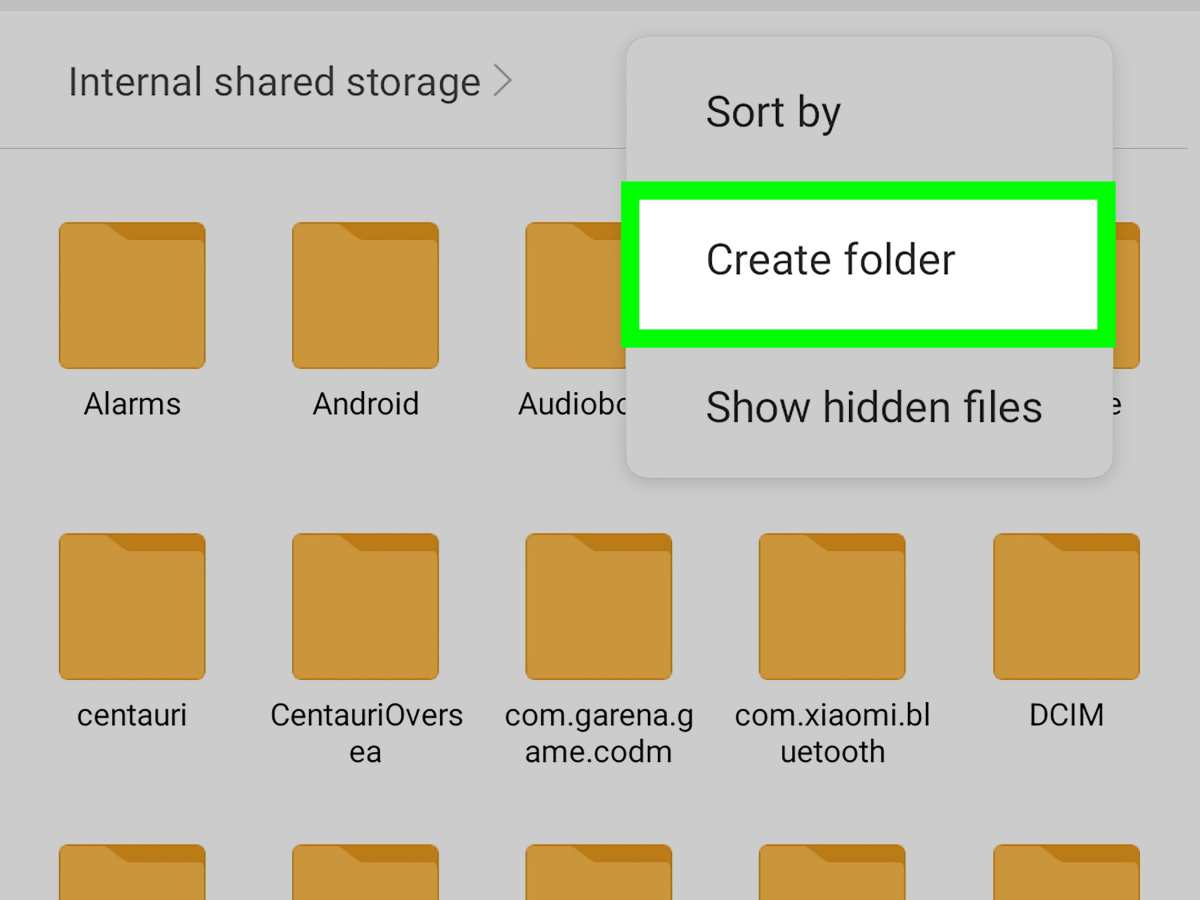
If your Android supports file management or your Google Files app, you can make folders to store documents, pictures, and downloads:- Open your file manager app.
- Create new folders by selecting “New Folder” option.
- Name the folder clearly.
- Move relevant files into these folders for easy access.
Frequently Asked Questions
How can I create a new folder on my Android home screen?
To create a new folder on your Android home screen, tap and hold any app icon until options appear. Drag the app icon onto another app icon that you want to include in the same folder. When they overlap, release the icon, and Android will automatically create a folder containing both apps. You can then tap the folder to open it and tap the folder name to rename it as desired.
What steps should I follow to add multiple apps into a new folder?
Start by holding down an app icon until it becomes movable. Drag the app onto a second app icon to create a folder. Then, repeat the process by dragging additional apps into the same folder. To organize the folder, tap it open, then tap on its name to change it or rearrange the app icons within the folder for easier access.
Can I customize the appearance or name of a folder on my Android device?
Yes, after creating a folder, tap on it to open. Most Android devices allow you to tap on the folder’s name to edit it. To change the appearance, you can often move or remove individual app icons within the folder. Some Android launchers also provide options to customize folder backgrounds or icons through their settings, enhancing your organization and visual appeal.
Is it possible to create folders in the app drawer on Android?
Many Android launchers support creating folders inside the app drawer. To do this, open the app drawer, then tap and hold an app icon. Drag it over another app to form a folder. You can then access the folder from the app drawer, allowing you to group related apps for better management and quicker access.
How do I delete or remove a folder from my Android home screen?
To delete a folder, open it by tapping on it. Then, drag all apps out of the folder or tap the menu options within the folder to find the delete or remove option. Once the folder is empty, it will automatically disappear from your home screen. Some devices also allow you to tap and hold the folder icon, then select ‘Delete’ or ‘Remove’ from the options that appear.
Final Thoughts
Creating a folder on Android is straightforward and helps organize apps efficiently. You can do this by long-pressing an app icon and dragging it onto another app. Release the icon to automatically create a new folder containing both apps. You can also name the folder by tapping on the default name and entering a personalized label. This simple method keeps your home screen tidy and improves accessibility. In conclusion, understanding how to make folder on Android simplifies app management. ‘android how to make folder’ is a useful skill that enhances your device’s usability.
Similar Posts































