How To Make Resume In Android Phone For Job Search
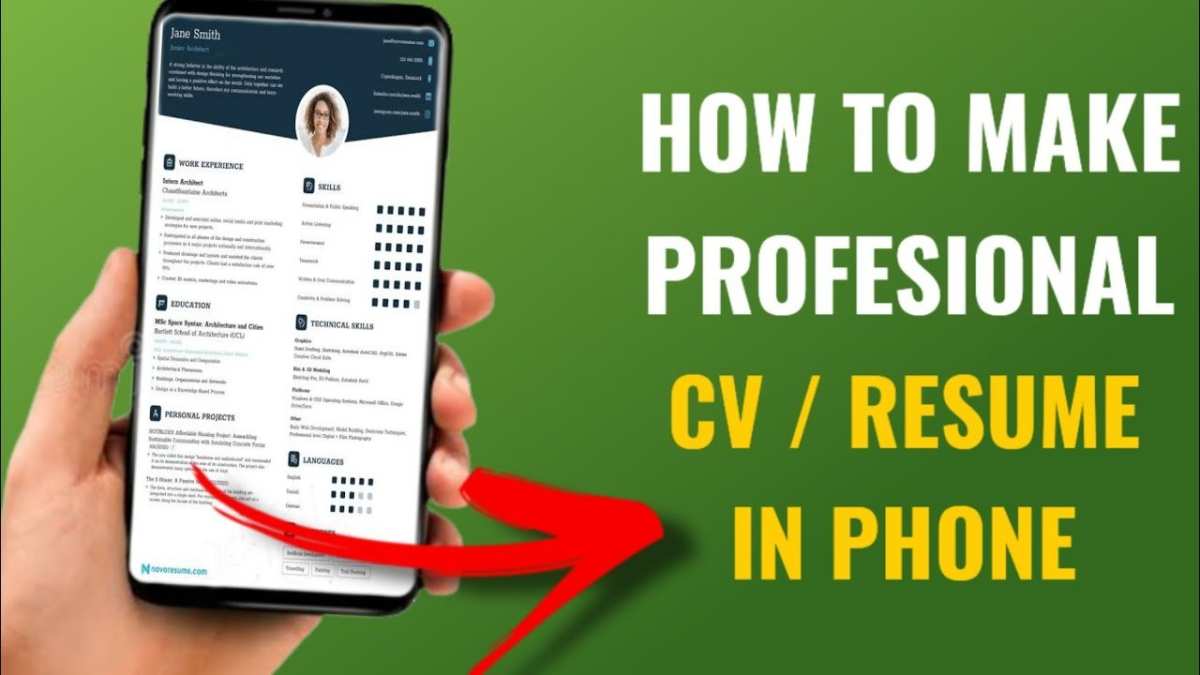

How to Make a Resume in an Android Phone
Creating a resume on your Android phone might sound challenging at first, but it’s actually quite simple once you understand the steps involved. Whether you’re job hunting, updating your resume, or just want to have a professional document ready for future opportunities, your Android device can be a powerful tool. In this detailed guide, we will walk you through everything you need to know about making a resume directly on your Android phone. From choosing the right app to formatting your document, this guide will help you create a polished resume that impresses employers and gets you noticed.Why Use Your Android Phone to Make a Resume?
Before jumping into the how-to, let’s talk about why making your resume on an Android phone makes sense:- Convenience: You can work on your resume anytime and anywhere, whether you are commuting, waiting in line, or relaxing at home.
- Cost-effective: You don’t need a laptop or desktop computer; your phone is enough to create, edit, and save your resume.
- App variety: Android offers numerous apps designed specifically for document creation, making the process smooth and efficient.
- Access to templates: Many apps provide ready-to-use resume templates to make your job easier.
Choosing the Right App for Creating Your Resume
The first step is to select a suitable app that will help you build your resume. Here are some popular options:- Google Docs: Free, cloud-based, easy to use, and perfect for creating and editing resumes with lots of formatting options.
- Microsoft Word: Offers many resume templates and powerful editing features. Available via the Office app.
- Canva: Ideal for visually appealing resumes; great for adding images, icons, and creative designs.
- Resume Builder Apps: Apps like “Resume Builder” or “My Resume” are specifically made for creating resumes and often include templates and tips.
Installing and Setting Up Your Resume App
Once you’ve chosen an app, follow these steps to get started:- Go to the Google Play Store or your preferred app store on your Android device.
- Search for the app you want—such as “Google Docs” or “Microsoft Word”.
- Tap Install and wait for the app to download and install on your device.
- Open the app once it’s installed.
- Sign in with your Google account (for Google Docs) or Microsoft account (for Word), or create a new account if needed.
Finding and Using Resume Templates
Templates make creating a resume much easier because they come with pre-designed layouts. Here’s how to use templates in popular apps:Using Google Docs Templates
Google Docs offers a variety of free resume templates that you can customize:
- Open Google Docs and tap the “+” icon or “Blank” document.
- Tap the three-dot menu or the “Template Gallery” option at the top.
- Scroll through the available templates and select a resume template you like.
- The template opens as a new document ready for editing.
Using Microsoft Word Templates
Microsoft Word provides professional resume templates:
- Open the Word app and tap on “New Document”.
- Search for “Resume” in the template search bar.
- Choose a template you prefer and tap “Create”.
- The template loads into the editor for customization.
Using Canva for Creative Resumes
Canva offers visually stunning templates:
- Open Canva and select “Templates” > “Resumes”.
- Pick a design that suits your personality and profession.
- Tap on the template to customize text, colors, and fonts.
Building Your Resume Content Step by Step
Creating a strong resume requires clear, concise content that highlights your skills, experience, and education. Here are the essential sections to include:Contact Information
Make this section quick and easy to find. Include:- Your full name
- Phone number
- Email address
- Optional: your LinkedIn profile or personal website
Professional Summary
Write a brief statement (2-3 sentences) summarizing who you are, your key skills, and what kind of job you’re seeking. Focus on what makes you unique.Work Experience
List your past jobs in reverse chronological order (most recent first). For each position, include:- Job title
- Company name
- Dates of employment
- Key responsibilities and achievements
Education
Mention your educational background, starting with the most recent:- School or university name
- Degree or certificate earned
- Year of graduation or completion
Skills and Certifications
Highlight technical skills, language abilities, certifications, or other relevant competencies:- Software proficiency (e.g., MS Office, Photoshop)
- Languages spoken
- Certifications (e.g., CPR, project management)
Awards and Volunteer Work (Optional)
Include any awards, honors, or volunteer experiences that support your candidacy.Formatting Your Resume for Impact
Good formatting makes your resume easier to read and more appealing. Here are tips to keep in mind:- Use clear headings for each section.
- Choose a simple, professional font such as Arial or Calibri.
- Keep font size between 10-12 for body text and slightly larger for headings.
- Use bullet points to organize information neatly.
- Maintain consistent spacing and alignment throughout the document.
- Limit your resume to one or two pages maximum.
Adding Finishing Touches and Saving Your Resume
Before finishing, review your resume:- Check for typos and grammatical errors.
- Ensure all information is accurate and up to date.
- Make sure your formatting looks uniform.
- PDF: Ideal for sending to employers because it preserves formatting.
- Word or Google Docs document: Useful if you need to make edits later.
Sending Your Resume or Uploading It Online
When applying for jobs:- Attach the PDF version when submitting your application via email or online portals.
- Ensure the file name is professional, such as “YourName_Resume.pdf”.
- Use email drafts or job portals to upload your resume directly.
Tips for Making Your Resume Stand Out
Finally, here are some quick tips to ensure your resume grabs attention:- Tailor your resume for each job description by emphasizing relevant skills and experiences.
- Keep your language positive and action-oriented.
- Use numbers and metrics to highlight achievements (“Increased sales by 20%”).
- Avoid clutter; prioritize clarity and simplicity.
- Ask a friend or mentor to review your resume for feedback.
Frequently Asked Questions
What are some Android apps I can use to create a resume easily?
There are several user-friendly Android apps like Canva, Microsoft Word, and Google Docs that help you craft a professional resume. These apps offer customizable templates and tools that make it simple to input your information, format your document, and save or share your resume directly from your phone.
How can I ensure my resume looks professional when editing on an Android device?
Focus on choosing clean, straightforward templates available within the app. Use clear headings, consistent fonts, and proper spacing to enhance readability. Double-check for typos and grammatical errors before finalizing your resume. Most apps also allow you to preview and print your document for a polished look.
What steps should I follow to add contact details and work experience on my Android resume?
Start by opening your preferred resume template in an editing app. Fill in your contact information at the top, including your name, phone number, email, and LinkedIn profile if available. Proceed to add your work experience, listing your roles in reverse chronological order. Include details like job title, company name, dates of employment, and key responsibilities or achievements for each position.
Can I customize fonts and colors when creating a resume on my Android phone?
Yes, most Android resume apps and editing tools let you select from a variety of fonts and color schemes. Use these features to personalize your resume while maintaining a professional appearance. Be sure to keep the design simple and avoid excessive colors or decorative fonts to ensure clarity and readability.
How do I save and share my resume from an Android device?
After completing your resume, save the document in a suitable format such as PDF or Word file within the app. You can then share your resume via email, upload it to cloud storage services like Google Drive or Dropbox, or send it directly through messaging apps. Saving your resume as a PDF helps preserve formatting when sharing with potential employers.
Final Thoughts
To make a resume in Android phone, choose a user-friendly app like Canva or Google Docs. Select a professional template and customize it with your details. Keep the layout clean and concise for easy reading. Final thoughts: how to make resume in android phone involves selecting the right app, using a suitable template, and updating your information clearly. This approach helps create an effective resume quickly and efficiently.
Similar Posts































